
Desktop · 0:25 video
Check a difficult passage with a second model
Compare a second local transcription before deciding whether to change the wording.
Before you start: Selected transcript words and the optional wording-review model pack.
Download videoDownload captions
Step by step
Select the passage
Click a word, Shift-click the last word, then open Speakers and wording → Review wording…. Select up to 30 seconds.
Ask for a wording check
Choose Check wording. The original text stays visible while a second local model processes the selected audio. This CPU step can take a few minutes.
Compare, edit, and accept
Read Suggested wording against the original. Make any corrections you want, then choose Accept wording. Close the preview if you prefer to keep the original.
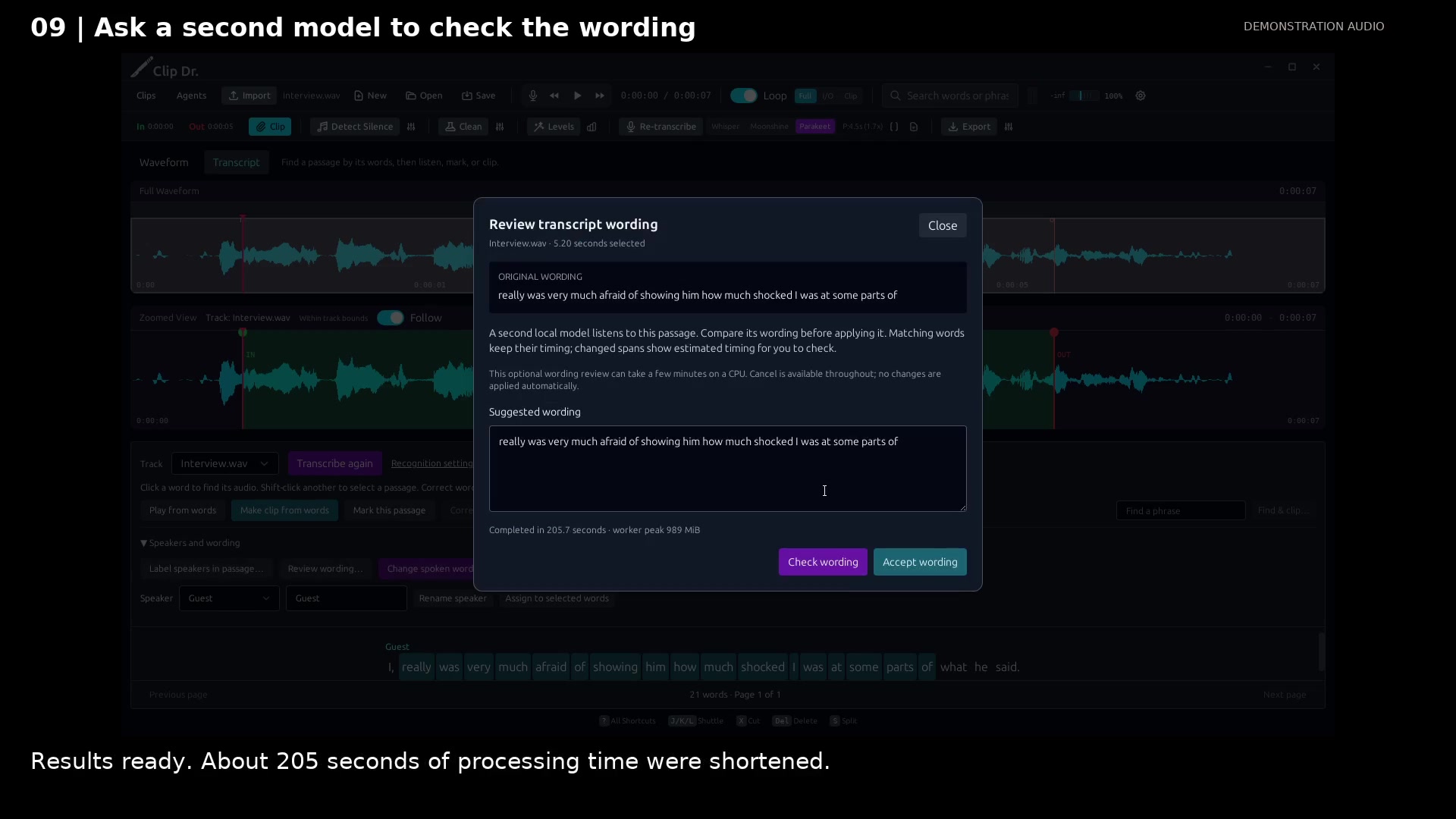
Compare the original and suggested wording. Open full size
- Keep the original wording in view.
- Review and edit the suggestion before accepting.
Read the video instructions
- Review a difficult passage without losing the transcript’s timing or changing its audio.
- 1. Select a passage, open Speakers and wording, and choose Review wording…
- 2. Choose Check wording. This optional CPU review can take a few minutes.
- Processing runs locally. Wait for the result before continuing.
- The result is ready to review.
- 3. Read the suggestion. Edit it if needed, then Accept wording to keep it.
- Matching words keep their timing. Listen closely to spans with estimated timing; Undo is available.
Audio credits
LibriSpeech excerpts 1688-142285-0007 and 1272-128104-0000, collected by Vassil Panayotov, Guoguo Chen, Daniel Povey, and Sanjeev Khudanpur from LibriVox, are used under CC BY 4.0. Excerpts have been trimmed, resampled, padded, or processed. The voice-replacement example uses an original synthetic voice.