
Learn by doing
All how-tos
Enter an app name or the task you want to finish. Find videos, illustrated steps, and written guides in one place.
No apps or how-tos match your search. Try an app name or fewer words.
Pocket Nerd
About Pocket Nerd
A scratchpad for money, in your pocket. Write down what you spent in seconds, see what it does to tomorrow, and change your mind as often as you like. Nothing is wired to a bank.
Explore Pocket Nerd →
Install the Pocket Nerd beta on Android
Download your approved Pocket Nerd beta, install it on Android and open it for the first time.
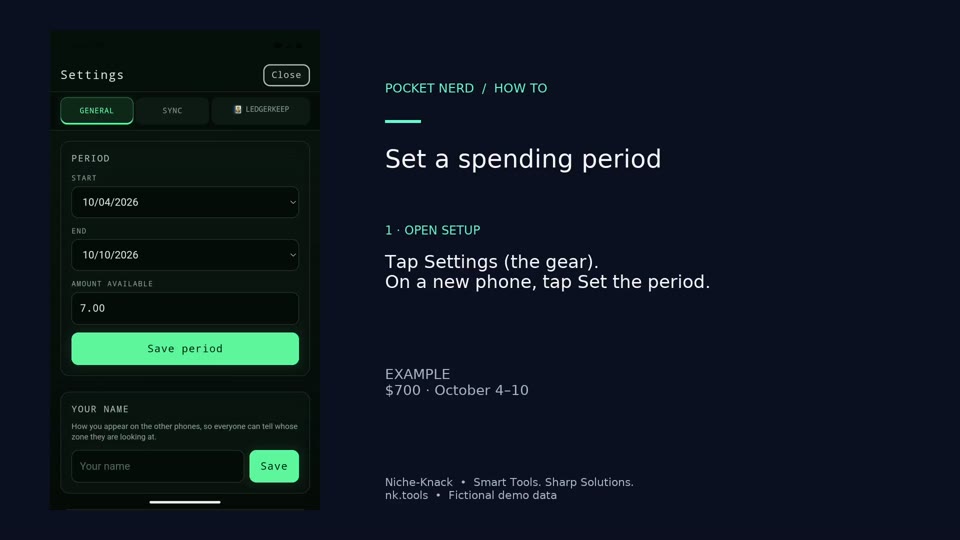
Set a spending period
Set the dates and amount for one spending period. This example starts with $700 over seven days.
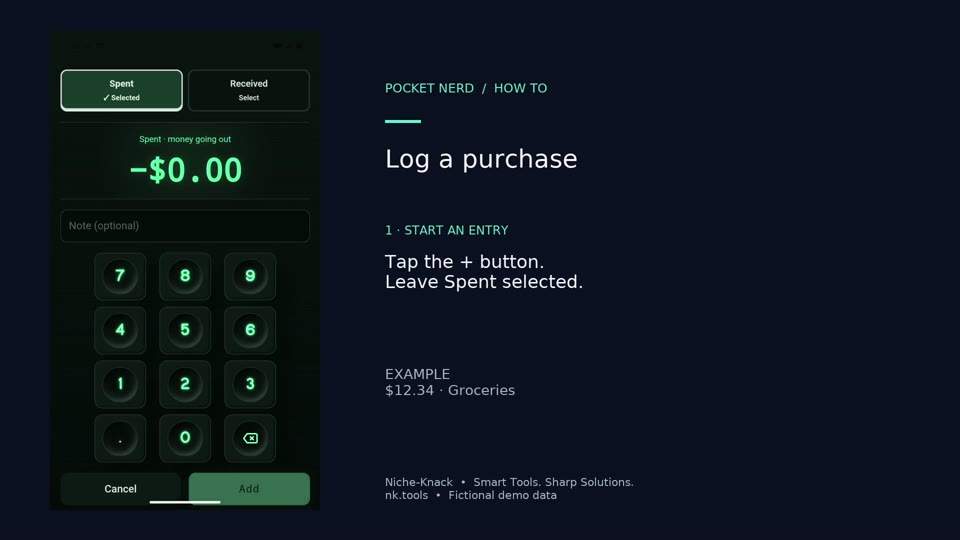
Log a purchase
Subtract a real purchase from your spending pot. The example is $12.34 for groceries.
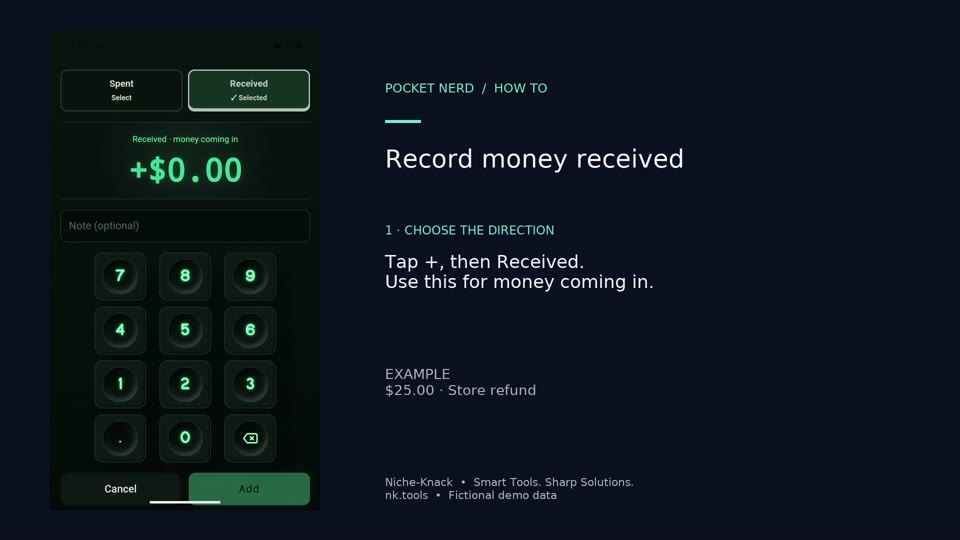
Record money received
Add money back to the pot when you receive a refund or other money. This example records a $25 store refund.
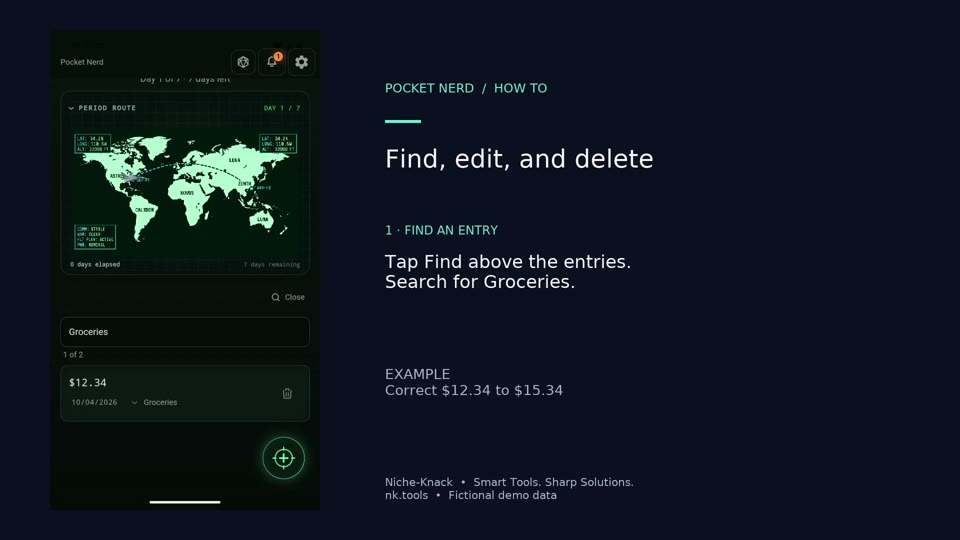
Find, edit, and delete
Find an entry, correct its amount, and remove it when it no longer belongs in the pot. This example changes Groceries from $12.34 to $15.34 before deleting it.
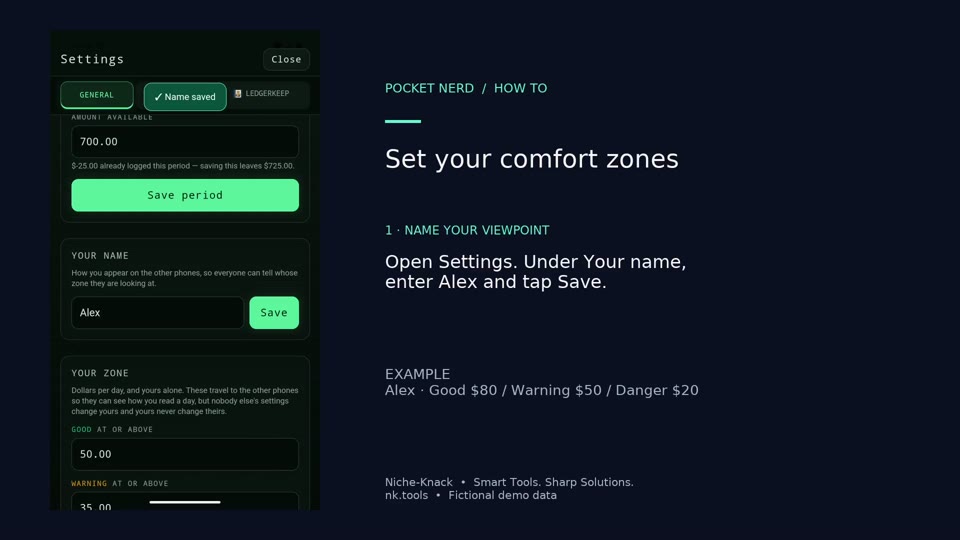
Set your comfort zones
Personalize the greeting and choose the gauge thresholds that suit your own spending plan. This example uses Alex and thresholds of 80, 50, and 20.
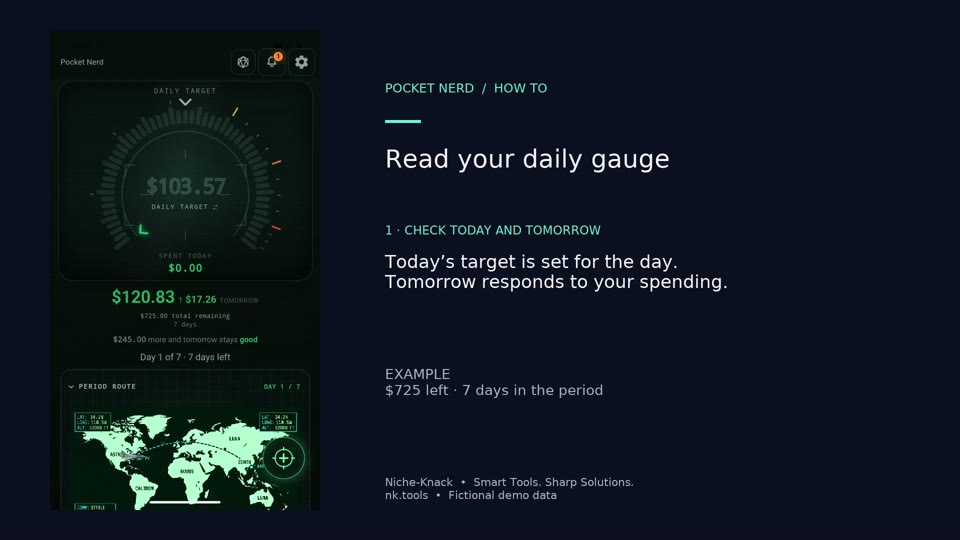
Read your daily gauge
Switch between the daily target and the total remaining, and expand or collapse the period progress.
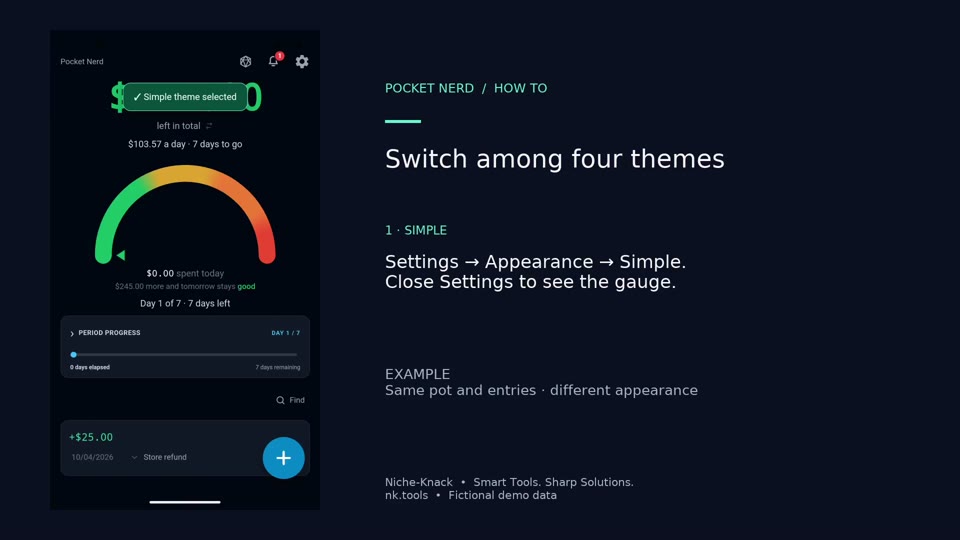
Switch among four themes
Preview Simple, HUD, Tranquil, and Campaign using the same spending pot.
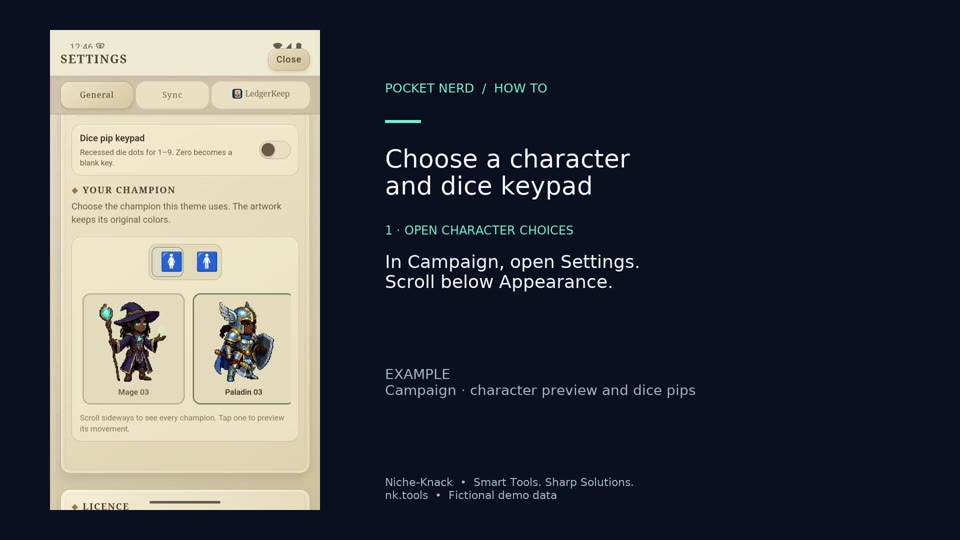
Choose a character and dice keypad
Pick a Campaign character and try the optional dice-pip keypad. Dice pips still enter ordinary digits.
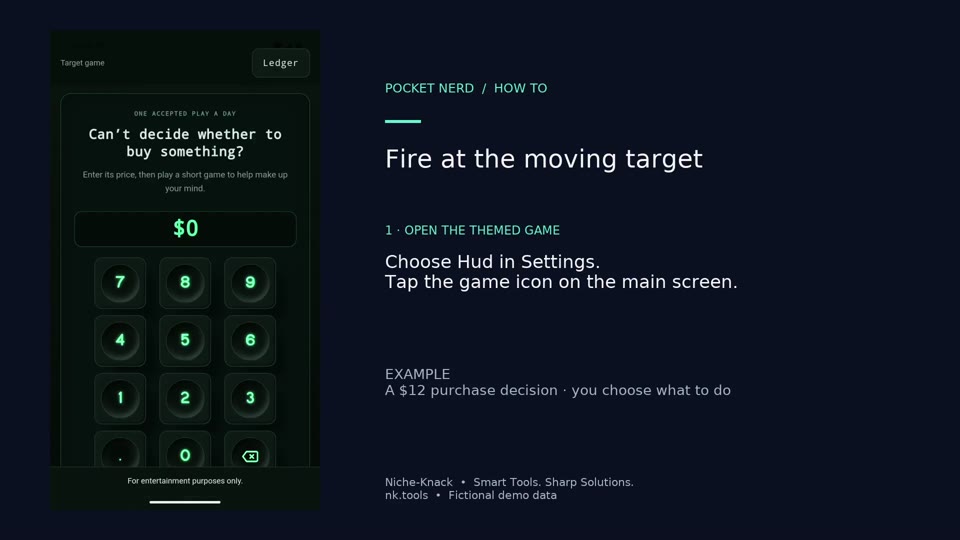
Fire at the moving target
Use HUD's target game for a $12 example purchase and watch the firing animation.
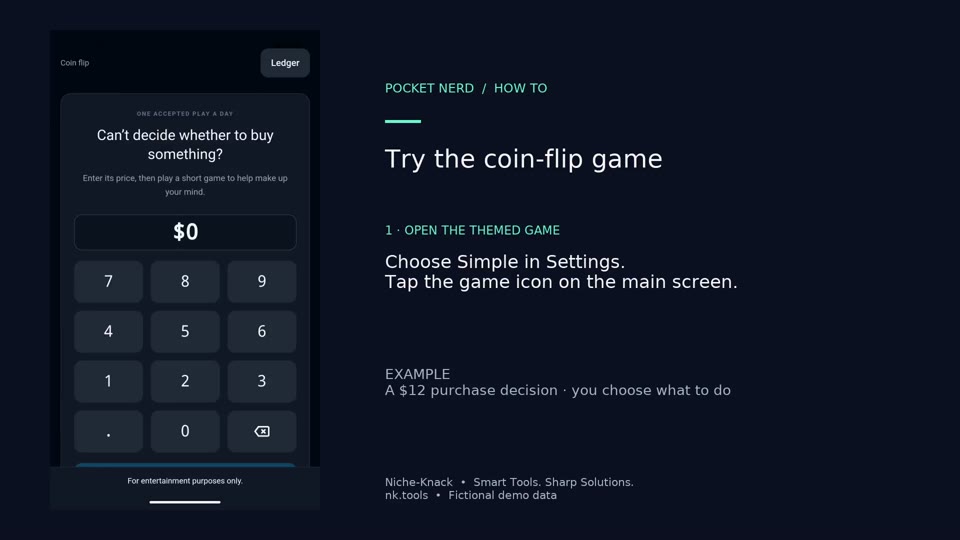
Try the coin-flip game
Use Simple's coin flip for a $12 example purchase.
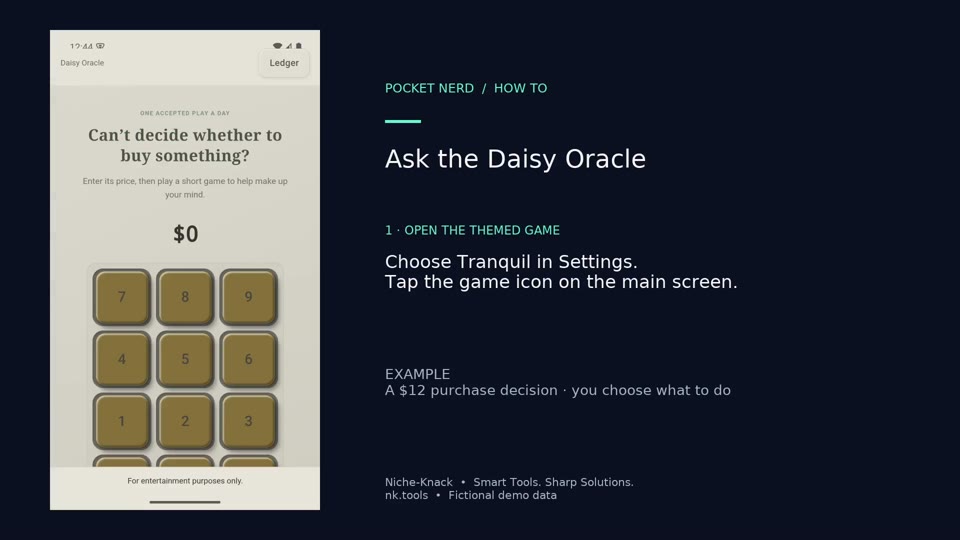
Ask the Daisy Oracle
Use Tranquil's Daisy oracle and wait for the petals to finish.
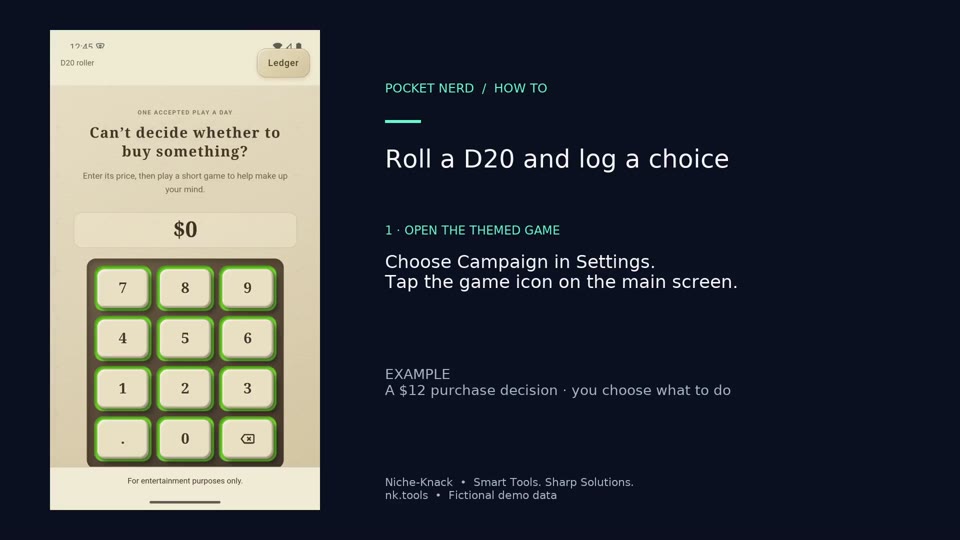
Roll a D20 and log a choice
Roll Campaign's D20 for a $12 example purchase, accept the result, and explicitly log the purchase.
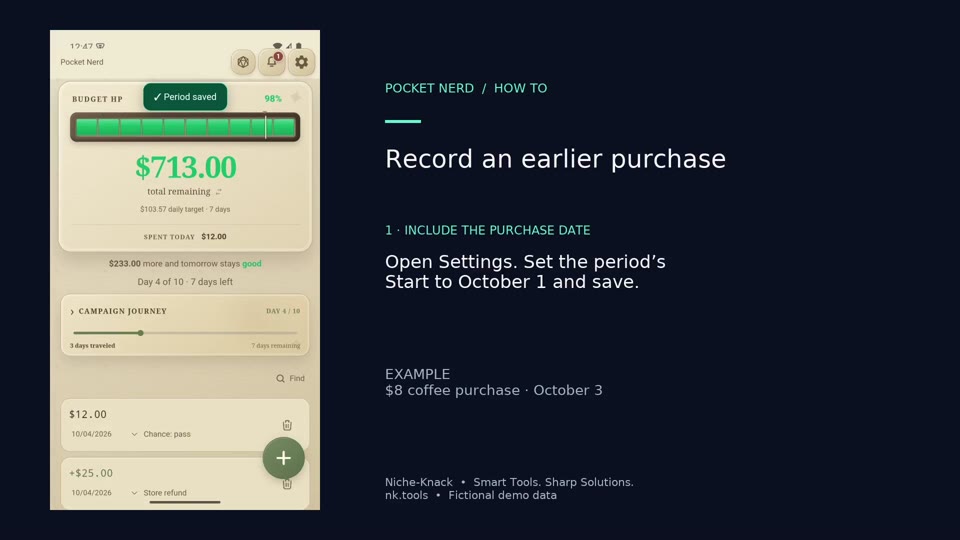
Record an earlier purchase
Record an $8 coffee purchase and change its date to an earlier day in the active period.
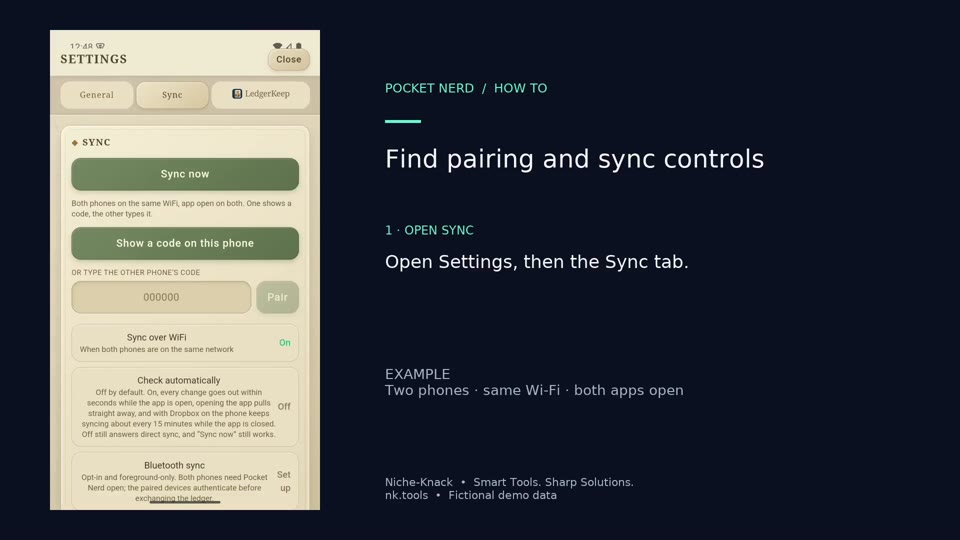
Find pairing and sync controls
Find the code-pairing, automatic-checking, Wi-Fi, Bluetooth, and Dropbox controls.
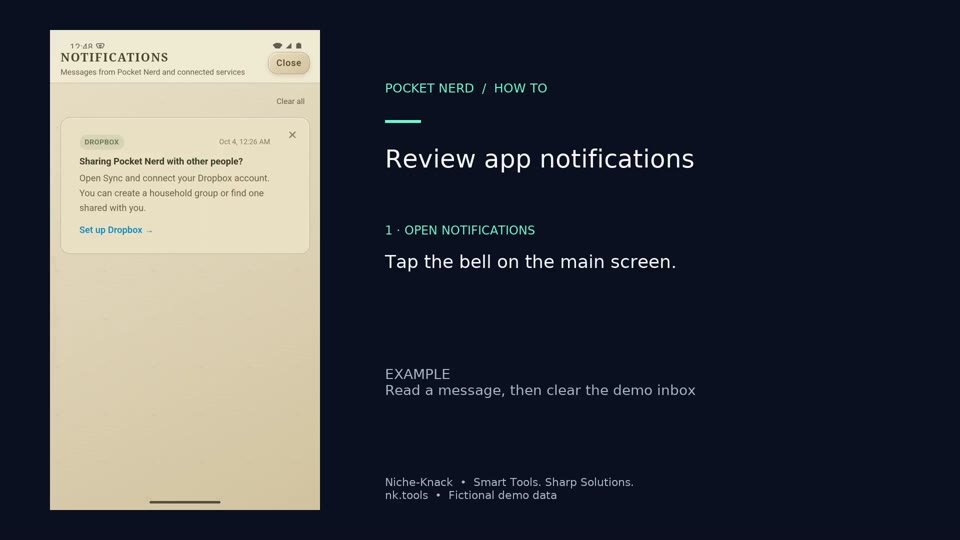
Review app notifications
Read app messages and clear the demo inbox after reviewing them.
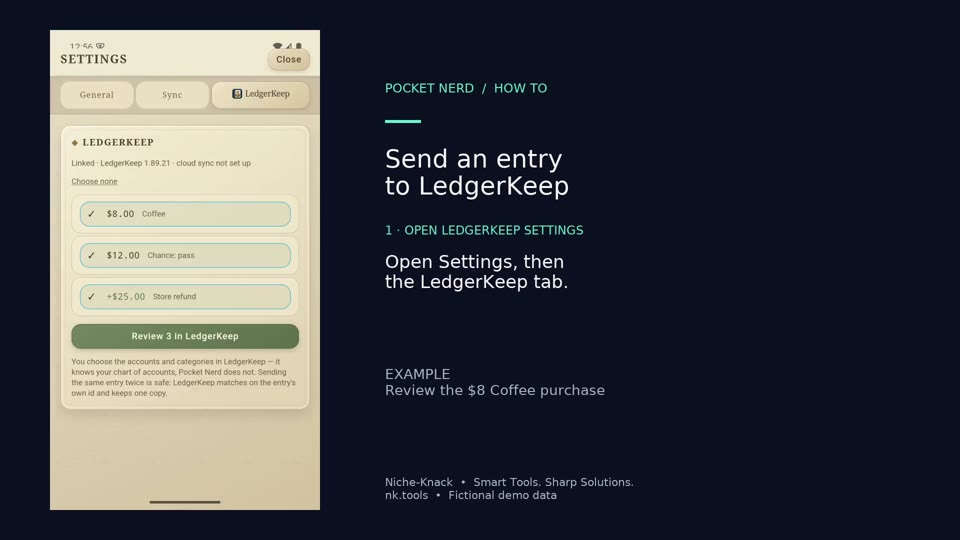
Send an entry to LedgerKeep
Send the $8 Coffee entry from Pocket Nerd to LedgerKeep on the same Android phone.
LedgerKeep
About LedgerKeep
Double-entry books in plain-text Ledger files, with Git history, bill reminders and debts you can fight as bosses. Keep the books on your phone; spread out on desktop for reconciliation, budgets and reports.
Explore LedgerKeep →
Install the LedgerKeep beta on Android
Download your approved LedgerKeep beta, install it on Android and open it for the first time.
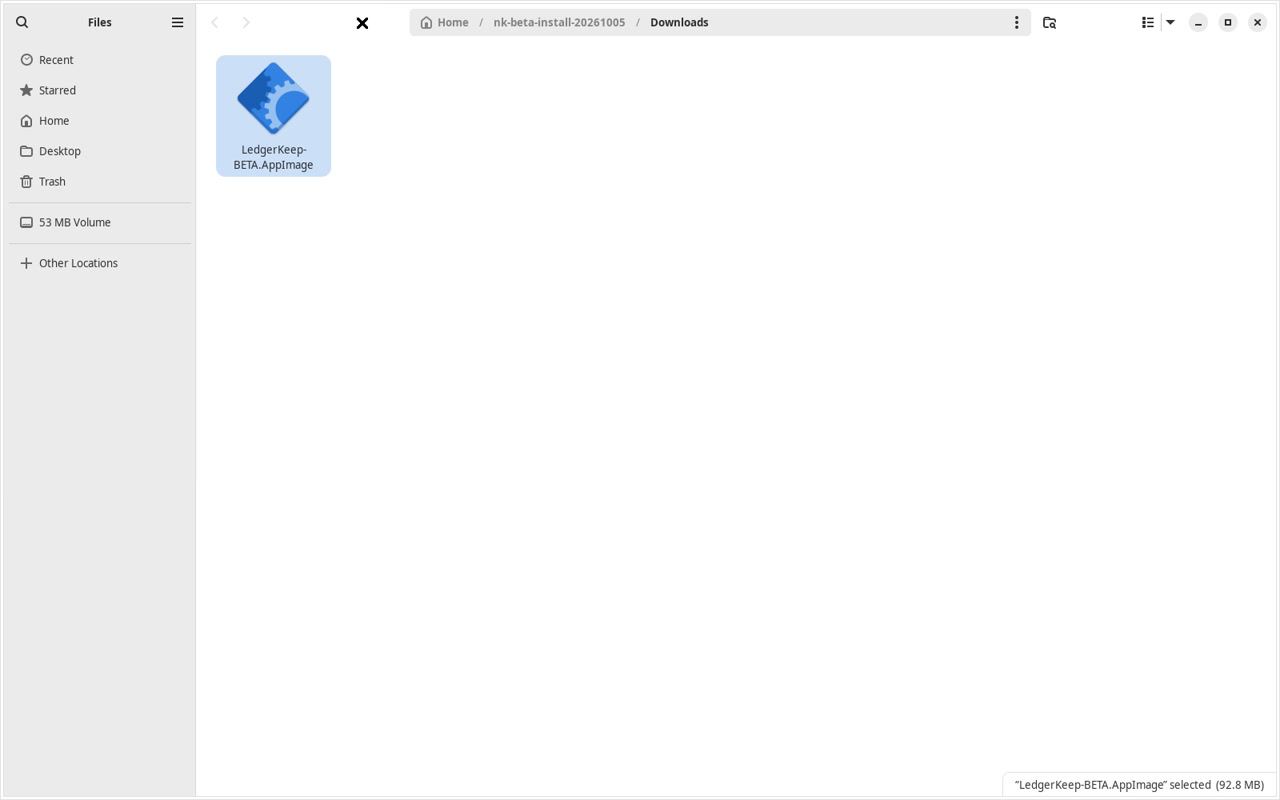
Install the LedgerKeep beta on Linux
Download your approved LedgerKeep beta, install it on Linux and open it for the first time.
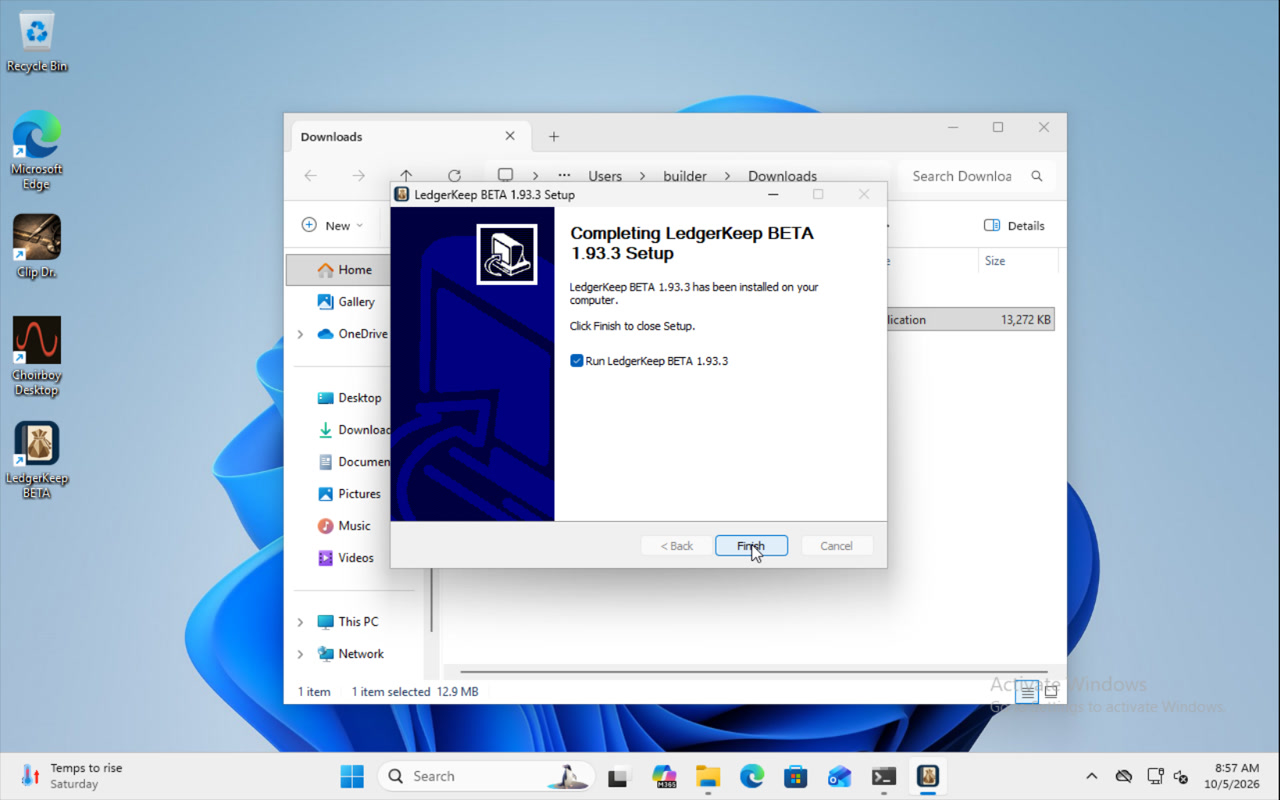
Install the LedgerKeep beta on Windows
Download your approved LedgerKeep beta, install it on Windows and open it for the first time.
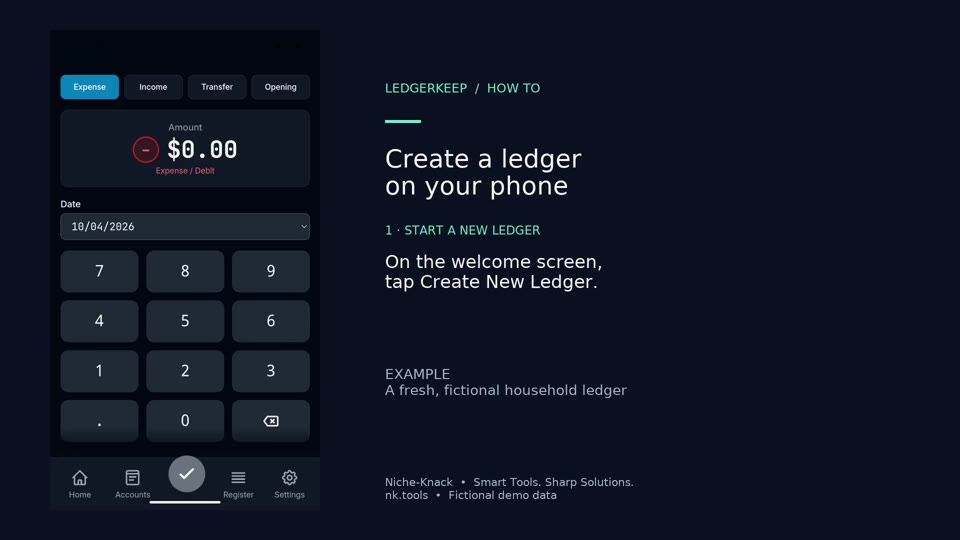
Create a ledger on your phone
Create a fresh local ledger on Android and open Quick Entry.
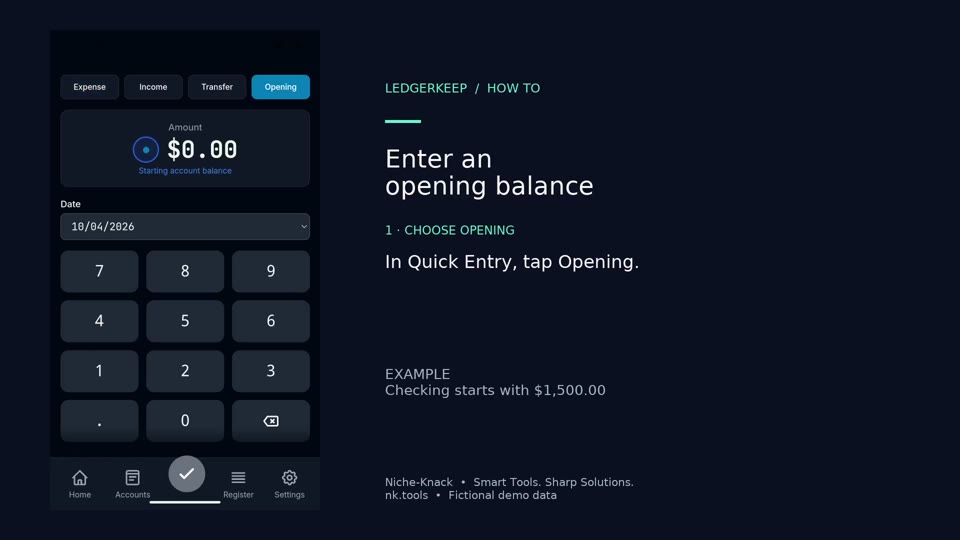
Enter an opening balance
Record the balance that already exists in an account when you begin your books. The example starts Checking at $1,500.
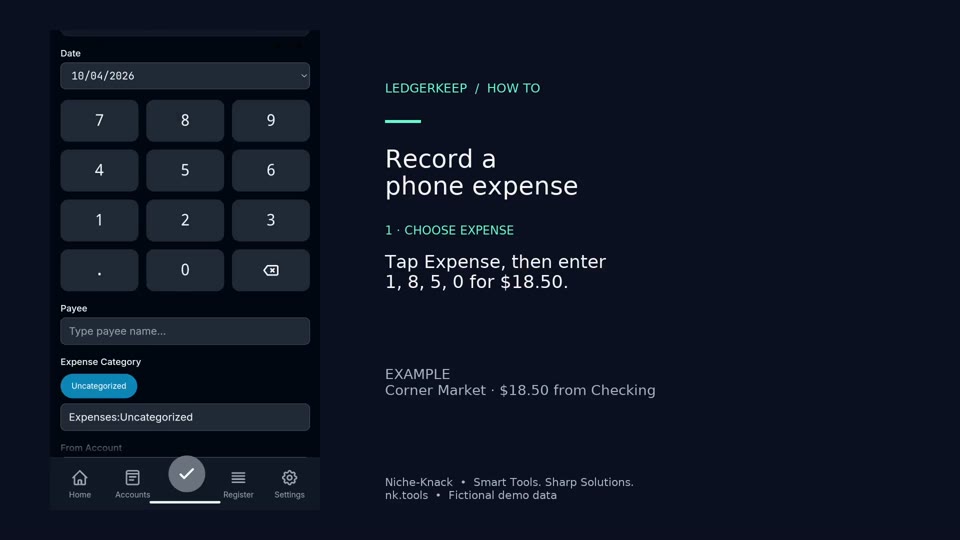
Record a phone expense
Record an $18.50 Corner Market purchase paid from Checking.
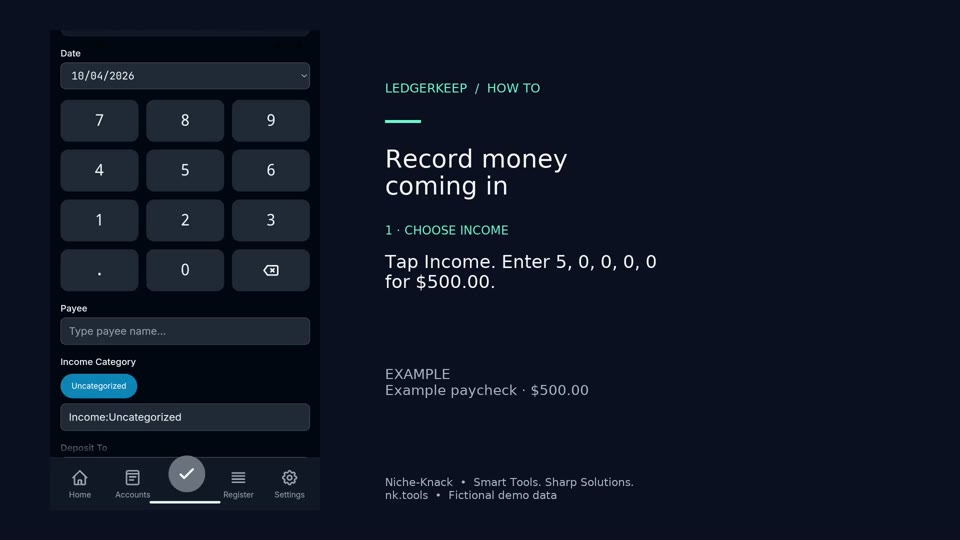
Record money coming in
Record a $500 example paycheck deposited into Checking.
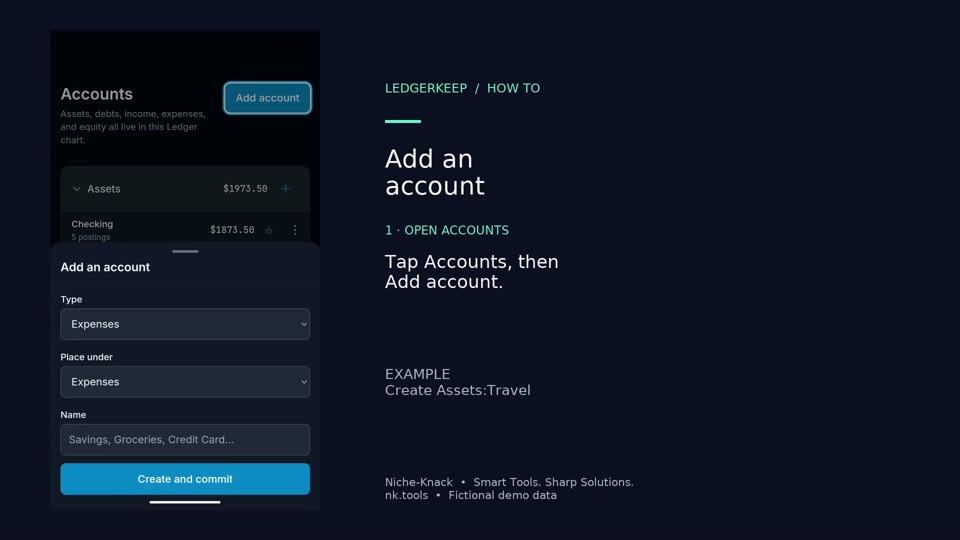
Add an account
Create an asset account for a travel fund. Explicitly choose Assets in Type, then enter Travel.
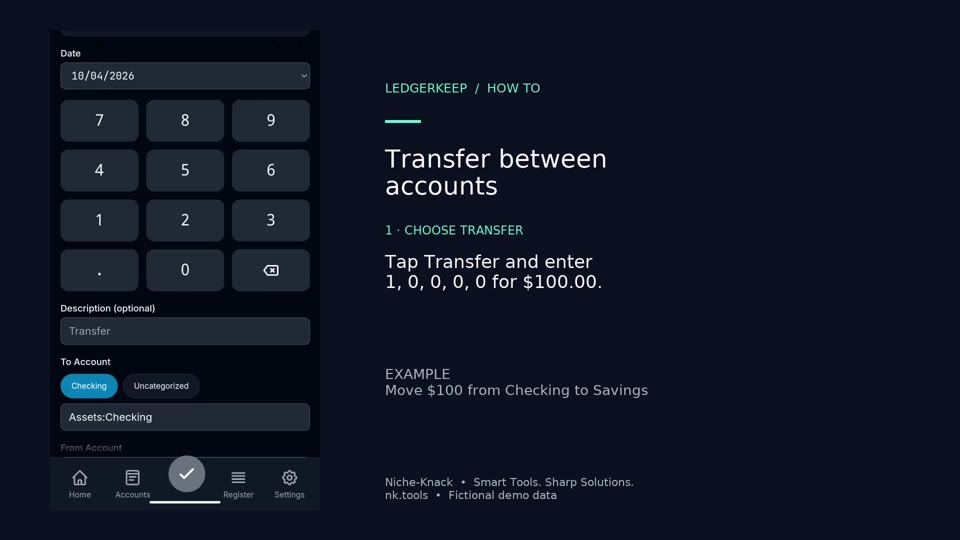
Transfer between accounts
Move $100 from Checking to Savings without treating it as spending or income.
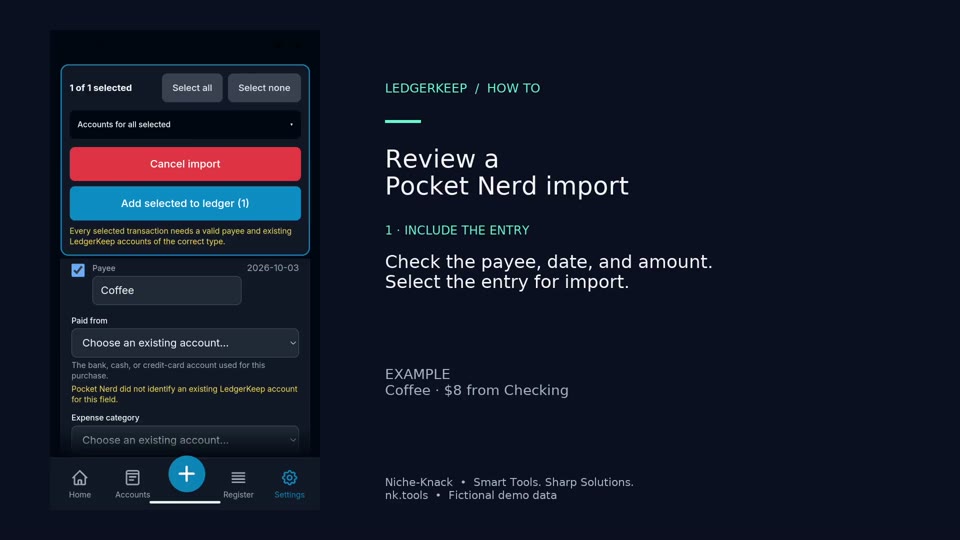
Review a Pocket Nerd import
Review the $8 Coffee entry sent from Pocket Nerd, assign existing accounts, and approve it.
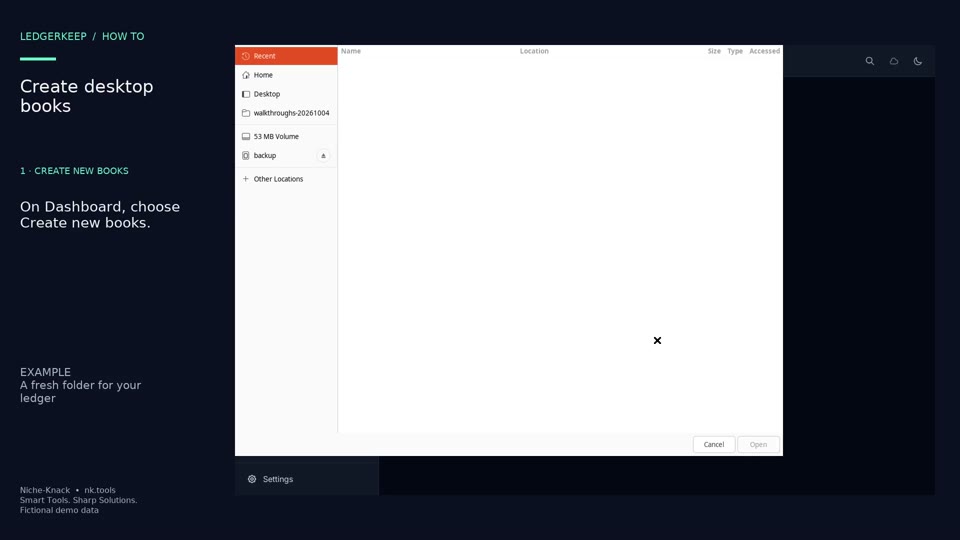
Create desktop books
Create a new local set of books in an empty folder on Linux.
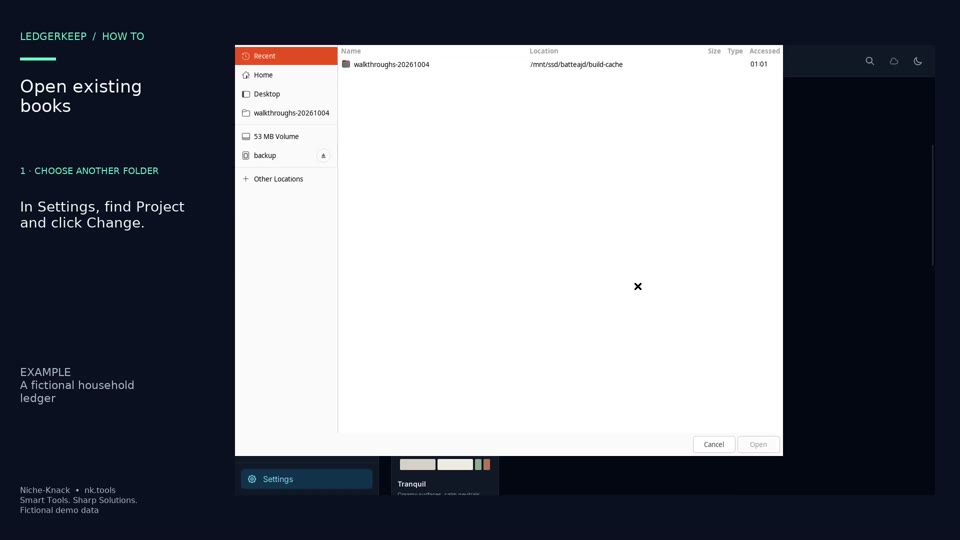
Open existing books
Switch LedgerKeep to a folder containing existing plain-text ledger books.
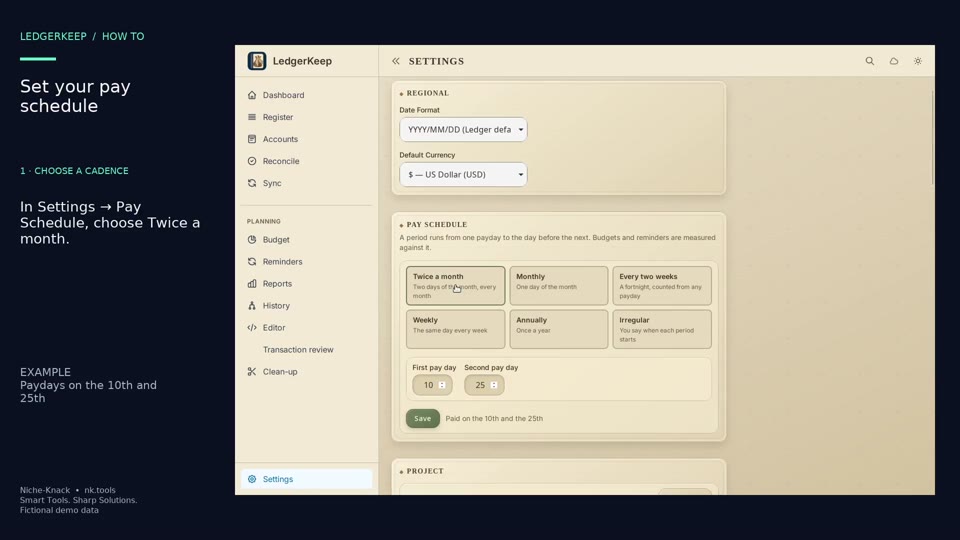
Set your pay schedule
Set two monthly paydays. This example uses the 10th and 25th.
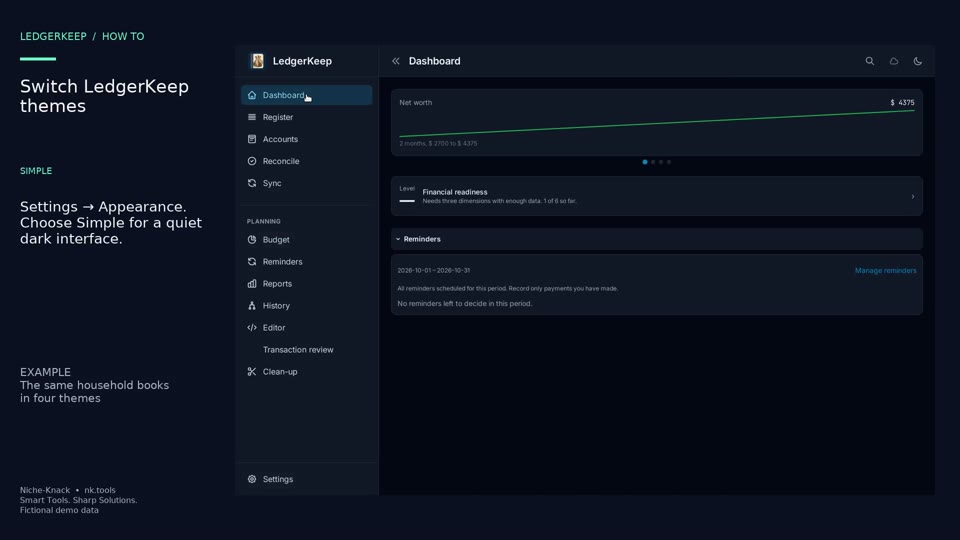
Switch LedgerKeep themes
Preview Simple, HUD, Tranquil, and Campaign with the same accounts and transactions.
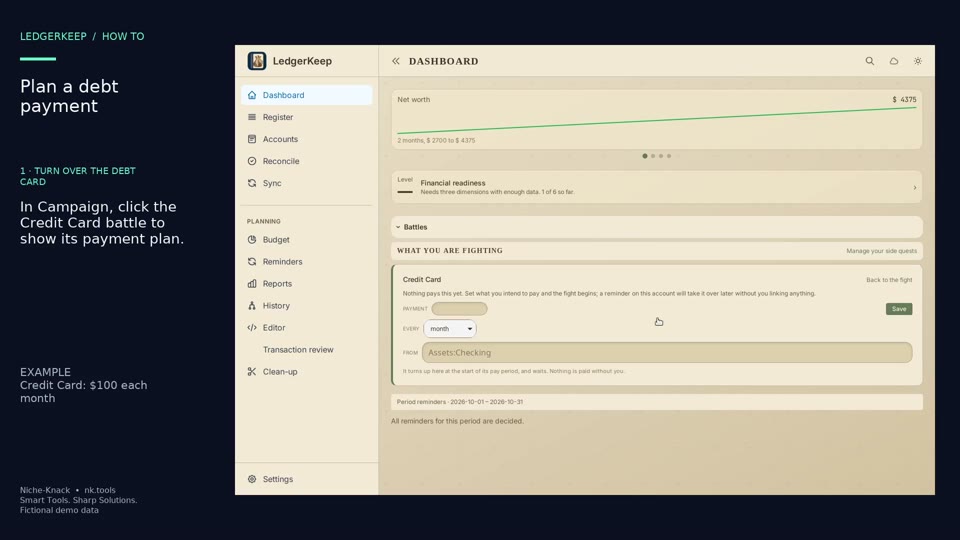
Plan a debt payment
Turn over the Credit Card battle card and set a $100 monthly payment from Checking.
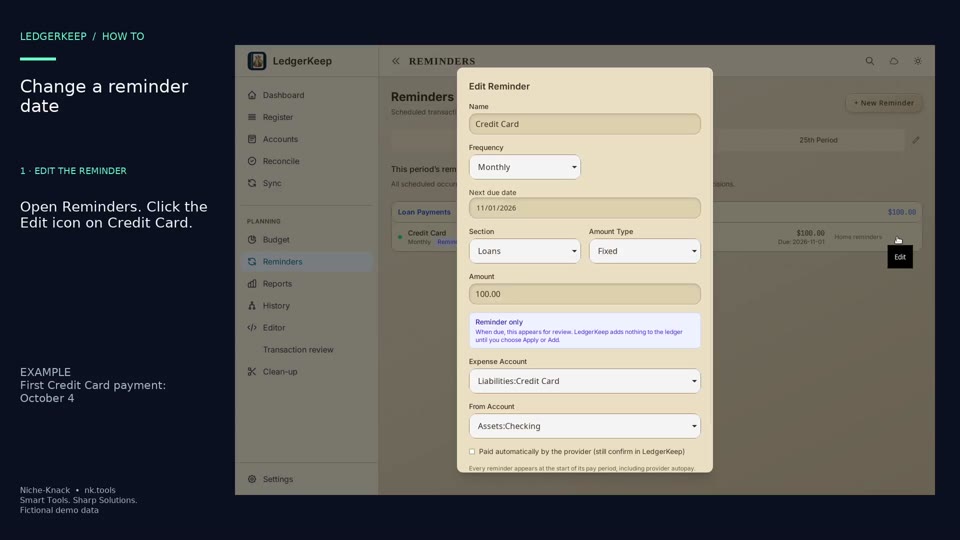
Change a reminder date
Edit the first due date of an existing reminder. The example moves Credit Card into the October pay period.
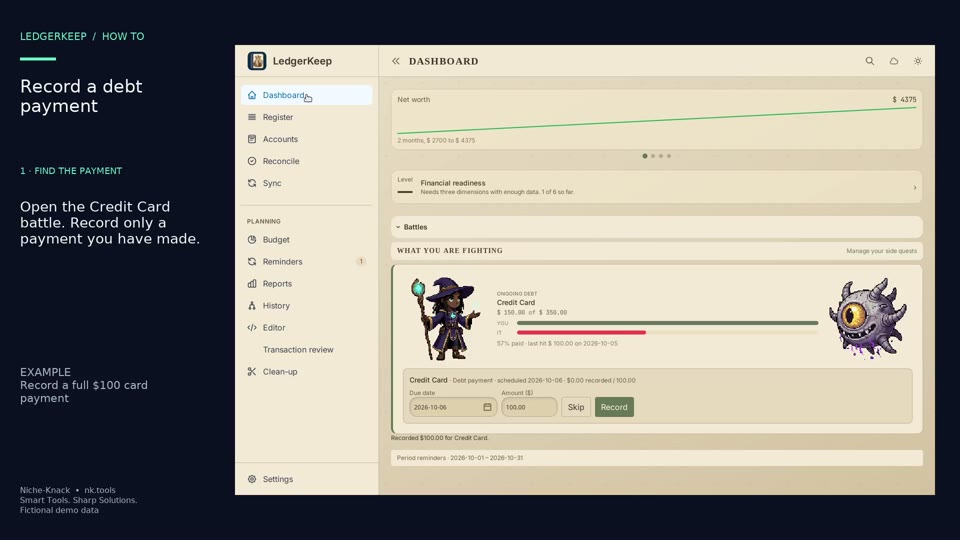
Record a debt payment
Record a full $100 credit-card payment and watch the Campaign attack animation.
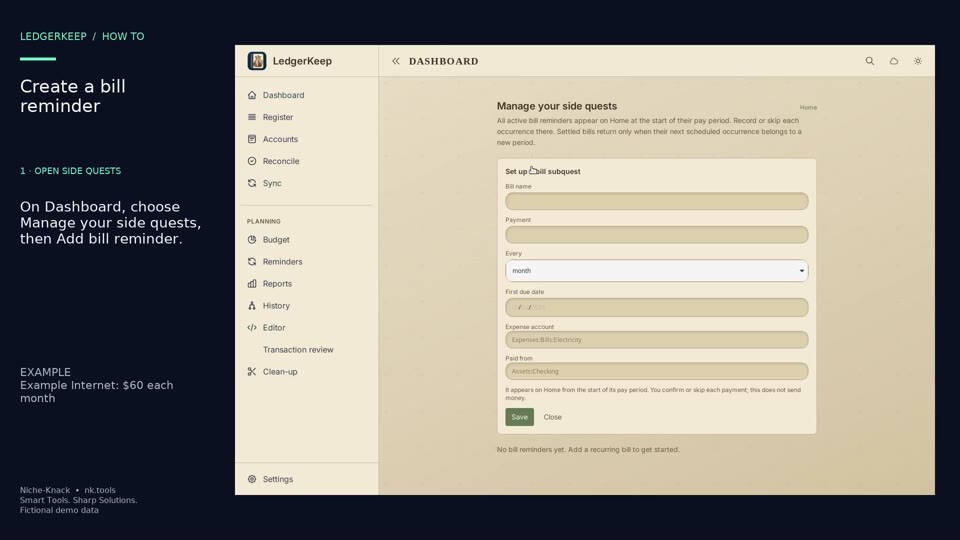
Create a bill reminder
Create a $60 monthly Example Internet reminder as a Campaign side quest.
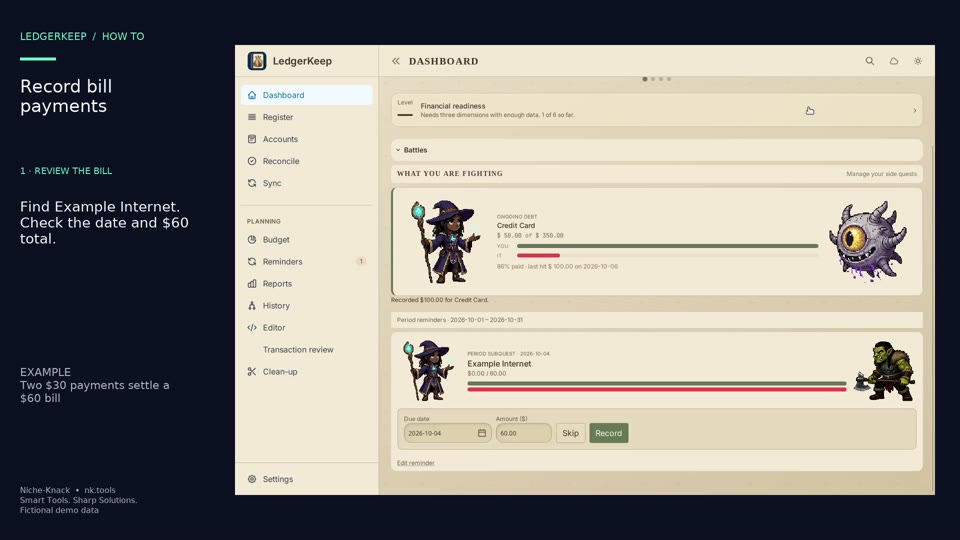
Record bill payments
Record two $30 payments against the $60 Example Internet bill.
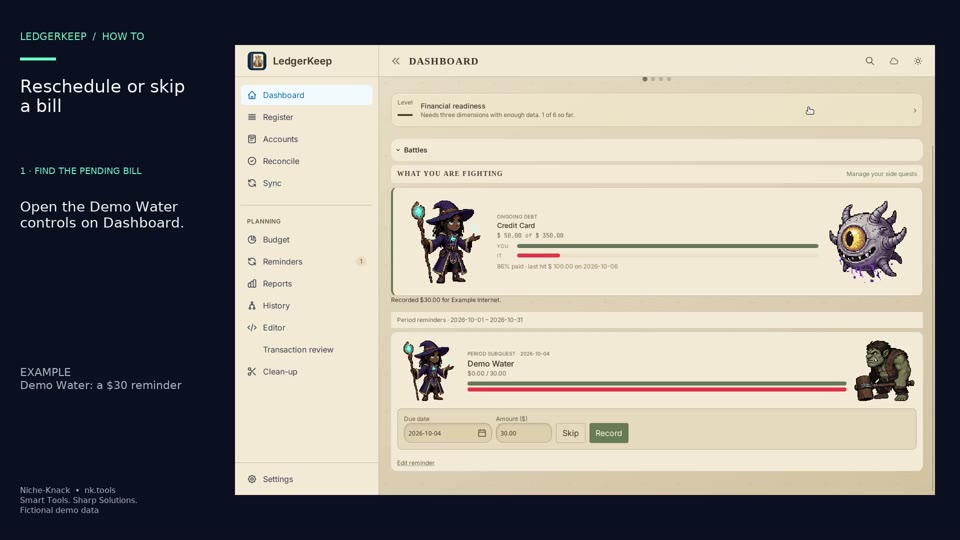
Reschedule or skip a bill
Move the $30 Demo Water reminder to October 8, then skip that occurrence.
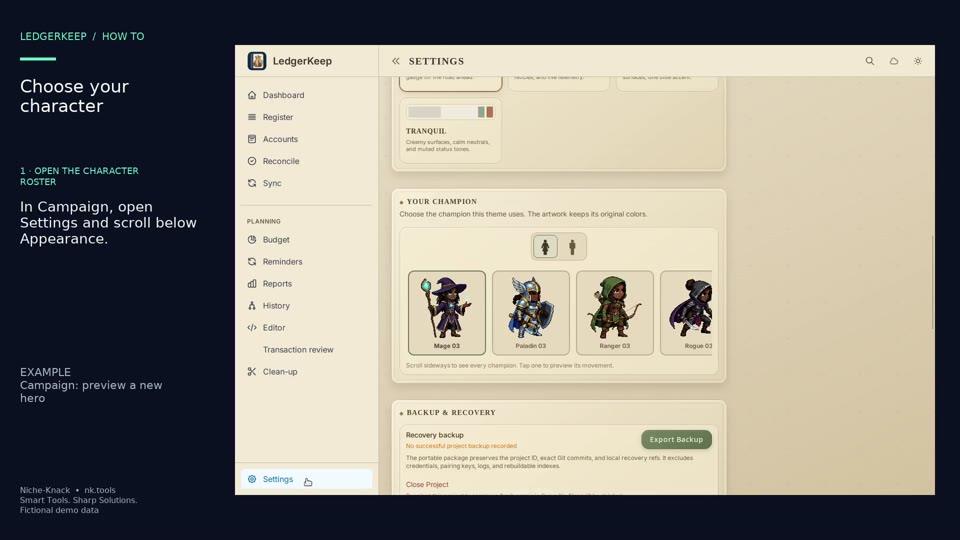
Choose your character
Choose a different Campaign hero and preview its animation.
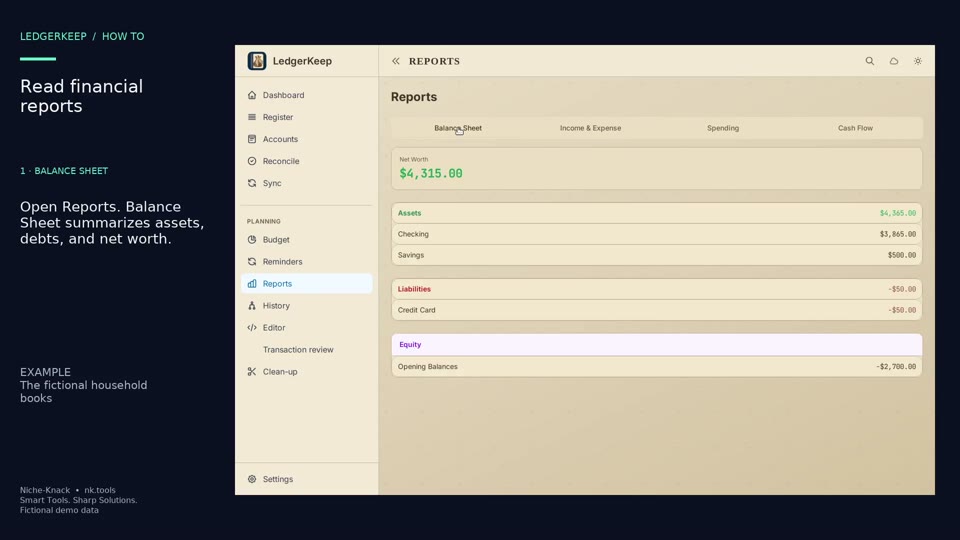
Read financial reports
Read the balance sheet, income and expenses, spending categories, and cash flow for one sample ledger.
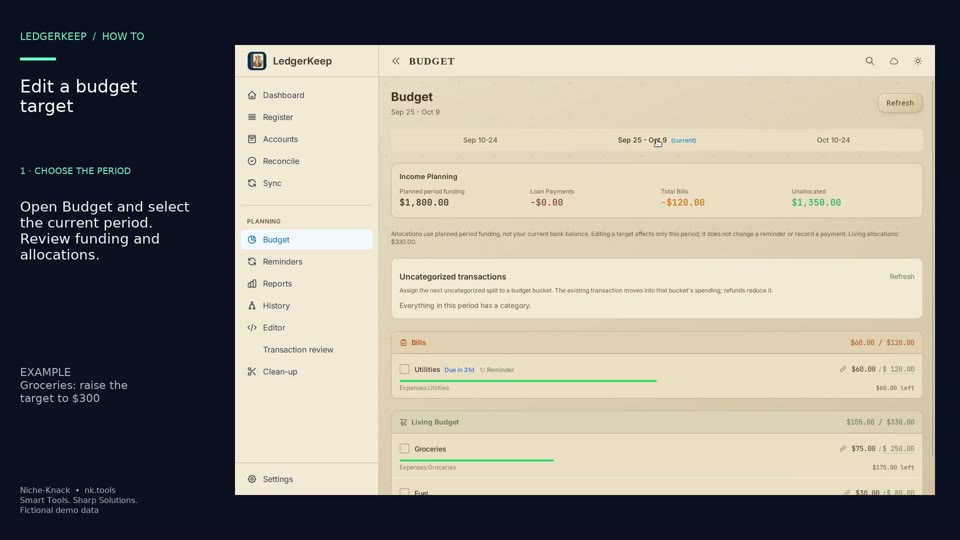
Edit a budget target
Change Groceries from a $250 target to $300 for one selected pay period.
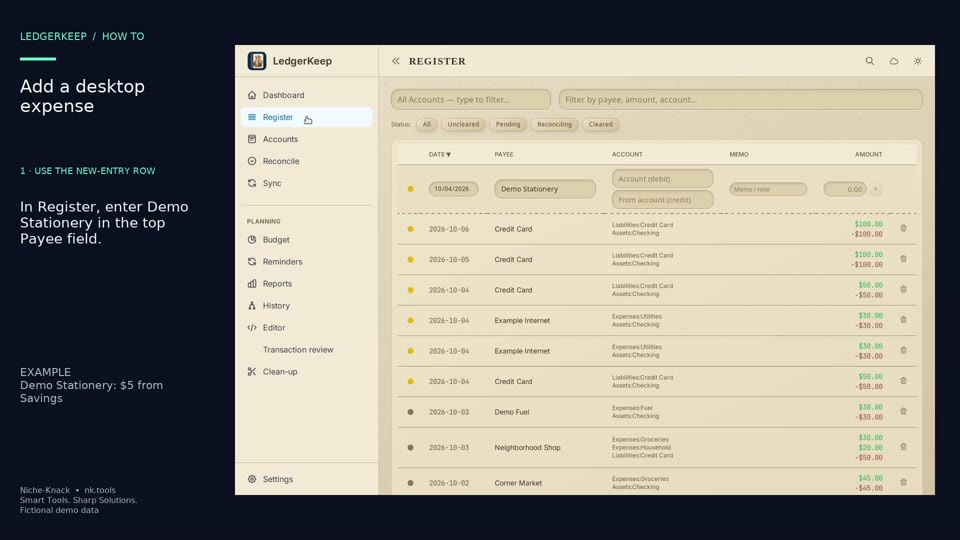
Add a desktop expense
Use Register’s new-entry row to record a $5 Demo Stationery expense from Savings.
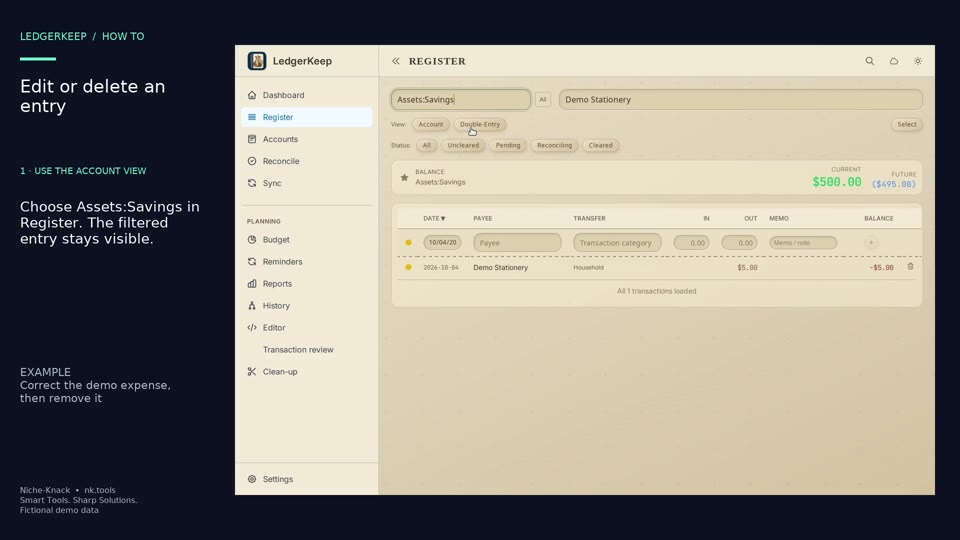
Edit or delete an entry
Correct the Demo Stationery amount from $5 to $6 in the account view, then delete that example.
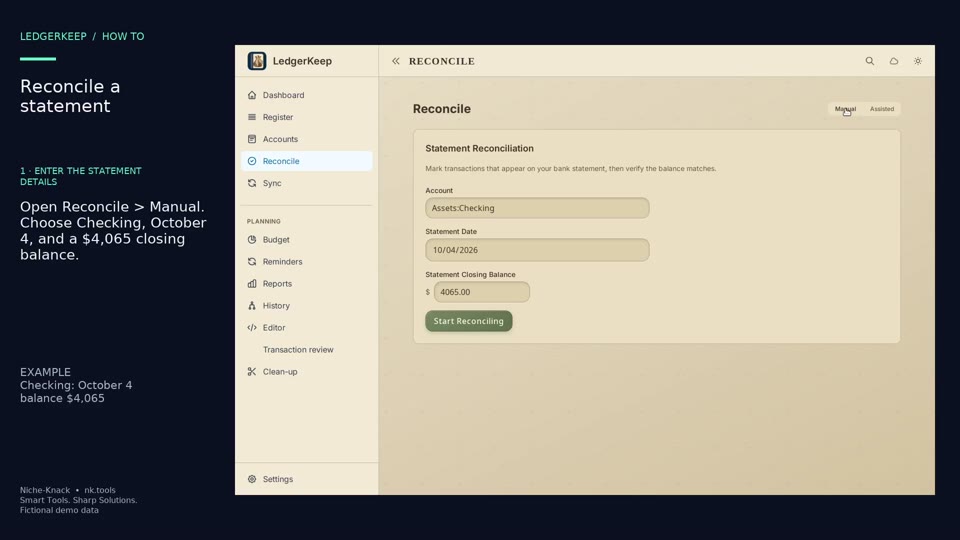
Reconcile a statement
Match six Checking payments to a fictional October 4 statement with a $4,065 closing balance.
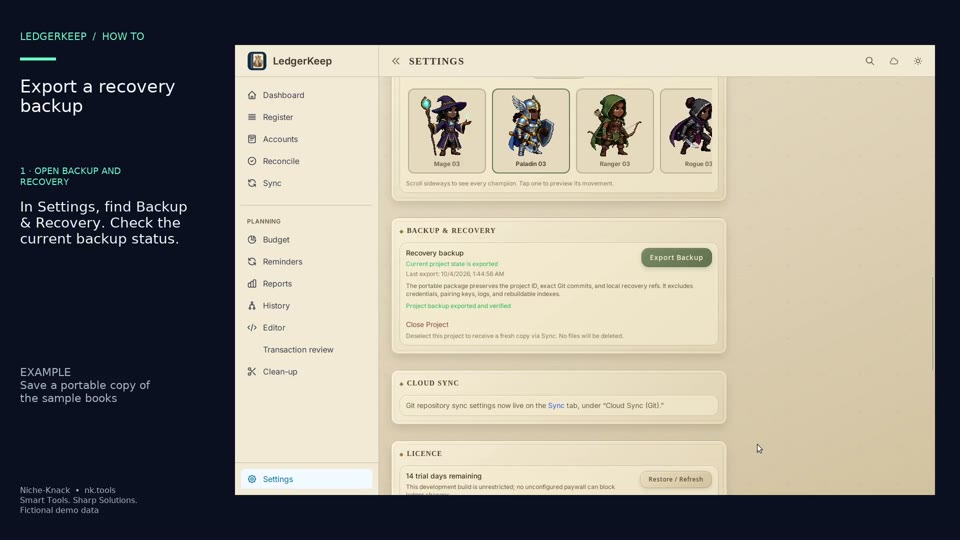
Export a recovery backup
Export a portable recovery package of the open books and wait for LedgerKeep to verify it.
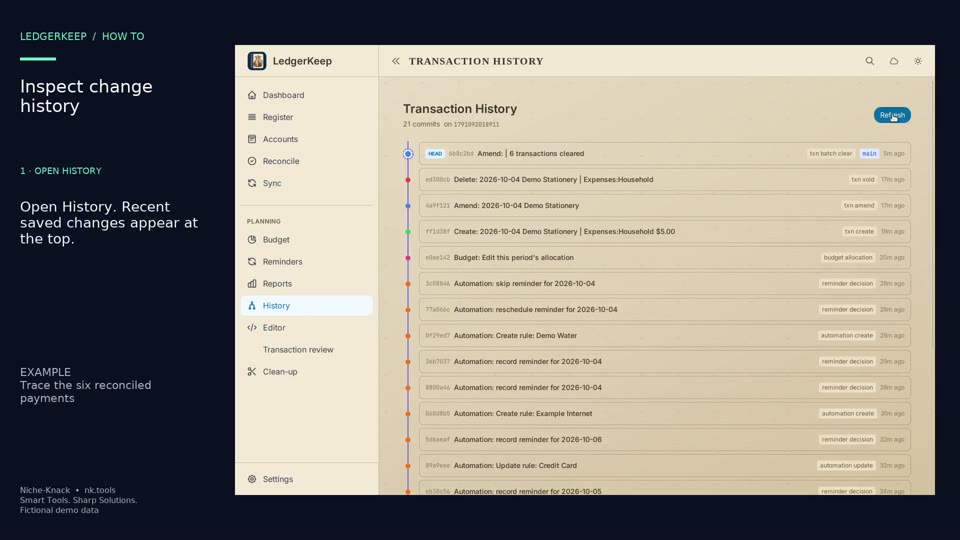
Inspect change history
Open a saved change to see its timestamp and the exact ledger lines it changed.
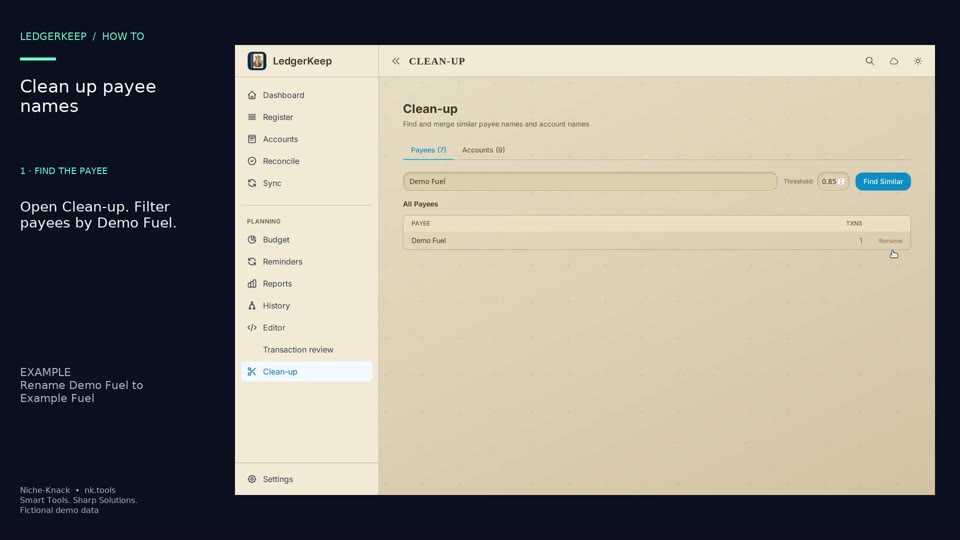
Clean up payee names
Rename Demo Fuel to Example Fuel across its matching transactions.
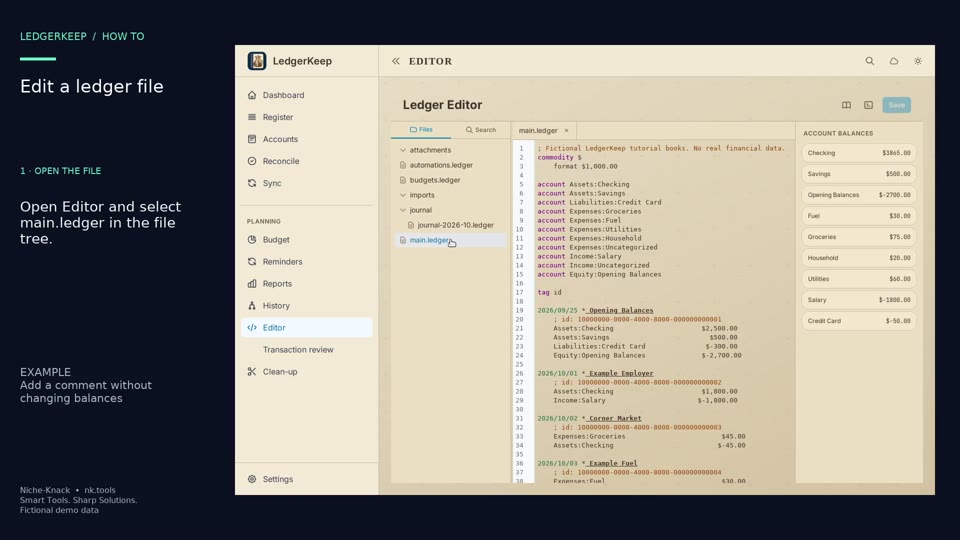
Edit a ledger file
Open main.ledger, add a semicolon comment, and save it in the built-in editor.
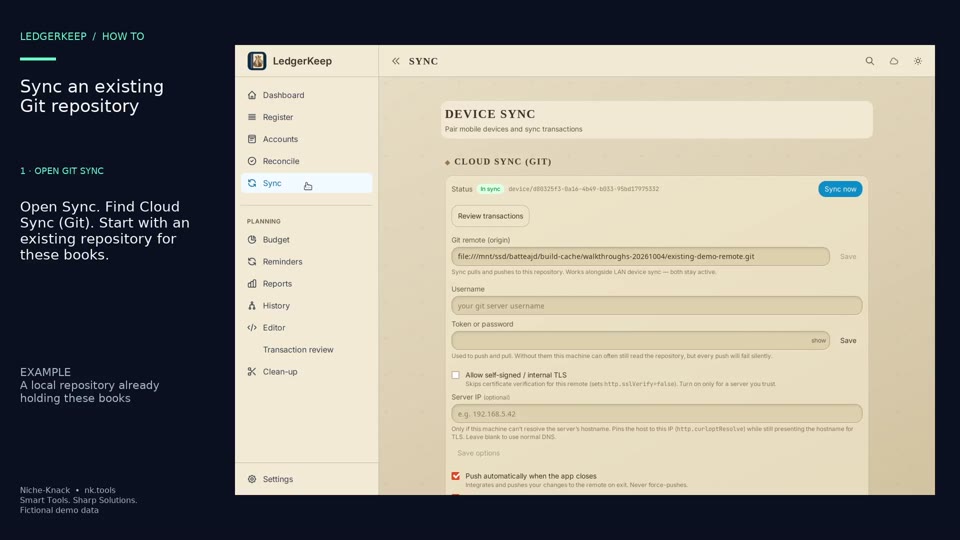
Sync an existing Git repository
Connect these books to an existing Git repository and sync a saved change.
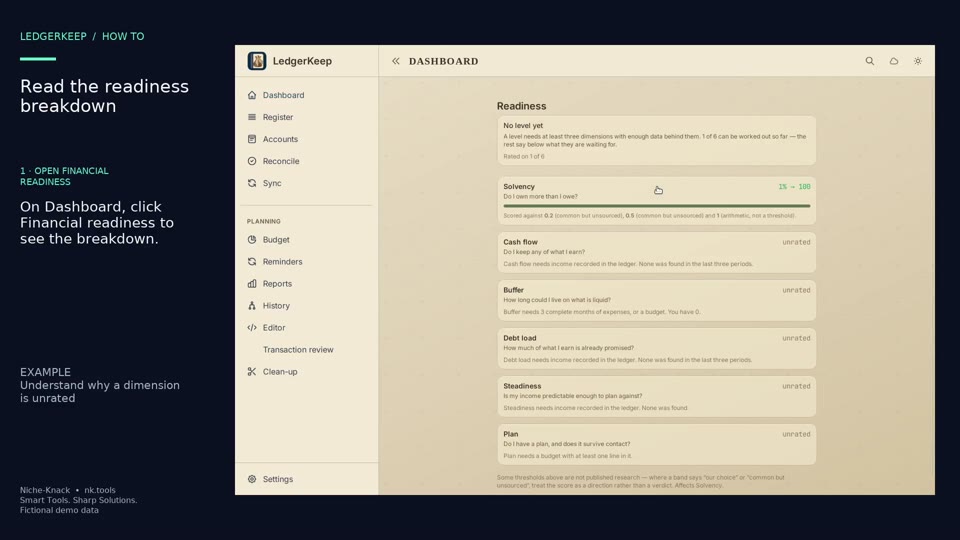
Read the readiness breakdown
Open Financial readiness and read the explanation behind each rated or unrated dimension.
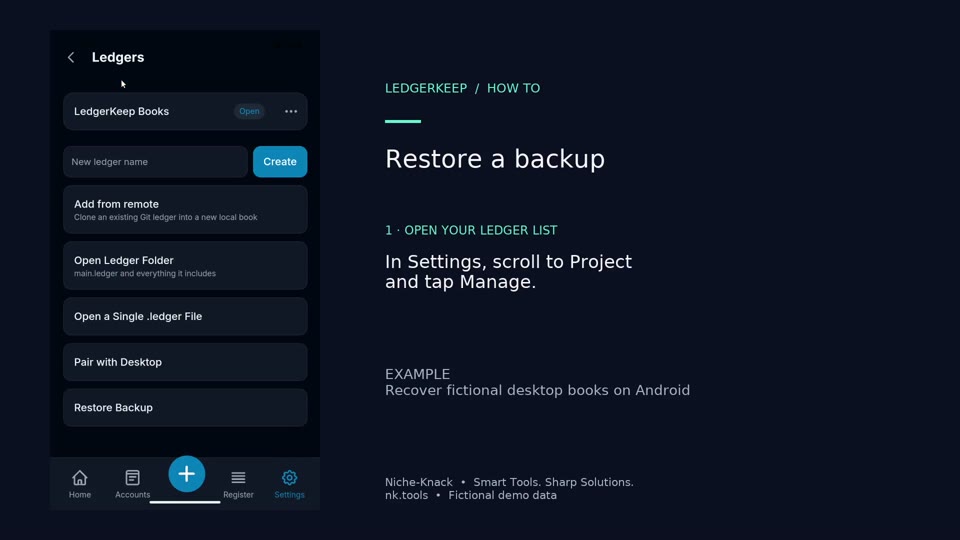
Restore a backup
Restore the fictional desktop backup as a separate Android book named Recovered Household.
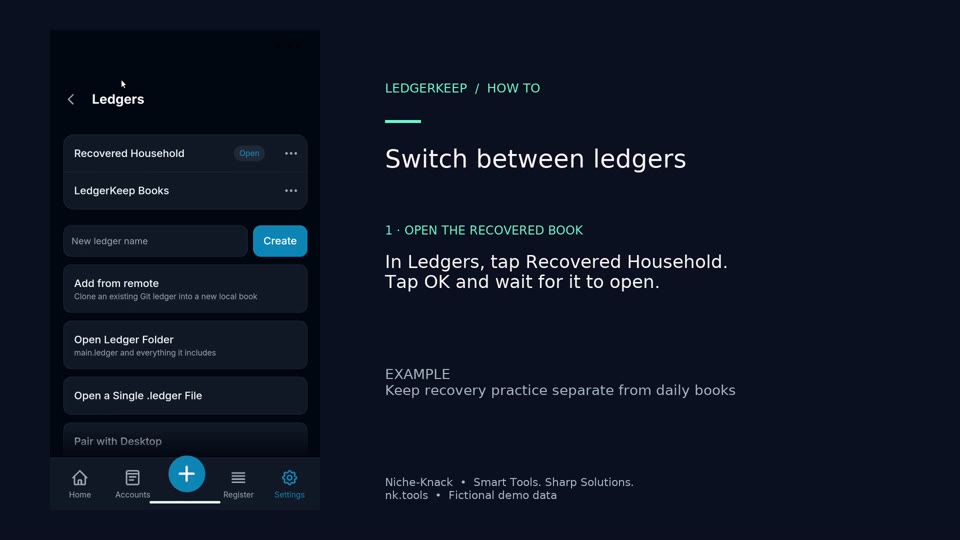
Switch between ledgers
Open the recovered household book, inspect its entries, then return to the original mobile book.
Clip Dr.
About Clip Dr.
Turn a long recording into useful clips. Find the passage, make the edit, and keep a library with every version preserved. Local transcription and focused sound repair are there when you need them.
Explore Clip Dr. →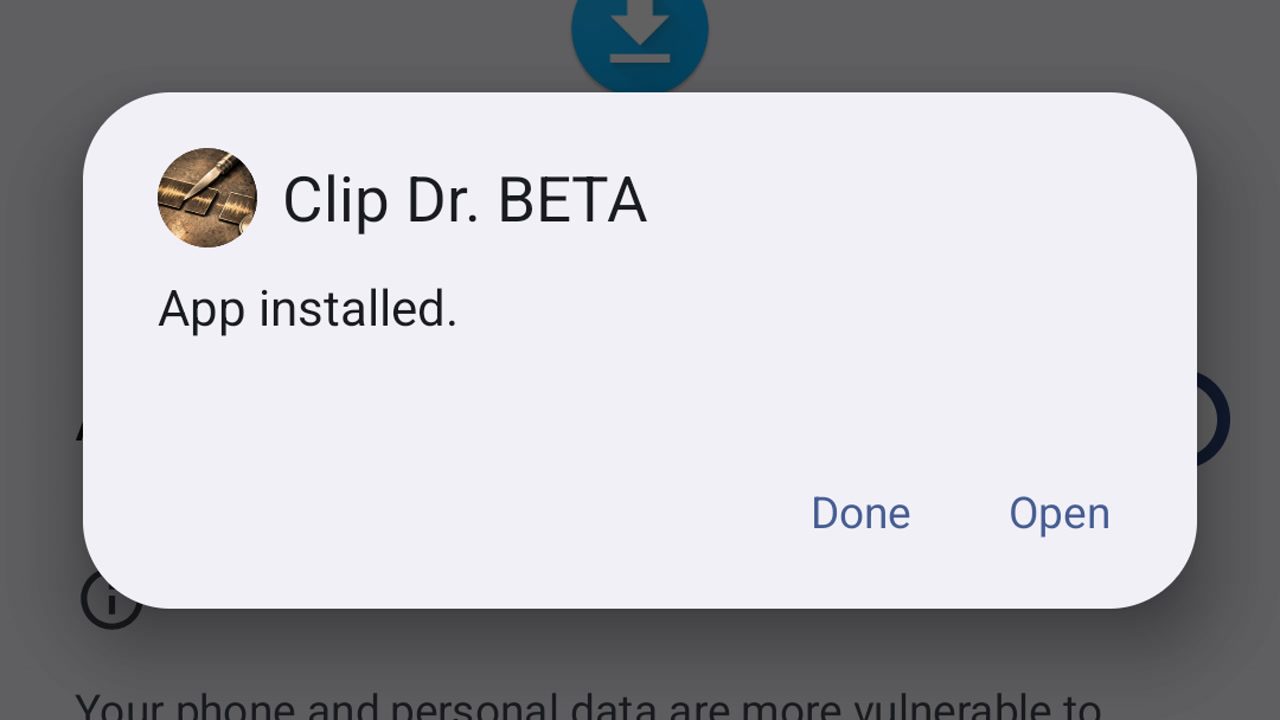
Install the Clip Dr. beta on Android
Download your approved Clip Dr. beta, install it on Android and open it for the first time.
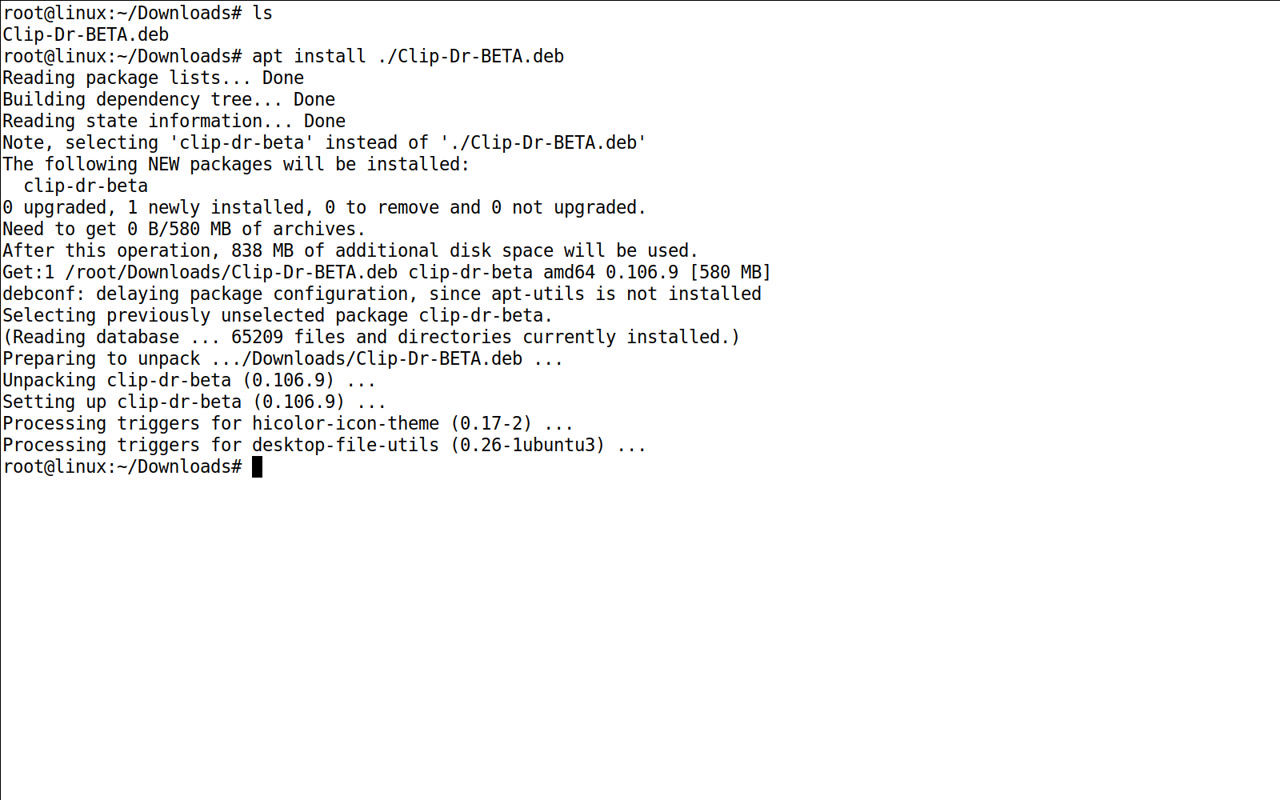
Install the Clip Dr. beta on Linux
Download your approved Clip Dr. beta, install it on Linux and open it for the first time.
Install the Clip Dr. beta on Windows
Download your approved Clip Dr. beta, install it on Windows and open it for the first time.
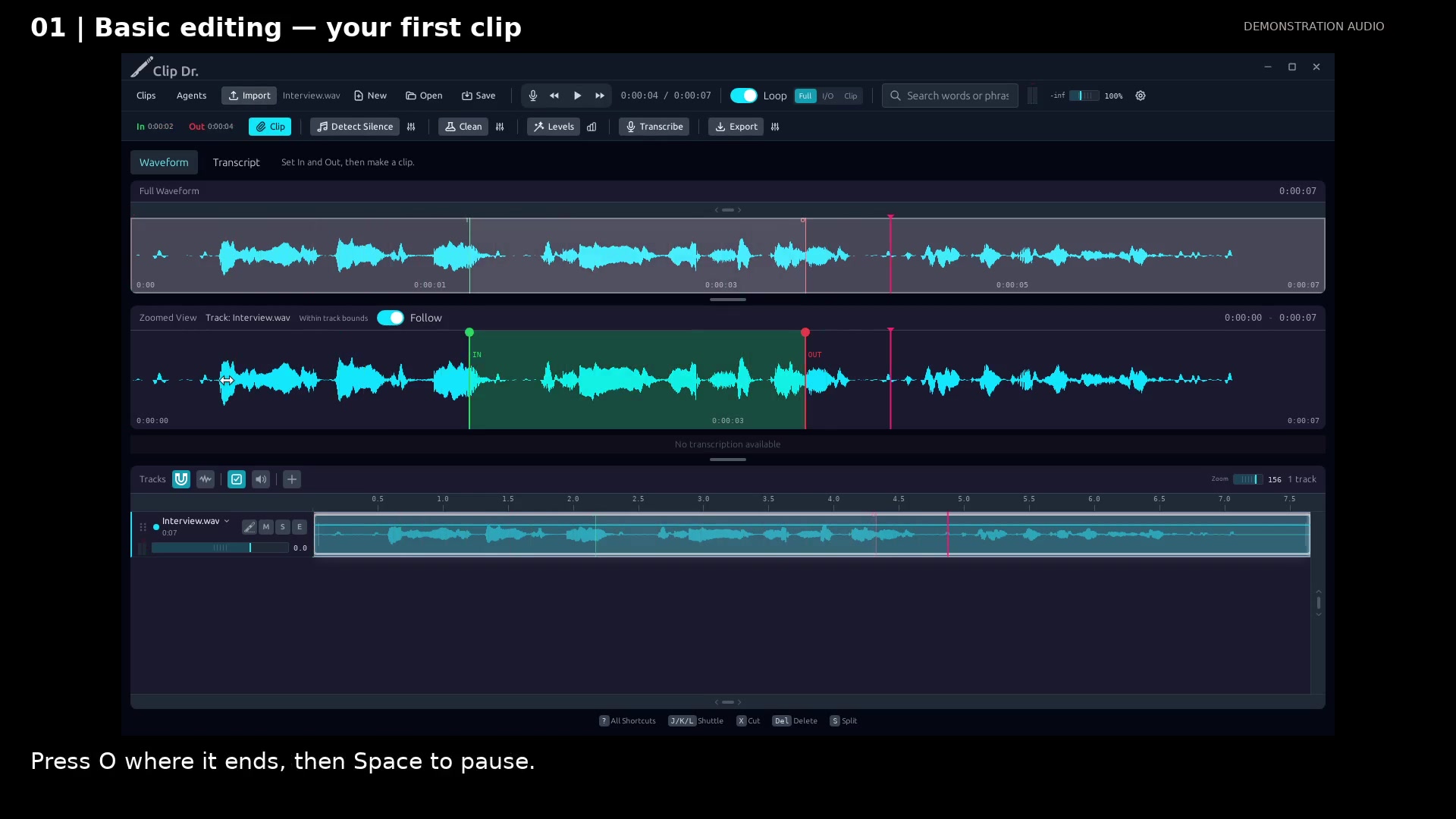
Make your first clip
Keep the useful passage from a recording in four steps: Import, In, Out, and Clip.
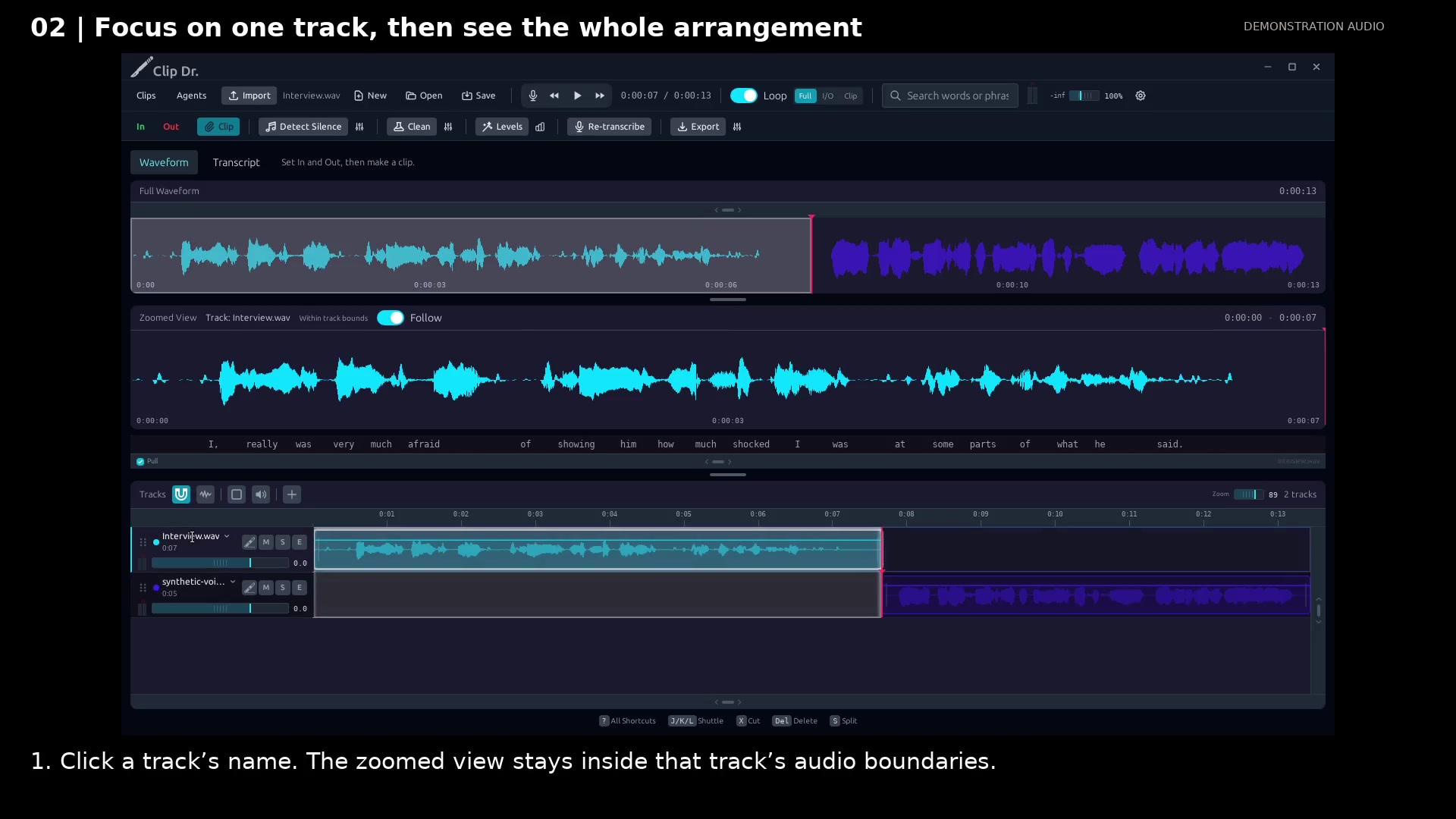
Focus on one track, then see all audio
Use track selection and bounded zoom to work precisely without losing the complete arrangement.
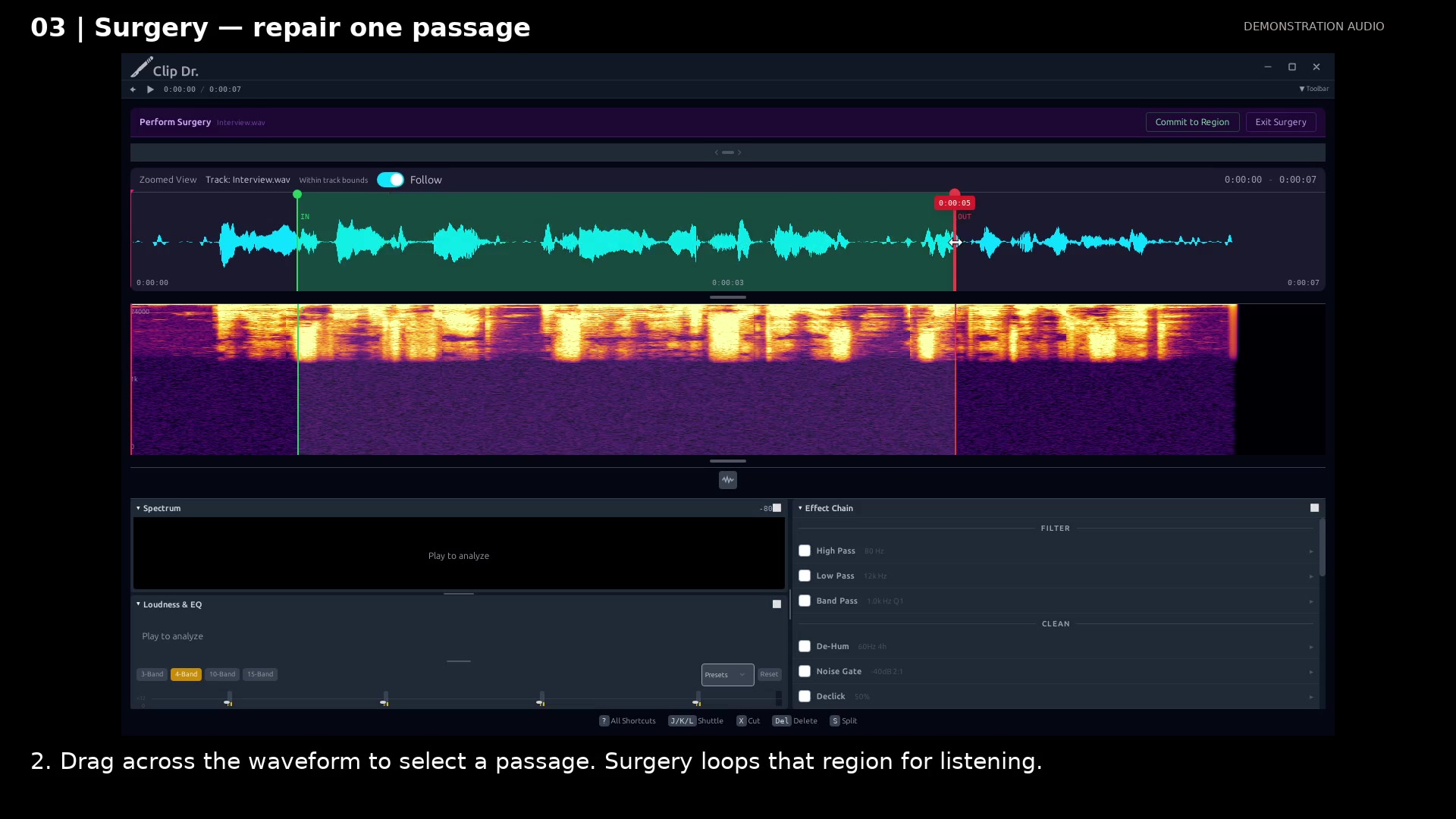
Repair a passage in Surgery
Loop a troublesome passage, compare a treatment, and create a treated copy while keeping the source.
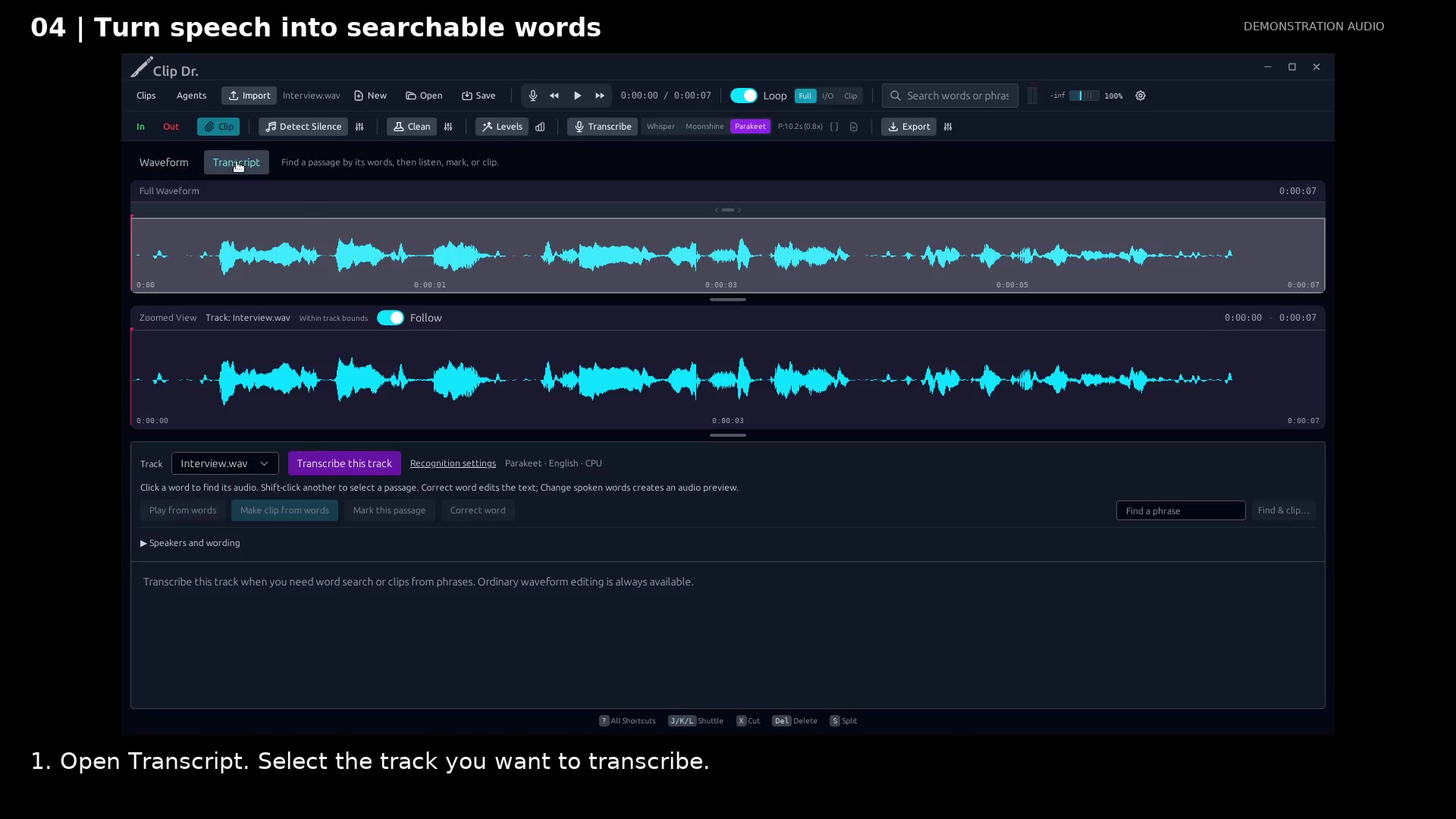
Transcribe a recording locally
Turn speech into timed words you can click, search, and use to make clips.
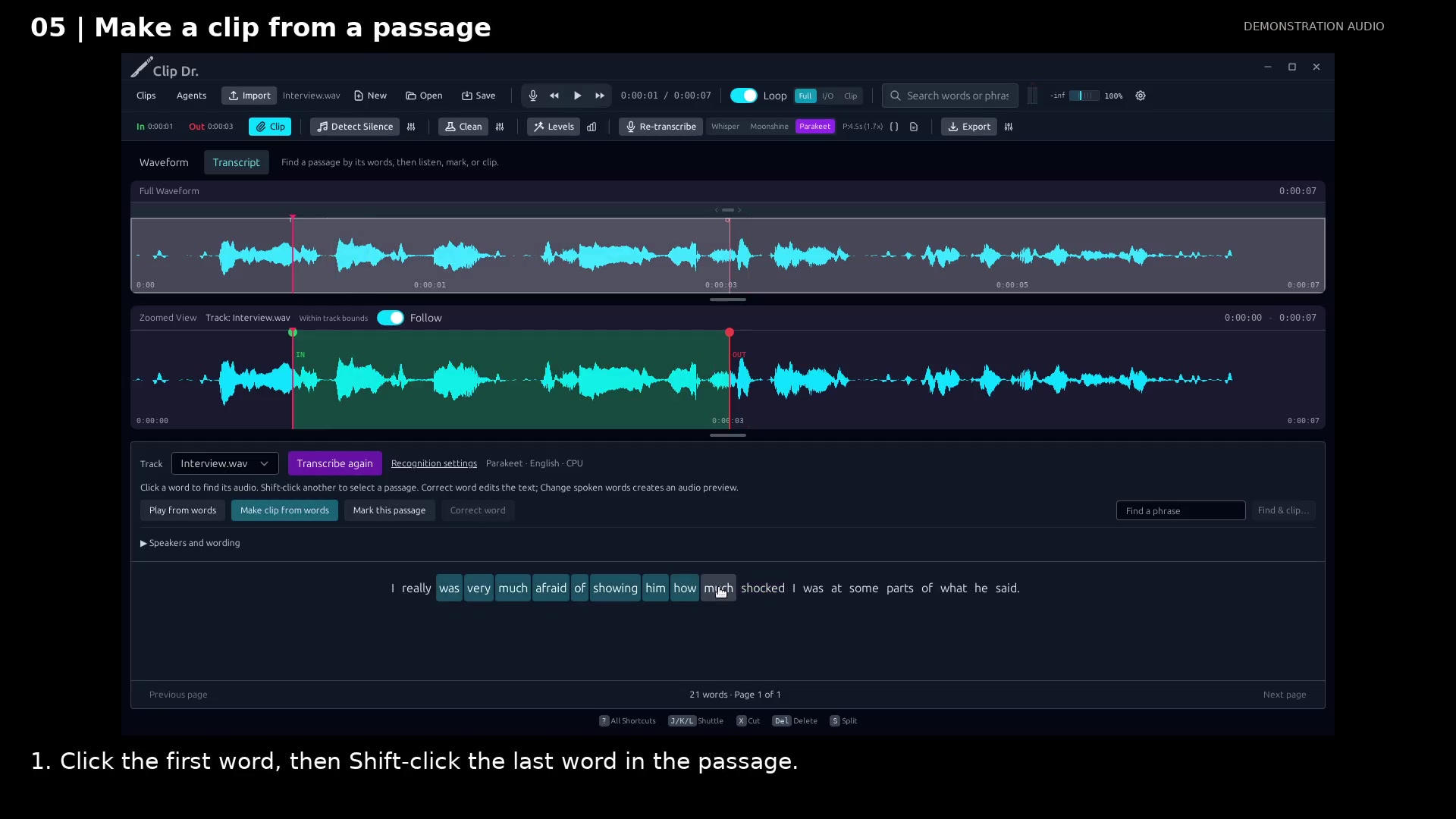
Make a clip from selected words
Pick the passage in a transcript and let its timing locate the audio excerpt.
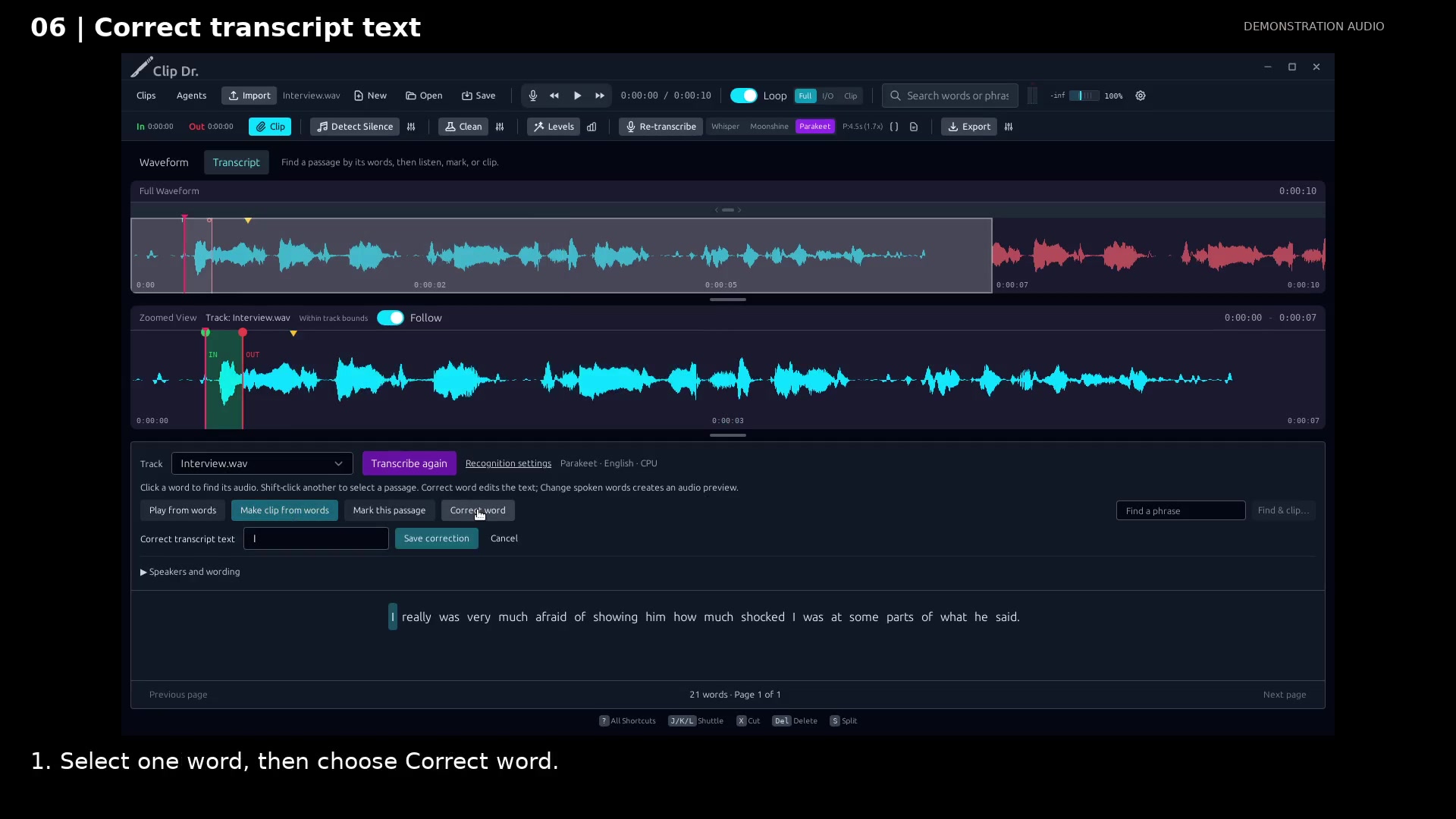
Correct a transcript word
Fix spelling or punctuation without changing the recorded voice.
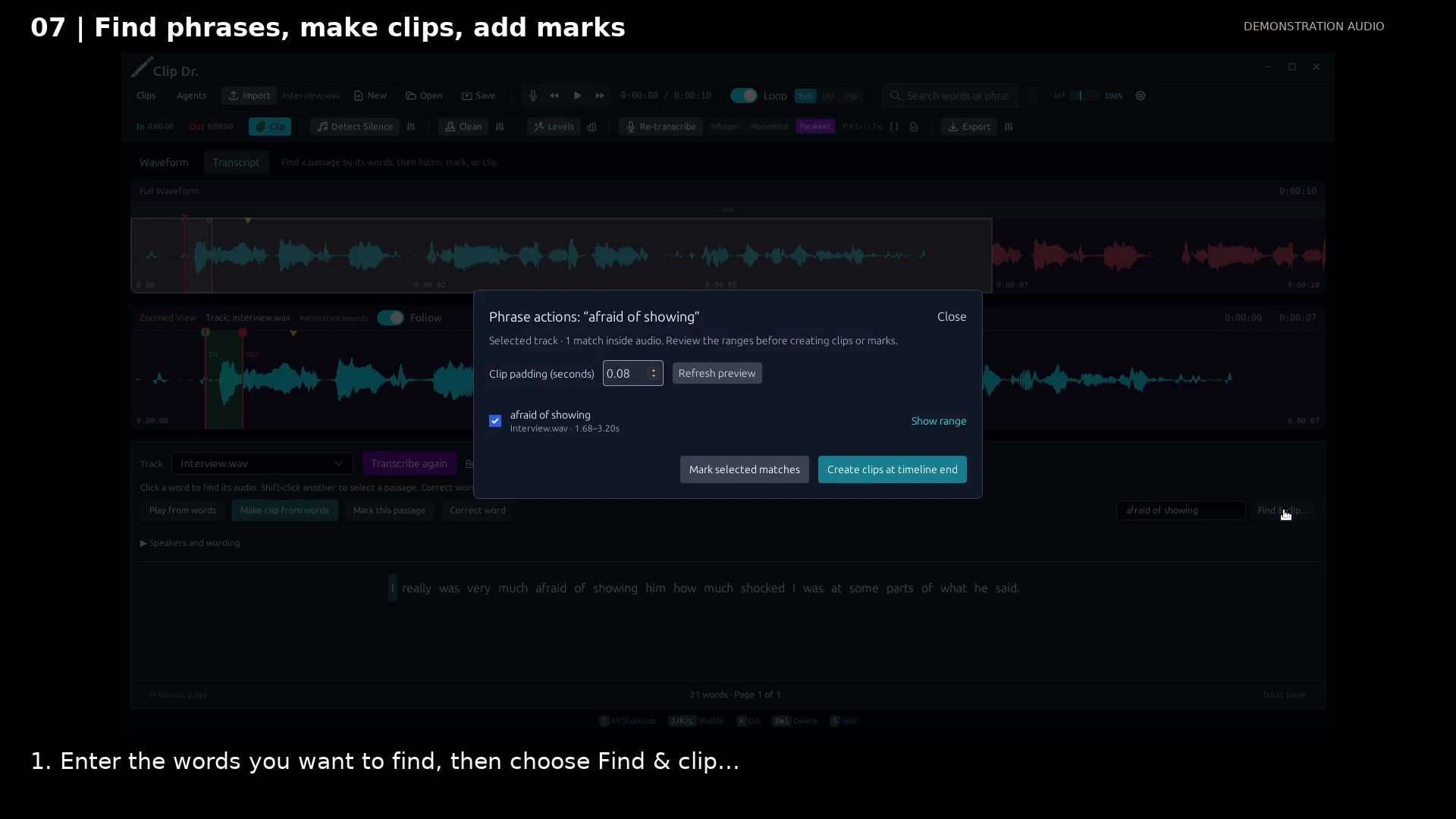
Find phrases and create excerpts
Search for remembered words, review the matches, and make clips or marks together.
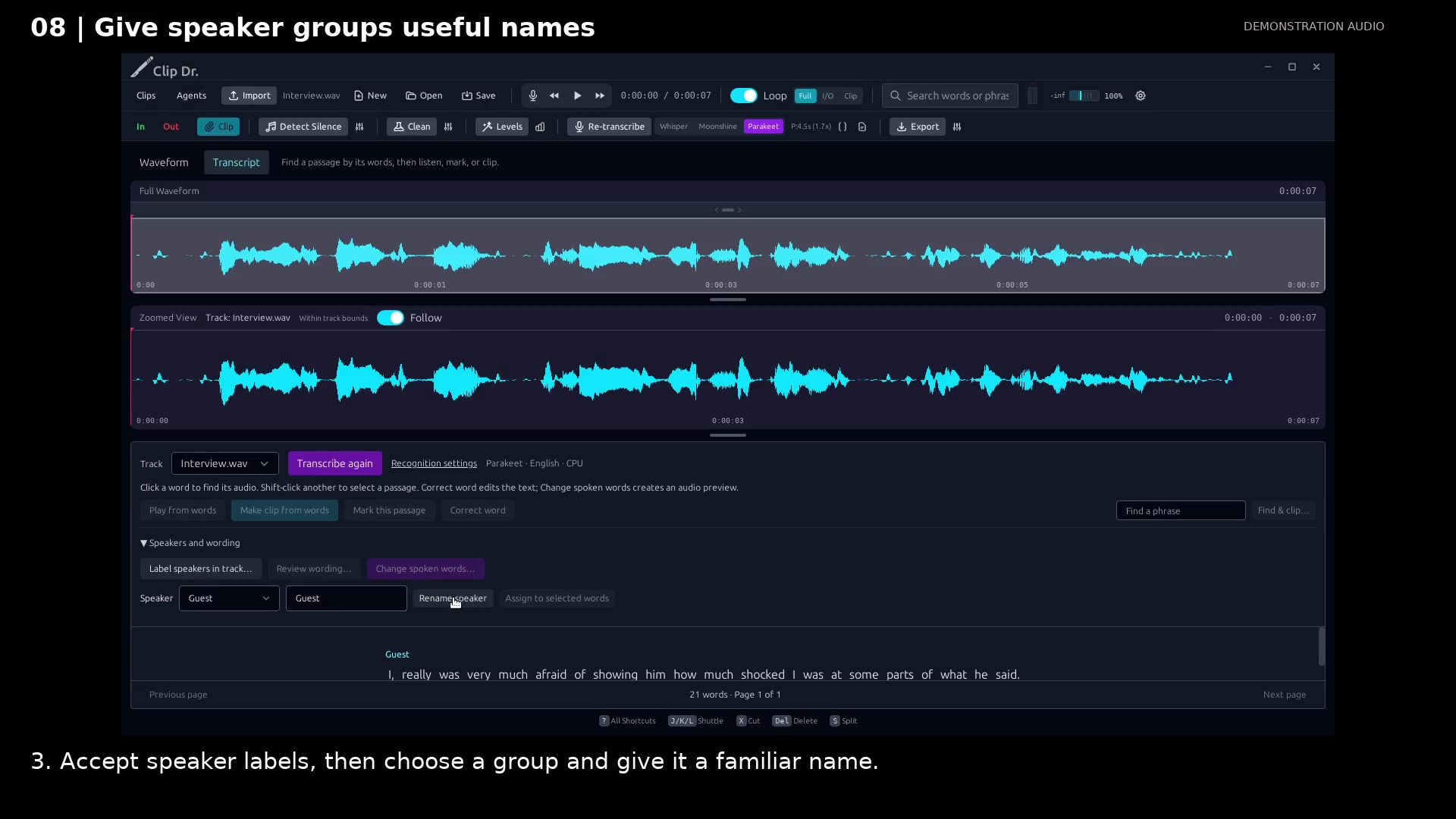
Label and name speakers
Turn locally detected voice groups into familiar names you can follow through the transcript.
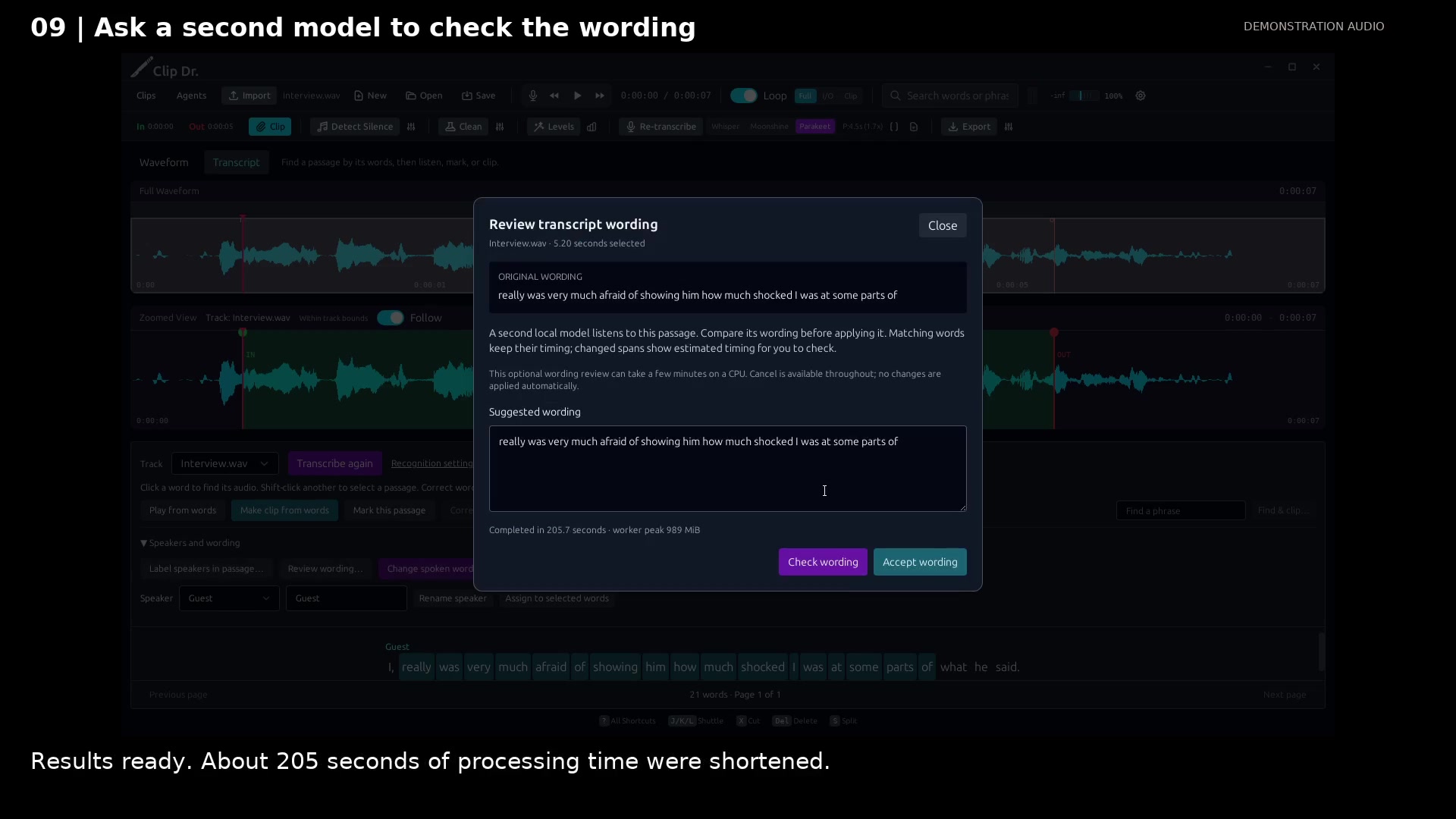
Check a difficult passage with a second model
Compare a second local transcription before deciding whether to change the wording.
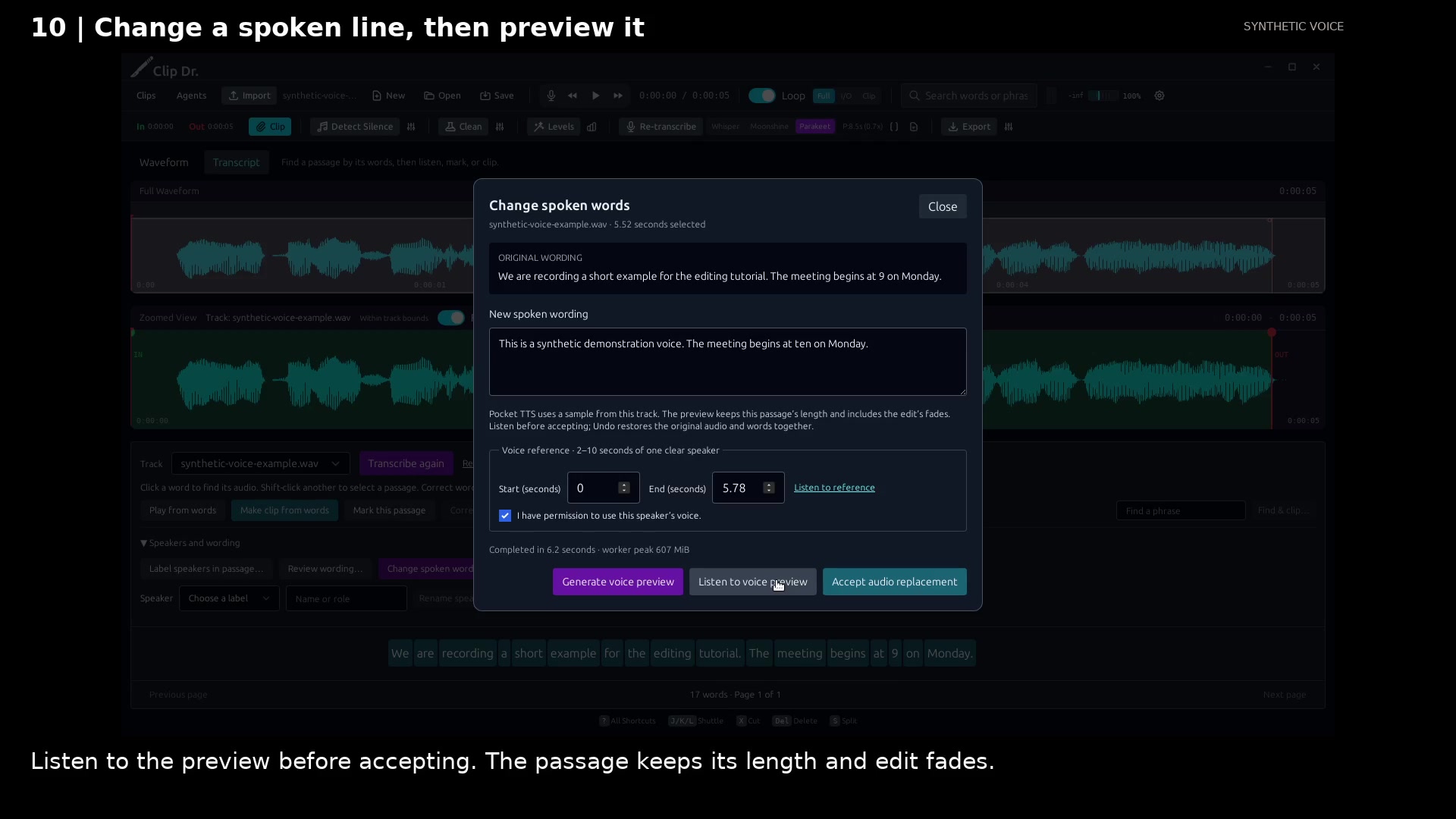
Preview a change to the spoken words
Edit a short line, hear a local voice preview, then explicitly accept or undo the audio replacement.
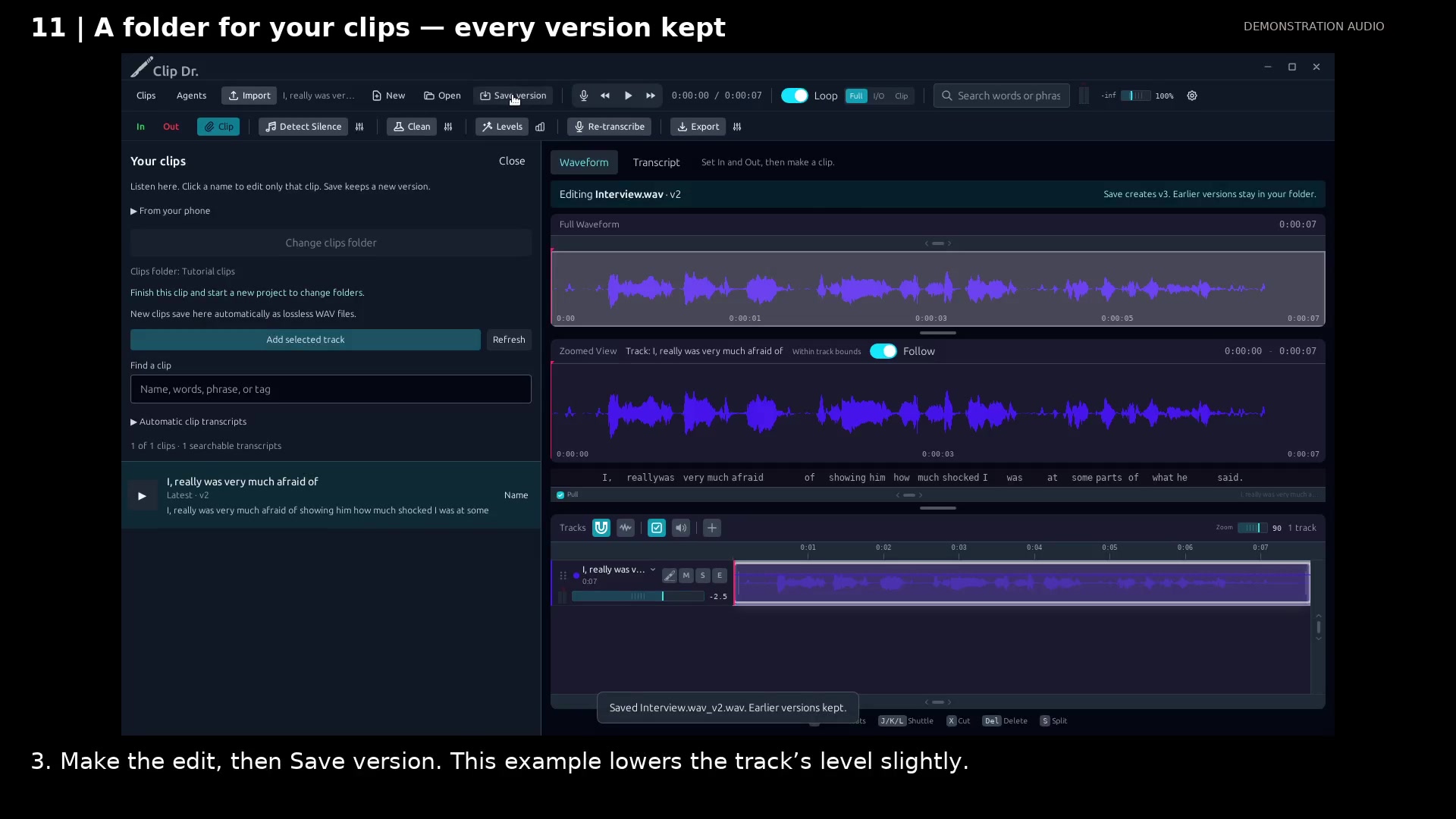
Keep your clips and every version
Listen through a folder, open only the clip that needs work, and save its next numbered version.
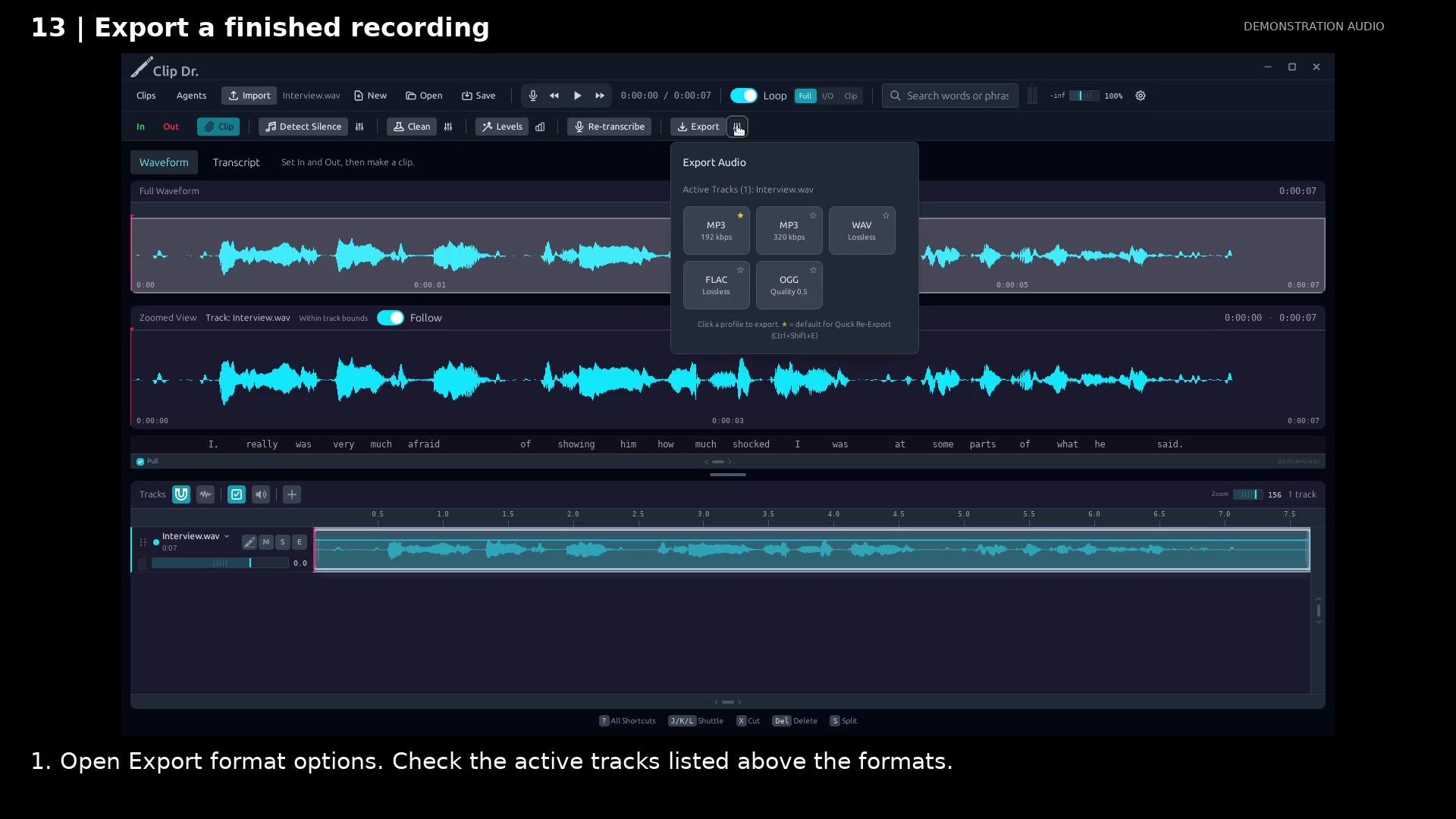
Export the finished audio
Choose a delivery format and keep a favorite for the next export.
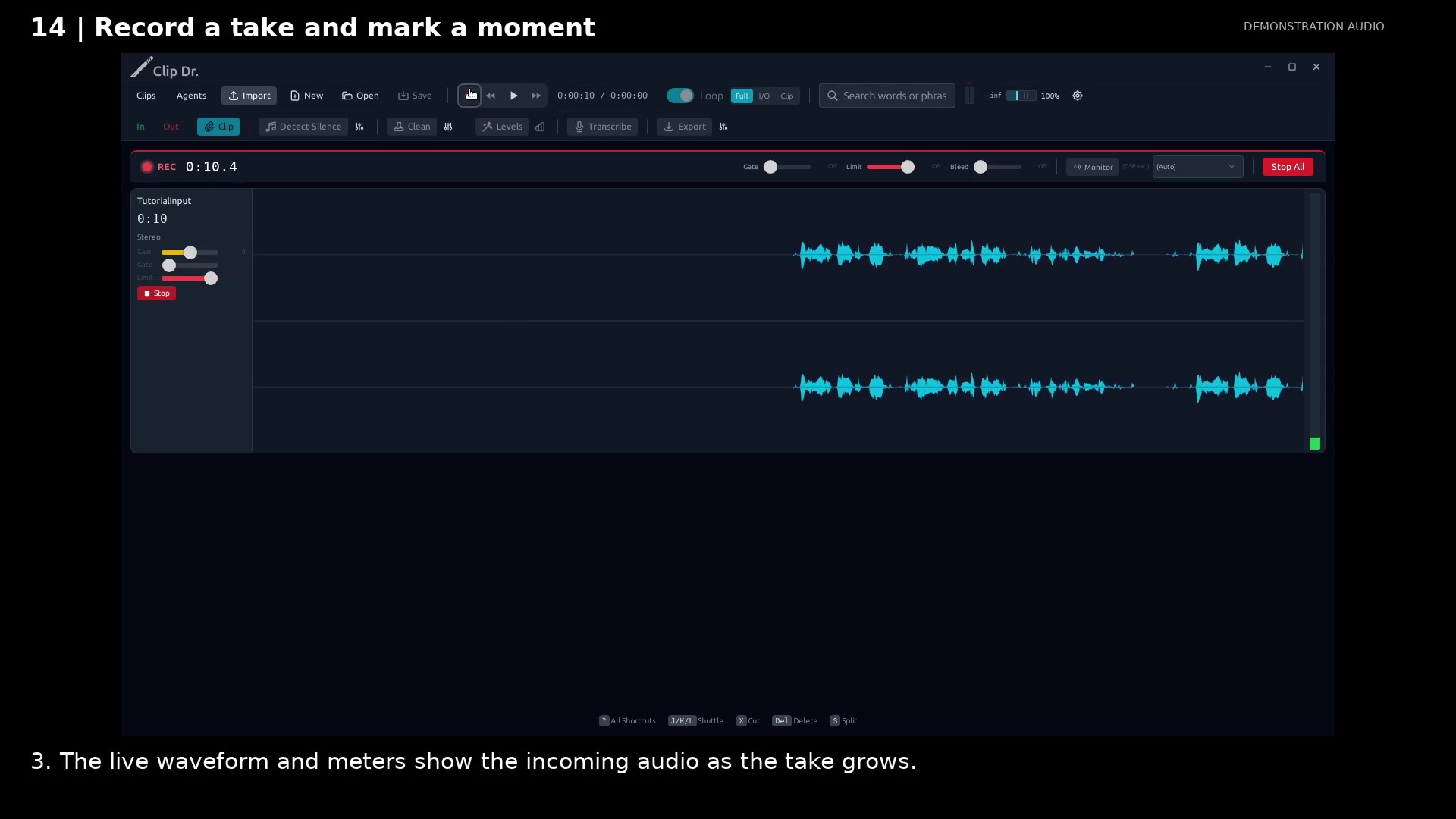
Record and mark a moment
Watch the incoming waveform and mark useful moments while the take continues.
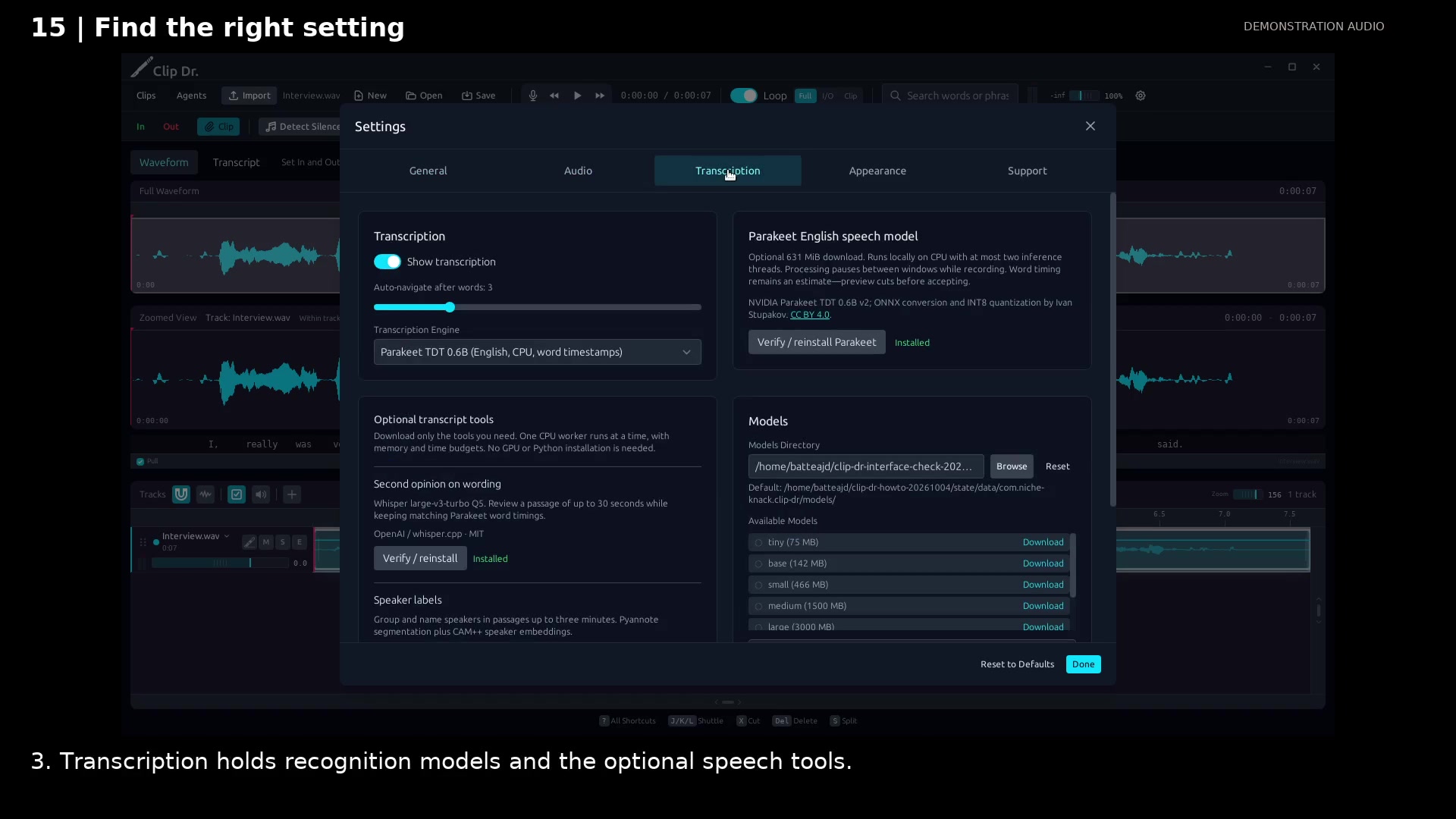
Find the right setting
Start with the defaults and find optional controls by task.
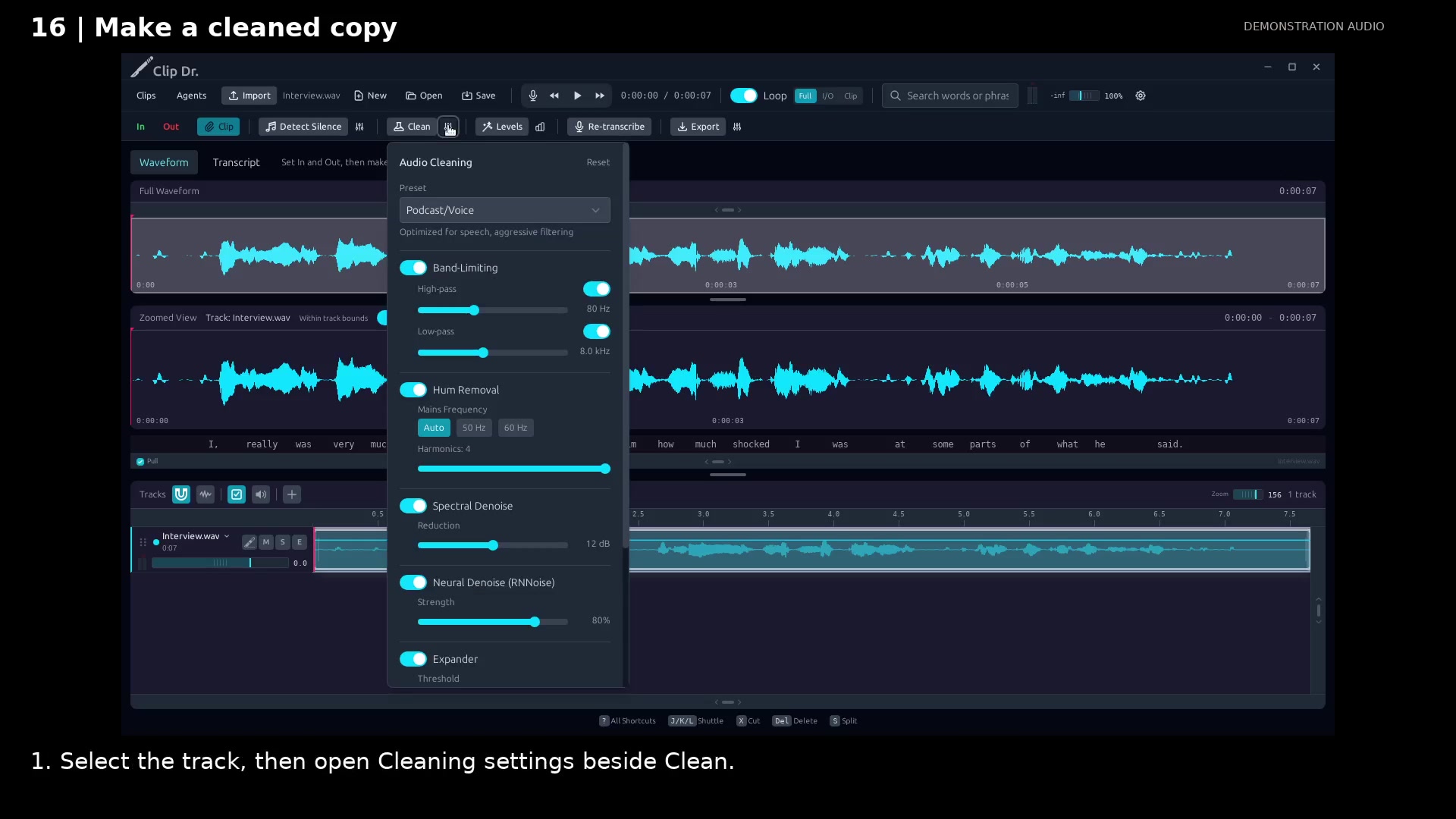
Make a cleaned copy
Apply a cleanup preset while keeping the source available.
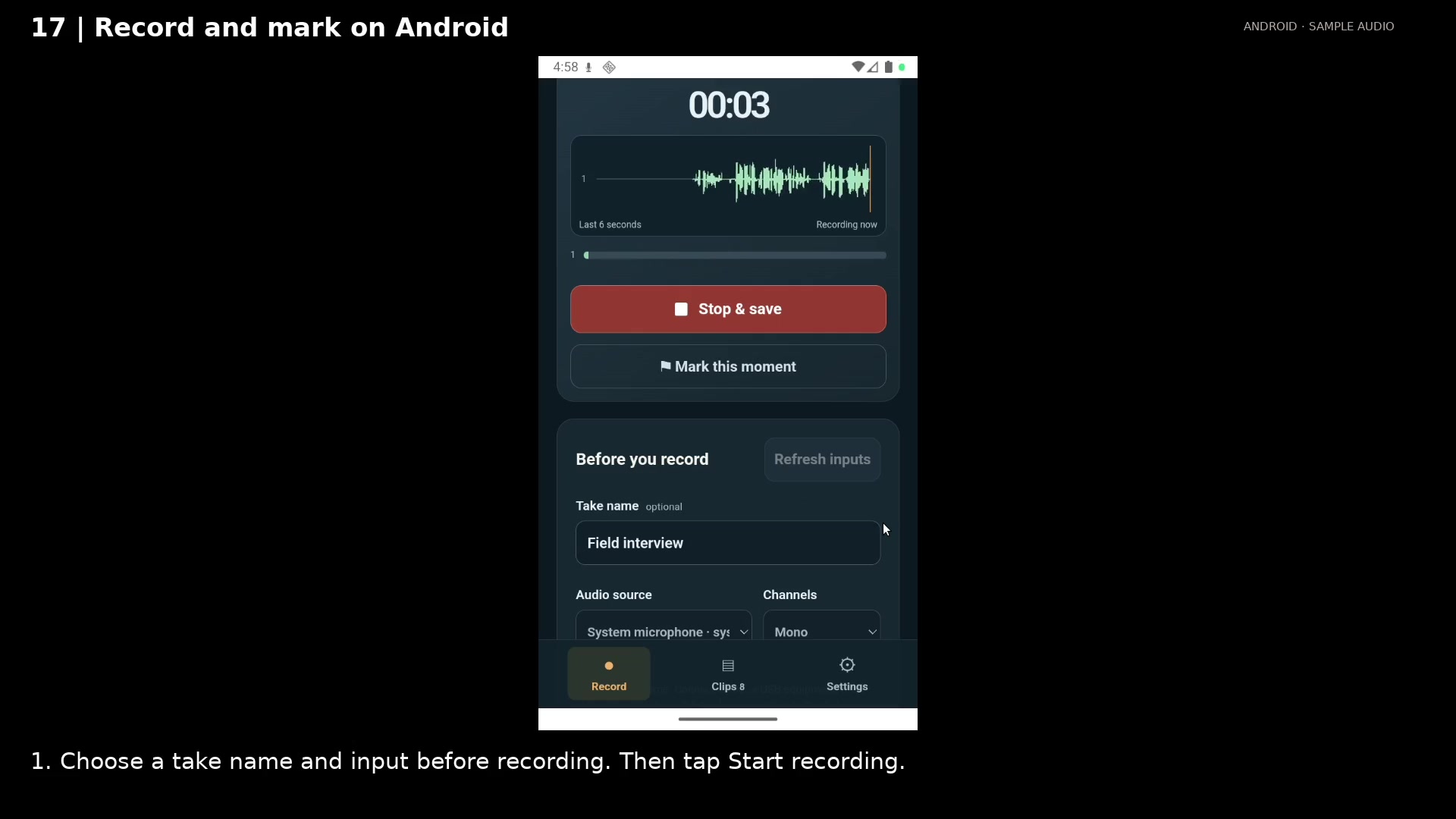
Record and mark on Android
Watch incoming audio and flag useful moments without stopping the take.
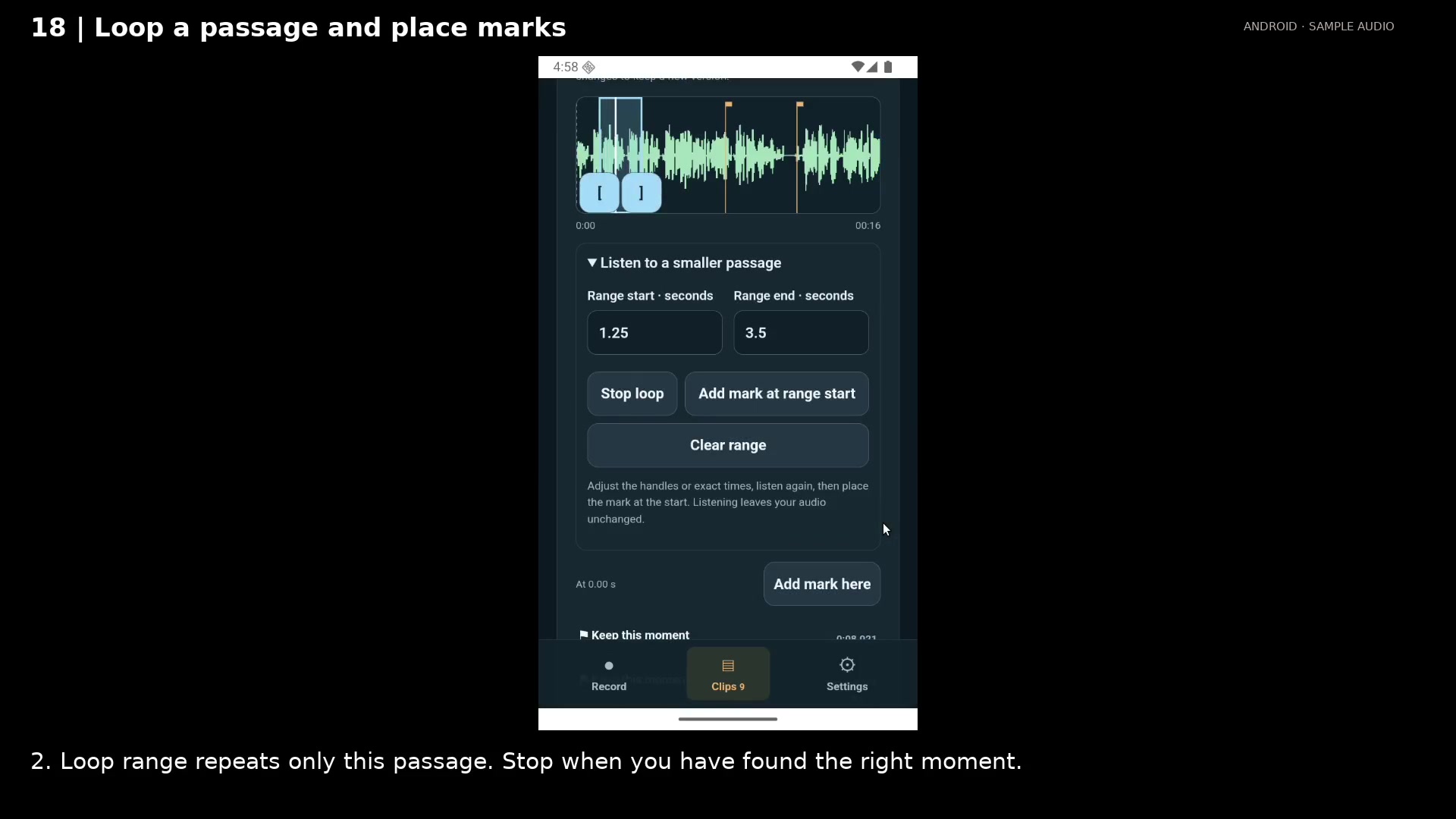
Loop a passage and place marks
Listen to a small passage repeatedly, then name and position the moments you want to keep.
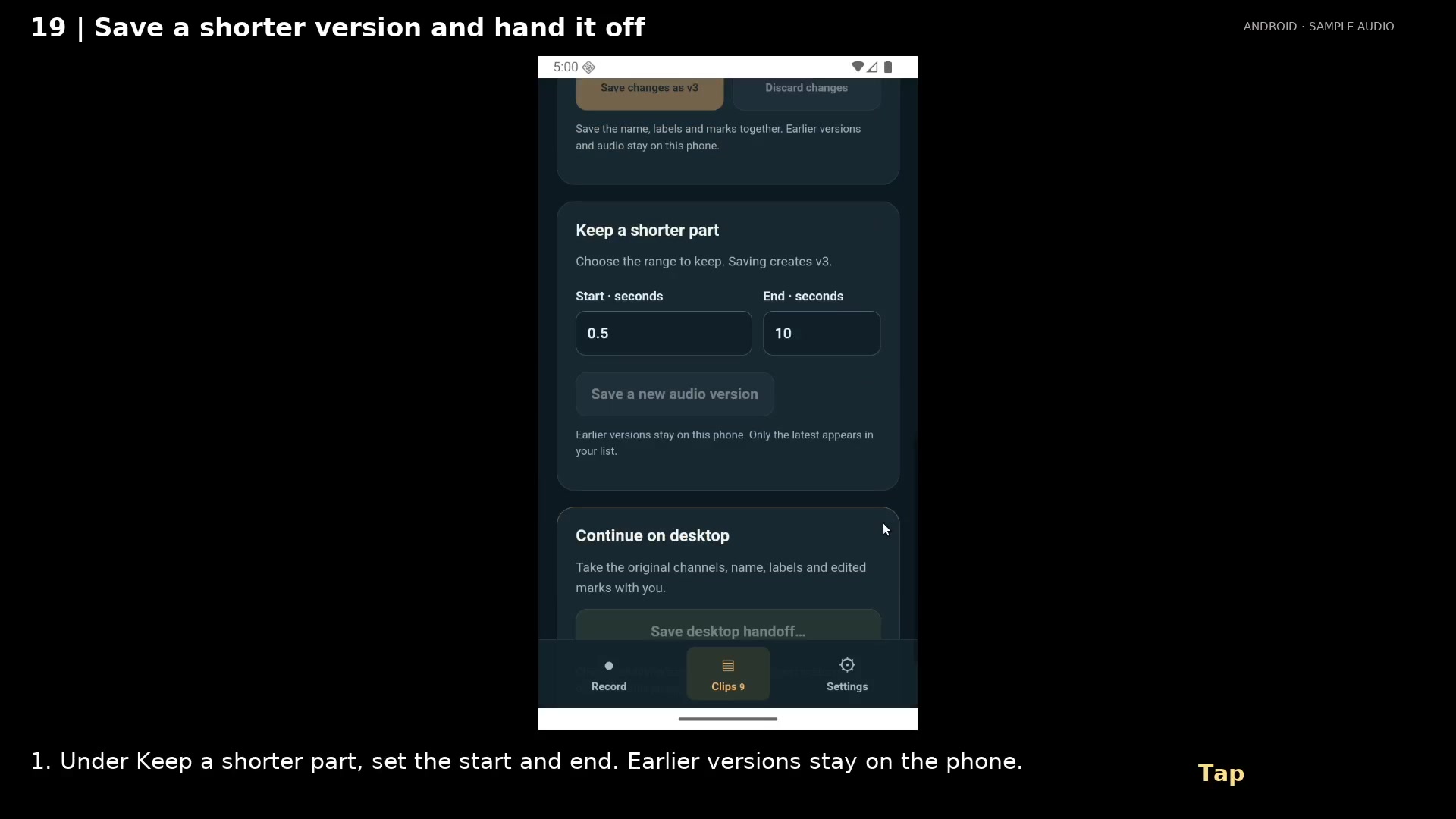
Save a shorter version and hand it off
Keep the useful part and send its audio, labels, and edited marks to desktop in one package.
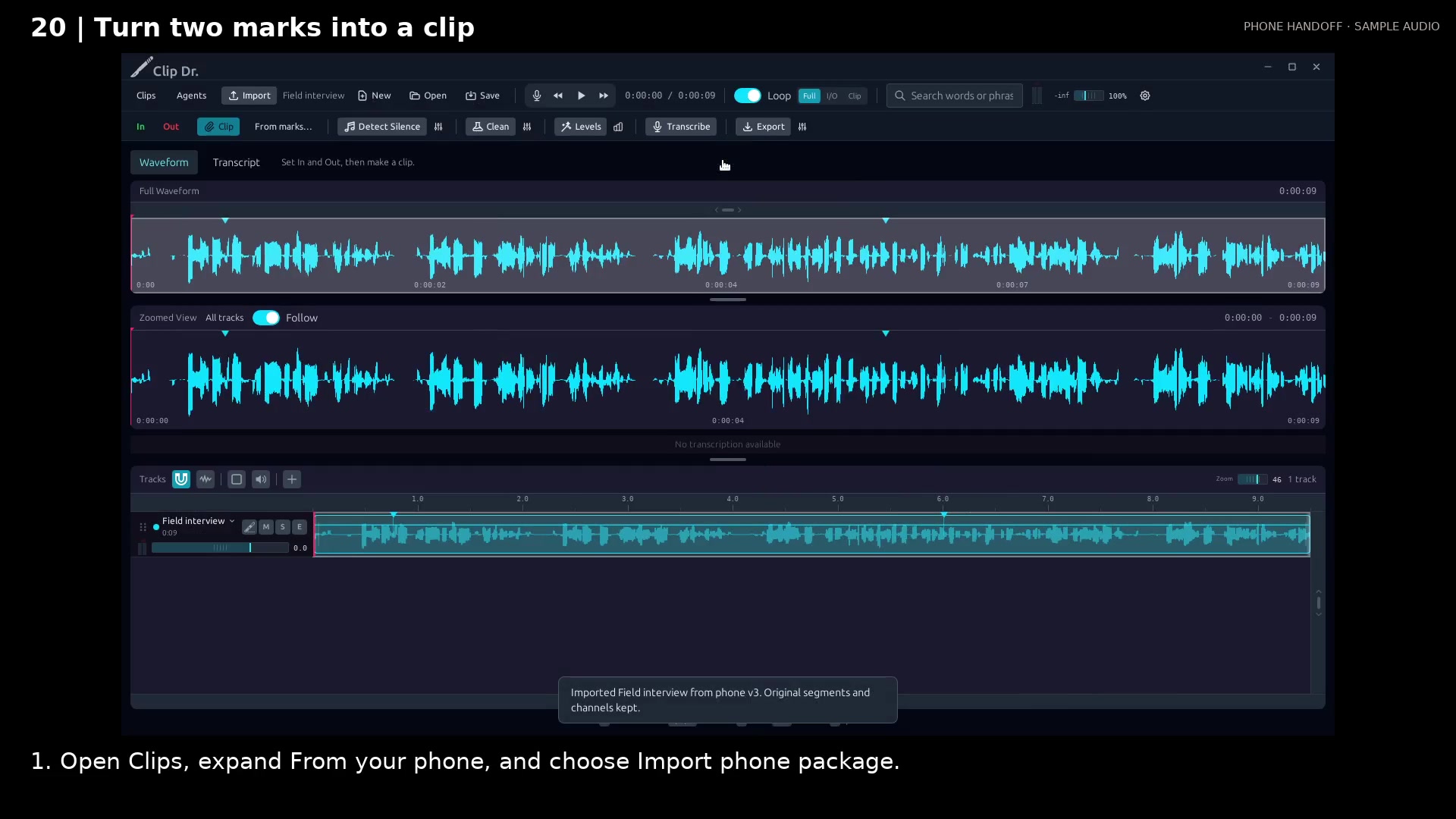
Turn two marks into a clip
Choose a start and end by name to make an exact excerpt from a marked recording.
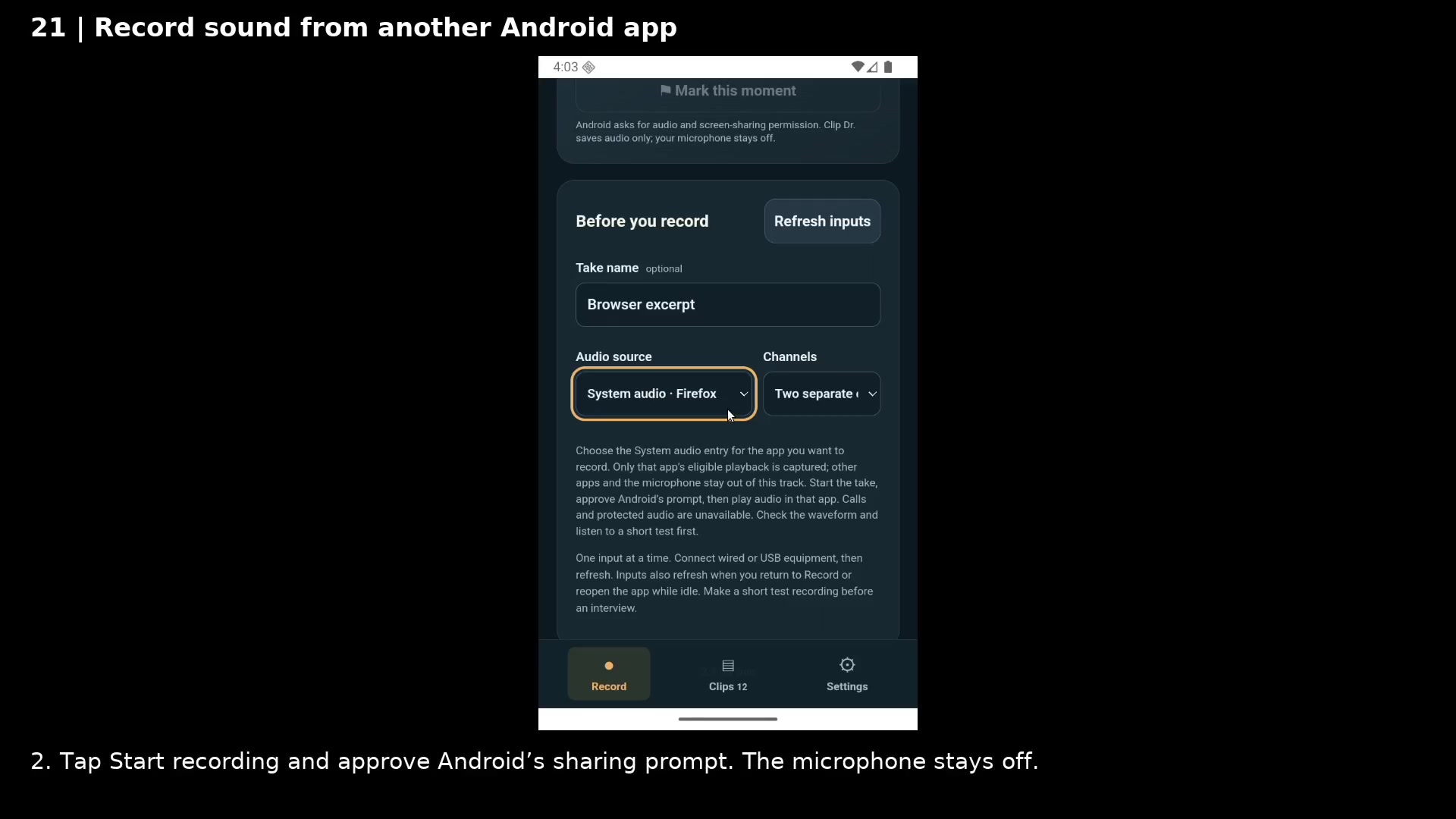
Record sound from another Android app
Capture a passage from a browser or player, mark the useful moments, and keep it ready for desktop editing.
Rabbit Trail
About Rabbit Trail
An evidence board and research archive. Collect documents, scans, notes and recordings; follow names, dates and relationships back to the passages they came from. Capture on Android and investigate on desktop.
Explore Rabbit Trail →Install the Rabbit Trail beta on Android
Download your approved Rabbit Trail beta, install it on Android and open it for the first time.
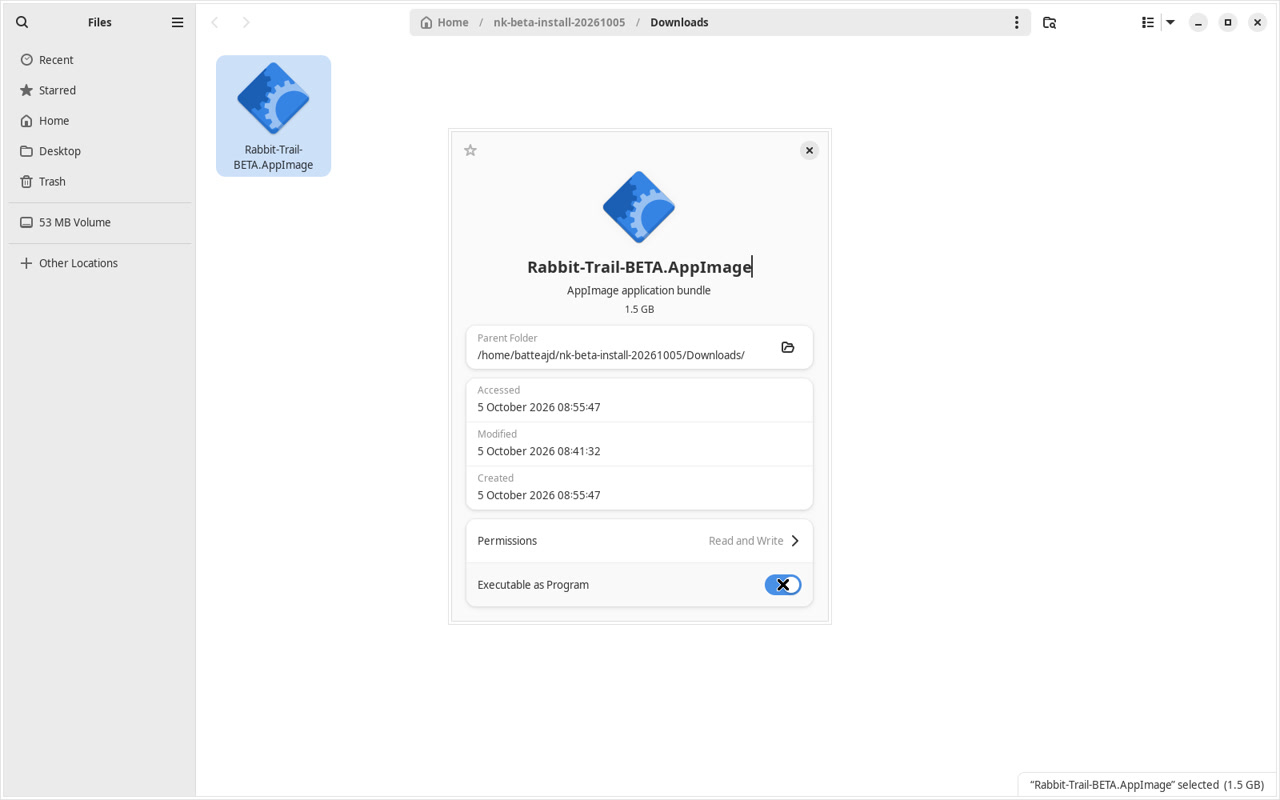
Install the Rabbit Trail beta on Linux
Download your approved Rabbit Trail beta, install it on Linux and open it for the first time.
Install the Rabbit Trail beta on Windows
Download your approved Rabbit Trail beta, install it on Windows and open it for the first time.
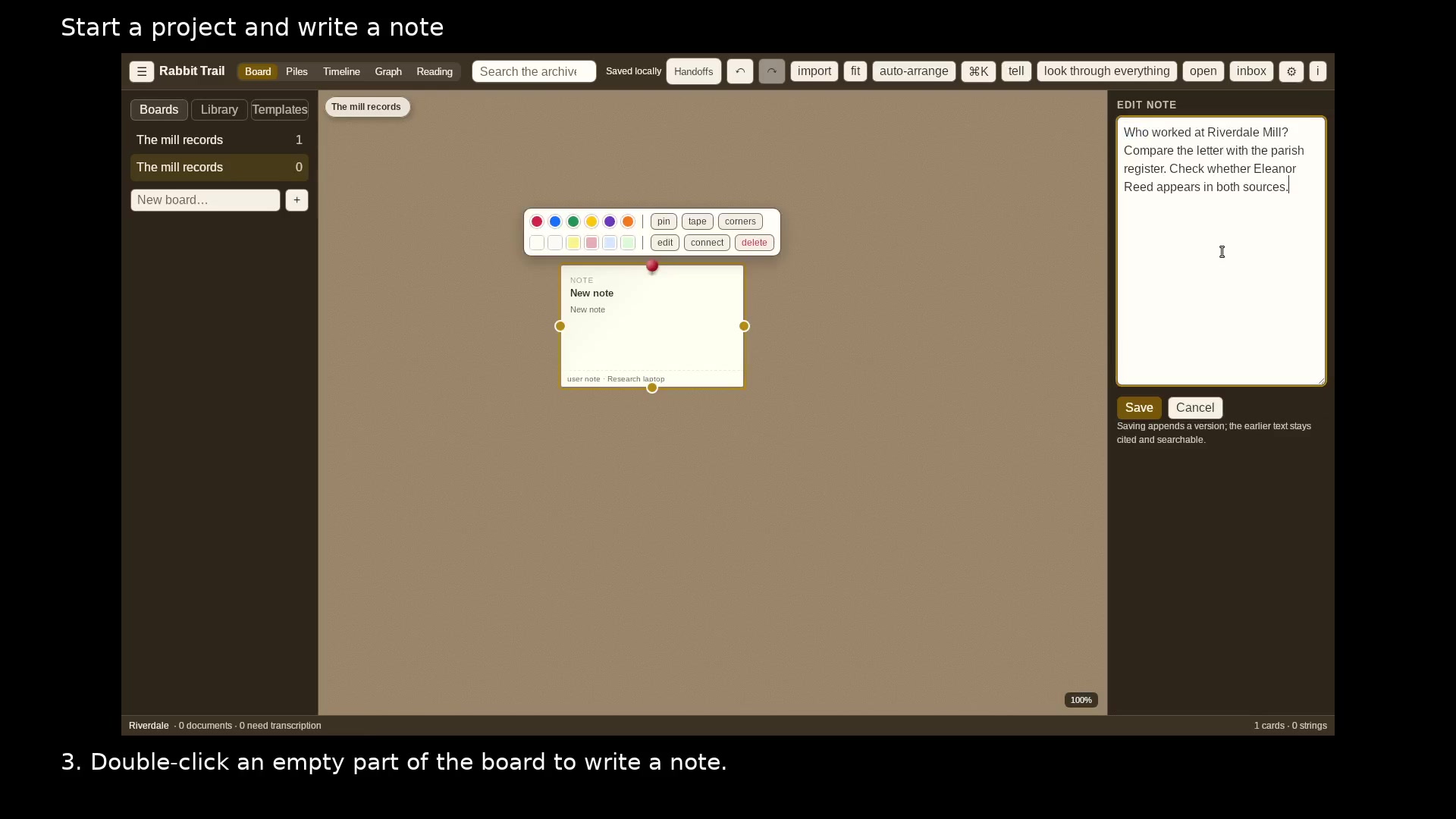
Start a project and write a note
Give an investigation its own folder, board, and first research question.
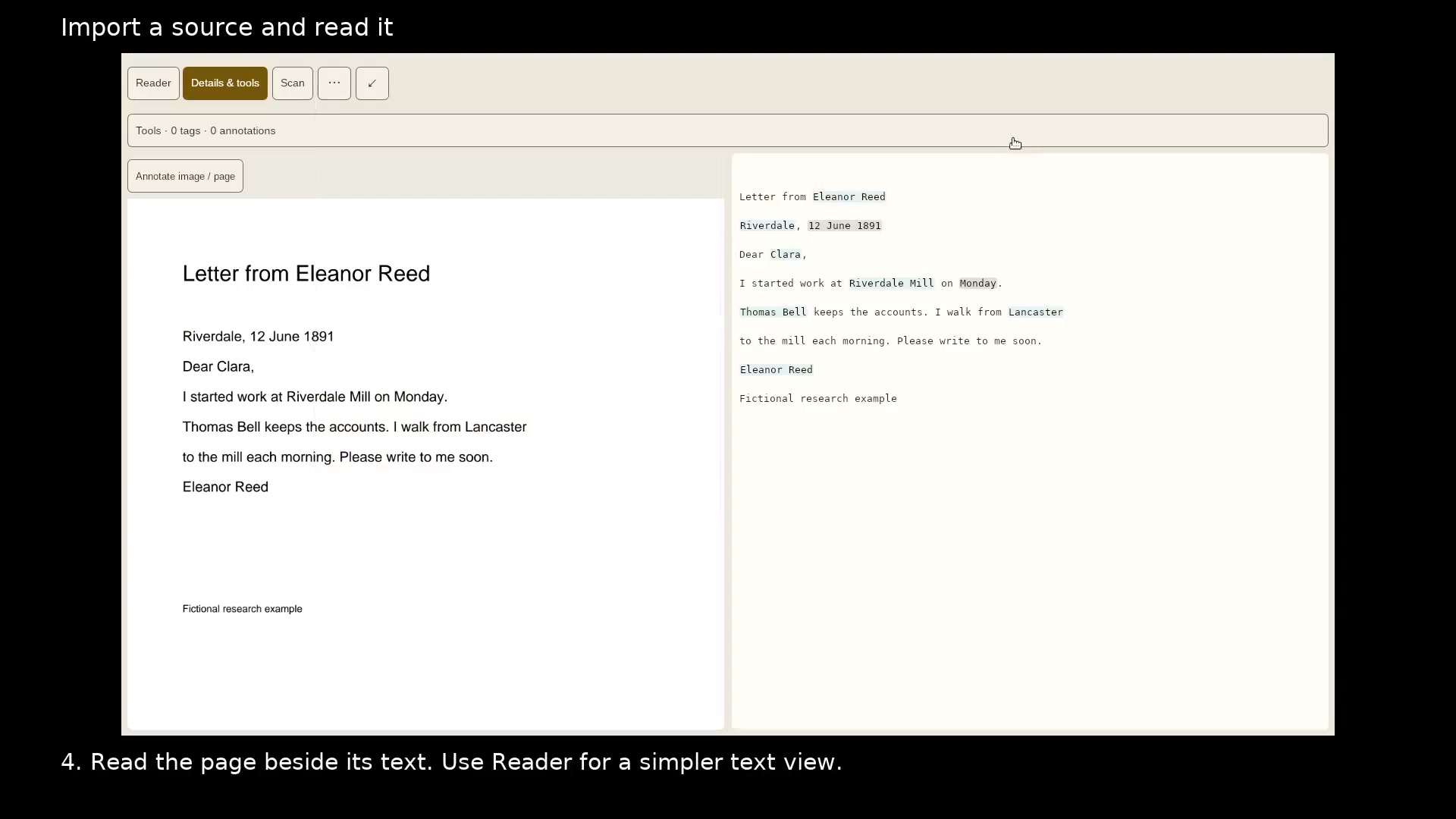
Import a source and read it
Keep the original document beside the text you use in your research.
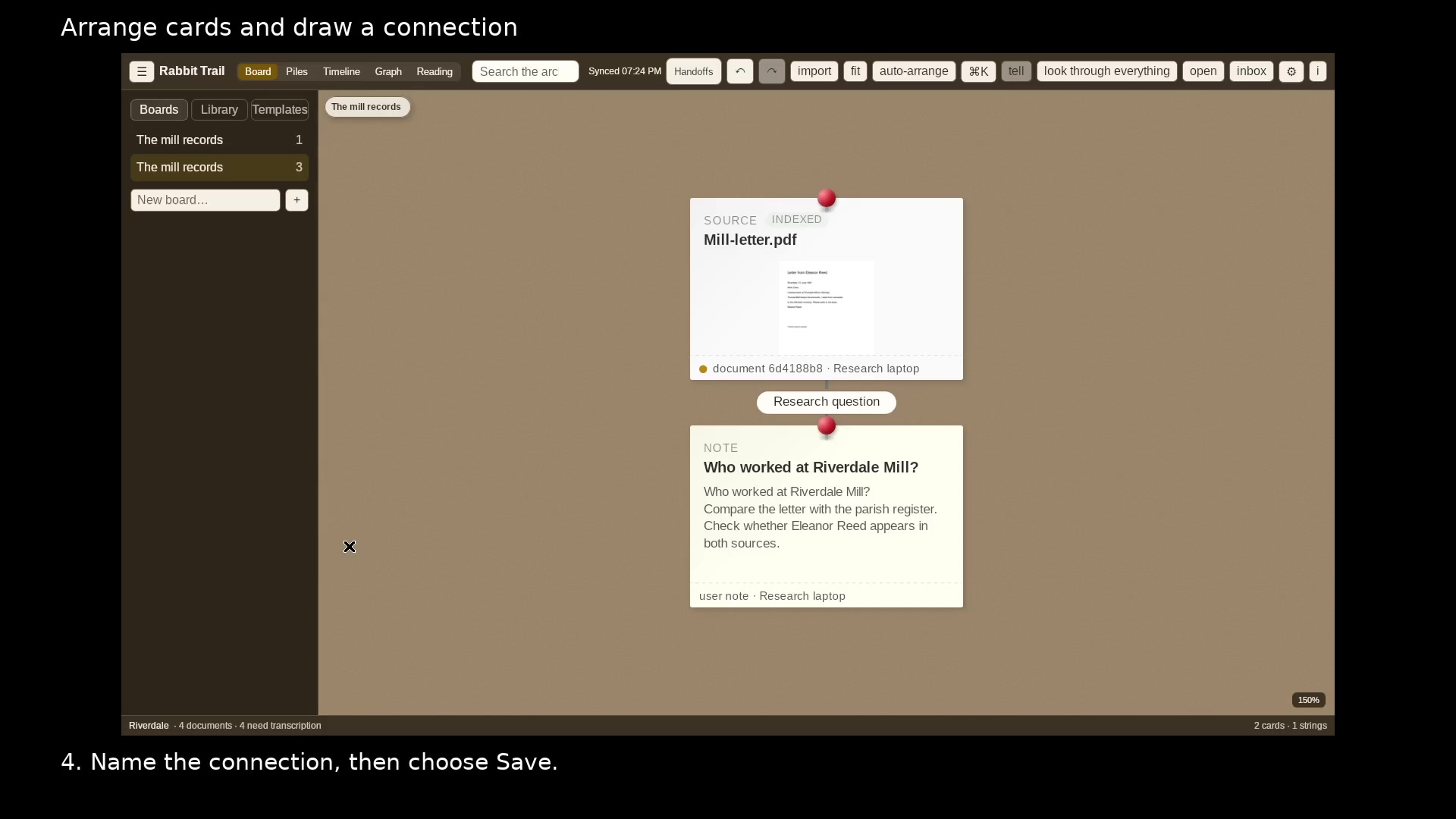
Arrange cards and draw a connection
Separate overlapping cards and label why two items belong together.
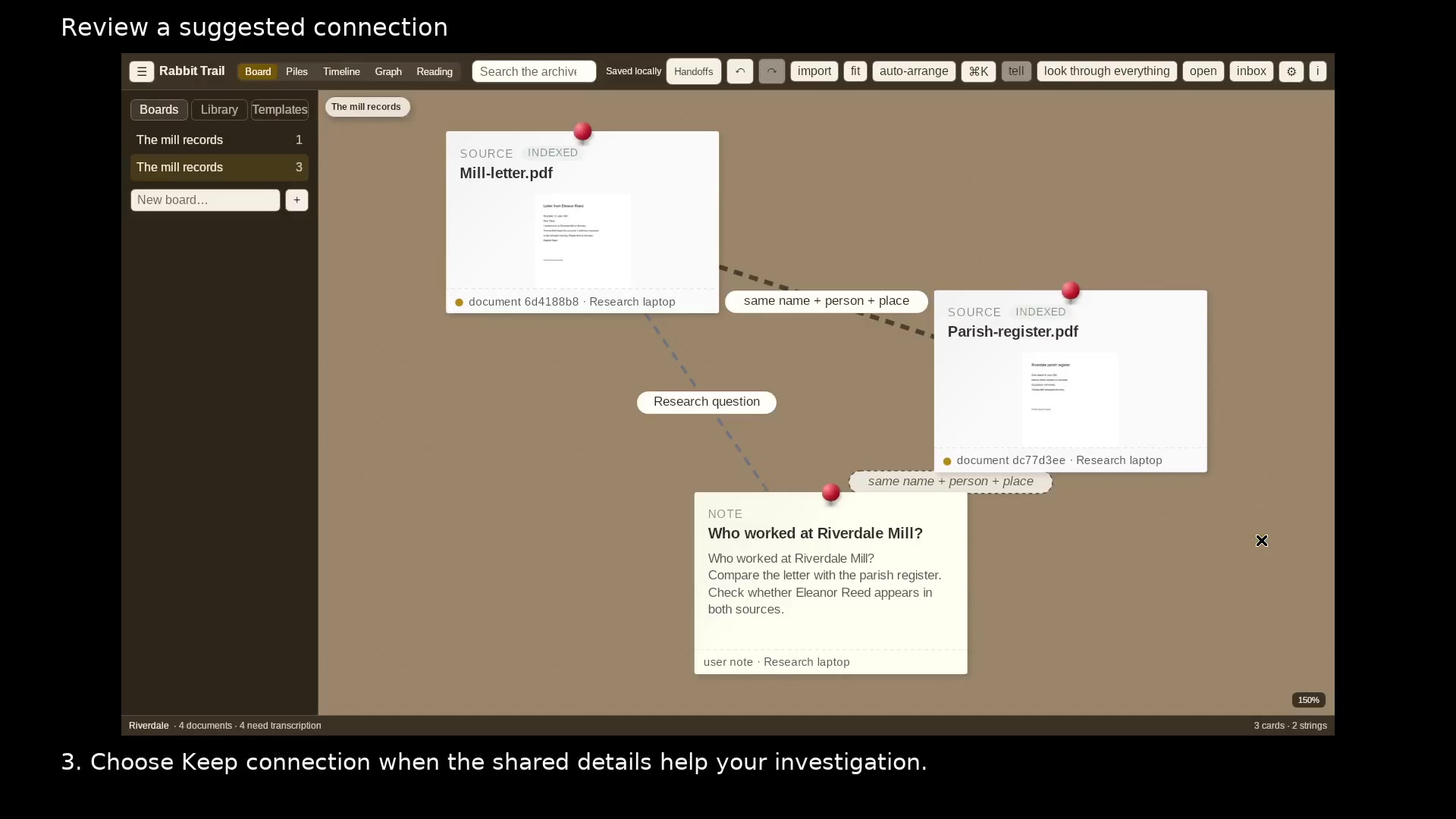
Review a suggested connection
See the actual names and places that two sources share before keeping a link.
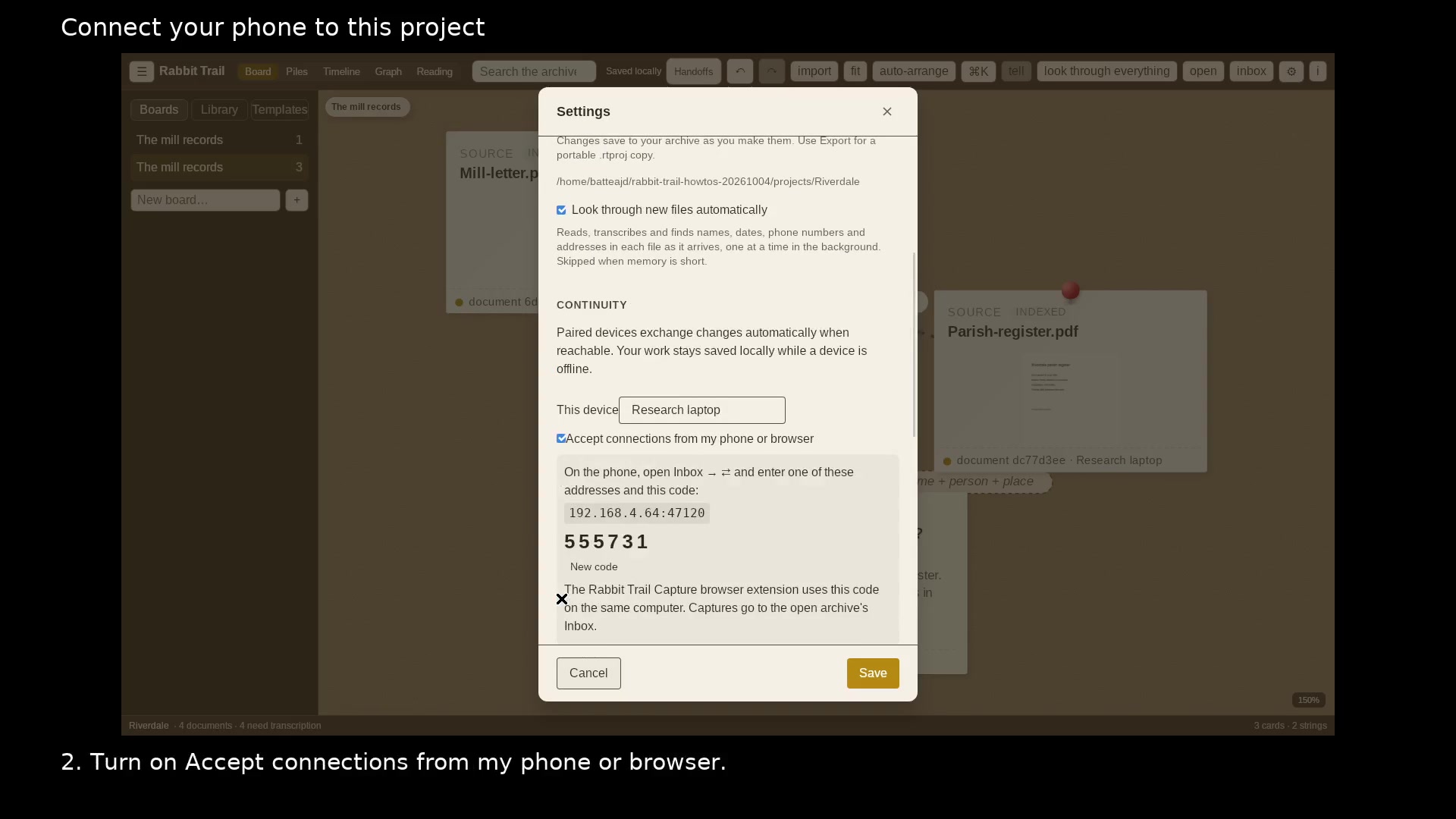
Connect your phone to this project
Make the open desktop project available for Wi-Fi pairing.
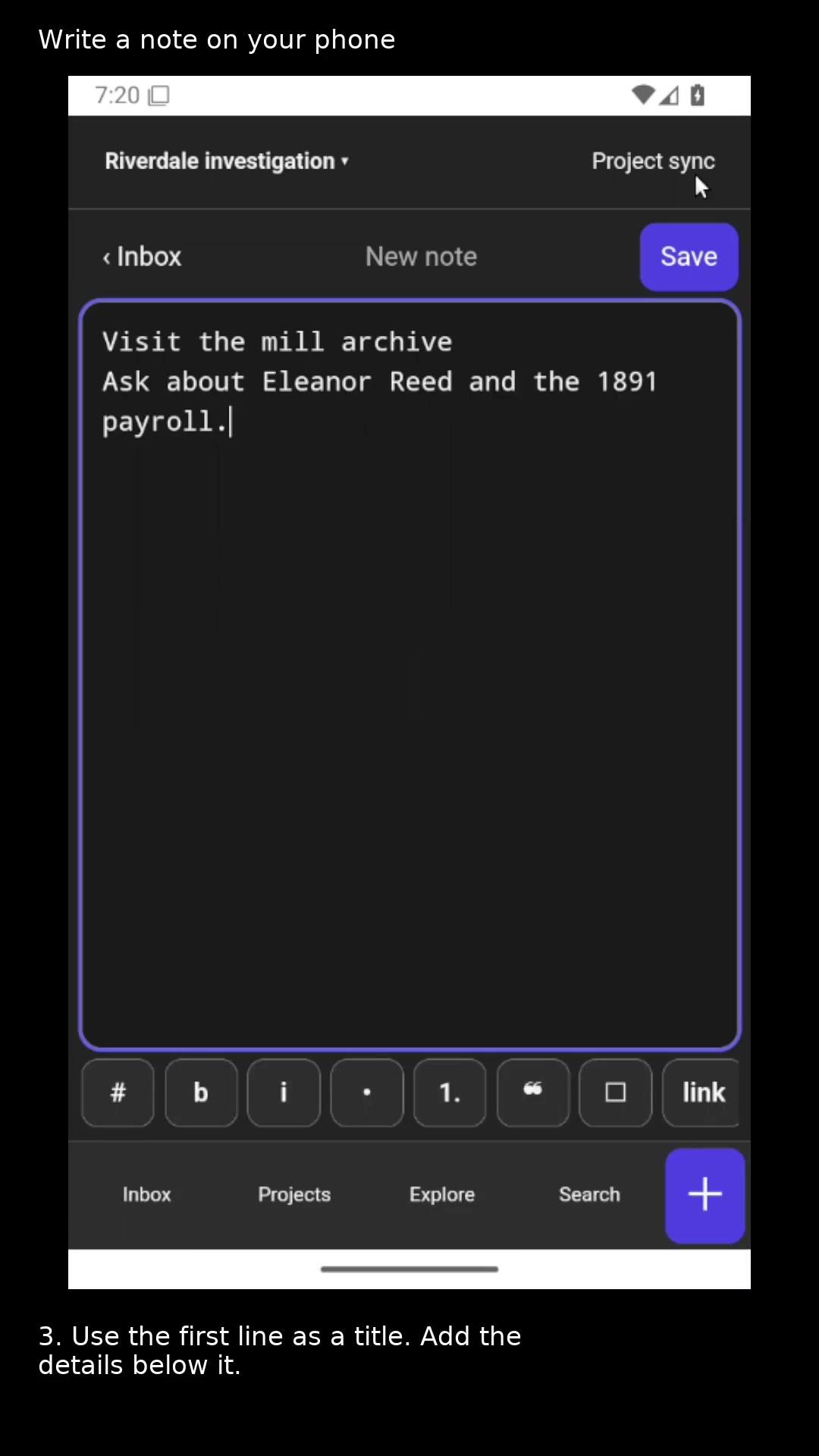
Write a note on your phone
Capture a research lead in the right project.
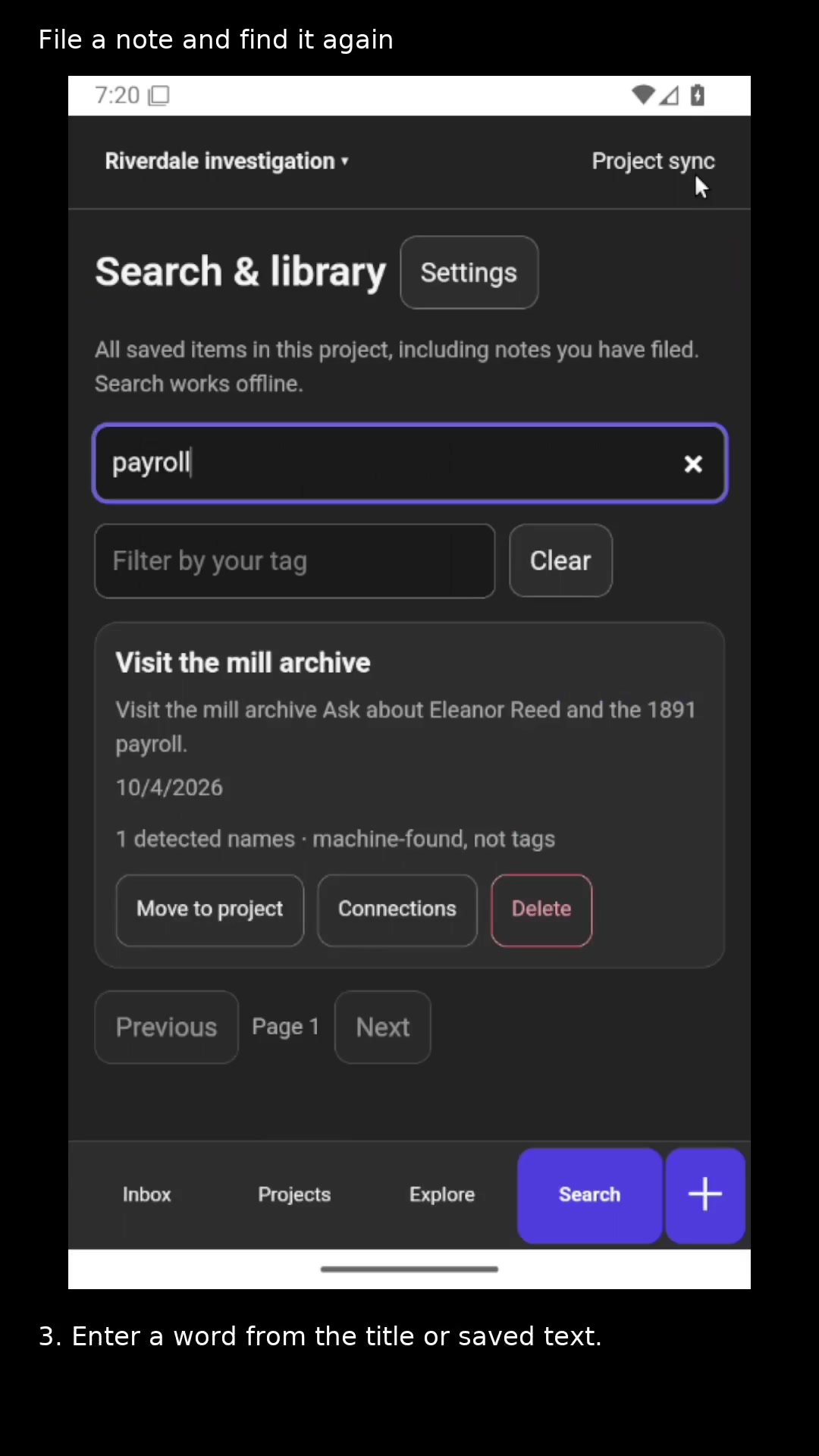
File a note and find it again
Clear the phone Inbox while keeping the note in its project.
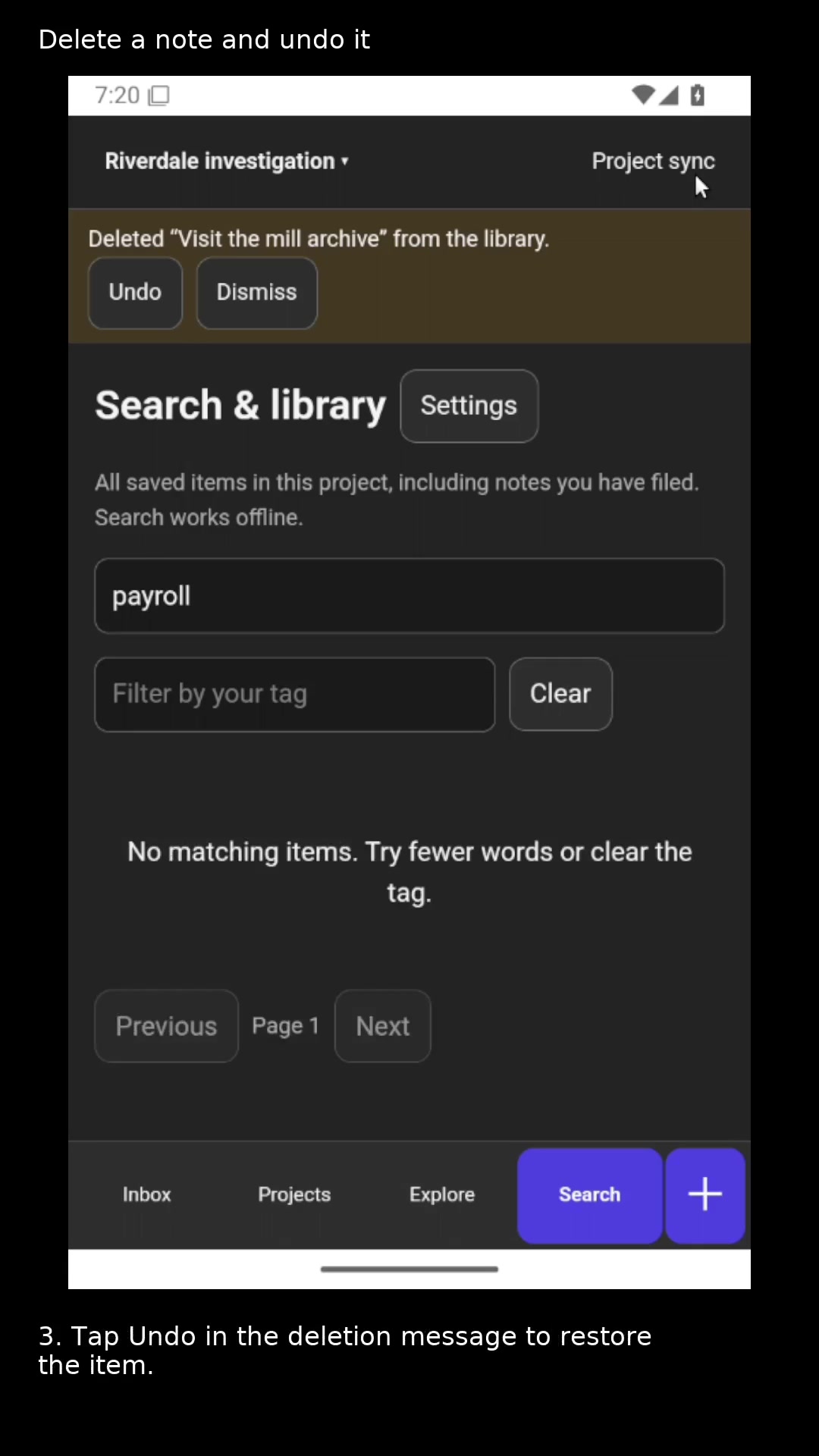
Delete a note and undo it
Remove an unwanted library item and recover it if you change your mind.
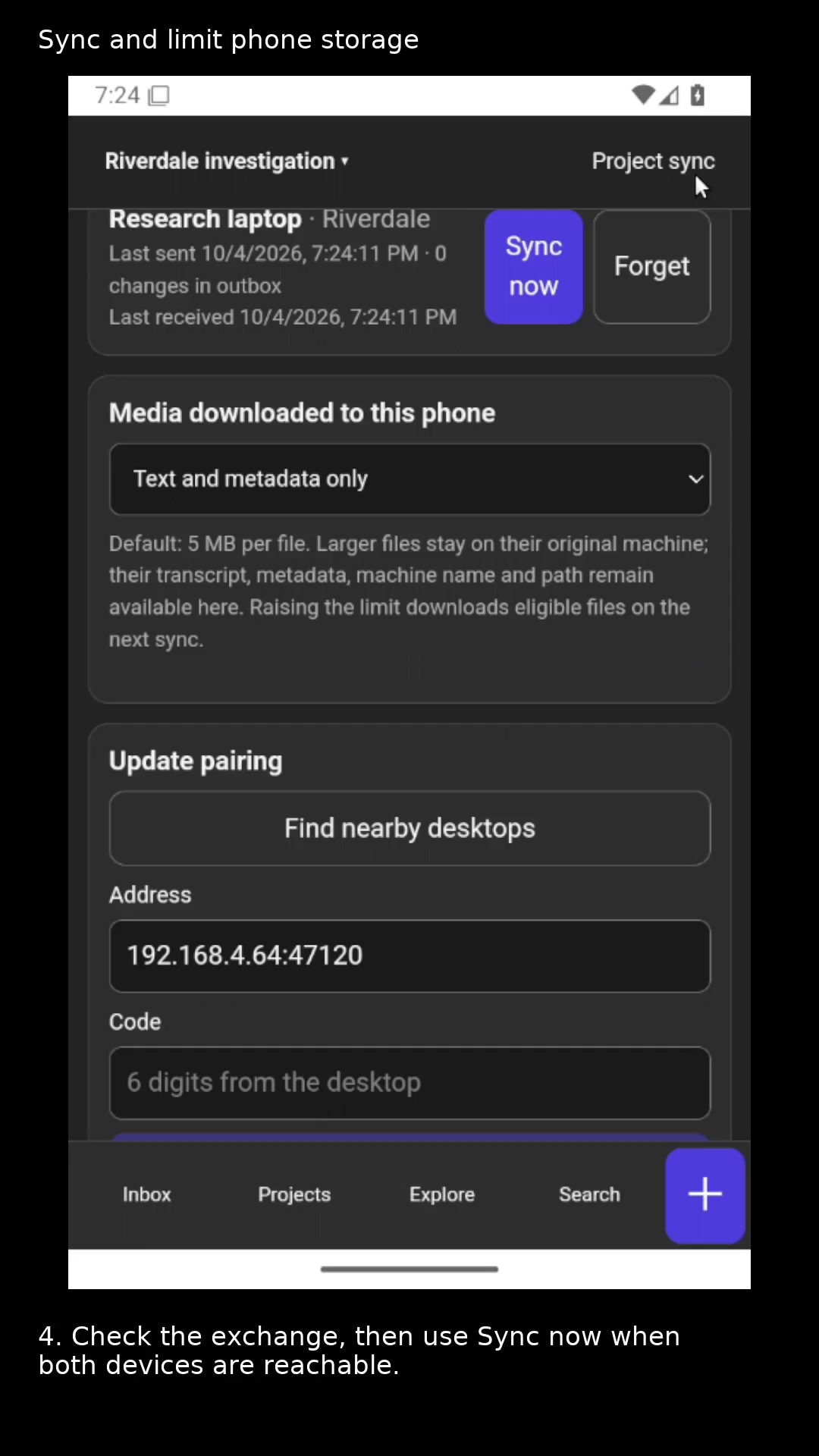
Sync a project and limit phone storage
Pair with the desktop and choose which media files download to the phone.
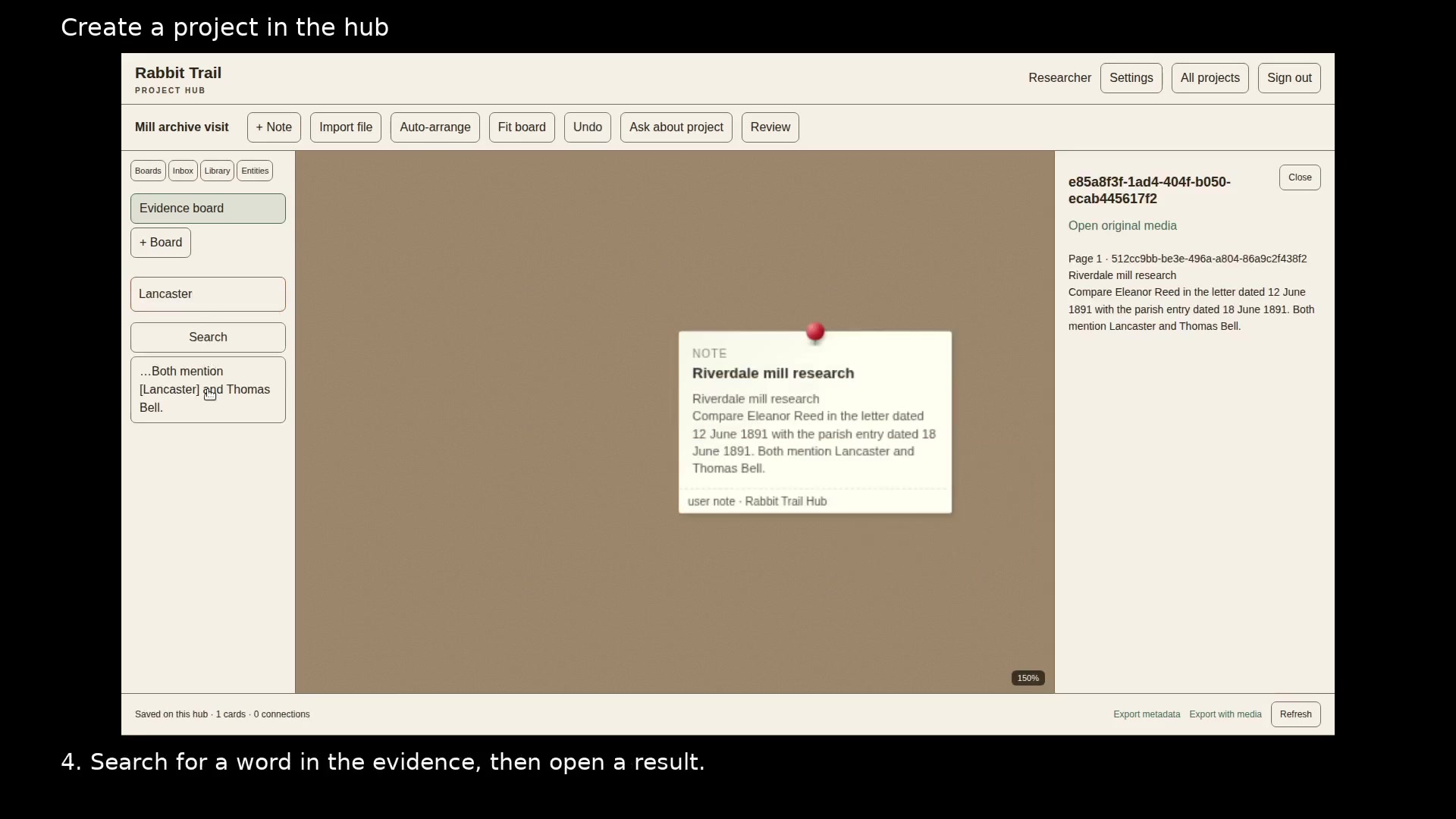
Create a project in the hub
Write, arrange, and search project notes in your browser.
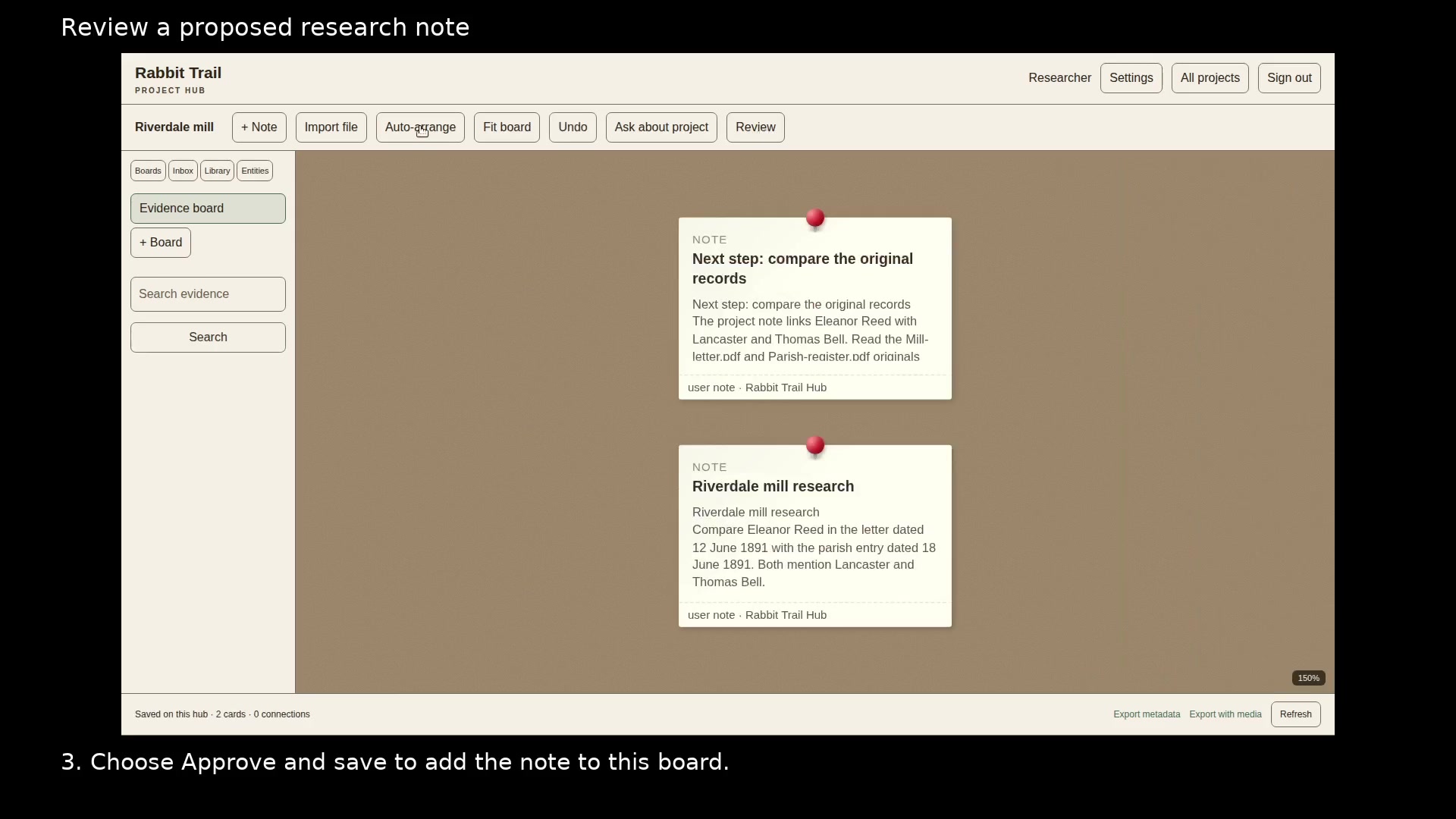
Review a proposed research note
Check a proposed finding before adding it to your evidence board.
Import a project archive into the hub
Open a portable project in the browser and export a backup.
Connect ChatGPT to a hub project
Let ChatGPT retrieve evidence and propose notes for your approval.
Manage hub users and assistant keys
Give each person or tool access to the projects they need.
Choose a model for hub questions
Configure the model used by Ask about project.
Clip a page into a project
Save selected text, a page address, and your own note from Chrome or Firefox.
Choirboy
About Choirboy
Personal filtering for media you own or legitimately access. Connect Plex, Emby, Jellyfin and more, discover podcasts, read transcripts and keep live-show backups.
Explore Choirboy →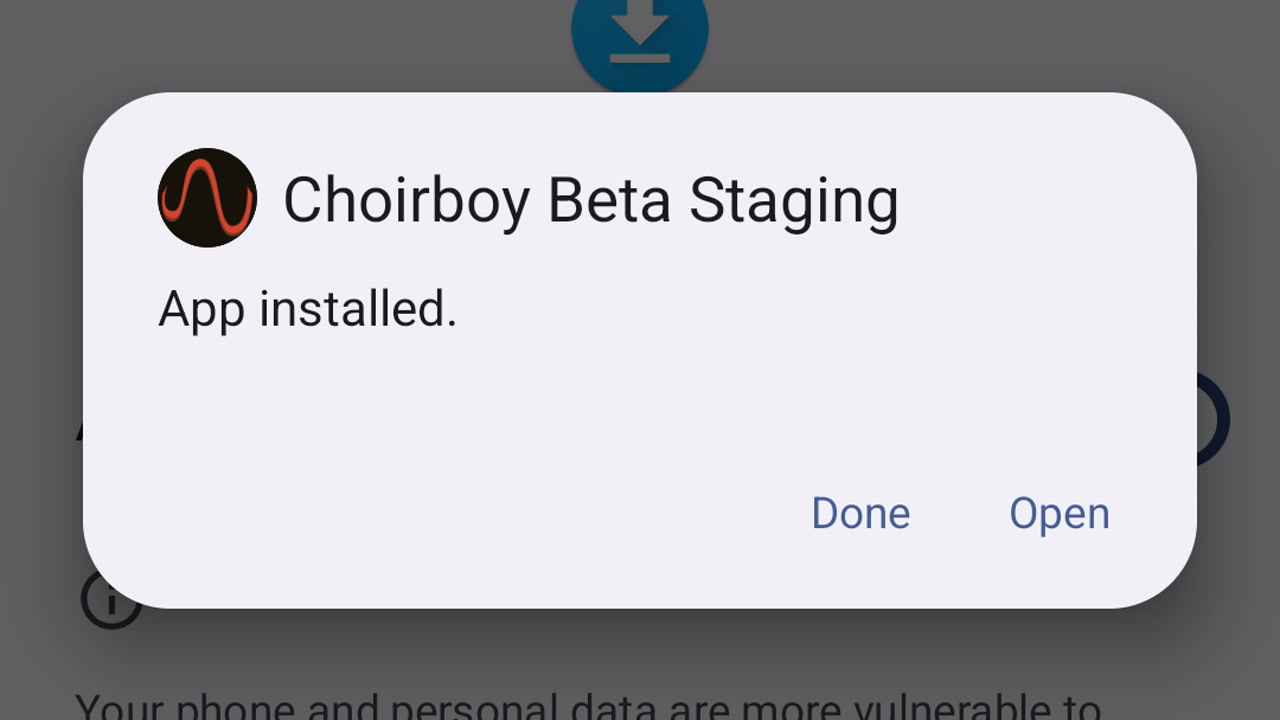
Install the Choirboy beta on Android
Download your approved Choirboy beta, install it on Android and open it for the first time.
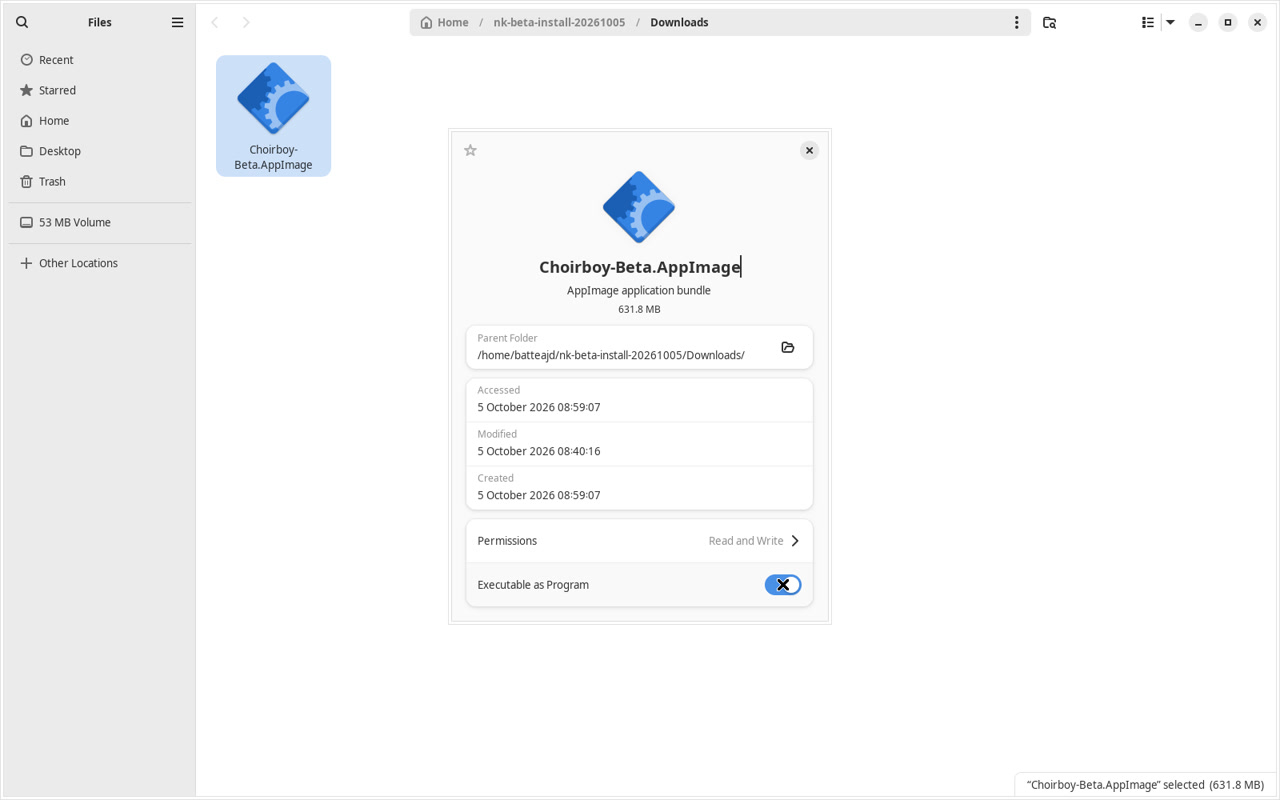
Install the Choirboy beta on Linux
Download your approved Choirboy beta, install it on Linux and open it for the first time.
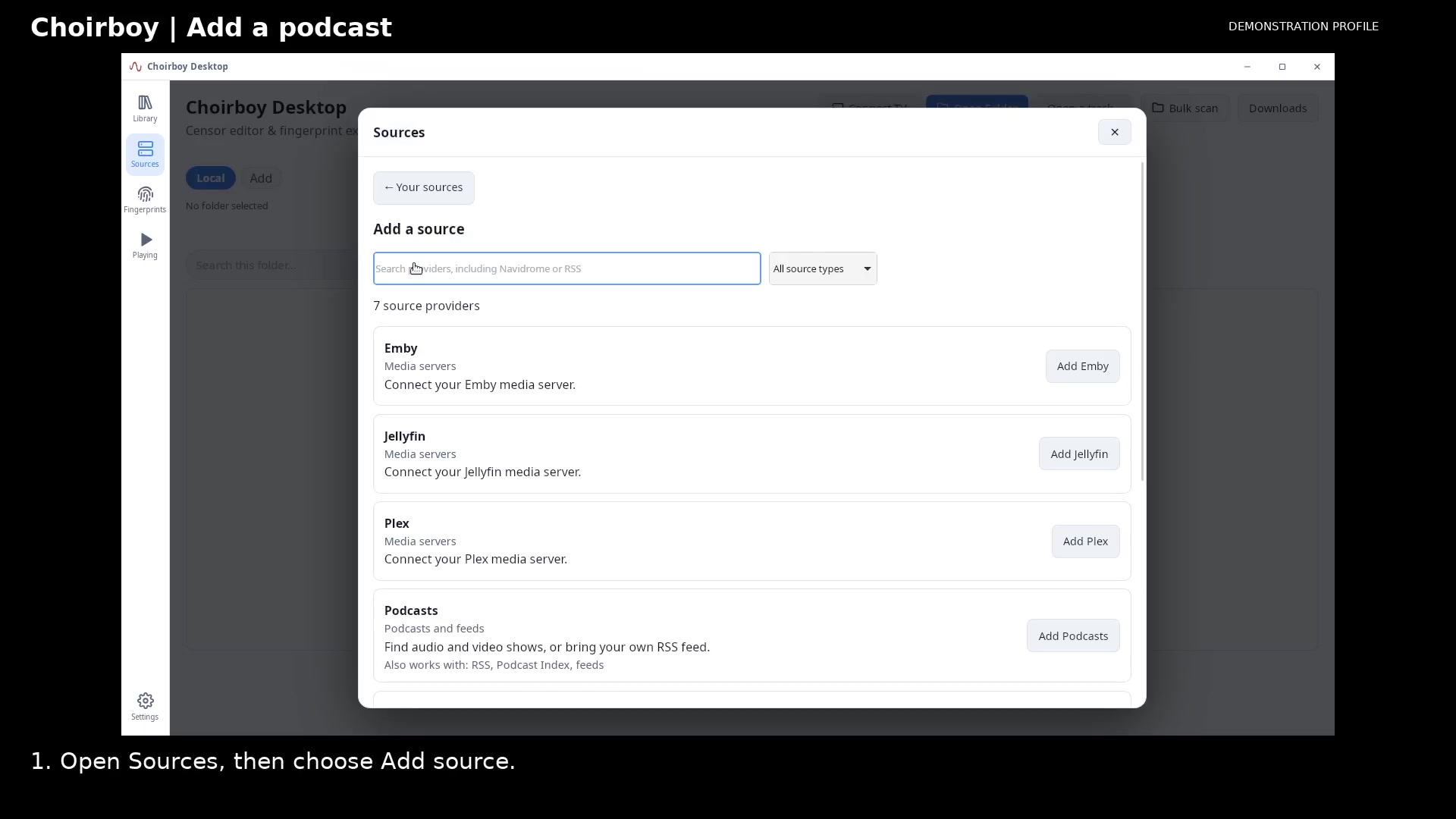
Find and add a podcast
Search the podcast directory, review a show's episodes, and save it to your library.
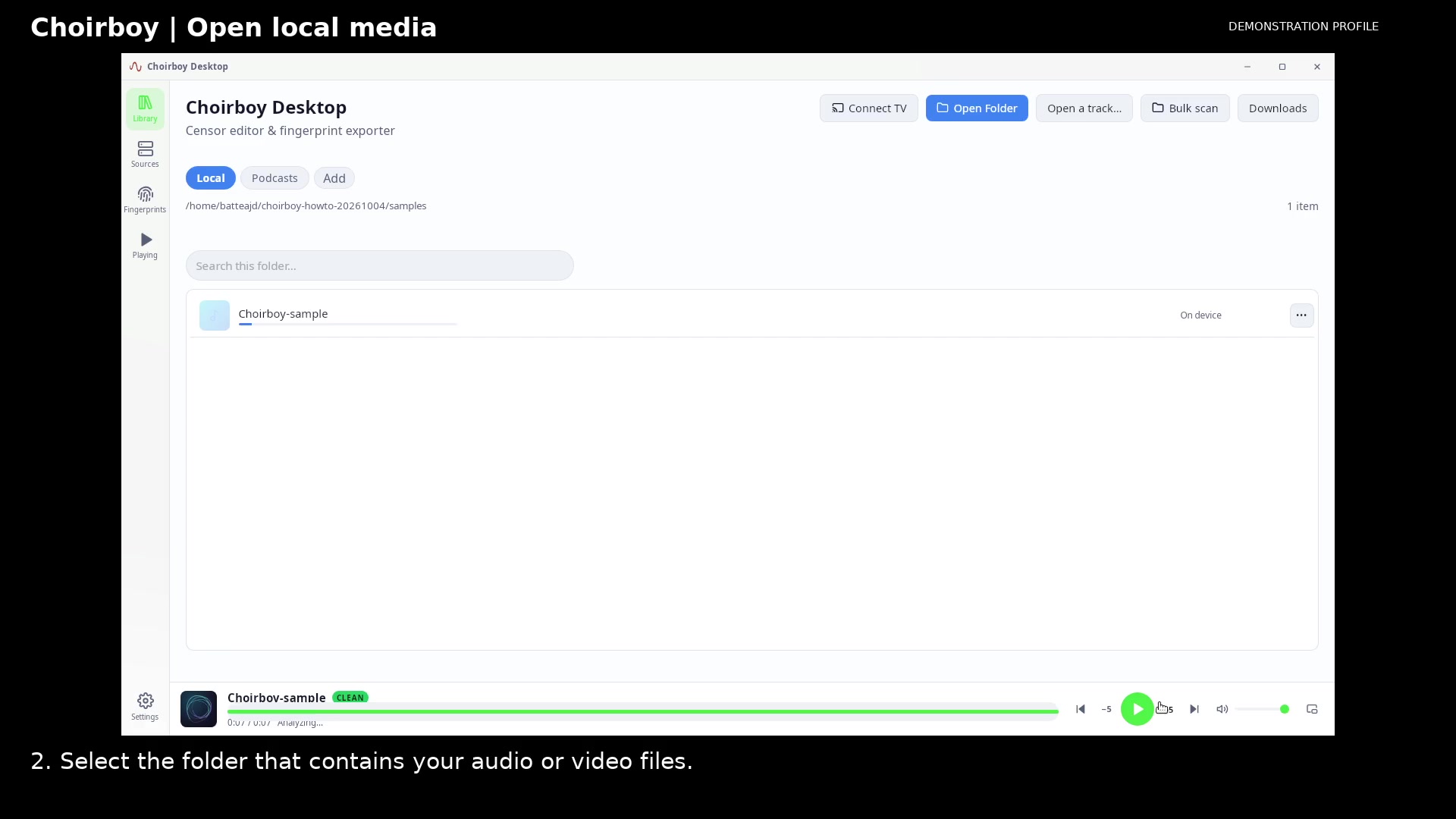
Open a local recording
Choose a media folder and open a recording in Now Playing.
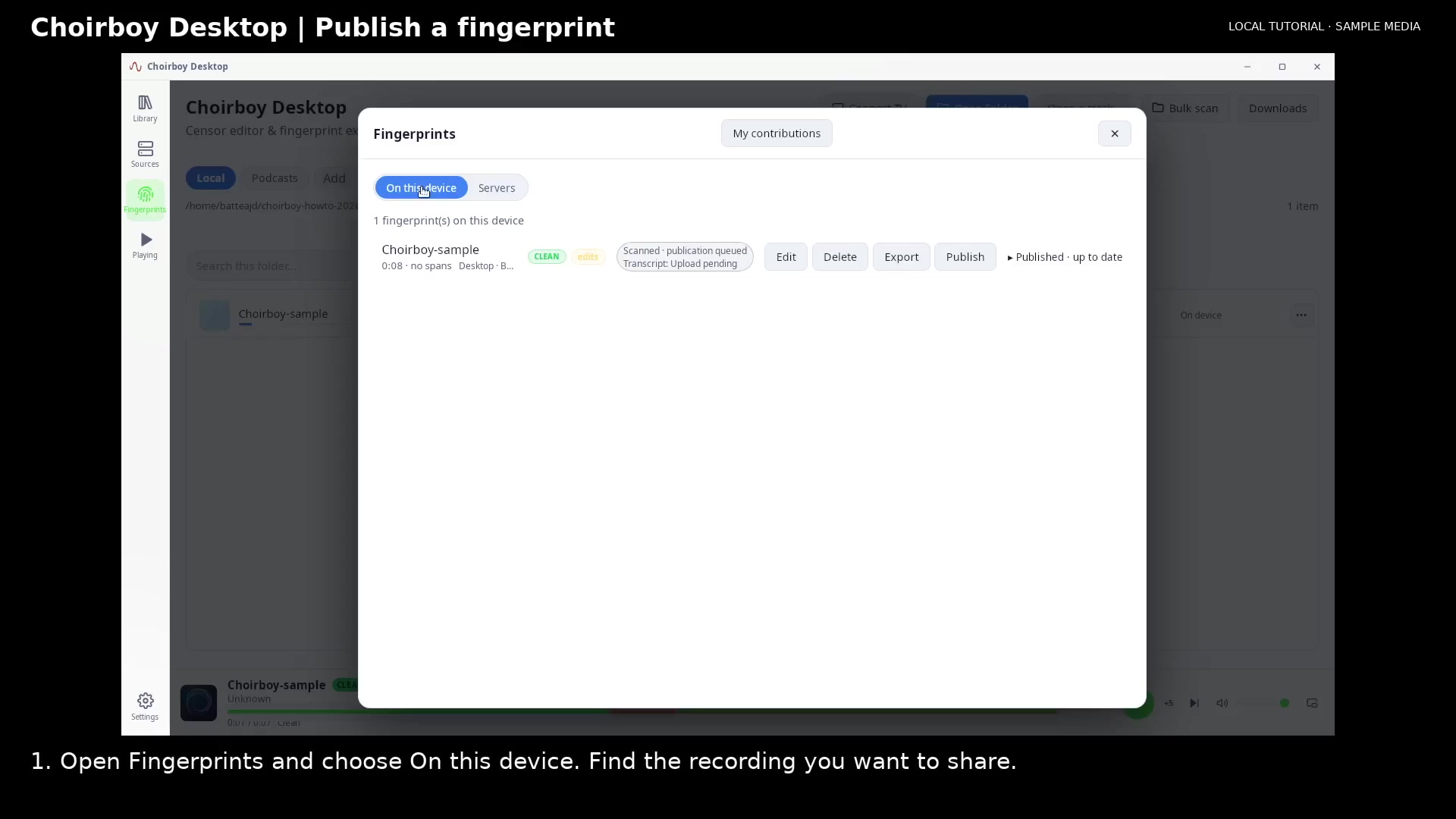
Publish a fingerprint and transcript
Review publication consent, send the saved fingerprint, and check the registry catalog.
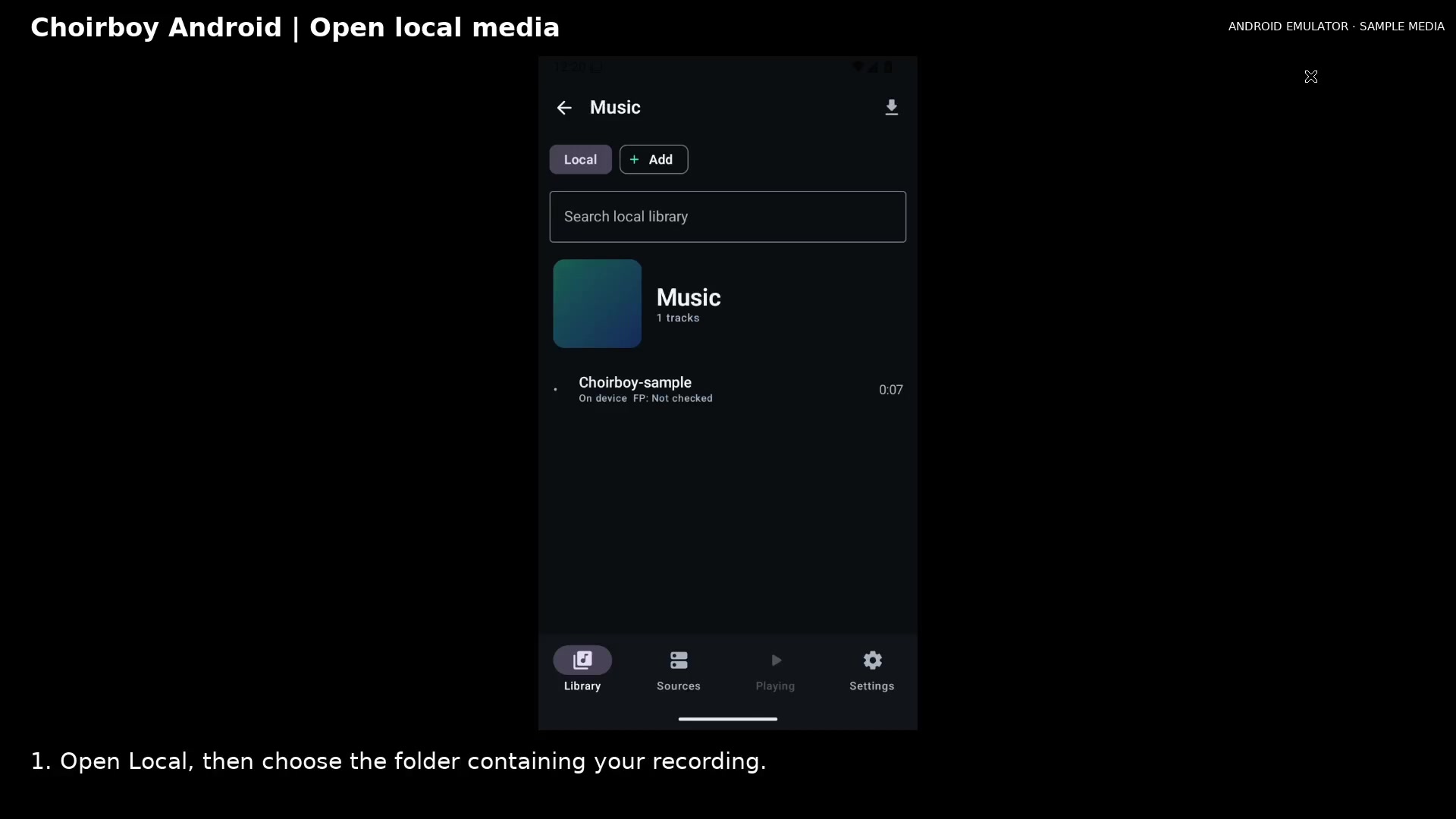
Open local media on Android
Find a recording in the Android media library and open it for playback.
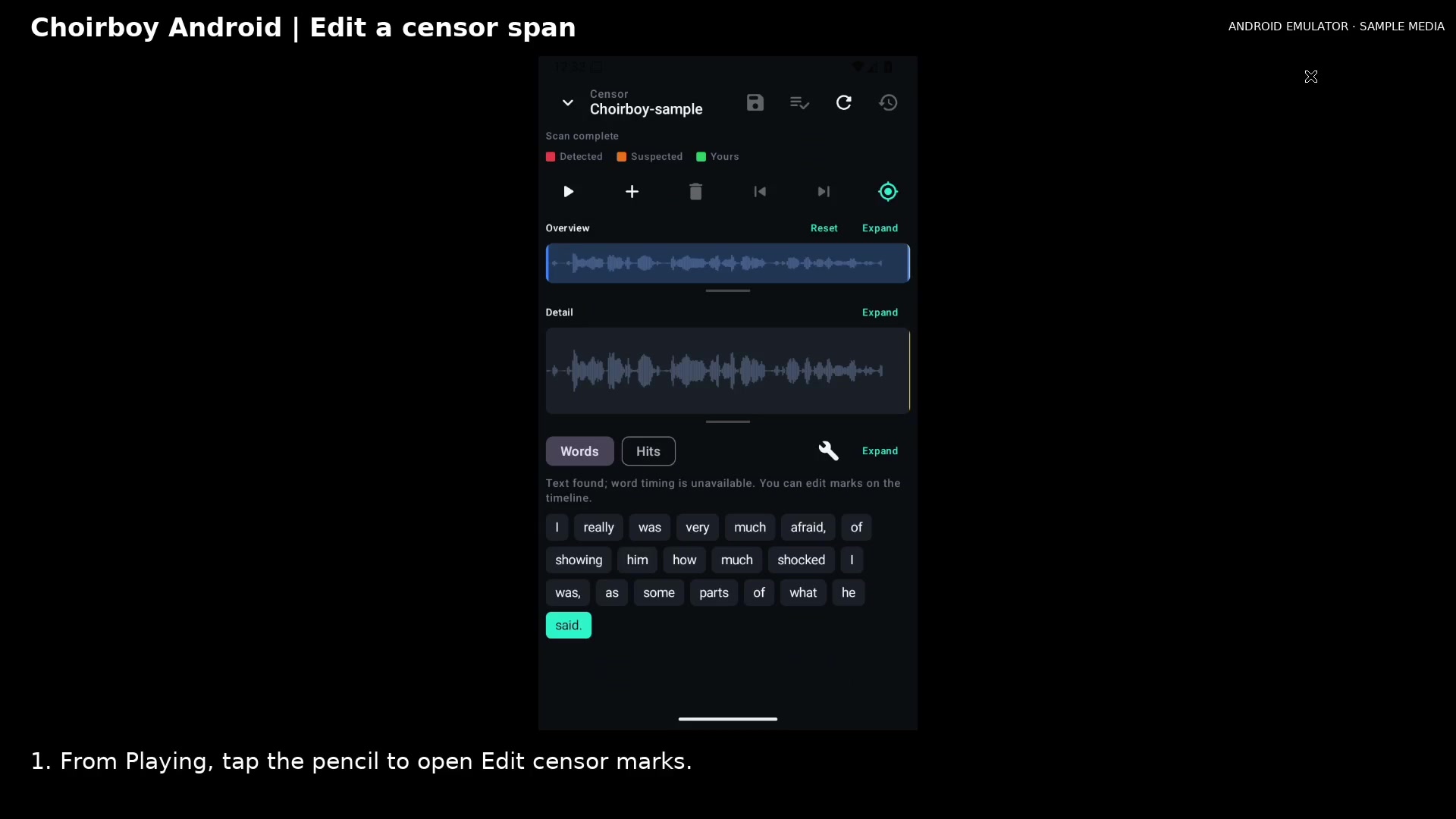
Edit a censor span on Android
Add a manual mark, move its timing, choose a censor mode, and save it.
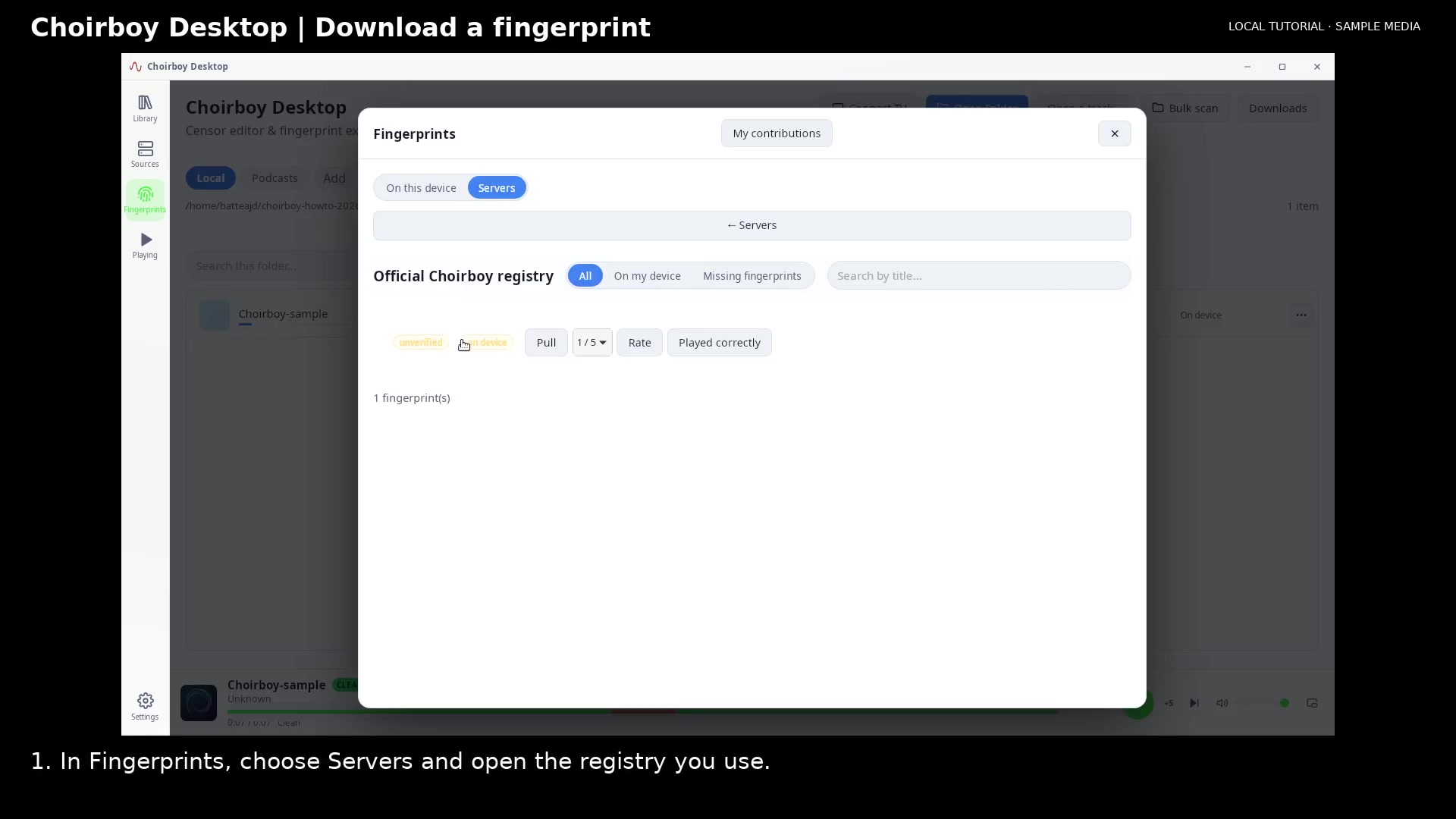
Download a fingerprint to Desktop
Use Pull to import a registry fingerprint into your local fingerprint library.
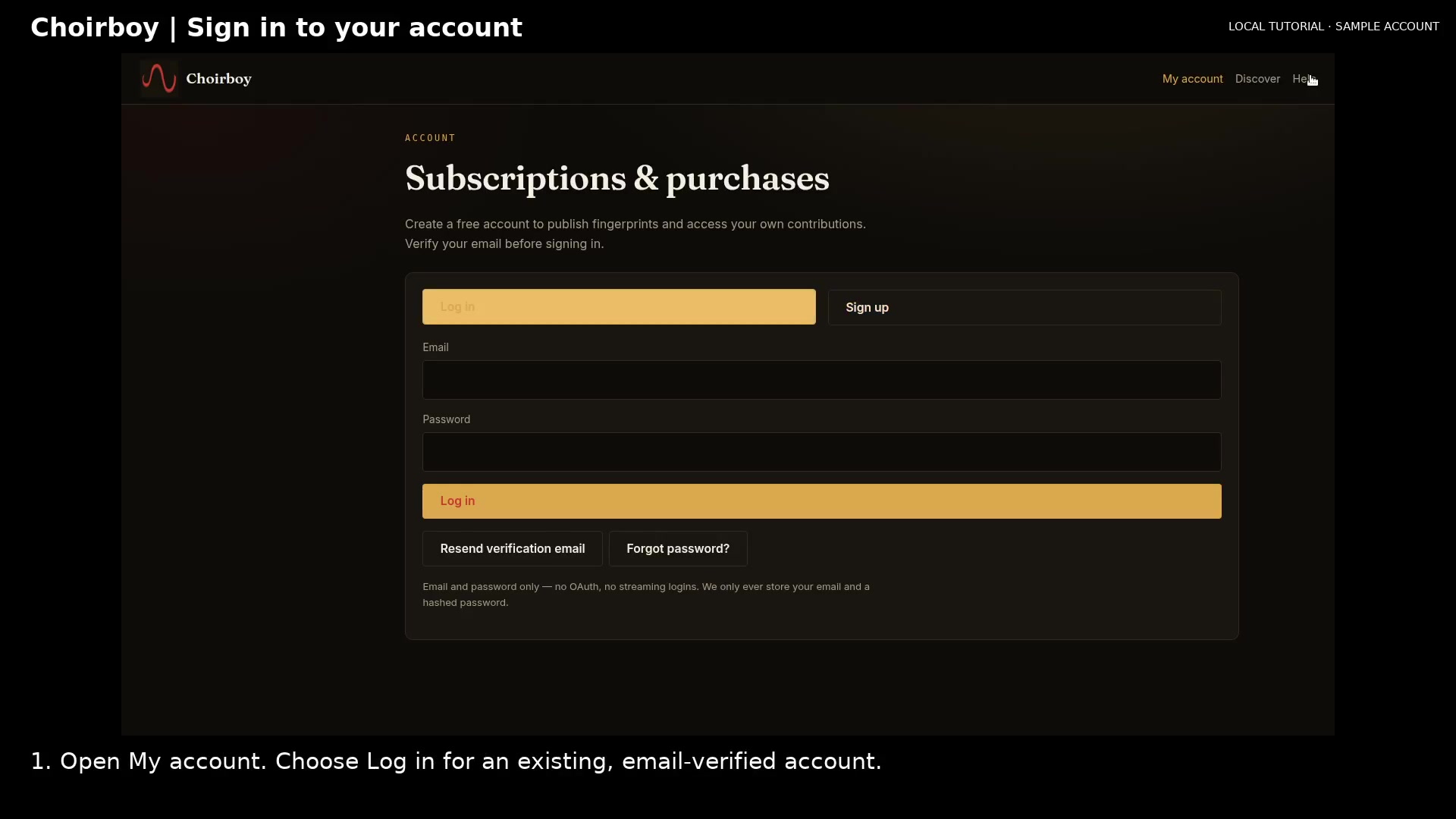
Sign in to your Choirboy account
Sign in with a verified email address and find your purchases and account tools.
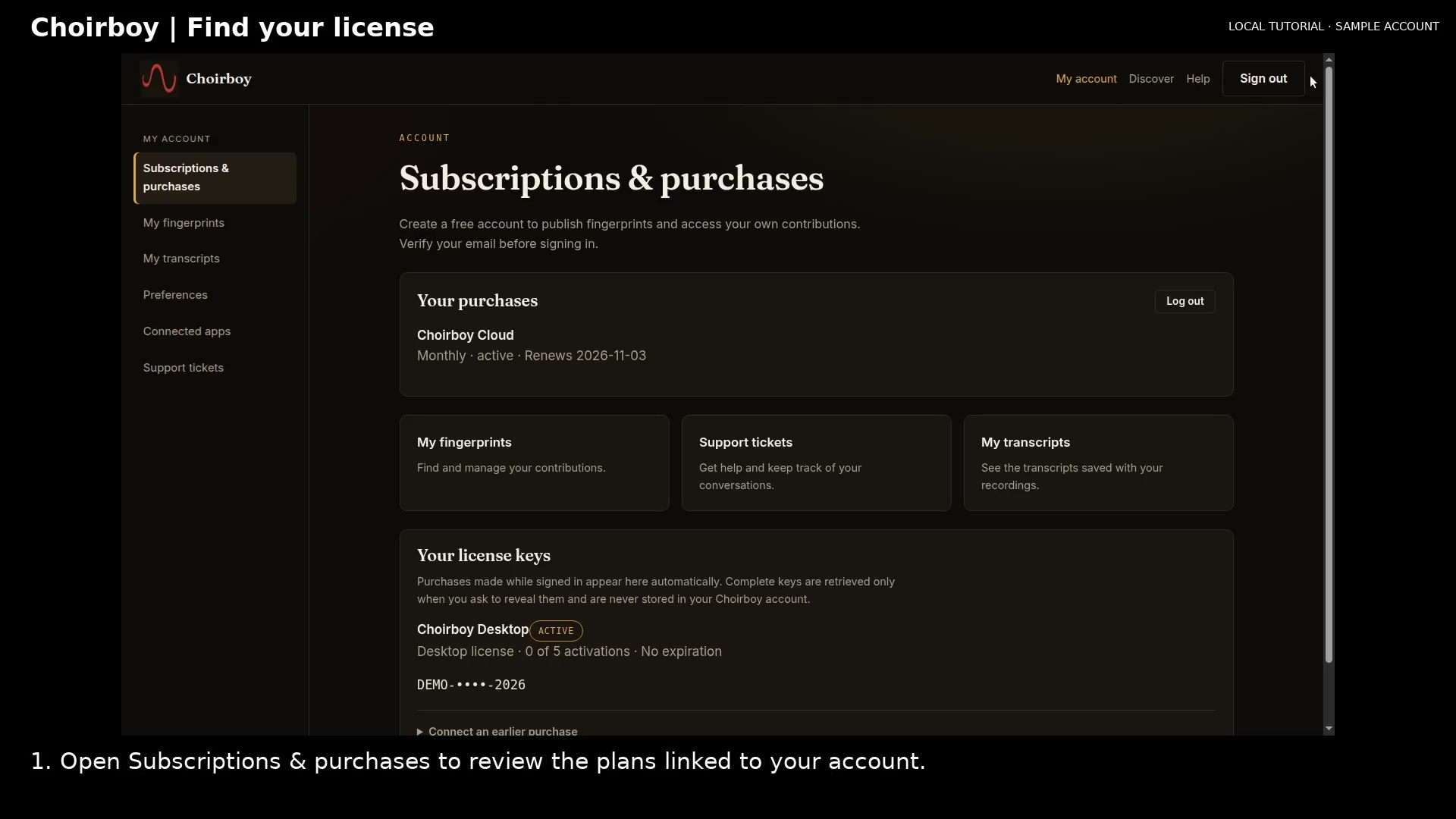
Find and review your license
Review the license linked to your account and locate recovery for an earlier purchase.
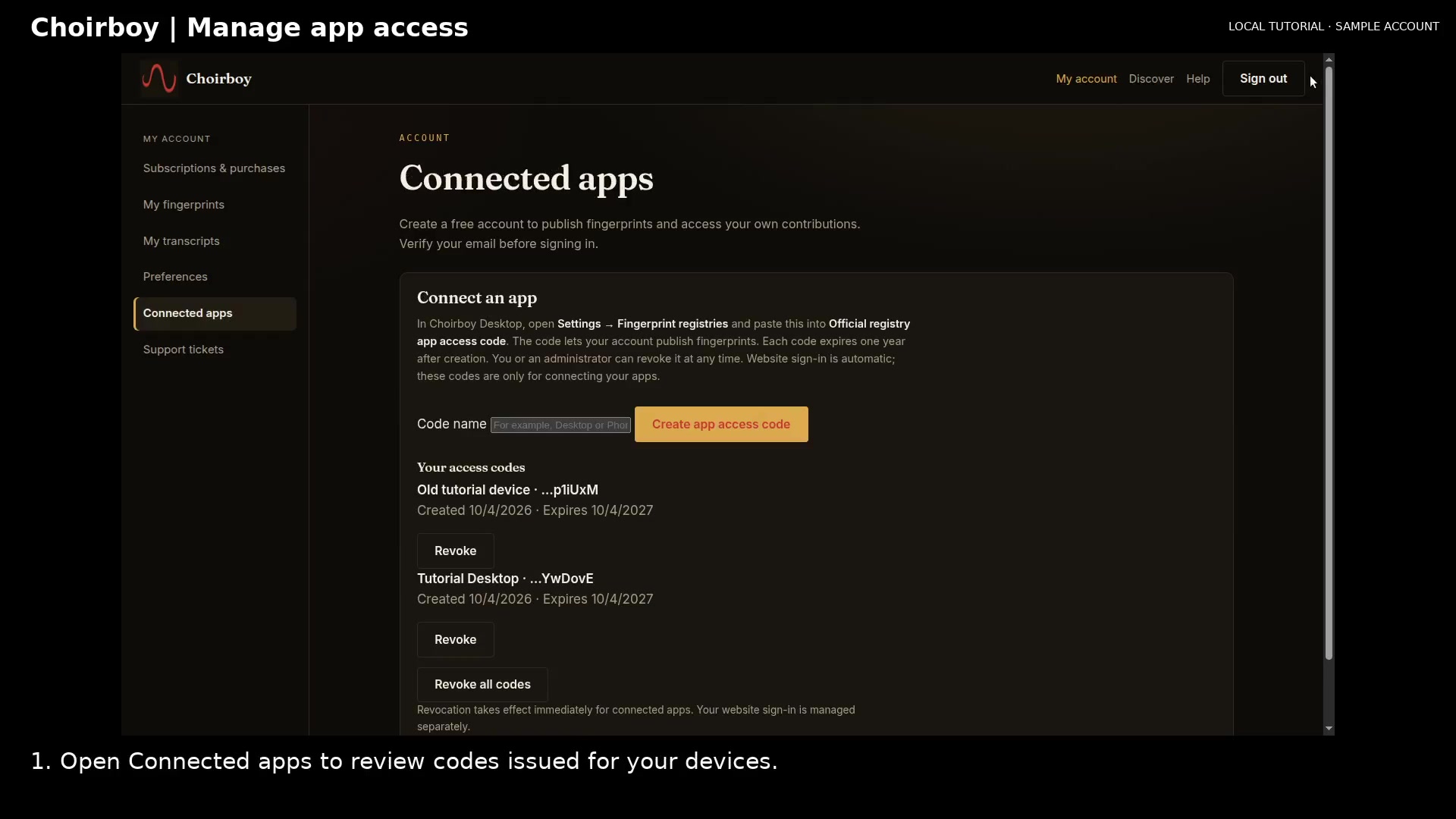
Revoke an old app access code
Review connected-app access and revoke a code for a device you no longer use.
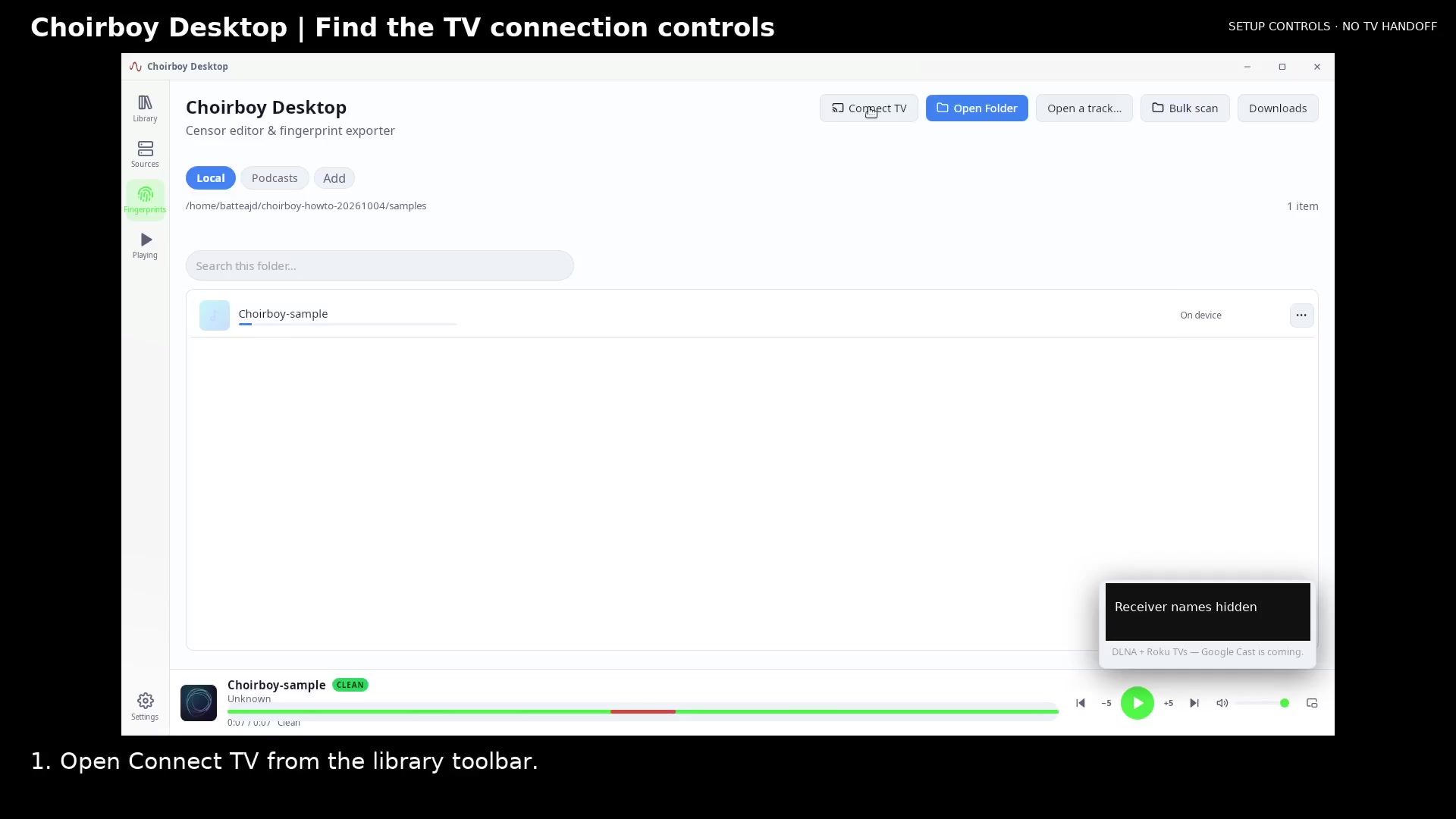
Find the TV connection controls
Open the receiver picker and review its setup note before connecting your own TV.
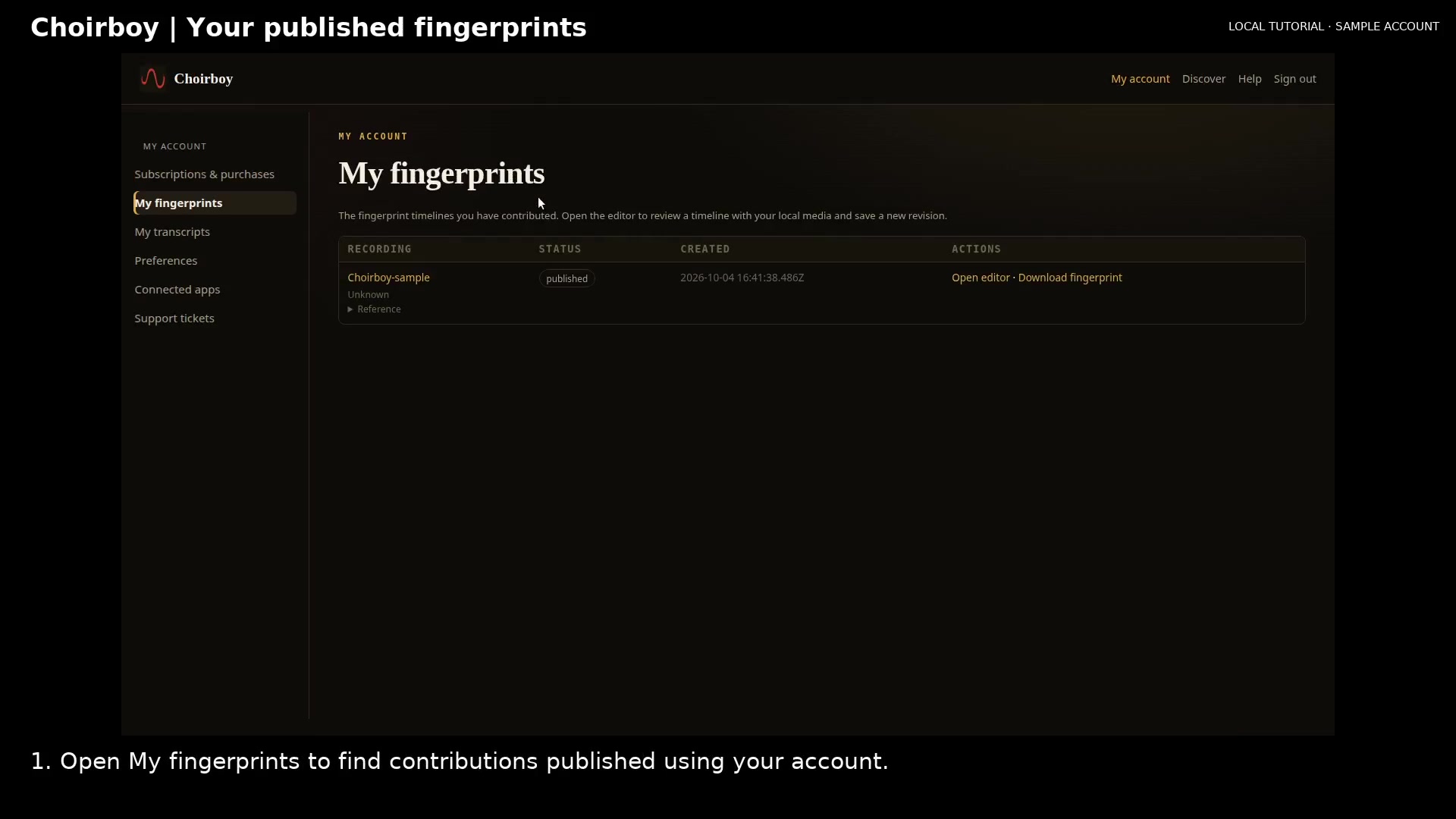
Download and inspect your published fingerprint
Find an account contribution, download its fingerprint data, and open the editor with matching local media.
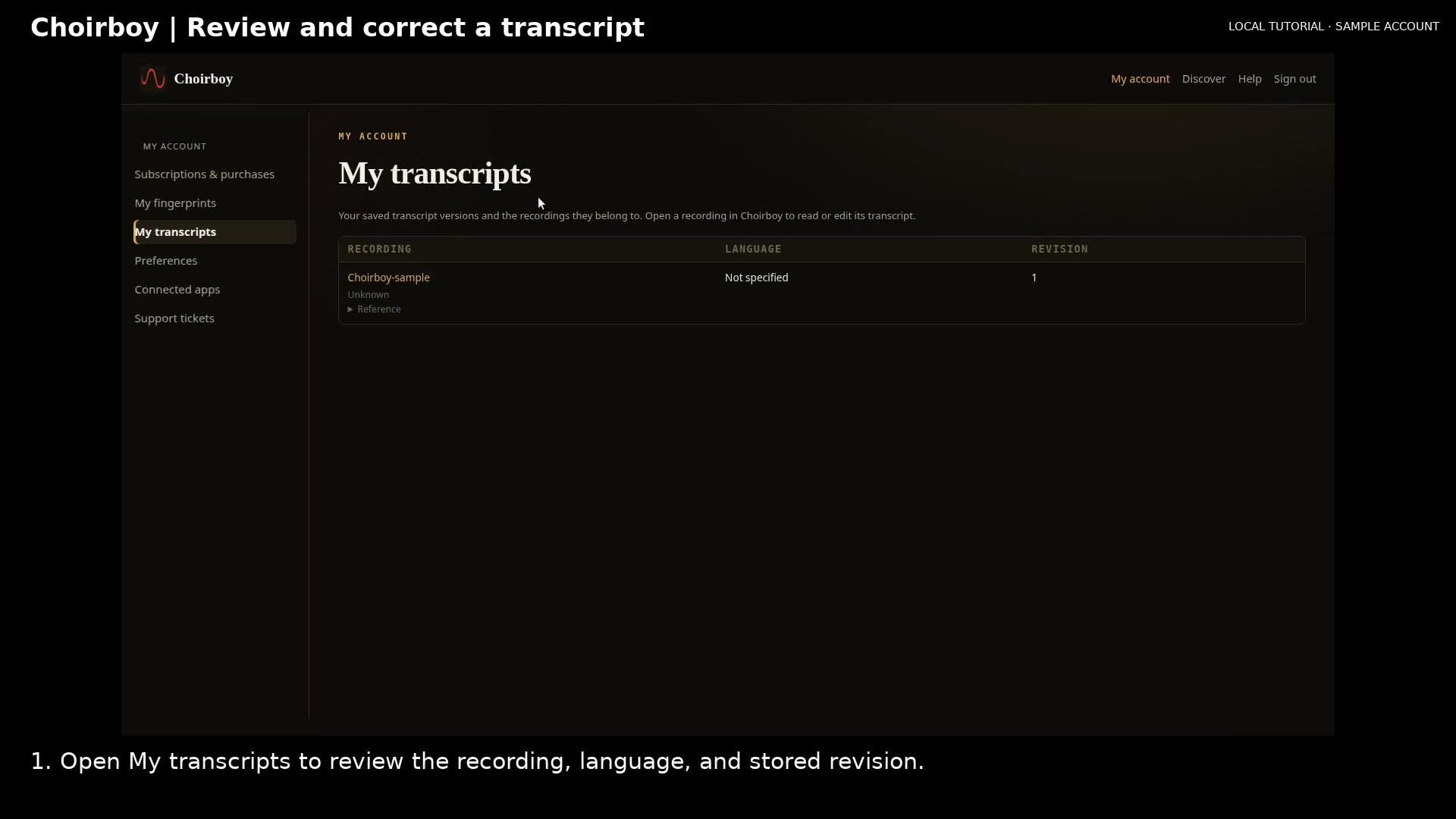
Review and correct a paired transcript
Find your transcript, correct its text through the owner fingerprint editor, and reopen the saved revision.
Get ready to connect Choirboy to a Roku TV
Check the receiver, network and host before using the TV connection controls.
Understand fingerprints, transcripts and Cloud access
Know what is saved, what is shared and when a subscription is needed.
Check that an editor change was saved and applied
Understand the saved revision and live preview messages before relying on an edited span.
Choose a task, follow the steps, and open a marked screenshot whenever you need a closer look. Each guide lists what you need before you start.
Download fictional LedgerKeep practice books · View the example statement
Need more help? Contact support.