
Linux · Beta installation · 0:12 video
Install the LedgerKeep beta on Linux
Download your approved LedgerKeep beta, install it on Linux and open it for the first time.
Before you start: An approved LedgerKeep beta invitation and the download for your device. Open your private invitation on this device and save the installer. Use the filename in your invitation; build labels and versions may differ.
Download videoDownload captions
Step by step
-
Find your Linux download.
Open Downloads in your file manager. Use the AppImage supplied for your computer’s architecture. Keep it in a folder where you want the beta to stay, such as an Applications folder in your home directory.
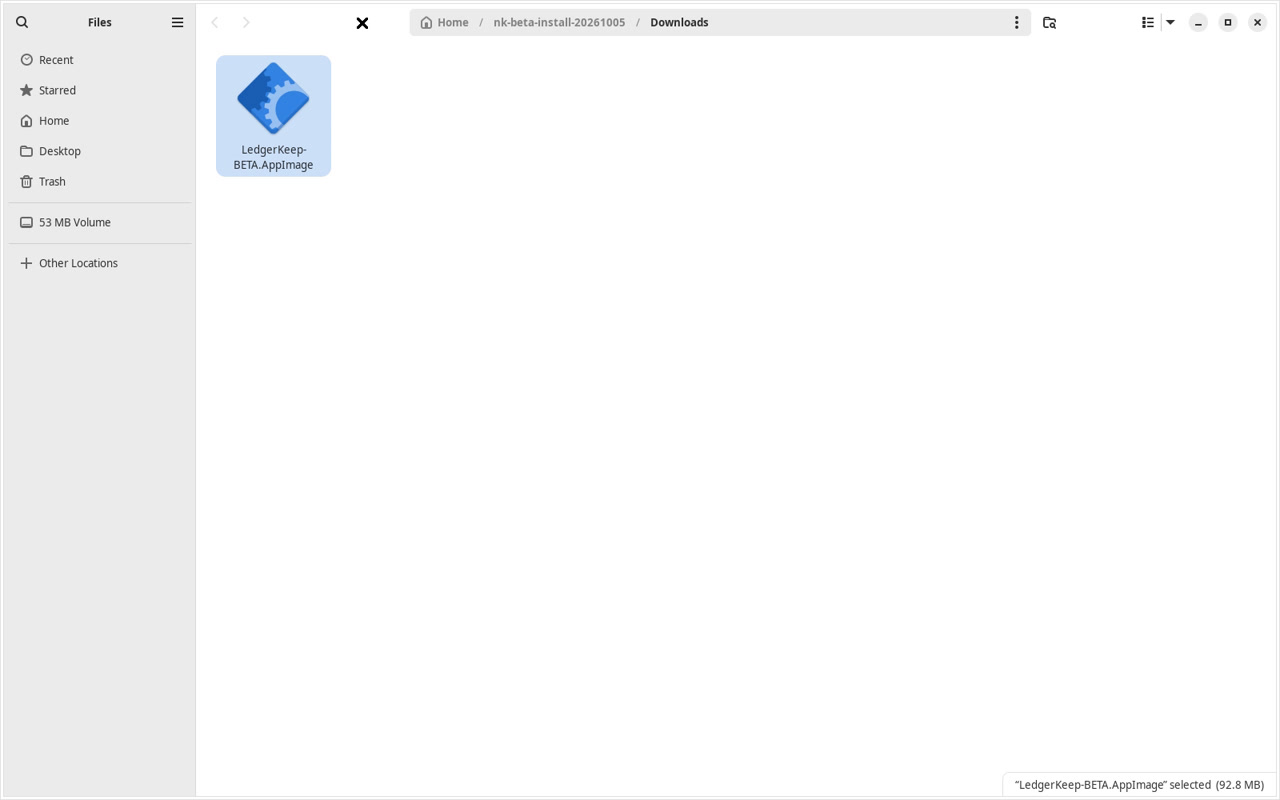
Find the beta AppImage in your Downloads folder. -
Allow the AppImage to run.
Right-click the AppImage and open Properties. In Permissions, turn on Executable as Program or Allow executing file as program. Close Properties.
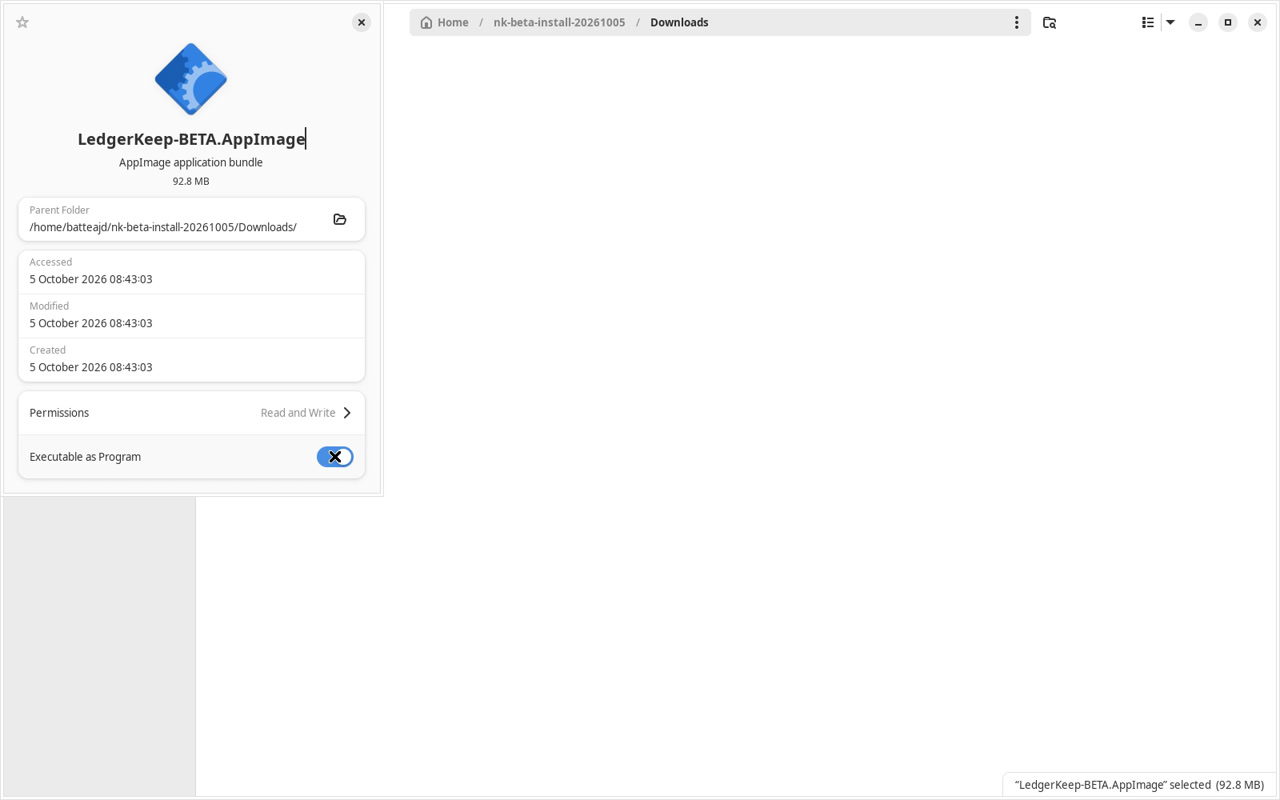
Open the AppImage properties. 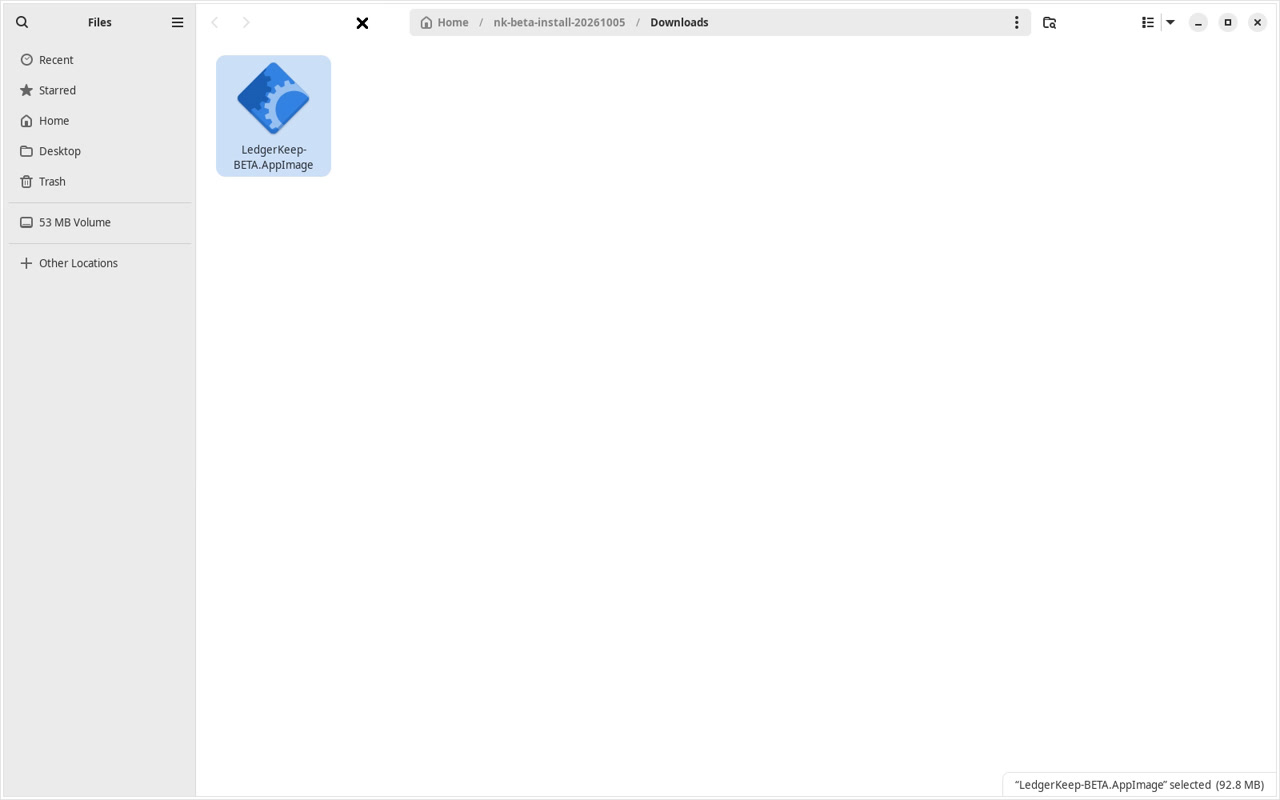
Turn on Executable as Program. -
Open the AppImage.
Double-click the AppImage. If your file manager asks what to do, choose Run. Keep the AppImage file: it is the LedgerKeep beta application, rather than an installer you can discard.
-
Complete the first-open steps.
Read the diagnostic agreement and choose whether to agree. Follow the private access instructions when prompted. If the app does not open, tell support your Linux distribution, version and the message you see.
Keep your invitation private. For a new device or a different operating system, contact support for the correct download.
Read the video instructions
- Find the beta AppImage in Downloads.
- Open Properties for the AppImage.
- Turn on Executable as Program.
- Close Properties, then open the AppImage.