
Website · 0:19 video
Revoke an old app access code
Review connected-app access and revoke a code for a device you no longer use.
Before you start: A signed-in Choirboy account.
Download videoDownload captions
Step by step
Open Connected apps
From your account navigation, choose Connected apps. App codes let an installed Choirboy app publish using your account.
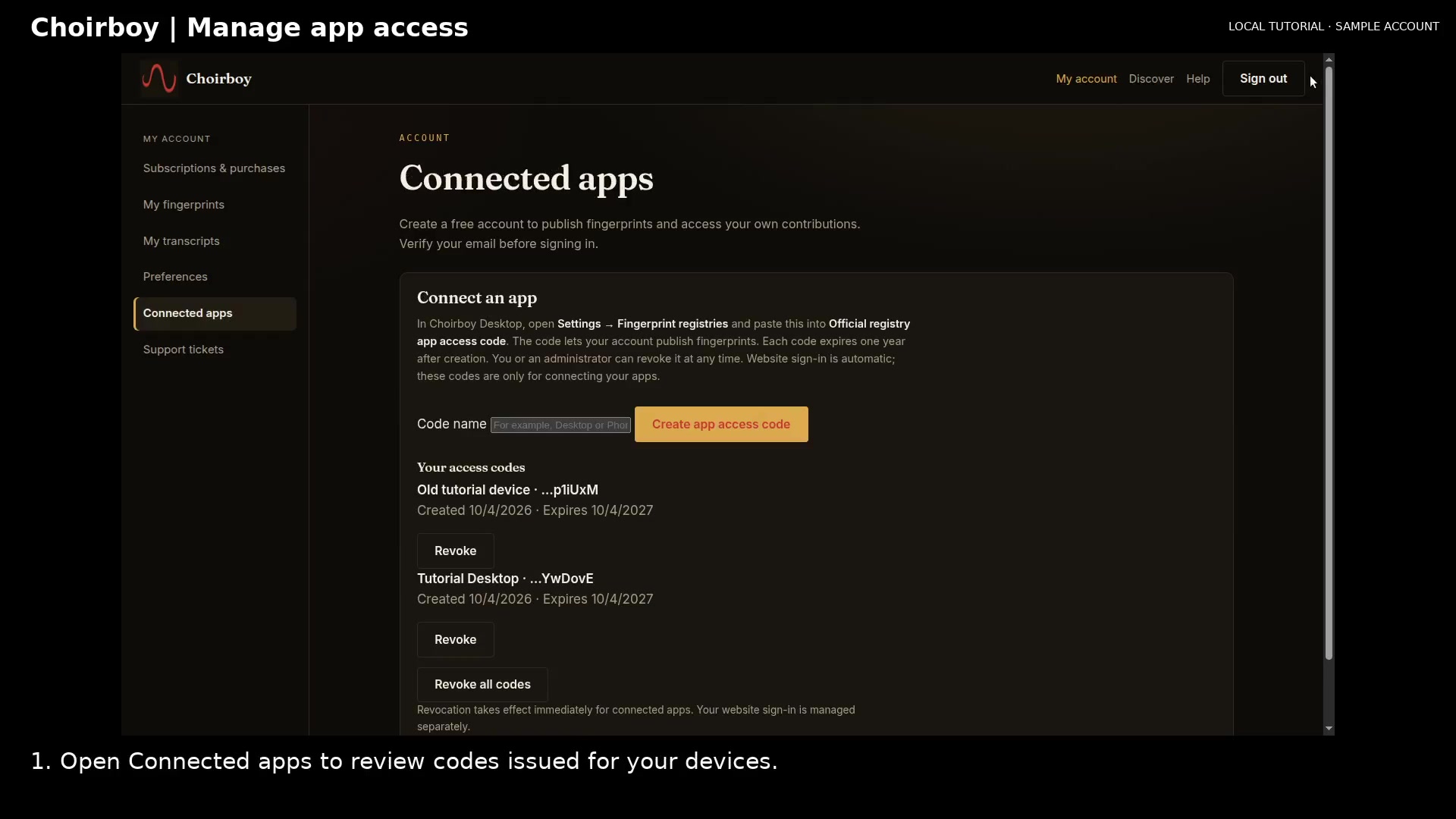
Find connected-app controls Open full size
- Connected apps
Review your codes
Scroll to Your access codes. Identify the device by its name and review the creation and expiration dates. Only a short code hint is displayed.
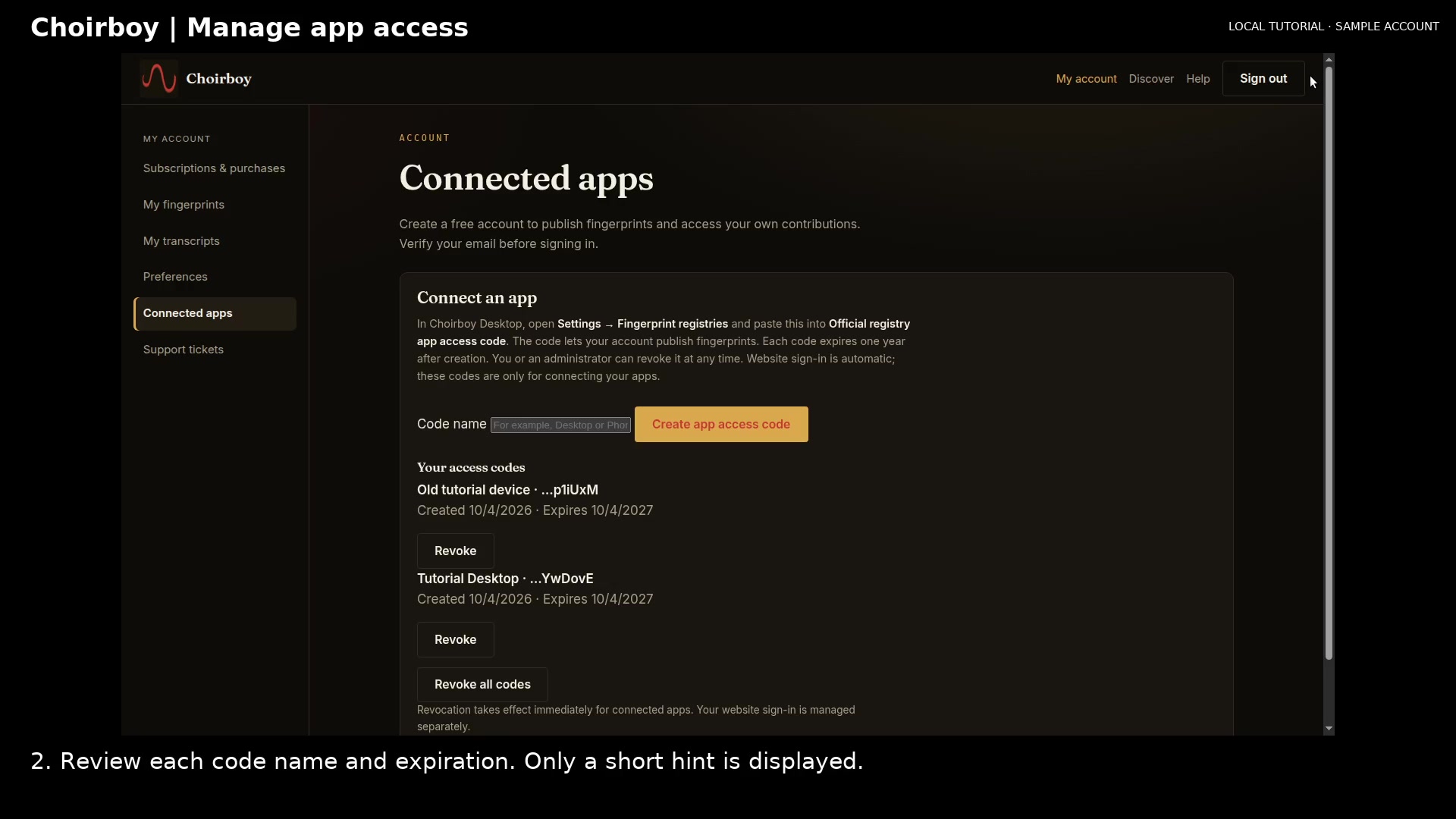
Review app names and expiration dates Open full size
- Check expiration
Revoke the old code
Choose Revoke for the code you no longer need. Wait for its revoked status. Apps using that code will need a new code to reconnect.
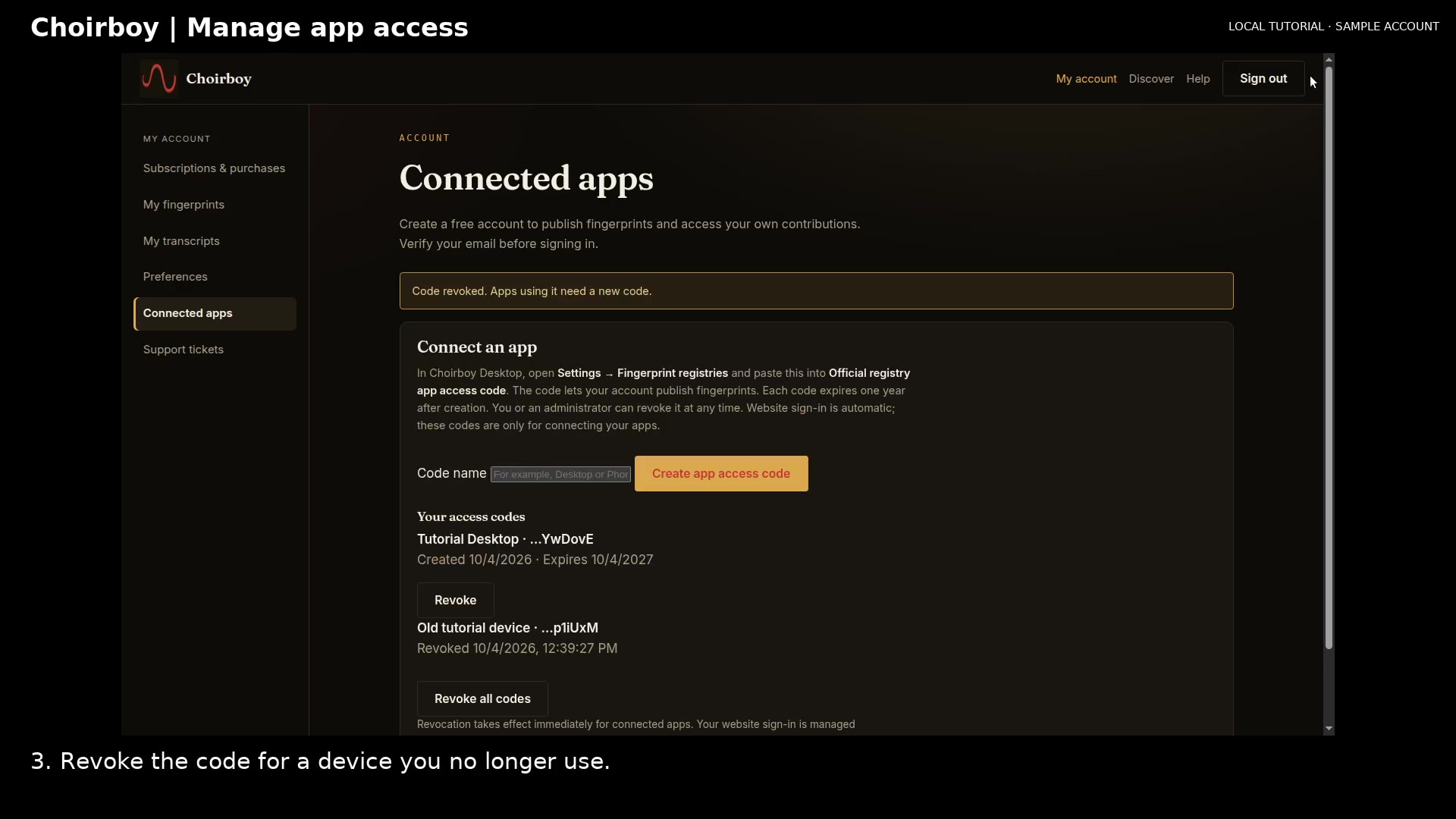
Confirm the old code was revoked Open full size
- Revocation confirmed
Read the video instructions
- Your website session and app access codes are managed separately. This is a local sample account.
- 1. Open Connected apps to review codes issued for your devices.
- 2. Review each code name and expiration. Only a short hint is displayed.
- 3. Revoke the code for a device you no longer use.
- That app needs a new code to reconnect. Revoking it does not sign out this website session.