
Desktop · 0:34 video
Turn two marks into a clip
Choose a start and end by name to make an exact excerpt from a marked recording.
Before you start: A marked track, or a .clipdrclip package transferred from the Android companion.
Download videoDownload captions
Step by step
Import the phone take
Open Clips, expand From your phone, and choose Import phone package. Select the .clipdrclip file. Its audio, name, labels, and saved marks open in the editor.
Choose the named boundaries
Choose From marks beside Clip. Select the source recording, Start mark, and End mark. Check the displayed duration before creating the excerpt.
Create the clip
Choose Create clip between marks. The new clip contains the passage between those moments, while the original imported audio remains available.
Keep or undo
Continue with cleanup, transcript tools, or export. If you change your mind, Ctrl + Z reverses the clip in one step.
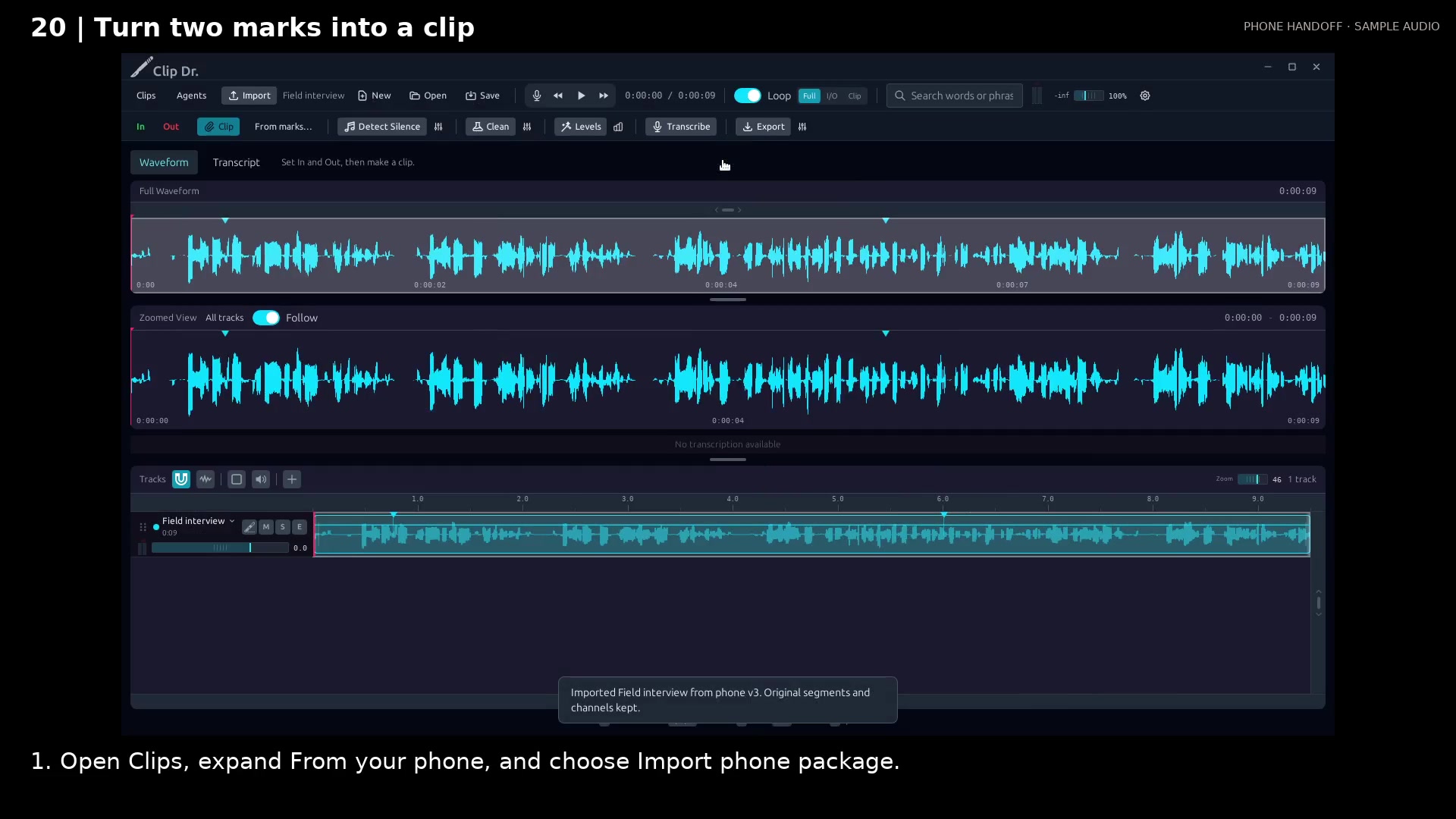
Import the phone audio with its named marks and labels. Open full size
- The imported waveform includes the phone’s saved marks.
- From marks opens the named-boundary clip controls.
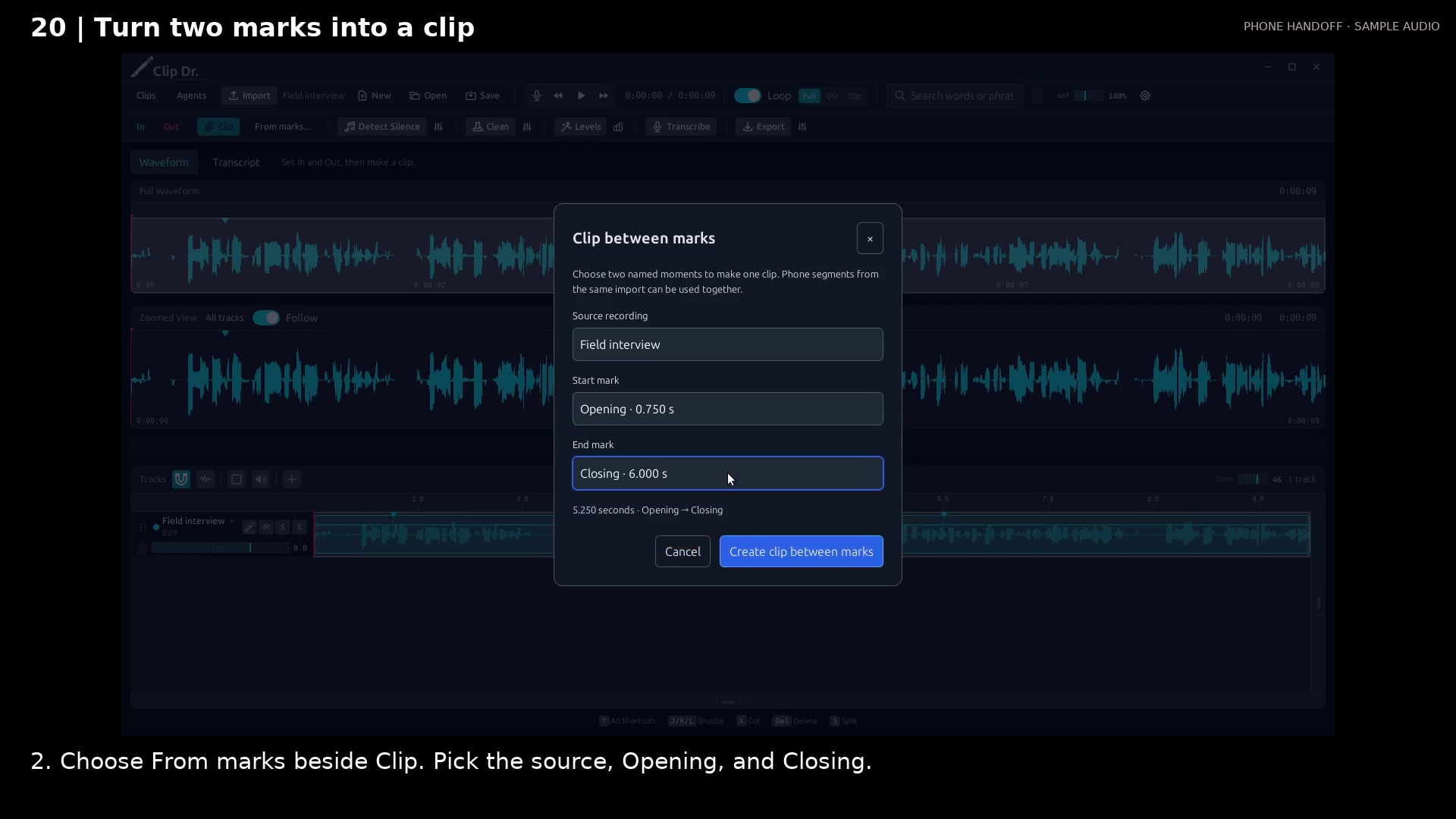
Choose a start and end mark by name. Open full size
- Choose the named start and end marks from this recording.
- Check the exact excerpt duration before creating the clip.
- Create one clip between the selected moments.
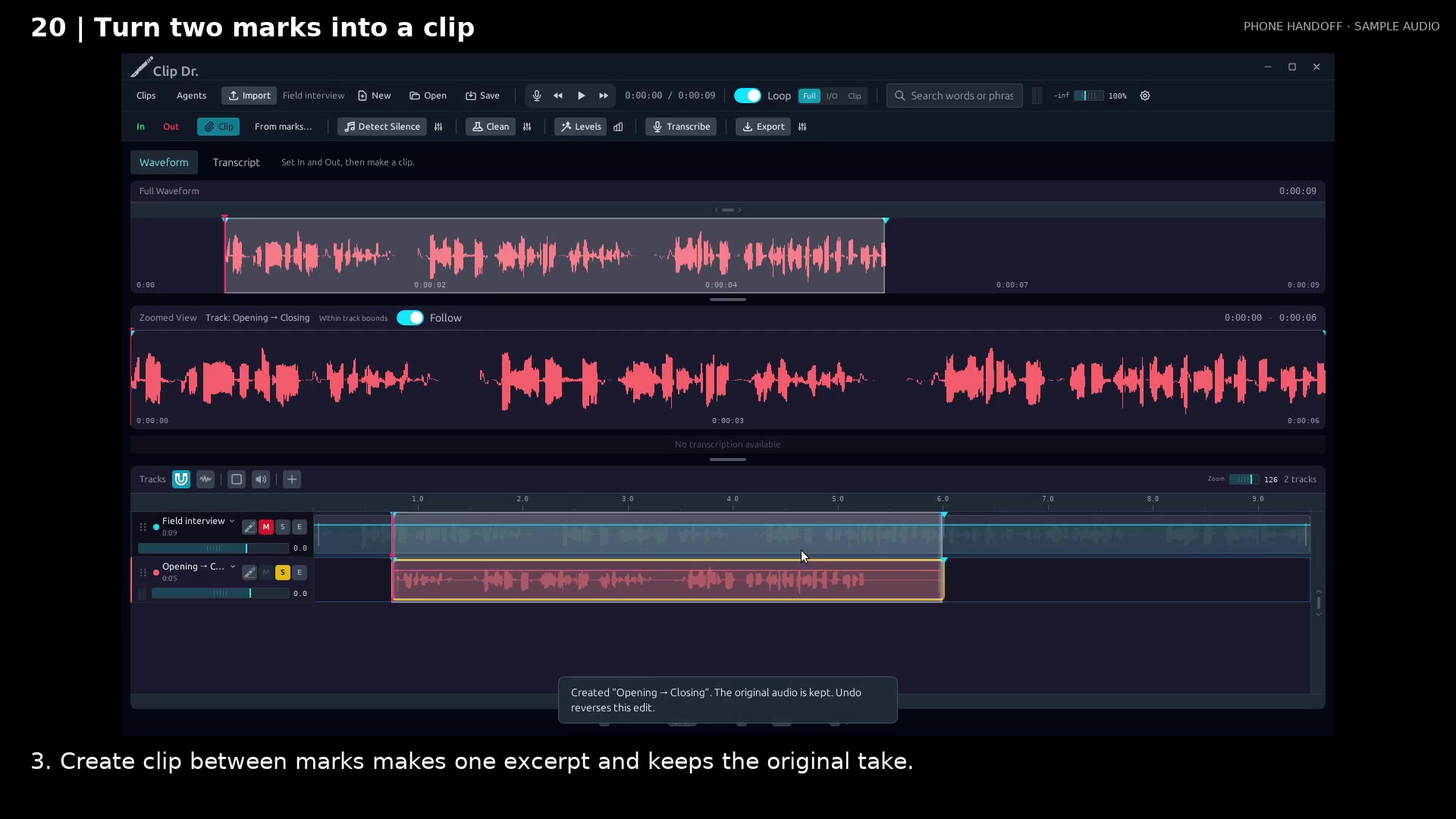
Create the exact marked excerpt. Open full size
- The excerpt is a new, selected track.
- The original imported take remains available.
Read the video instructions
- Bring a marked phone take into the editor, then choose the start and end by name.
- 1. Open Clips, expand From your phone, and choose Import phone package.
- 2. Choose From marks beside Clip. Pick the source, Opening, and Closing.
- 3. Create clip between marks makes one excerpt and keeps the original take.
- 4. Use Undo if you change your mind. The imported phone take stays in the editor.
- Mark in the field. Clip by name on desktop. Continue with cleanup, transcript tools, or export when needed.
Audio credits
LibriSpeech excerpts 1688-142285-0007 and 1272-128104-0000, collected by Vassil Panayotov, Guoguo Chen, Daniel Povey, and Sanjeev Khudanpur from LibriVox, are used under CC BY 4.0. Excerpts have been trimmed, resampled, padded, or processed. The voice-replacement example uses an original synthetic voice.