
Android · 0:49 video
Record sound from another Android app
Capture a passage from a browser or player, mark the useful moments, and keep it ready for desktop editing.
Before you start: The Android companion on Android 10 or later, plus a browser or player that permits audio capture. Set up the app source list below before following the recording steps.
Download videoDownload captions
Step by step
Keep the source list short
In Settings → App audio sources, leave Show all installed apps off. Tap Enable active app list and allow Android’s notification access. Start audio in your browser or player, then return to Record. Clip Dr. lists active media apps and connected microphones; paused media sessions can also appear. If your player is missing, turn on Show all installed apps instead—no app-list permission is needed for the full list.
Choose the playback app
In Record, give the take a name. Under Audio source, choose System audio followed by the app’s name. Tap Refresh inputs if needed. Stereo is selected automatically.
Approve Android’s prompt
Tap Start recording. Allow Android’s audio permission and approve its sharing prompt. Clip Dr. saves audio only; the microphone stays off.
Play and check the source
Open the selected browser or player and start playback. Return to Clip Dr. to check the scrolling waveform. Only that app’s eligible playback is captured; pause any other tabs or players inside that app.
Mark and save the useful moments
Tap Mark this moment as you hear a passage you want. Keep the screen unlocked. Tap Stop & save here or in the recording notification when finished.
Listen, refine, and transfer
Open Clips and choose the saved take. Drag over a smaller passage to loop it and place marks precisely. Save changes as the next numbered version, then use Save desktop handoff to bring its audio and saved marks into the desktop editor.
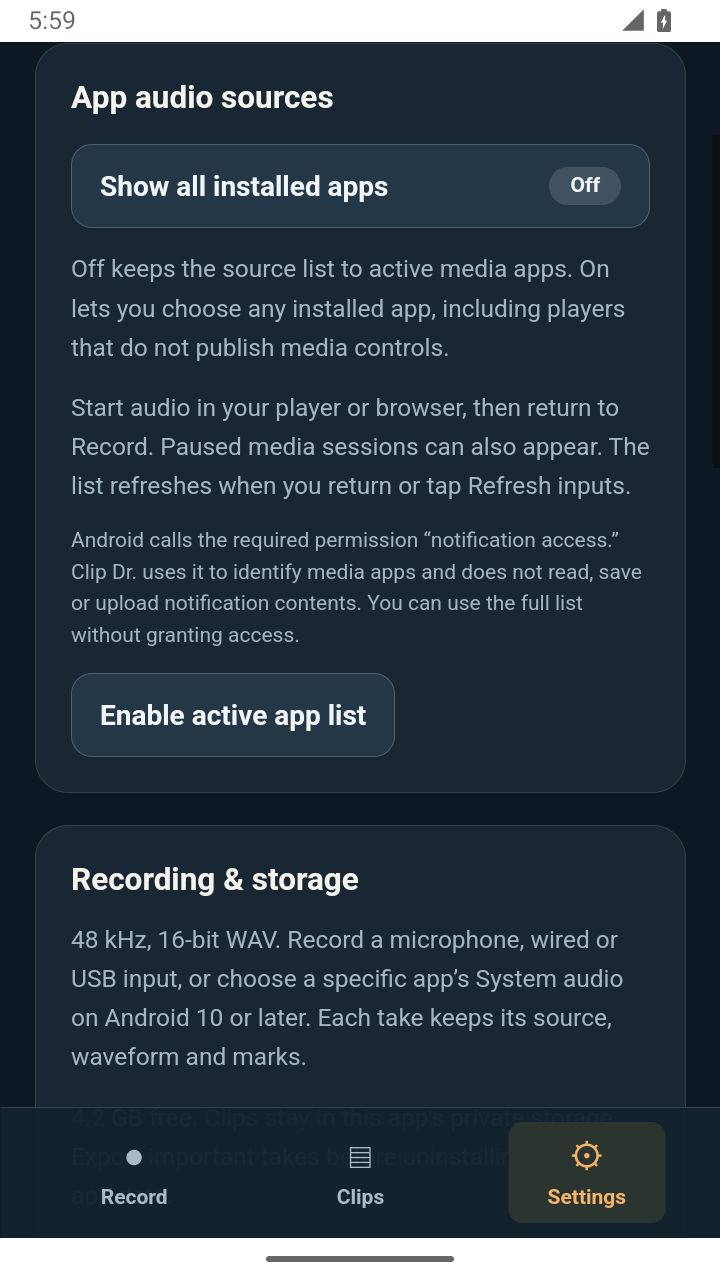
Set up your source list once in Settings → App audio sources. Open full size
- Leave this off for active media apps. Turn it on to see every installed app.
- Open Android’s app-list permission screen. Recording permission is requested separately for each take.
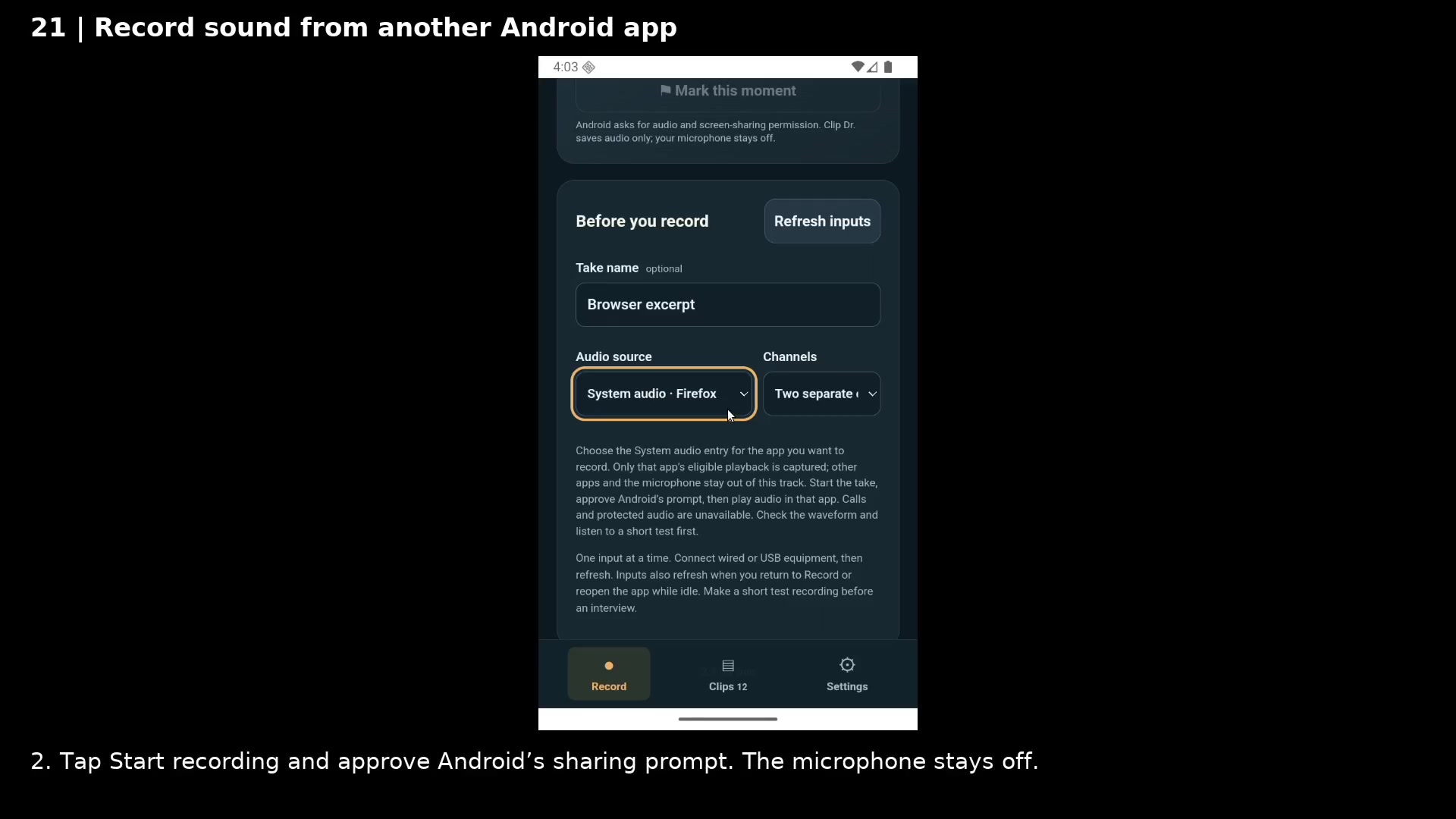
Choose a specific playback app; stereo is automatic. Open full size
- Choose the playback app you want to record.
- System audio uses separate left and right channels.
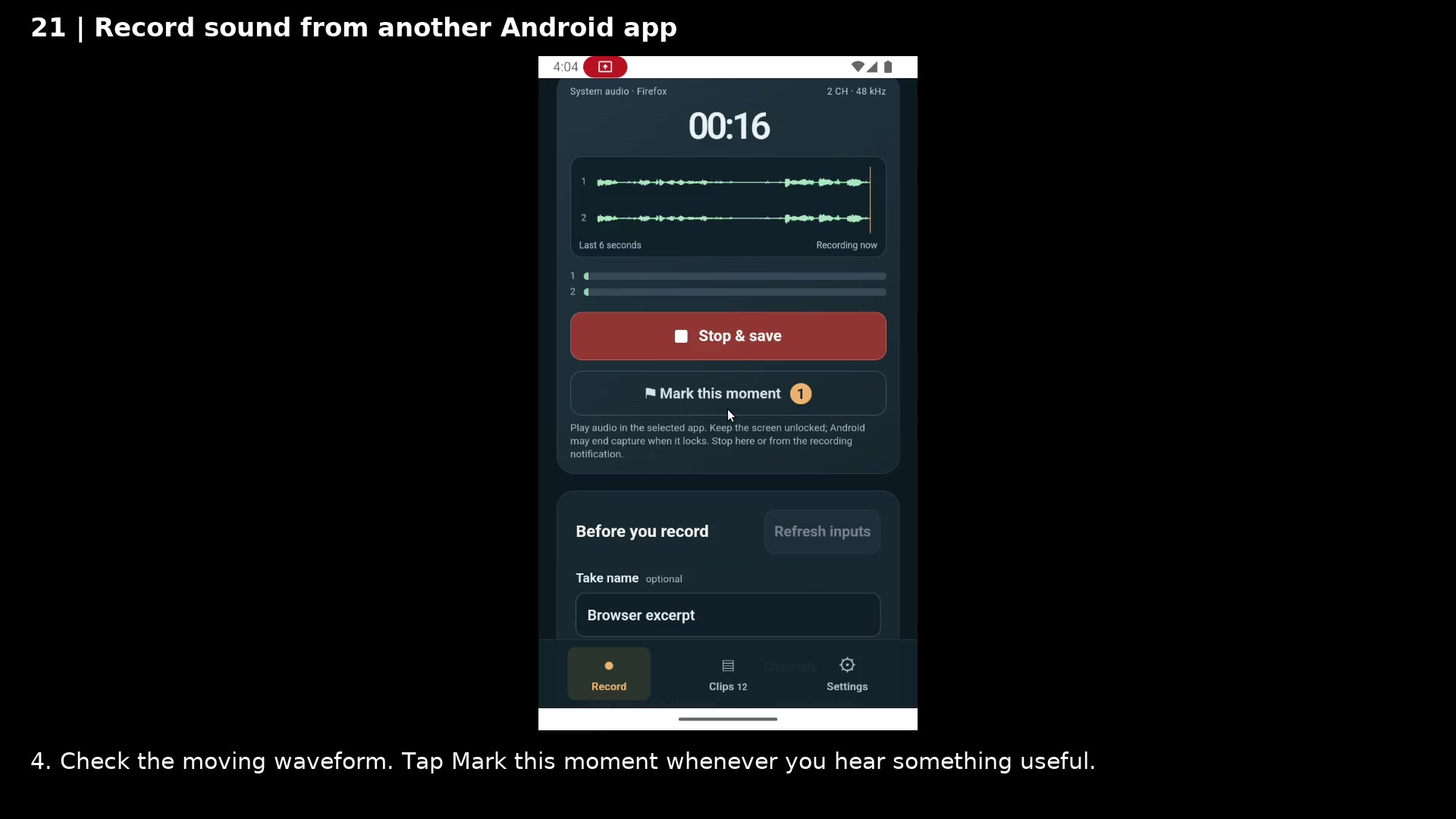
Record separate left and right waveforms and mark a useful moment. Open full size
- Watch the scrolling waveform for an incoming signal.
- Mark a useful moment while playback continues.
- Stop and save the take.
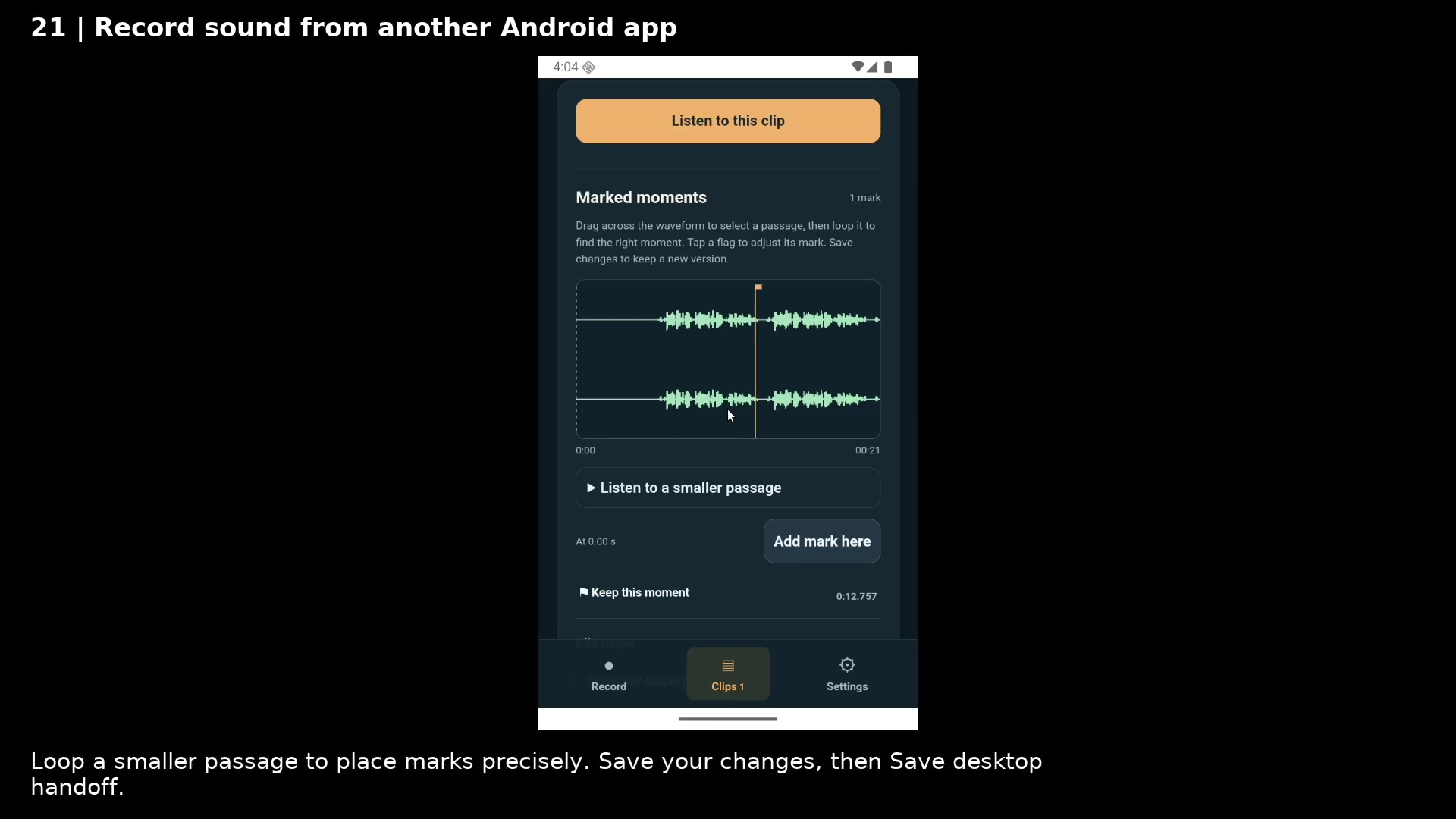
The saved take keeps its waveform and mark. Open full size
- The saved mark stays aligned with the recorded waveform.
- Loop a smaller passage to refine a mark’s position.
- Listen to the saved clip before keeping a long recording.
Read the video instructions
- Choose an app, record its sound, and keep the useful moments as marked clips.
- 1. Under Audio source, choose the System audio entry for the app you want to record.
- 2. Tap Start recording and approve Android’s sharing prompt. The microphone stays off.
- 3. Open that app and start playback. Here, a short speech sample is playing in the browser.
- 4. Check the moving waveform. Tap Mark this moment whenever you hear something useful.
- Keep the screen unlocked. Android can end sharing when the screen locks.
- 5. Tap Stop & save, then open the take in Clips to listen and refine its marks.
- Loop a smaller passage to place marks precisely. Save your changes, then Save desktop handoff.
- A flat waveform can mean the other app blocks capture. Make a short test and listen before a long recording.
Audio credits
LibriSpeech excerpts 1688-142285-0007 and 1272-128104-0000, collected by Vassil Panayotov, Guoguo Chen, Daniel Povey, and Sanjeev Khudanpur from LibriVox, are used under CC BY 4.0. Excerpts have been trimmed, resampled, padded, or processed. The voice-replacement example uses an original synthetic voice.