
Desktop · 0:31 video
Label and name speakers
Turn locally detected voice groups into familiar names you can follow through the transcript.
Before you start: A completed transcript and the optional speaker-analysis model pack.
Download videoDownload captions
Step by step
Open speaker analysis
Open Speakers and wording, then choose Label speakers in track…. Select words first if you want to analyze only a passage.
Review the suggested groups
Choose Find speakers. Auto estimates the groups; use Expected speakers when you know the count. The example contains one voice. Results group voices rather than identifying people.
Give a group a useful name
Accept speaker labels. Choose the group in Speaker, type a name or role, then choose Rename speaker. Select words and use Assign to selected words to correct a passage.
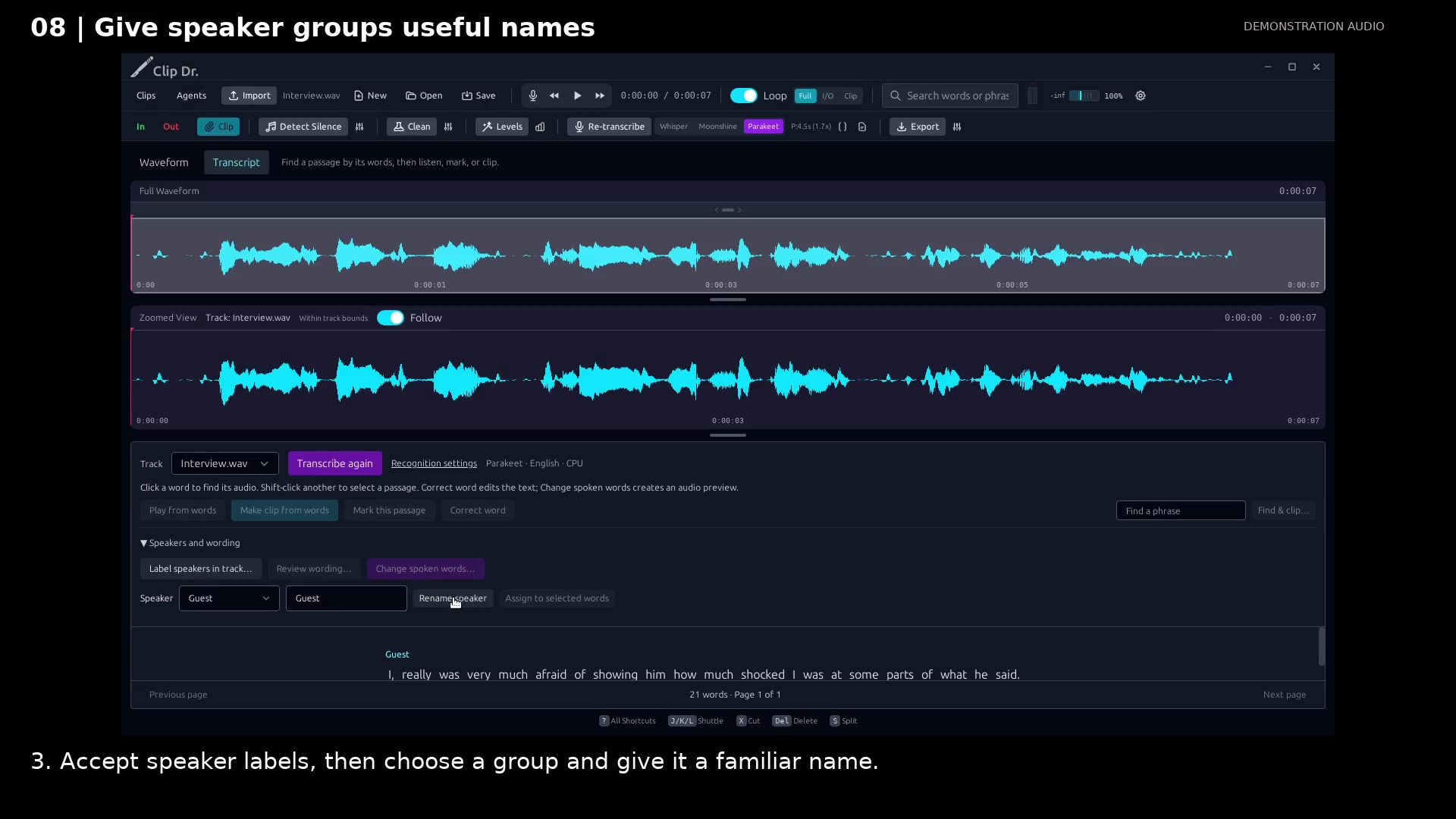
Name the speaker group. Open full size
- Choose the detected speaker group.
- Enter a familiar name or role.
- The label appears above that speaker’s words.
Read the video instructions
- Find speakers locally, review the groups, then use names that make the transcript readable.
- 1. Open Speakers and wording. Choose Label speakers in track…
- 2. Choose Find speakers. Auto estimates the groups; you can specify a known count.
- Processing runs locally. Wait for the result before continuing.
- The result is ready to review.
- 3. Accept speaker labels, then choose a group and give it a familiar name.
- Labels help you follow the passage. You can correct them; the recording stays intact.
Audio credits
LibriSpeech excerpts 1688-142285-0007 and 1272-128104-0000, collected by Vassil Panayotov, Guoguo Chen, Daniel Povey, and Sanjeev Khudanpur from LibriVox, are used under CC BY 4.0. Excerpts have been trimmed, resampled, padded, or processed. The voice-replacement example uses an original synthetic voice.