
Android · 0:29 video

Copy Markdown and export a journal

Copy one entry as Markdown to paste anywhere, or export the whole journal as one archive.

Before you start: Lifespeed Journal open on Android with a journal.

Download videoDownload captions

1Open More

In an entry, tap ⋯ (More).
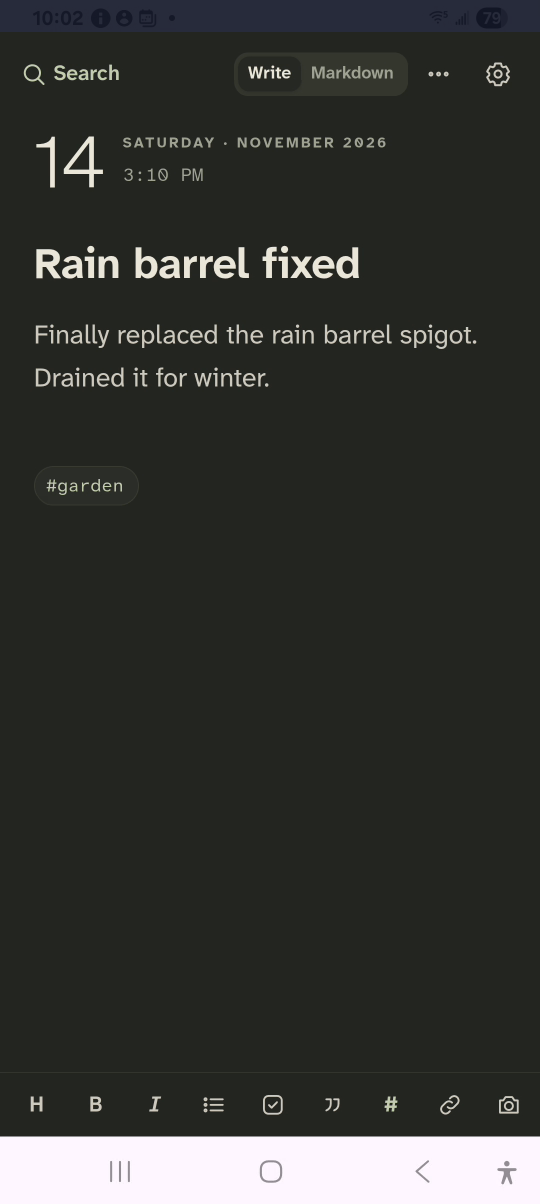
1 · Open More. In an entry, tap ⋯ (More).Copy Markdown and export a journal — step 11
More. Select the image to enlarge it.

2Copy Markdown

Tap Copy Markdown. Paste it into any app.
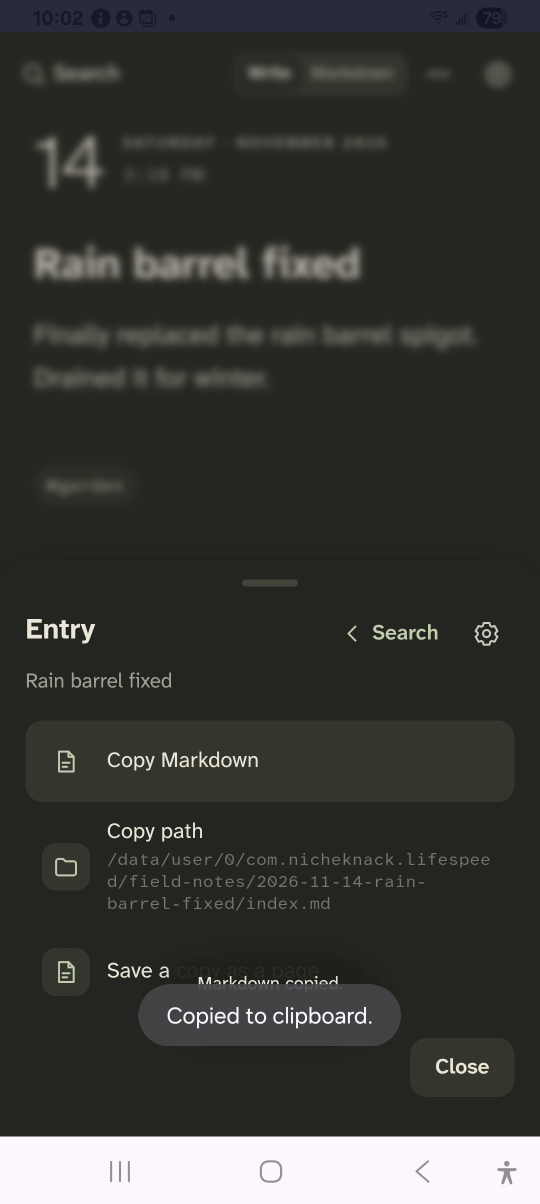
2 · Copy Markdown. Tap Copy Markdown. Paste it into any app.Copy Markdown and export a journal — step 22
Copy Markdown. Select the image to enlarge it.

3Manage the journal

Tap the journal name, then the manage button. Tap Export journal…
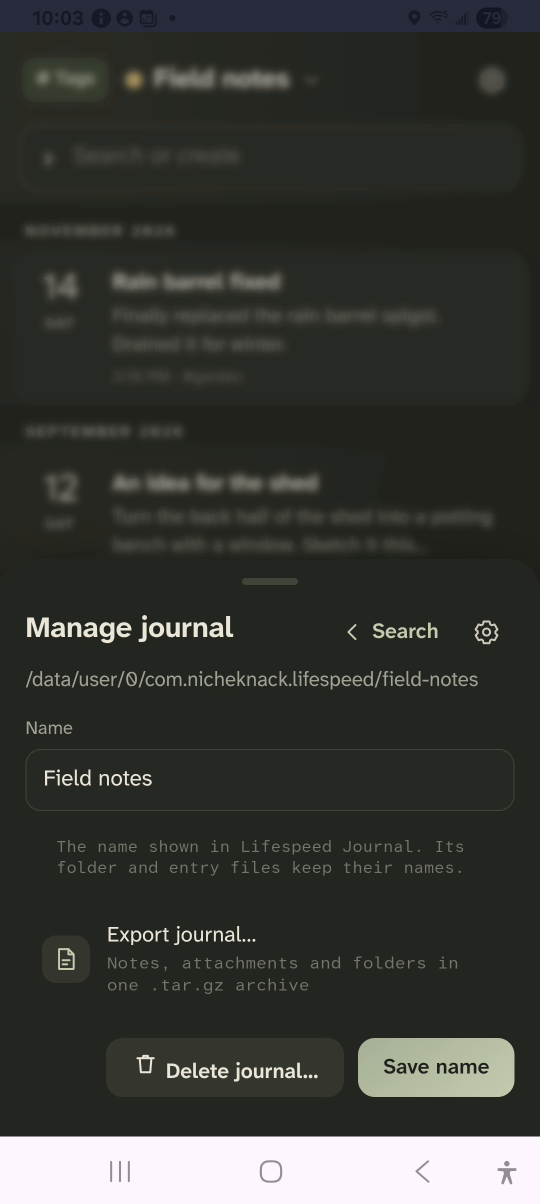
3 · Manage the journal. Tap the journal name, then the manage button. Tap Export journal…Copy Markdown and export a journal — step 33
Export journal…. Select the image to enlarge it.

4Save the archive

Choose a folder and tap Save.
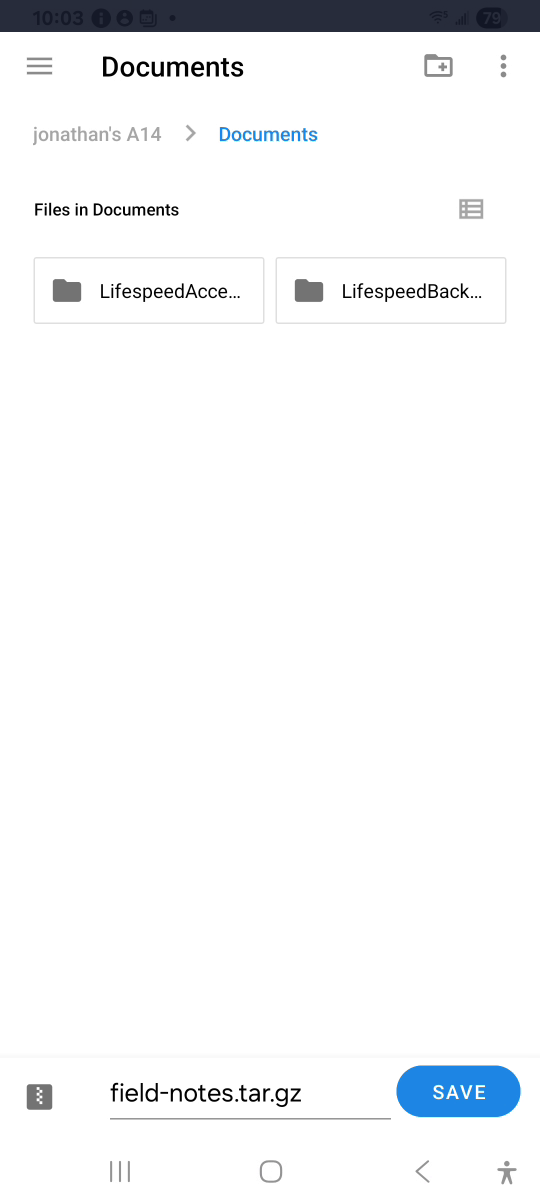
4 · Save the archive. Choose a folder and tap Save.Copy Markdown and export a journal — step 44
Save. Select the image to enlarge it.

Result: The entry is on the clipboard, and the journal is saved as a .tar.gz archive.