
Android · 0:34 video

Find, edit, and delete

Find an entry, correct its amount, and remove it when it no longer belongs in the pot. This example changes Groceries from $12.34 to $15.34 before deleting it.

Download videoDownload captions

1Find an entry

Tap Find above the entries. Search for Groceries.
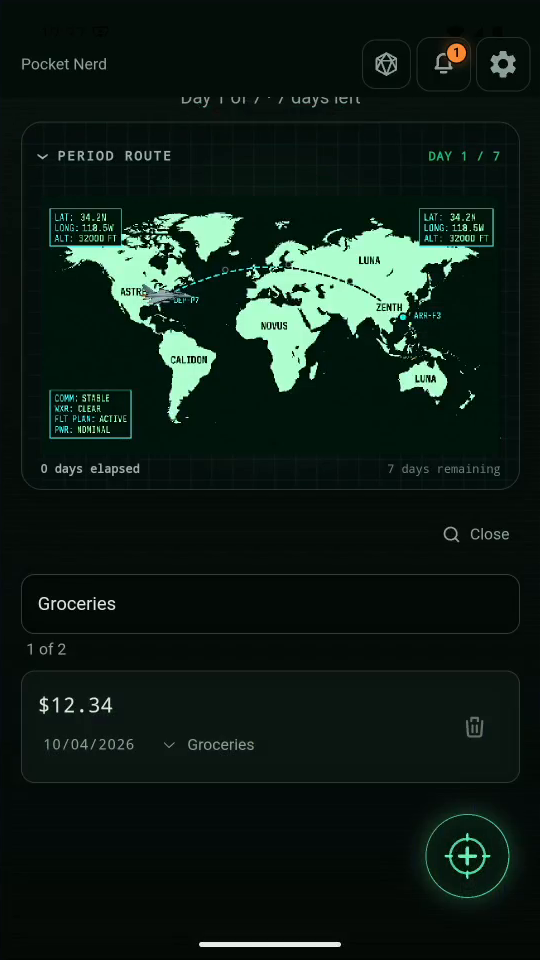
1 · Find an entry. Tap Find above the entries. Search for Groceries.Find, edit, and delete — step 11
Find entries. Select the image to enlarge it.

2Open the entry

Tap the amount to edit it.
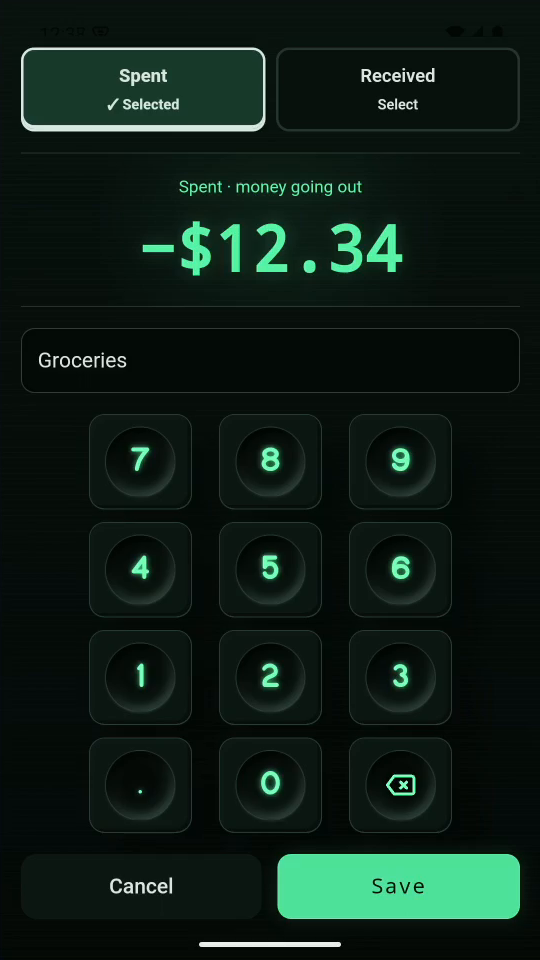
2 · Open the entry. Tap the amount to edit it.Find, edit, and delete — step 22
Amount to edit. Select the image to enlarge it.

3Correct the amount

Backspace four times. Tap 1, 5, 3, 4 for $15.34.
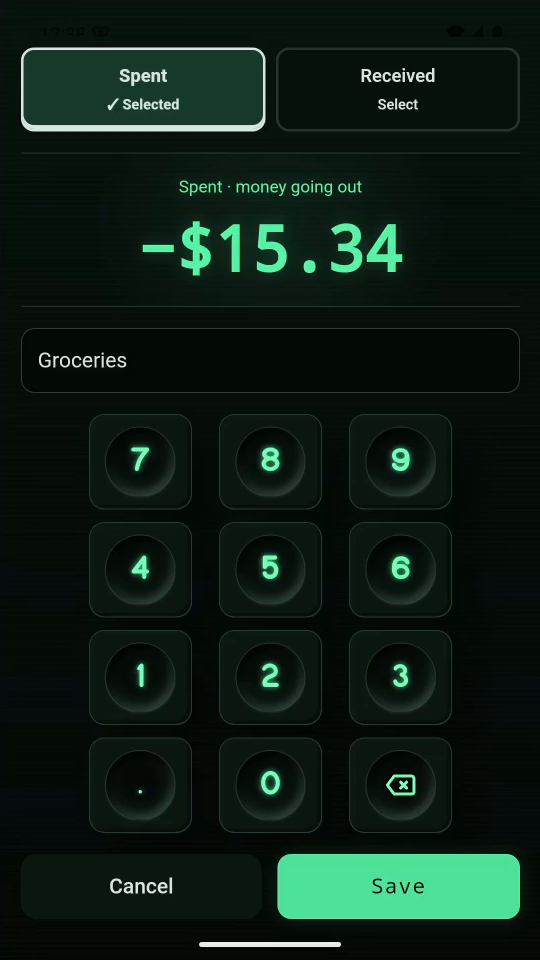
3 · Correct the amount. Backspace four times. Tap 1, 5, 3, 4 for $15.34.Find, edit, and delete — step 33
Corrected amount. Select the image to enlarge it.

4Save the correction

Tap Save. Check the updated amount in the entry list.
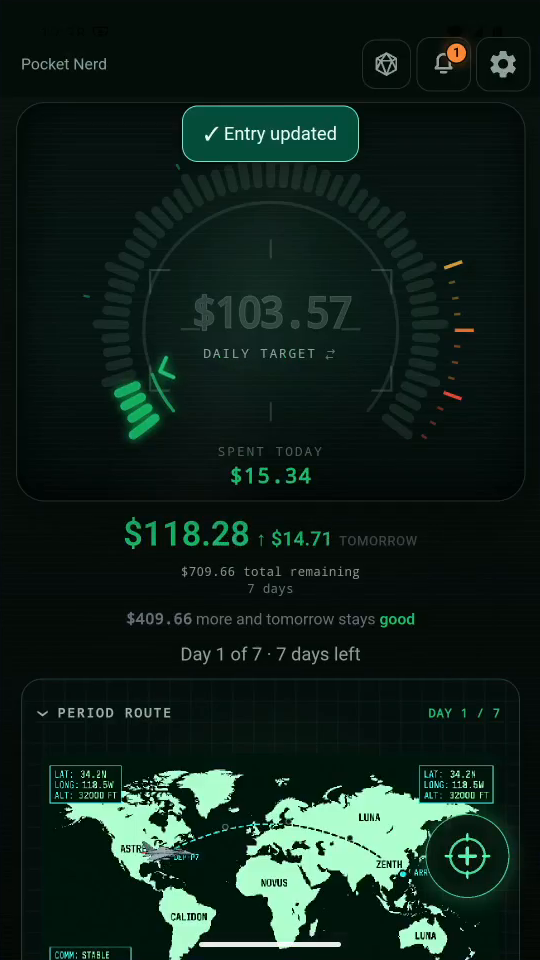
4 · Save the correction. Tap Save. Check the updated amount in the entry list.Find, edit, and delete — step 44
Spent today after the edit. Select the image to enlarge it.

5Remove a test entry

On the Groceries row, tap the trash icon, then Delete?.
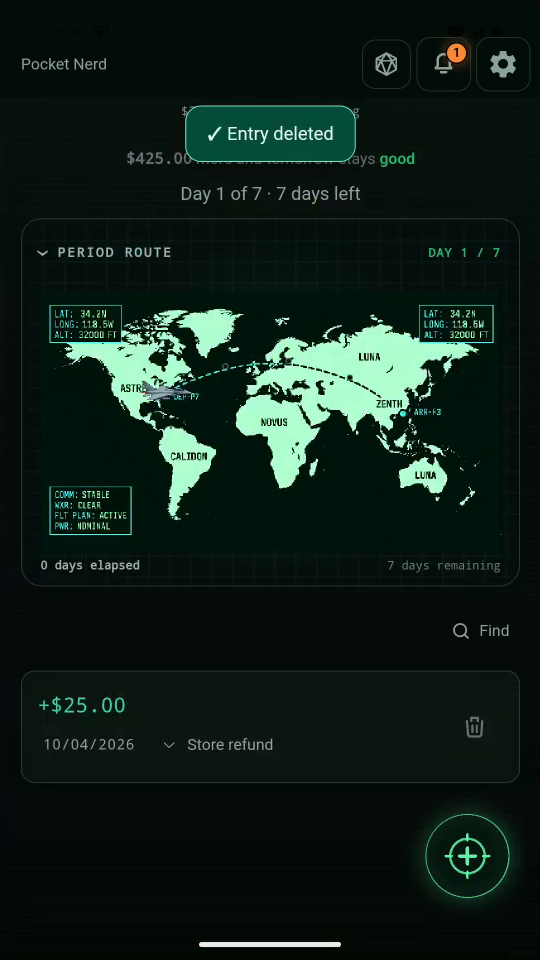
5 · Remove a test entry. On the Groceries row, tap the trash icon, then Delete?.Find, edit, and delete — step 55
Remaining refund entry. Select the image to enlarge it.

6Result

The deleted example is gone. Your refund entry is still present.
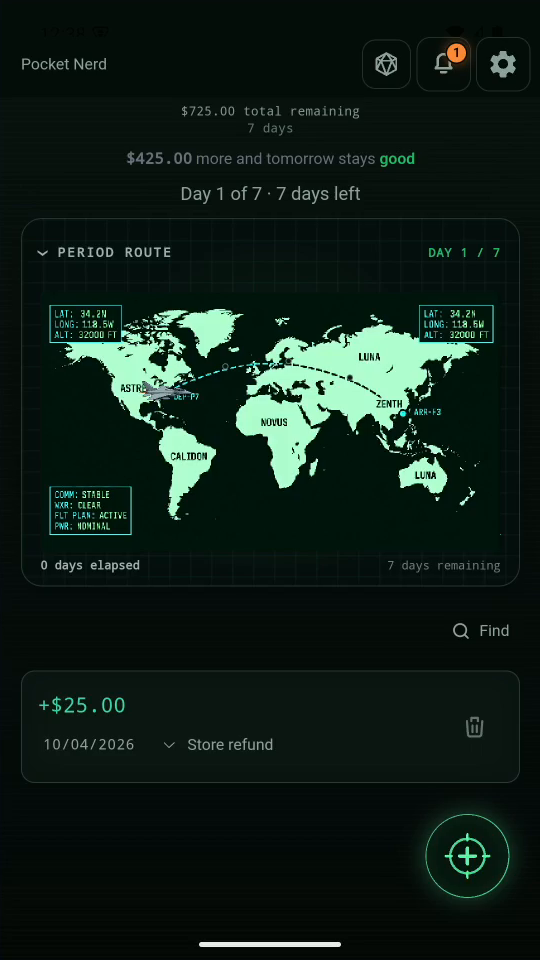
Result. The deleted example is gone. Your refund entry is still present.Find, edit, and delete — step 66
Refund retained. Select the image to enlarge it.

Result: The corrected amount is saved; confirming deletion removes only the selected Groceries entry.