
Android · 0:25 video

Switch to the Markdown view

Write shows the entry formatted. Markdown shows the file as it is saved, header and all.

Before you start: Lifespeed Journal open on Android with a journal.

Download videoDownload captions

1Open an entry

Search tomatoes and open Tomatoes staked.
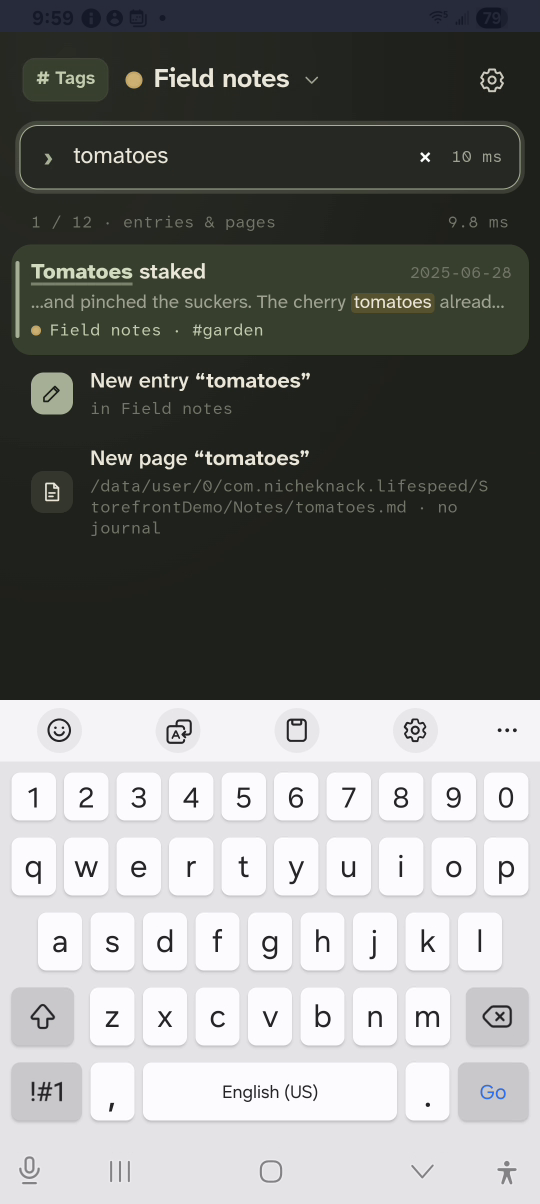
1 · Open an entry. Search tomatoes and open Tomatoes staked.Switch to the Markdown view — step 11
Result. Select the image to enlarge it.

2Read it in Write

Write shows headings, lists and checkboxes formatted.
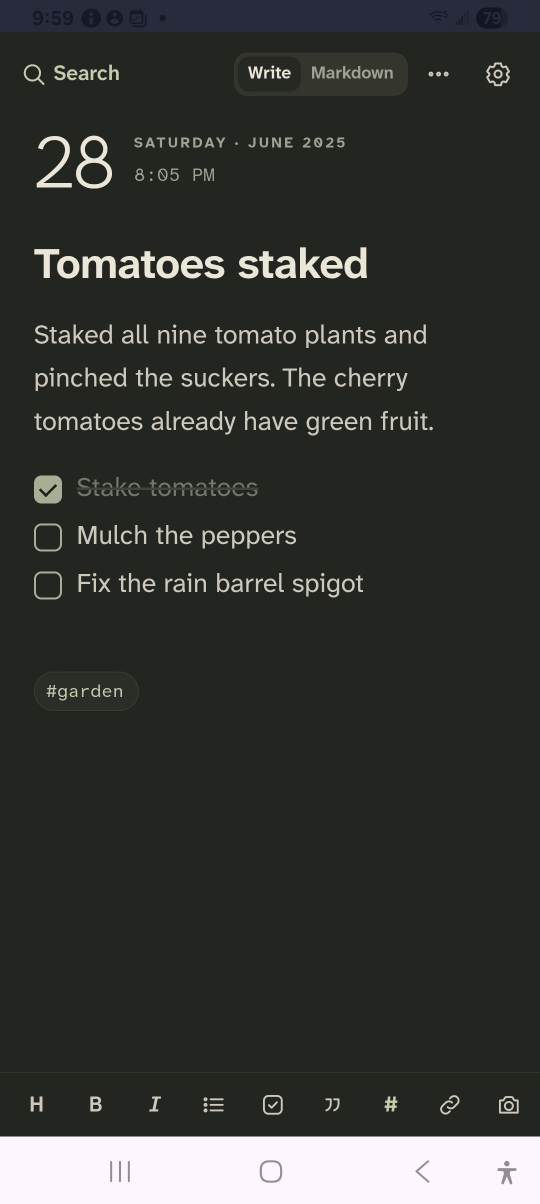
2 · Read it in Write. Write shows headings, lists and checkboxes formatted.Switch to the Markdown view — step 22
Checklist. Select the image to enlarge it.

3Tap Markdown

The file shows as saved: header, then the text.
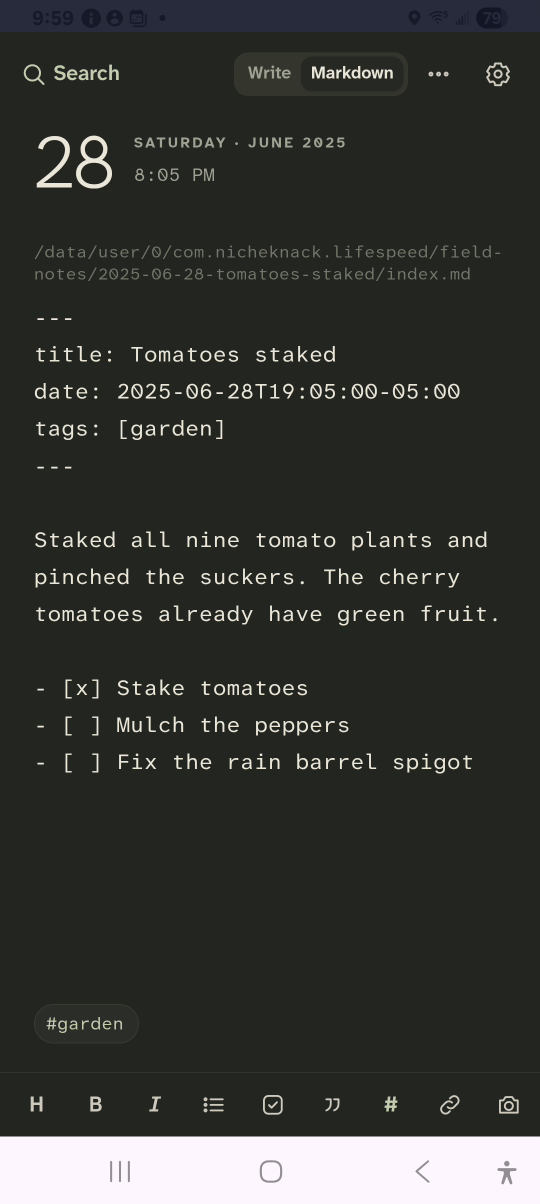
3 · Tap Markdown. The file shows as saved: header, then the text.Switch to the Markdown view — step 33
Markdown. Select the image to enlarge it.

4Tap Write

Switch back to the formatted view.
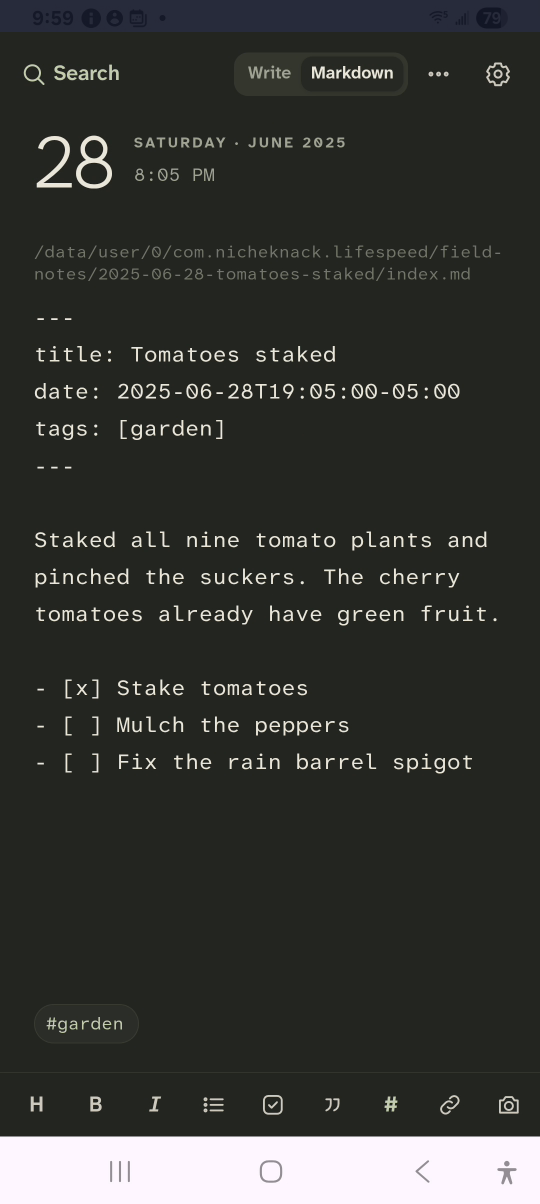
4 · Tap Write. Switch back to the formatted view.Switch to the Markdown view — step 44
Write. Select the image to enlarge it.

Result: The same entry shows as plain Markdown, with its title, date and tags in the header.