
Hub · 0:35 video
Create a project in the hub
Write, arrange, and search project notes in your browser.
Before you start: Your hub address, access code, and permission to edit a project.
Download videoDownload captions
Step by step
Create an investigation
Sign in at your hub address. Enter a project name and choose Create project, or open an existing project.
Add a note
Choose + Note and write a title on the first line, followed by the research details.
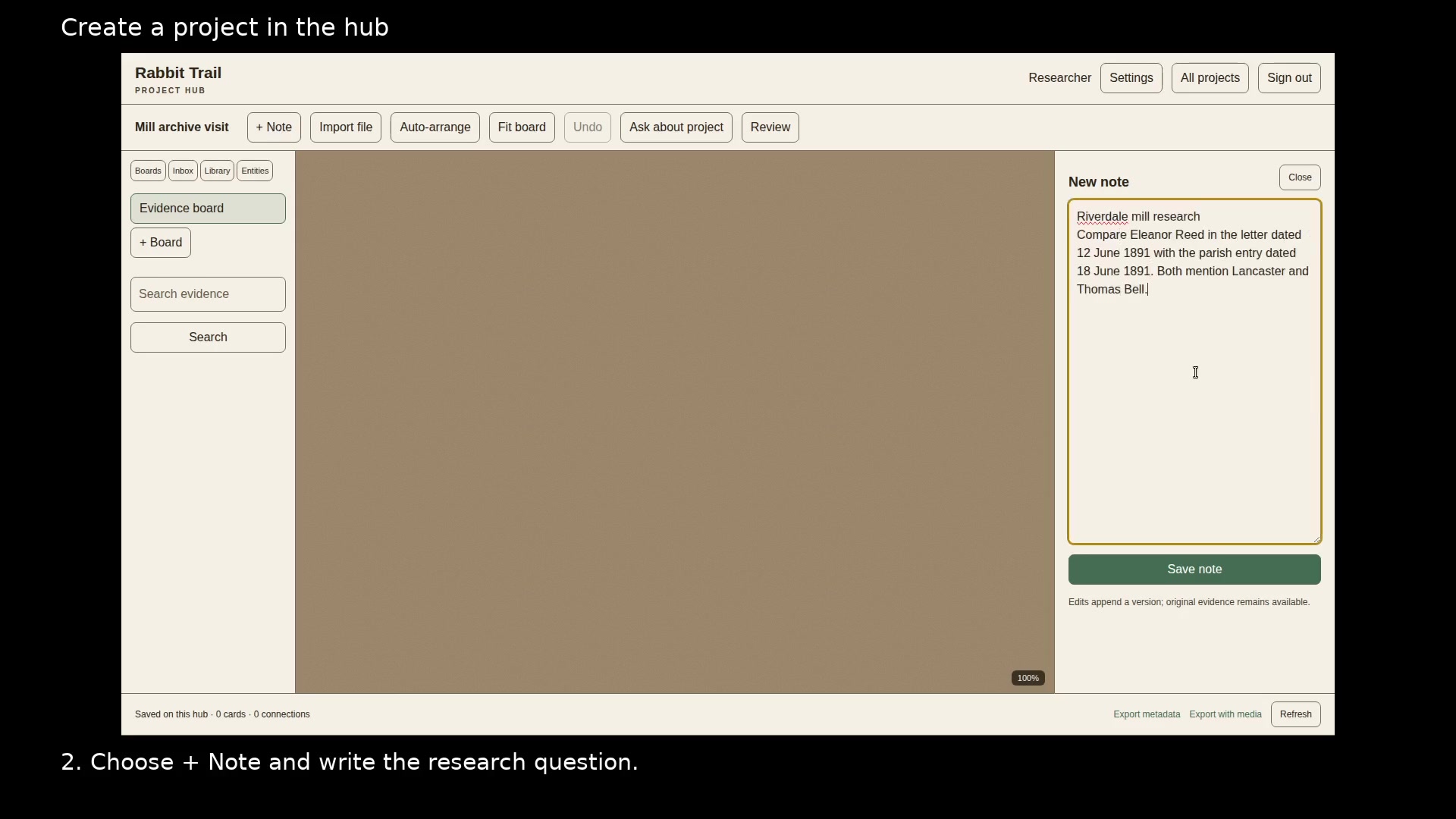
Write a note in the project inspector. Open full size
- Use the first line as the note title.
Save and arrange
Choose Save note, then Auto-arrange to position the cards. Double-click a note to revise it.
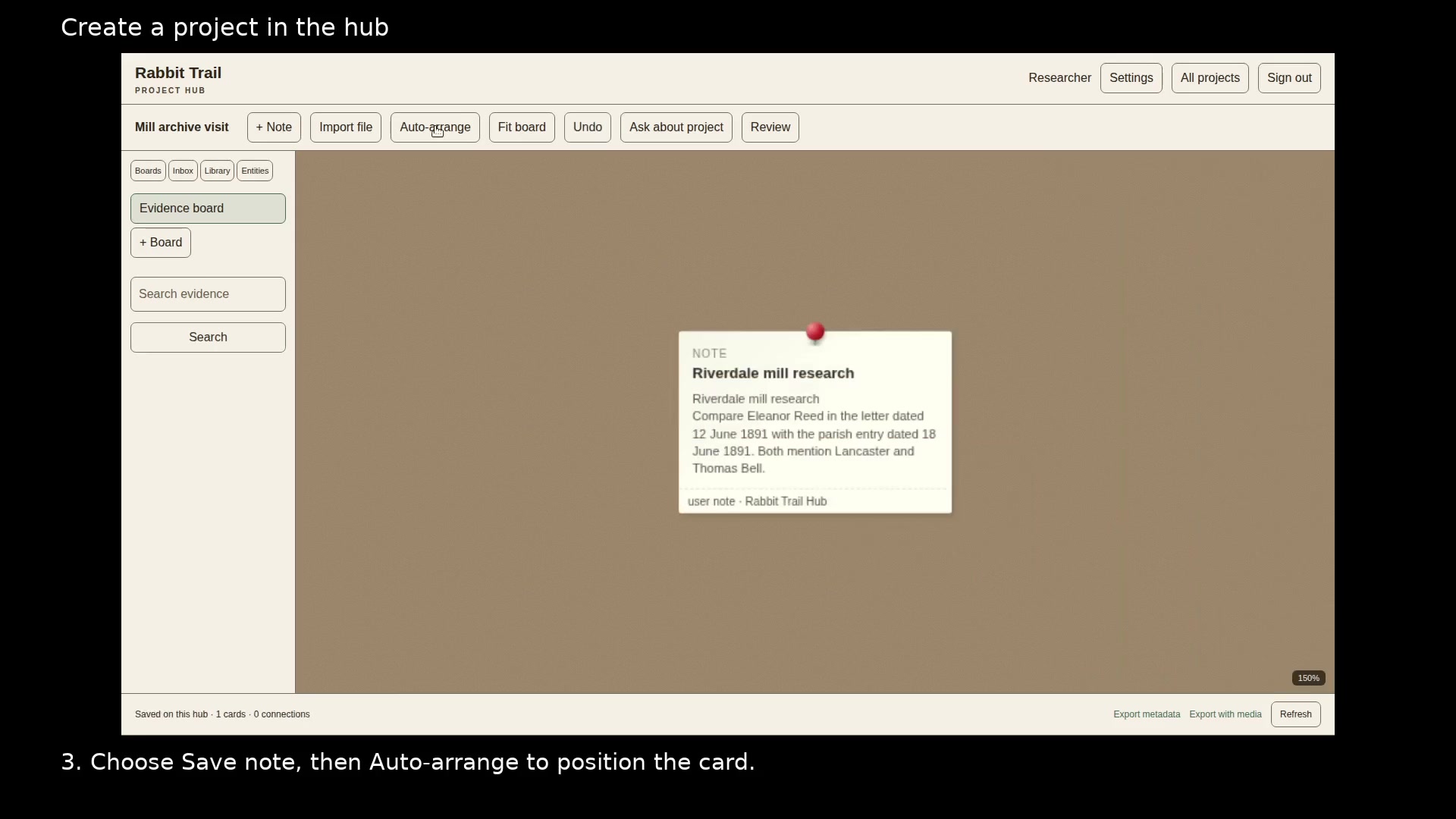
The board holds the saved note. Open full size
- Double-click a note to read or revise it.
Find the evidence
Enter a word in Search evidence and choose Search. Open a result to read the saved passage.
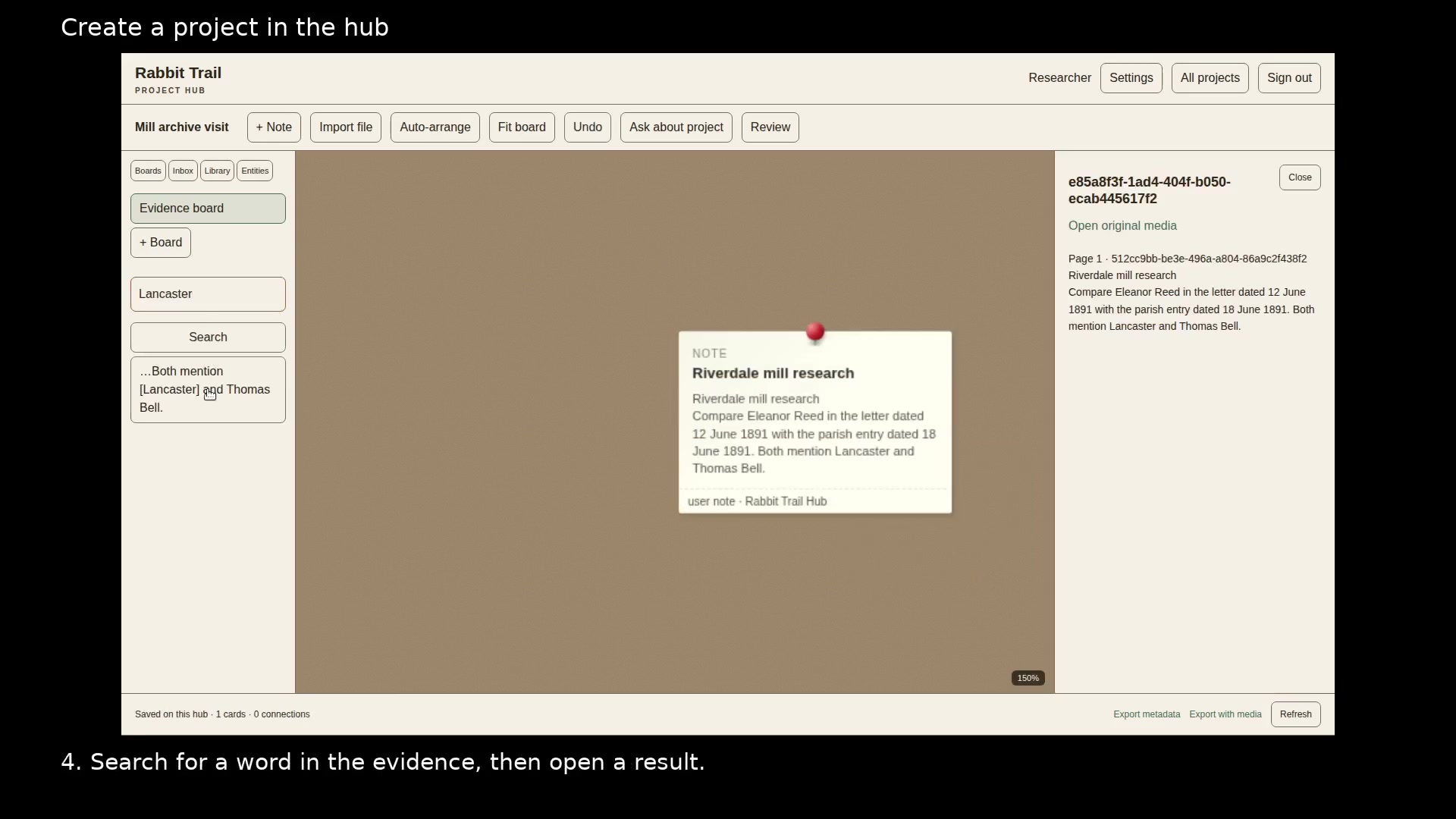
Read the saved evidence behind a search result. Open full size
- Check the passage before relying on it.
Read the video instructions
- Keep project notes available in your browser when your laptop is off.
- 1. Name a new investigation and choose Create project.
- 2. Choose + Note and write the research question.
- 3. Choose Save note, then Auto-arrange to position the card.
- 4. Search for a word in the evidence, then open a result.
- Use All projects to open another investigation. Each project keeps its own notes and evidence.