
Linux · 0:20 video

Open the sample project on desktop

Try Rabbit Trail on a ready-made reading library before adding your own notes.

Before you start: Rabbit Trail open on a Linux computer.

Download videoDownload captions

Remove the sample any time from the project menu.

1Open the sample

On the welcome screen, click Open the sample project.
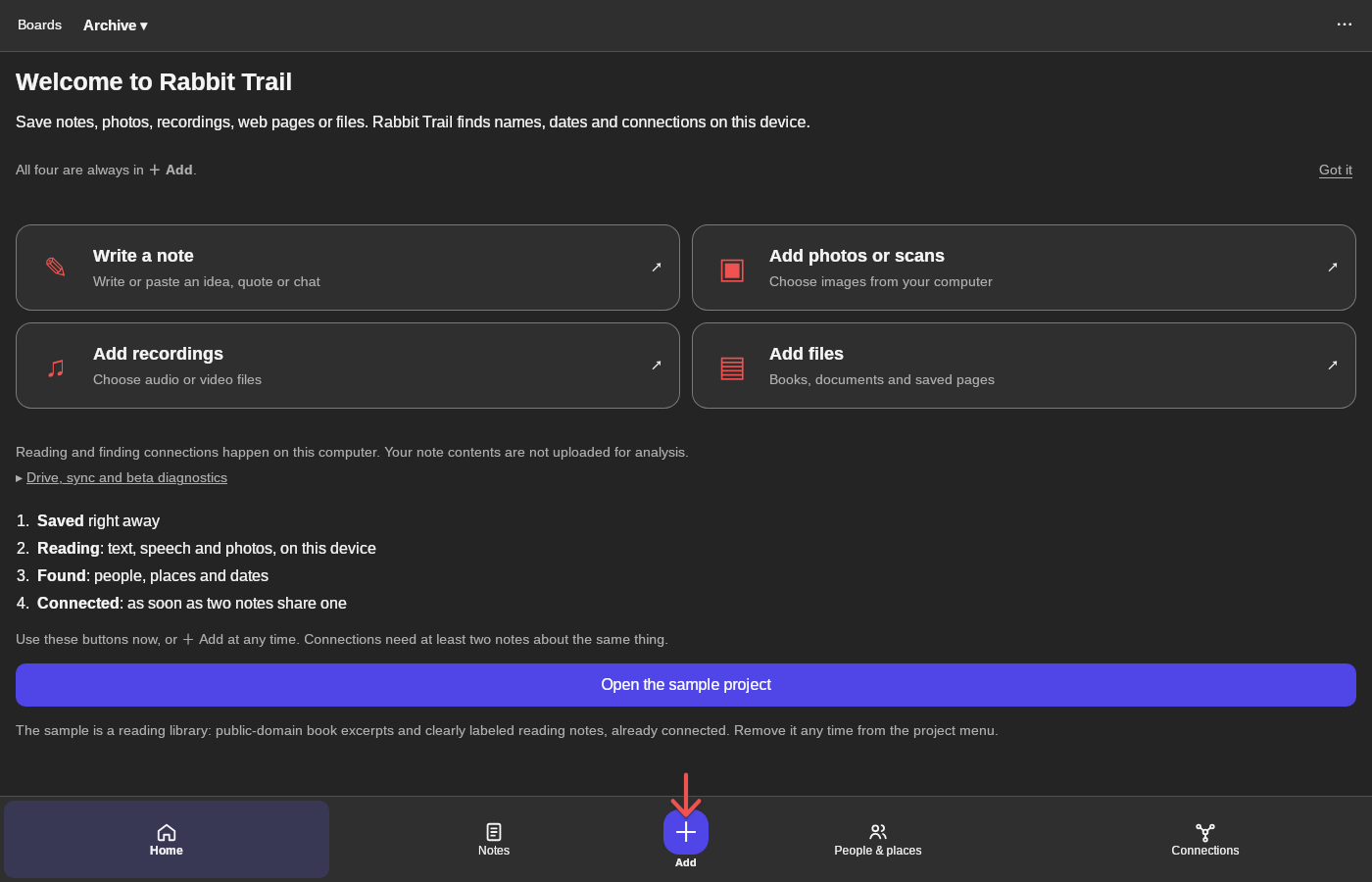
1 · Open the sample. On the welcome screen, click Open the sample project.Open the sample project on desktop — step 11
Open the sample project. Select the image to enlarge it.

2Check the project

The project name shows at the top: Sample: A reading library.
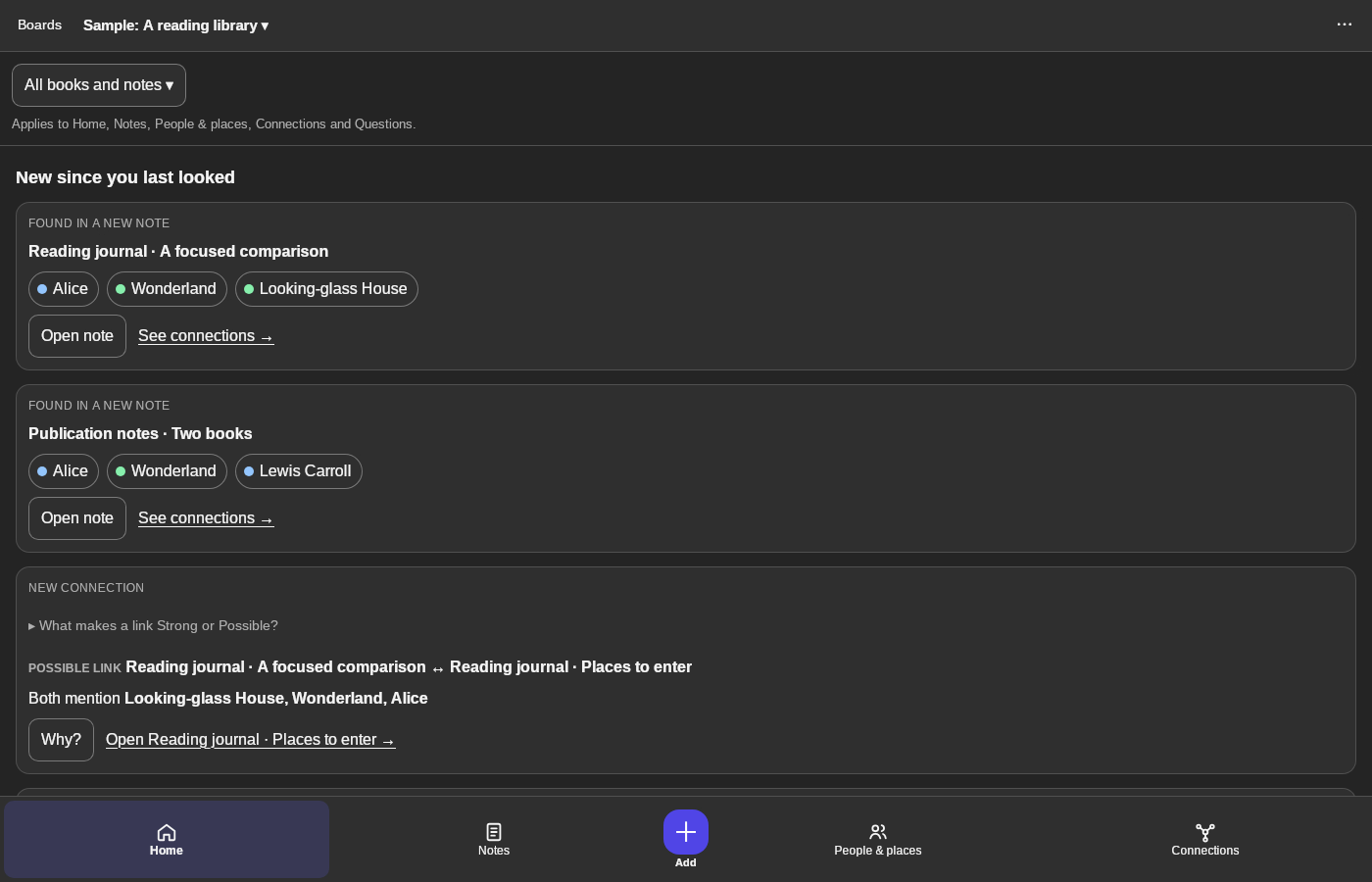
2 · Check the project. The project name shows at the top: Sample: A reading library.Open the sample project on desktop — step 22
Sample: A reading library. Select the image to enlarge it.

3See what it found

Home lists new notes, names and possible links.
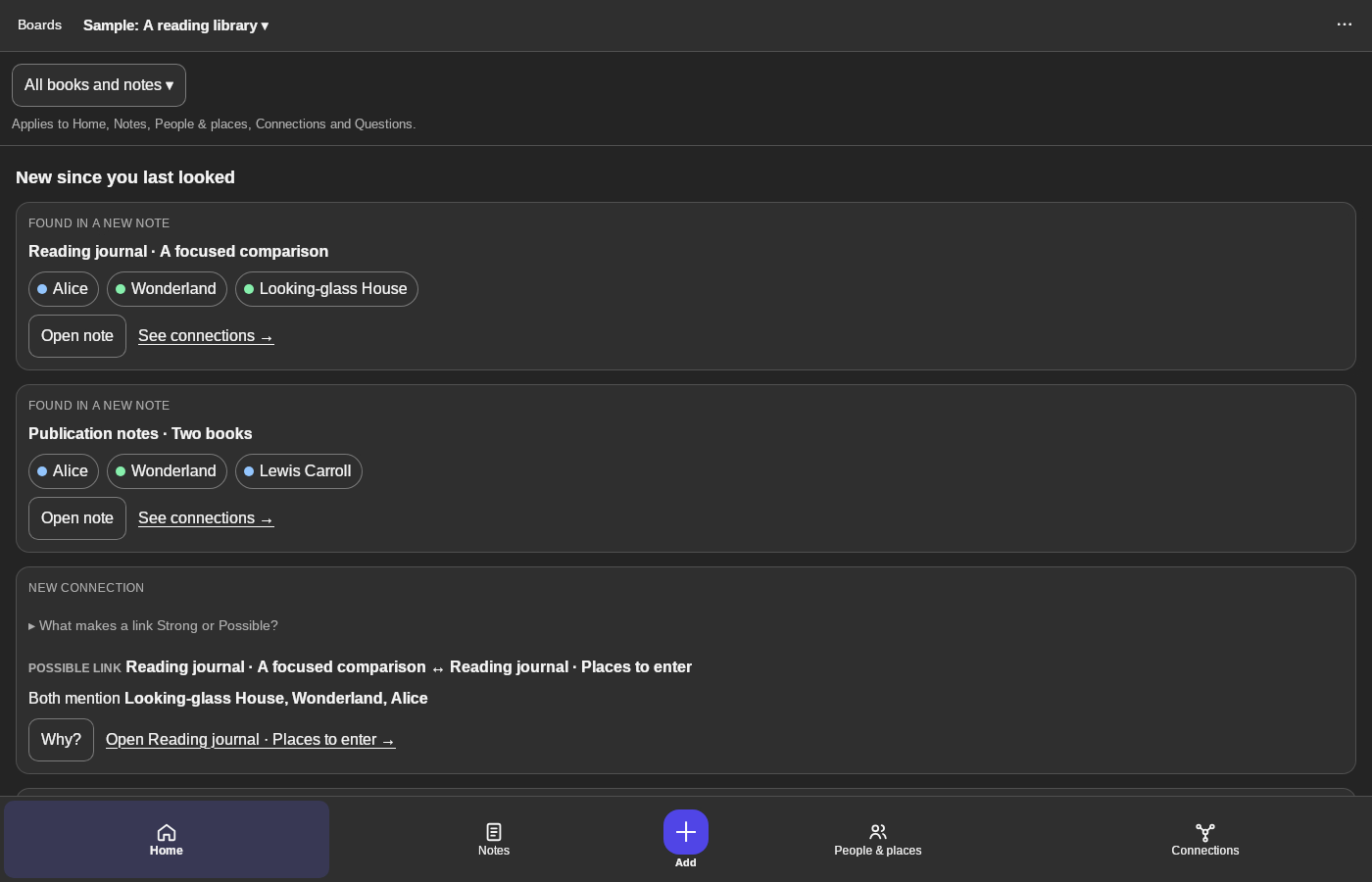
3 · See what it found. Home lists new notes, names and possible links.Open the sample project on desktop — step 33
What it found. Select the image to enlarge it.

4Browse

Use the bottom bar: Home, Notes, People & places, Connections.
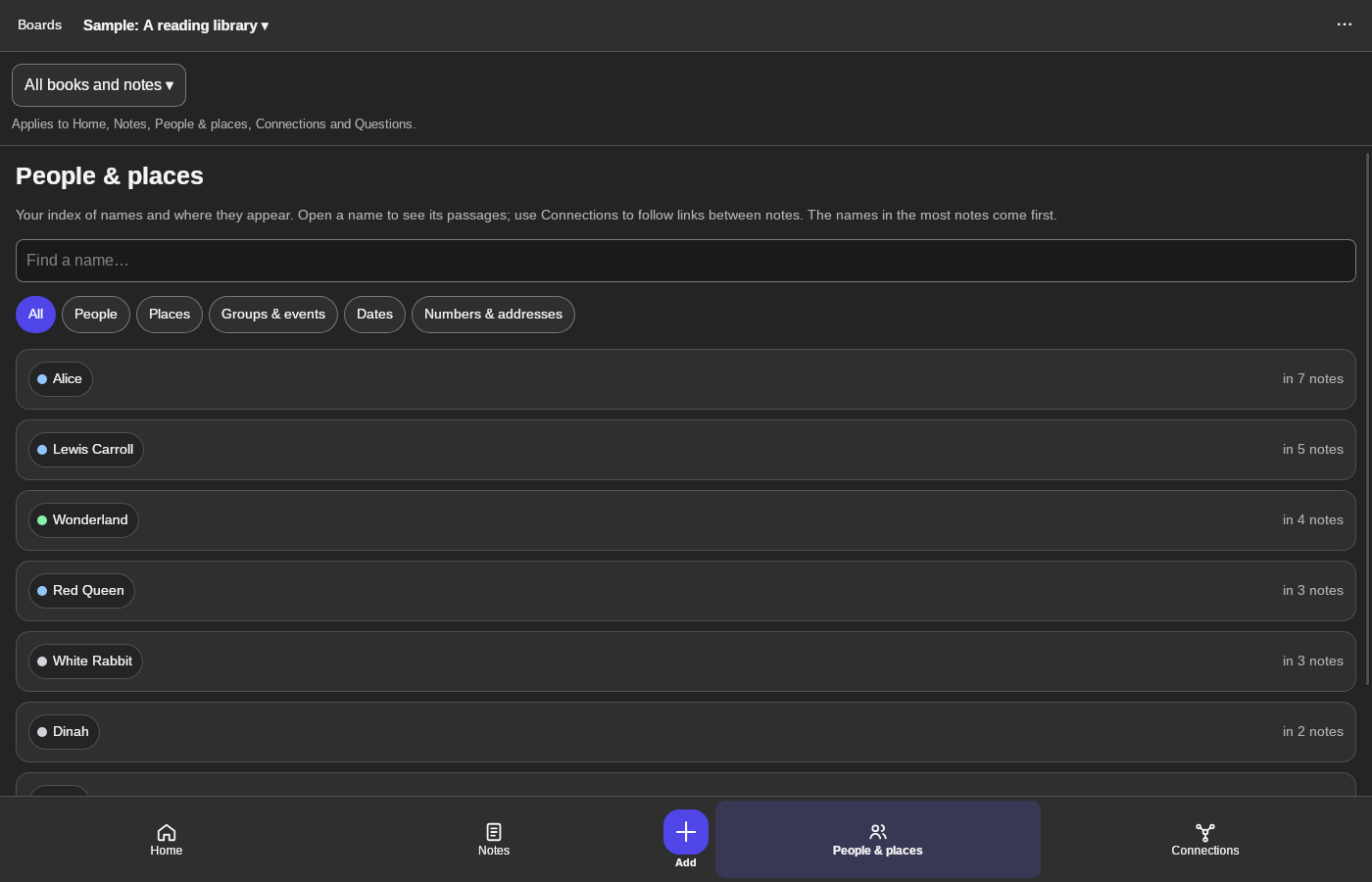
4 · Browse. Use the bottom bar: Home, Notes, People & places, Connections.Open the sample project on desktop — step 44
People & places. Select the image to enlarge it.

Result: The sample opens with its names, places and connections already found.