
Desktop · 0:24 video
Correct a transcript word
Fix spelling or punctuation without changing the recorded voice.
Before you start: A completed transcript with one word selected.
Download videoDownload captions
Step by step
Select one word
Click the word you want to fix, then choose Correct word. A correction field opens.
Save the correction
Edit the spelling or punctuation and choose Save correction. This changes the transcript text; it does not synthesize replacement audio.
Undo a correction
Return focus to the transcript and press Ctrl + Z if you want the previous wording back.
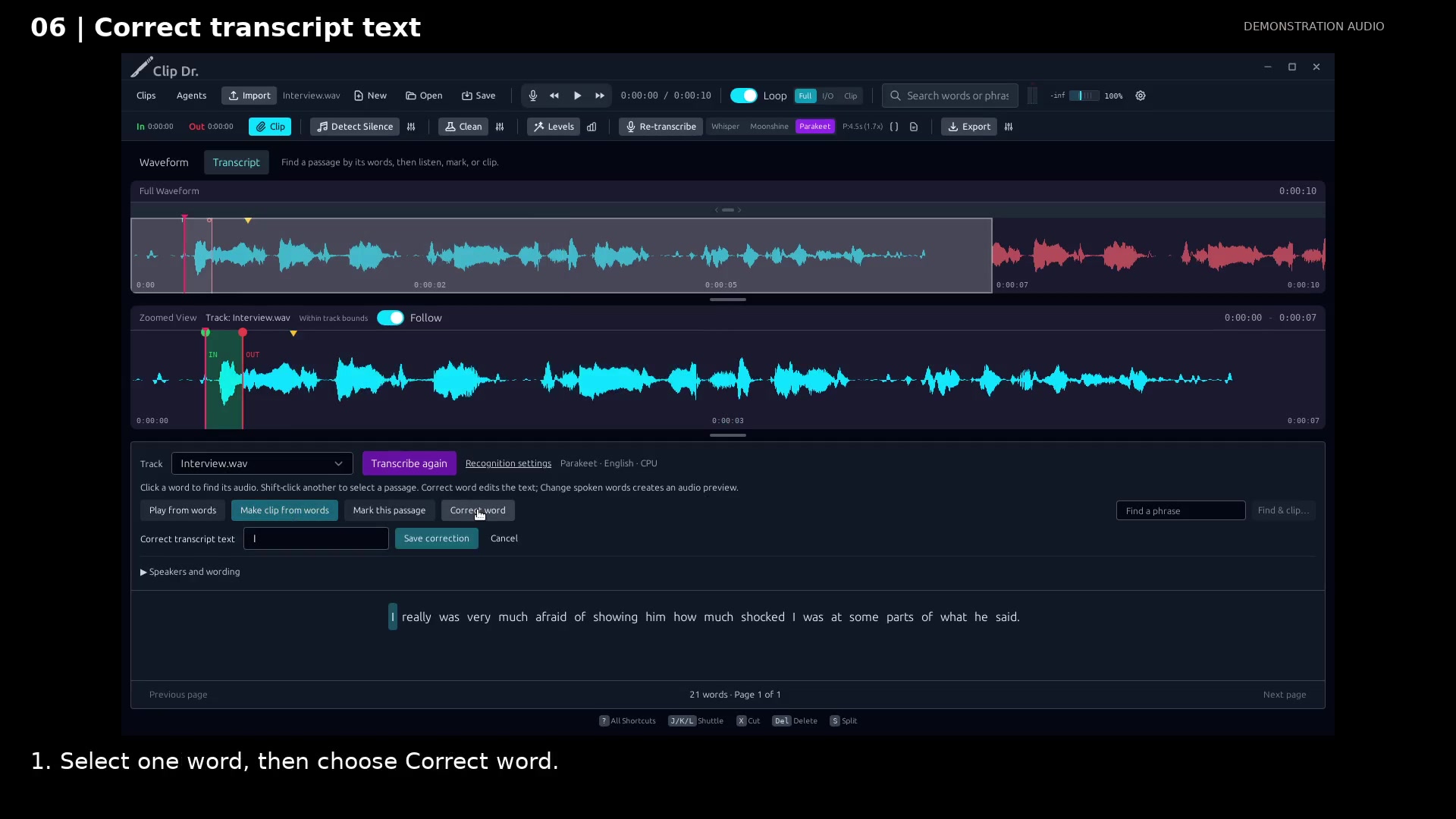
Open a word correction. Open full size
- Correct word edits the selected word’s text.
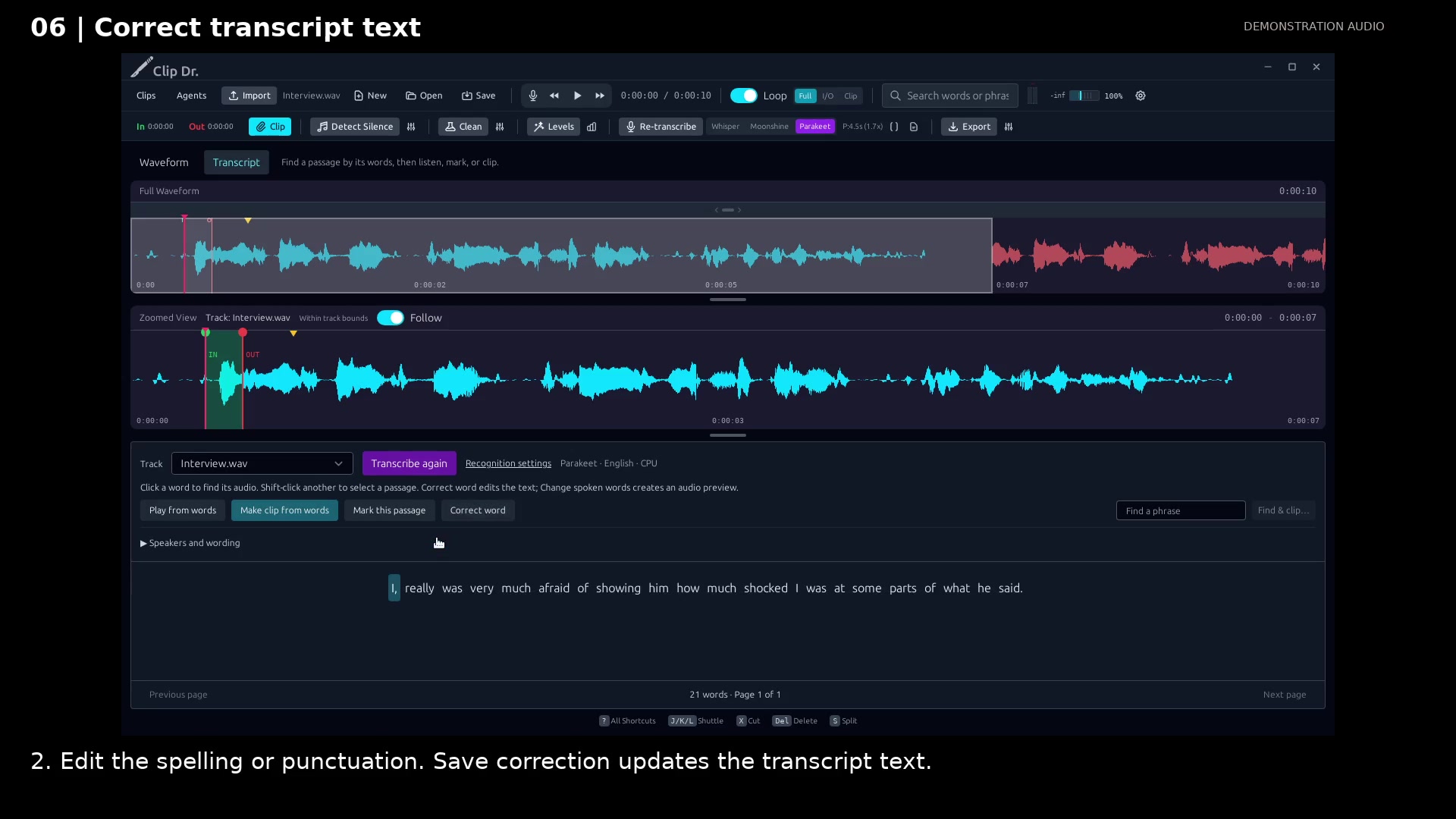
Save the text correction. Open full size
- The corrected word remains linked to its original recording.
Read the video instructions
- Fix a recognition mistake while keeping the recorded voice unchanged.
- 1. Select one word, then choose Correct word.
- 2. Edit the spelling or punctuation. Save correction updates the transcript text.
- 3. Undo restores the previous wording. Change spoken words is a separate preview workflow.
- Transcript corrections are reversible. They do not replace the speaker’s audio.
Audio credits
LibriSpeech excerpts 1688-142285-0007 and 1272-128104-0000, collected by Vassil Panayotov, Guoguo Chen, Daniel Povey, and Sanjeev Khudanpur from LibriVox, are used under CC BY 4.0. Excerpts have been trimmed, resampled, padded, or processed. The voice-replacement example uses an original synthetic voice.