
Desktop · 0:23 video
Find phrases and create excerpts
Search for remembered words, review the matches, and make clips or marks together.
Before you start: A completed transcript. Select a track to limit the search to that recording.
Download videoDownload captions
Step by step
Find the phrase
Enter the words in Find a phrase, then choose Find & clip…. The dialog lists matching passages with their times.
Review the ranges
Use Show range to locate a match in the waveform. Check the selected matches and adjust clip padding when the start or end needs room.
Keep clips or marks
Choose Create clips at timeline end for separate excerpts. Mark selected matches is available when you only need reference points. Both actions are undoable.
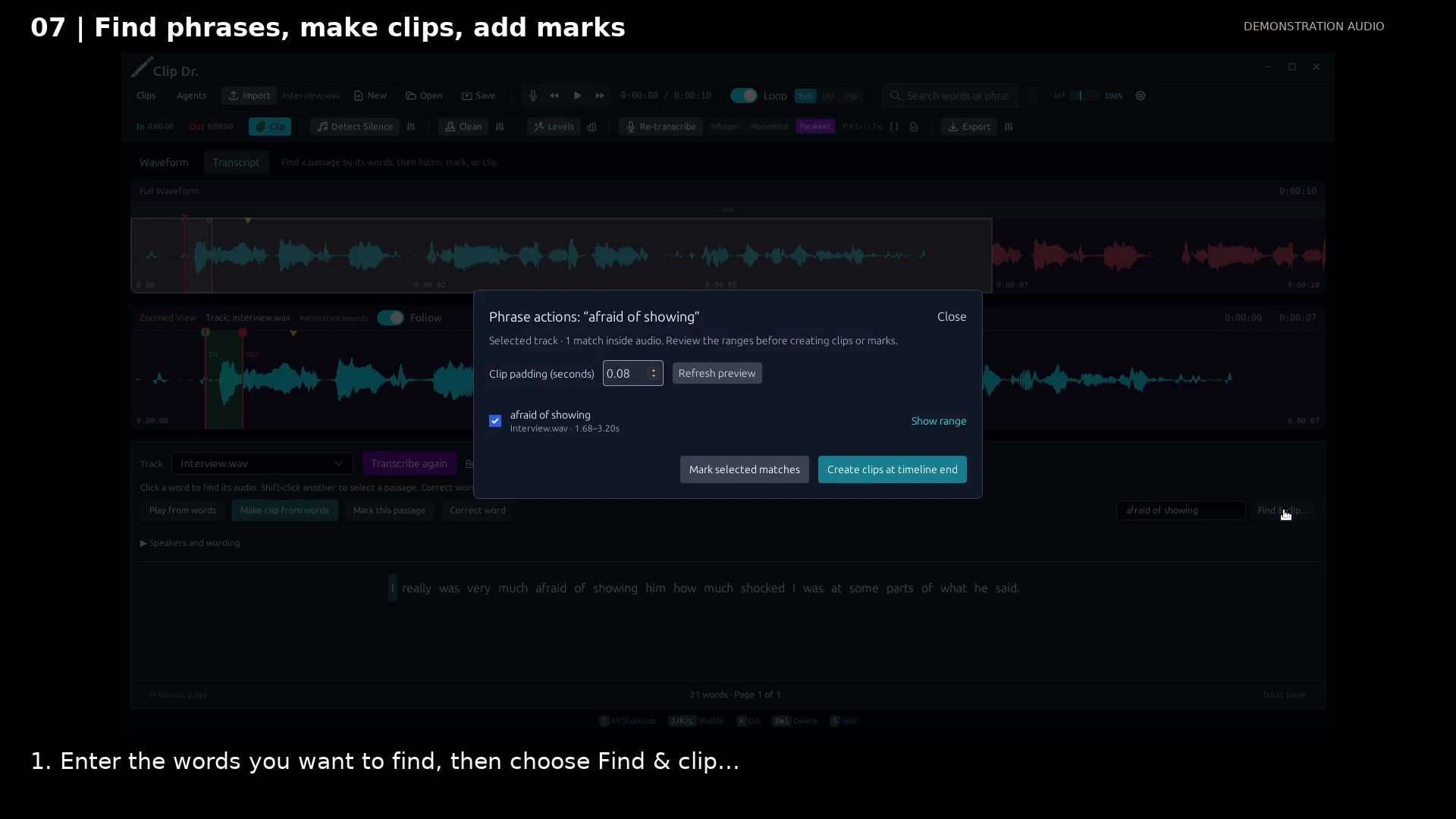
Review phrase matches. Open full size
- Show range locates the matching passage.
- Padding adds room around the matched words.
- Create the checked excerpts at the end of the timeline.
Read the video instructions
- Use a phrase to find useful moments without scrubbing through the whole recording.
- 1. Enter the words you want to find, then choose Find & clip…
- 2. Show range locates the matching audio. Review the selected matches and clip padding.
- 3. Create clips at timeline end saves the excerpts. Mark selected matches is available too.
- Search by what was said, then keep the matching audio as an undoable clip.
Audio credits
LibriSpeech excerpts 1688-142285-0007 and 1272-128104-0000, collected by Vassil Panayotov, Guoguo Chen, Daniel Povey, and Sanjeev Khudanpur from LibriVox, are used under CC BY 4.0. Excerpts have been trimmed, resampled, padded, or processed. The voice-replacement example uses an original synthetic voice.