
Desktop · 0:20 video
Connect your phone to this project
Make the open desktop project available for Wi-Fi pairing.
Before you start: Both devices on the same local network, with the intended project open on desktop.
Download videoDownload captions
Step by step
Open Continuity
Choose Settings and scroll to Continuity. Give this device a name you will recognize on the phone.
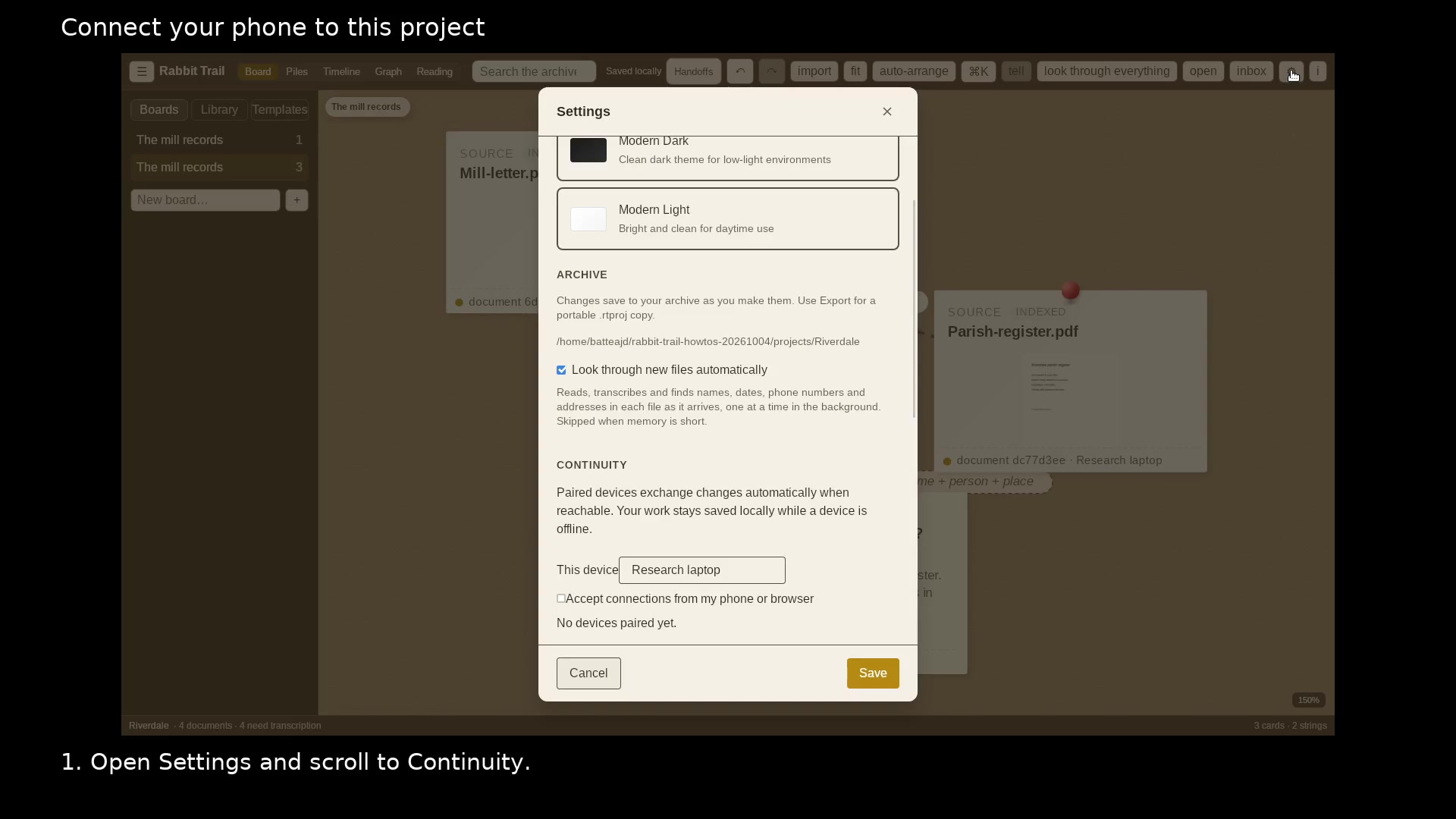
Give this desktop a name you will recognize. Open full size
- Use this name to recognize the desktop on your phone.
Enable connections
Turn on Accept connections from my phone or browser. Keep the address and six-digit code visible while pairing the phone.
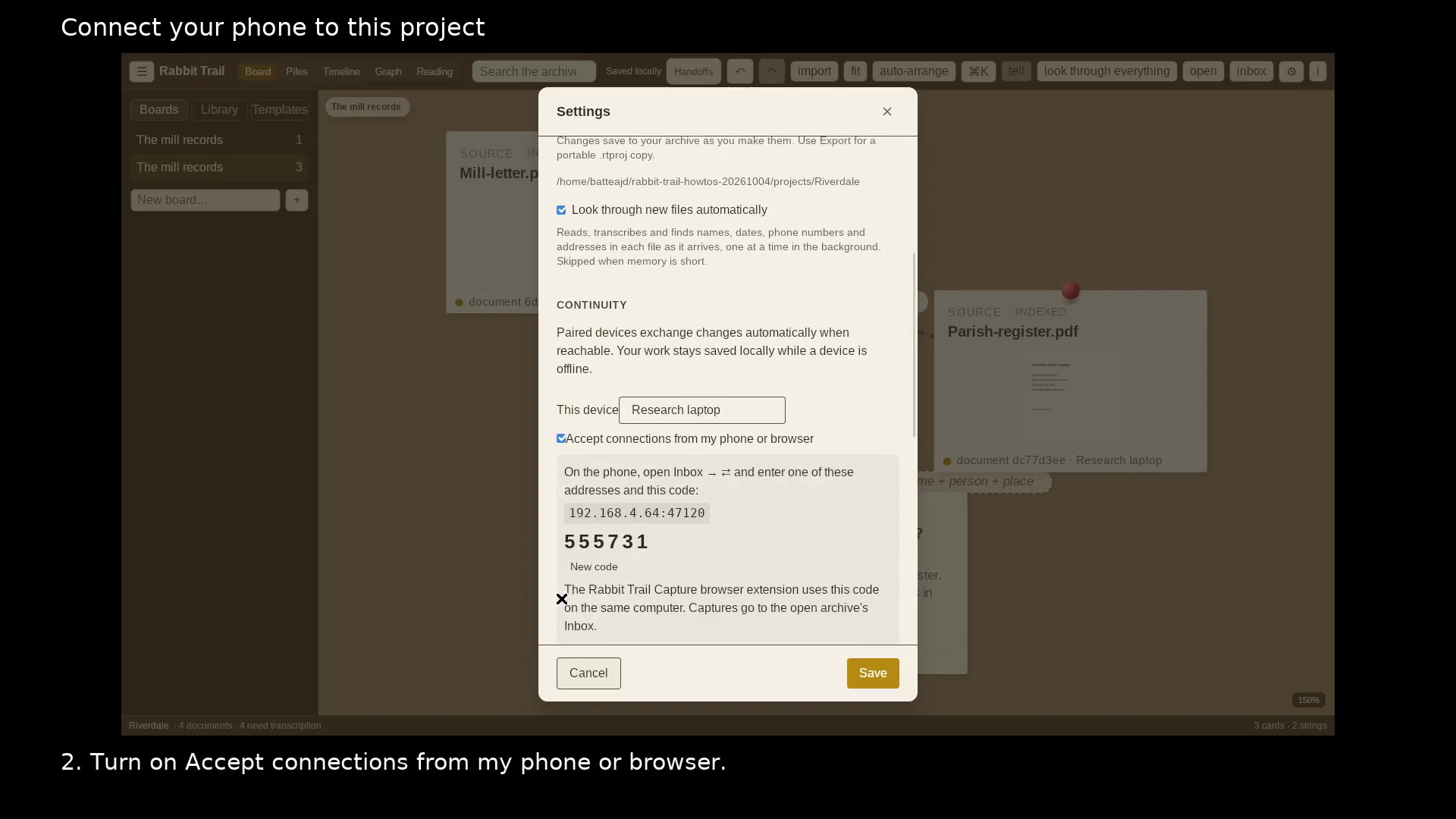
Use the address and code to pair the phone. Open full size
- Enter a reachable desktop address on your phone.
- Enter this six-digit pairing code on your phone.
Read the video instructions
- Open the project you want to exchange with your phone. Keep both devices on the same network.
- 1. Open Settings and scroll to Continuity.
- 2. Turn on Accept connections from my phone or browser.
- On the phone, open Project sync and pair with this desktop while this project is open.