
Android · 0:31 video
Write a note on your phone
Capture a research lead in the right project.
Before you start: Rabbit Trail installed on your phone.
Download videoDownload captions
Step by step
Choose a project
Open Projects. Create or select the project that should receive the note. Check the project name at the top.
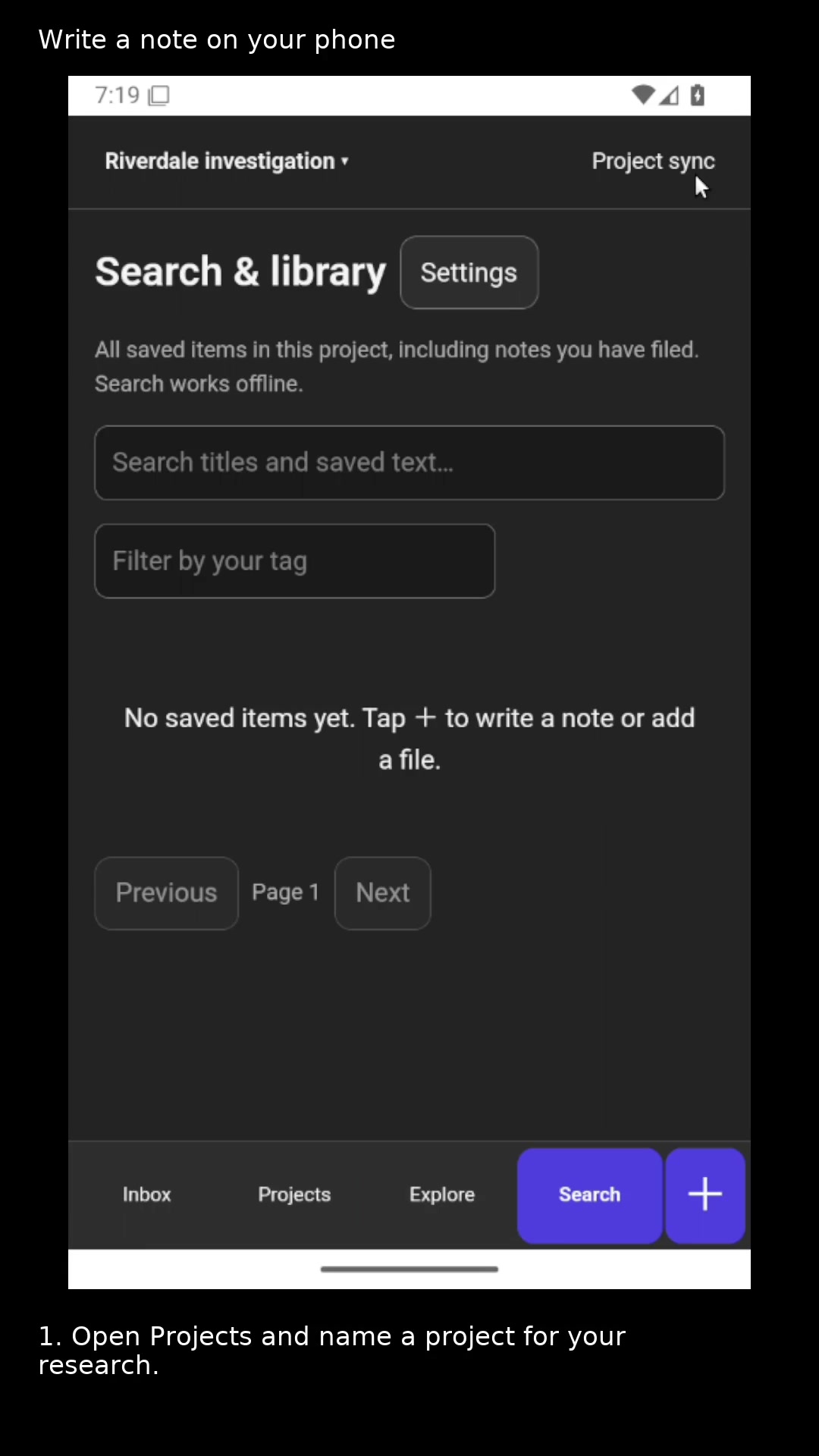
Keep related research in the same project. Open full size
- The project name at the top shows where new captures go.
Start a capture
Tap + in the bottom navigation, then Write a note.
Write the title and details
Use the first line for the note title. Put your question, observations, or next action below it.
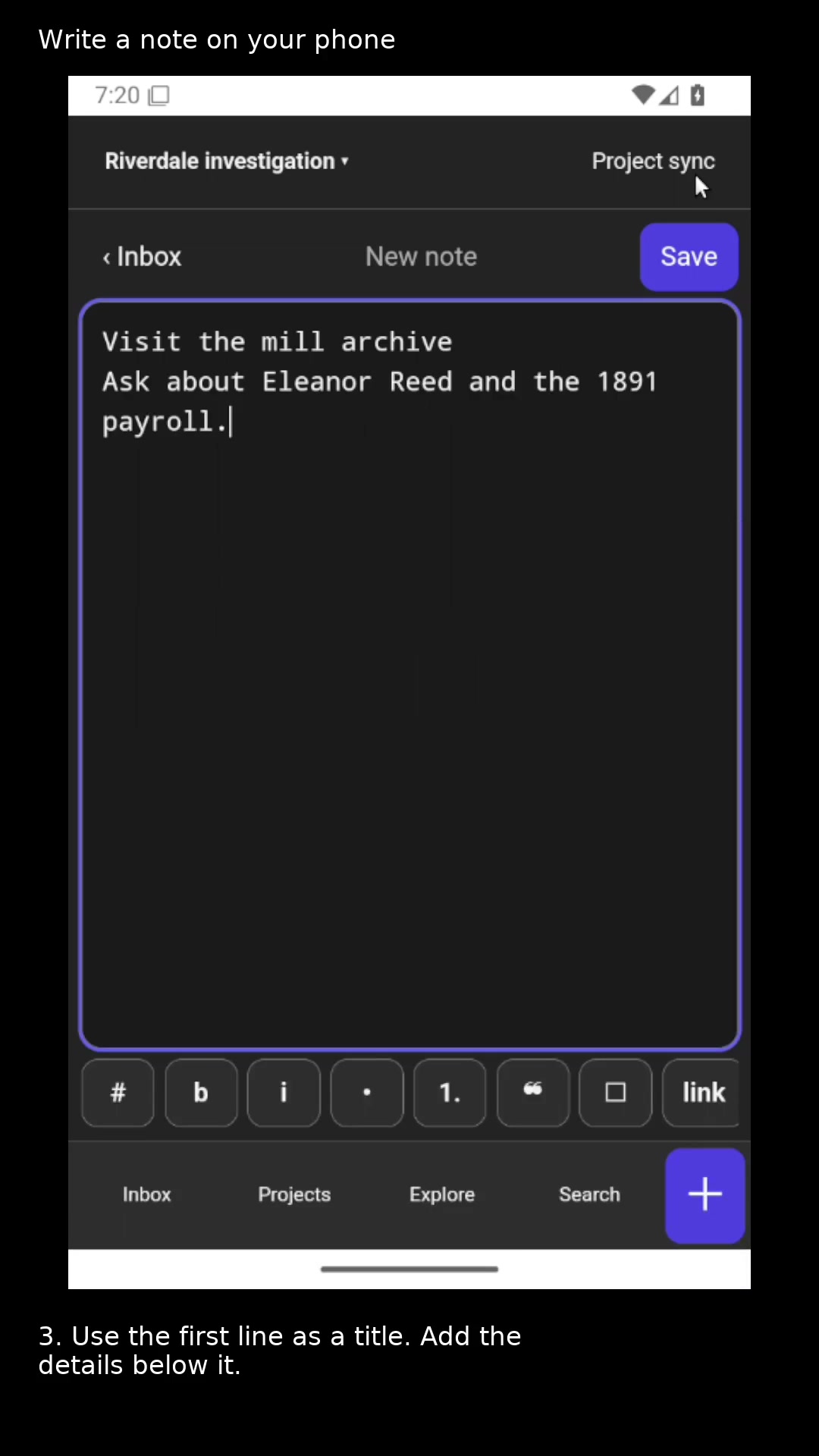
Give the note a title you will recognize later. Open full size
- Save adds the note to this project.
Save to the Inbox
Tap Save. Your new note appears in this project’s Inbox.
Read the video instructions
- Choose a project, then capture a research lead.
- 1. Open Projects and name a project for your research.
- 2. Tap +, then Write a note.
- 3. Use the first line as a title. Add the details below it.
- 4. Tap Save to place the note in the Inbox.
- Open the note from the Inbox whenever you want to read it.