
Desktop · 0:26 video
Publish a fingerprint and transcript
Review publication consent, send the saved fingerprint, and check the registry catalog.
Before you start: A saved local fingerprint, a configured registry, and any account access that registry requires.
Download videoDownload captions
Step by step
Choose the local fingerprint
Open Fingerprints and select On this device. Locate the saved recording you intend to publish.
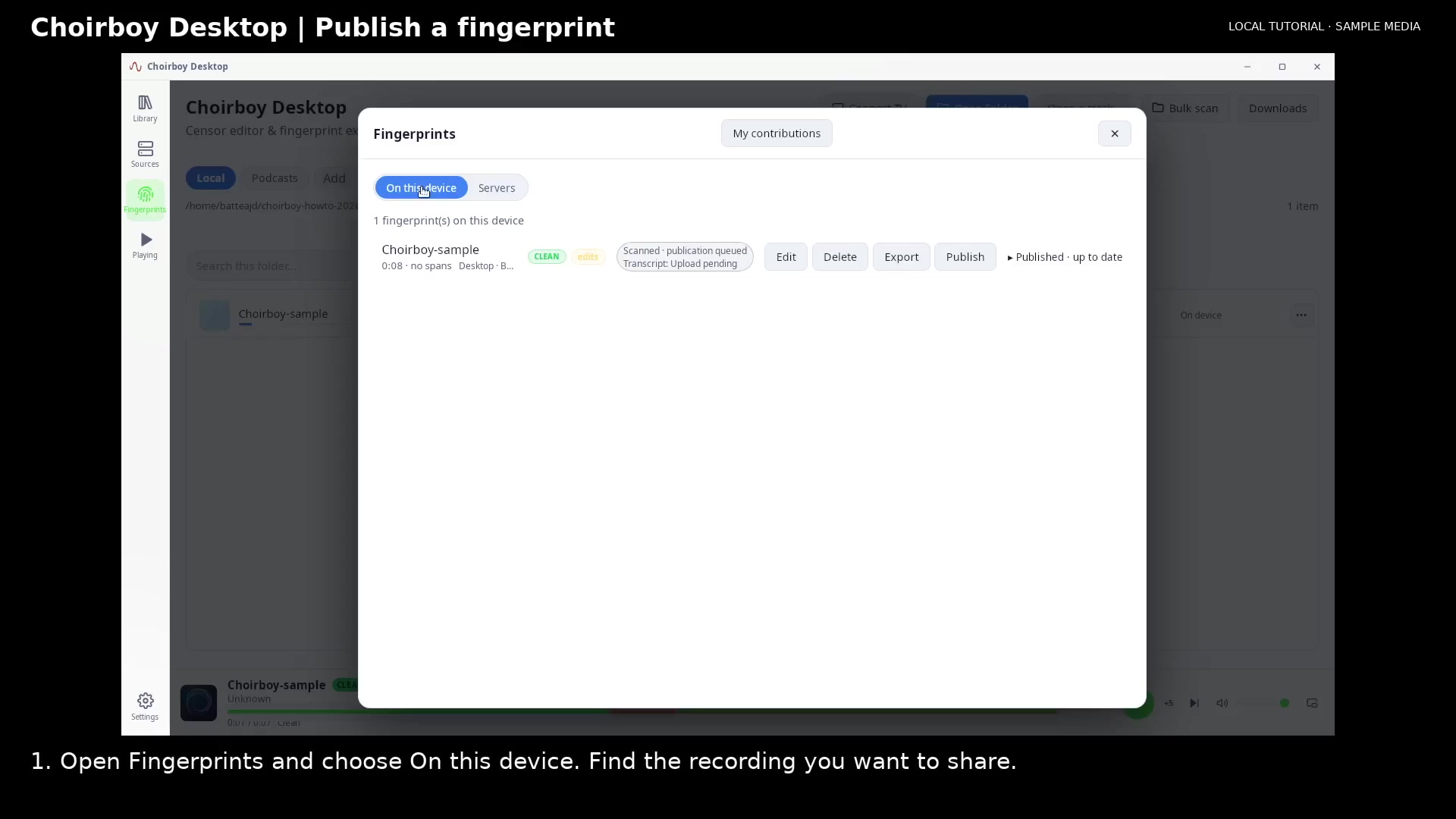
Choose the saved fingerprint Open full size
- On this device
Read the publication details
Choose Publish. Review the fingerprint and transcript that the app will send.
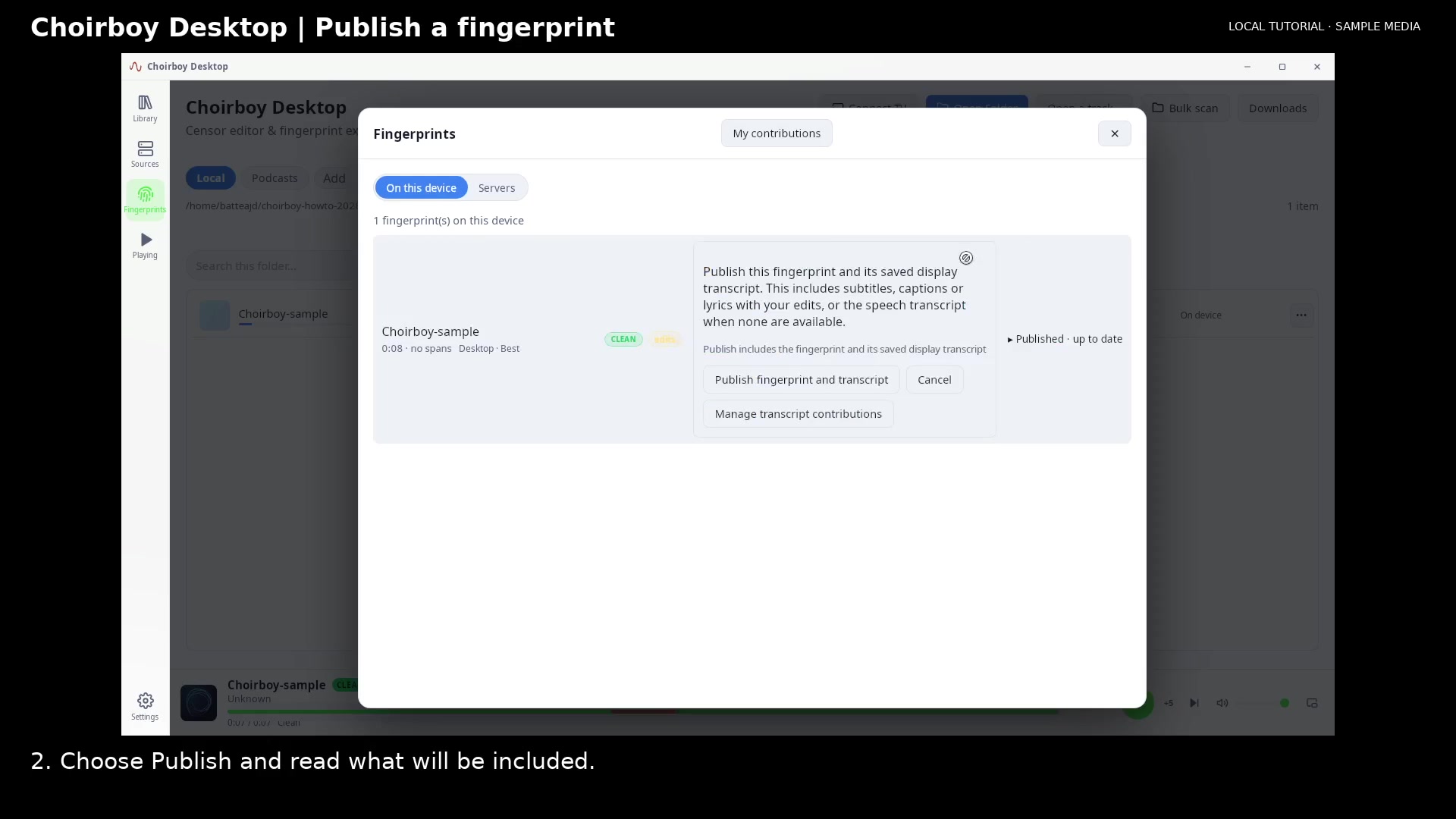
Review fingerprint and transcript publication Open full size
- Review what is shared
Confirm publication
Choose Publish fingerprint and transcript. Check the publication status. A fingerprint already on the server may be reported as up to date.
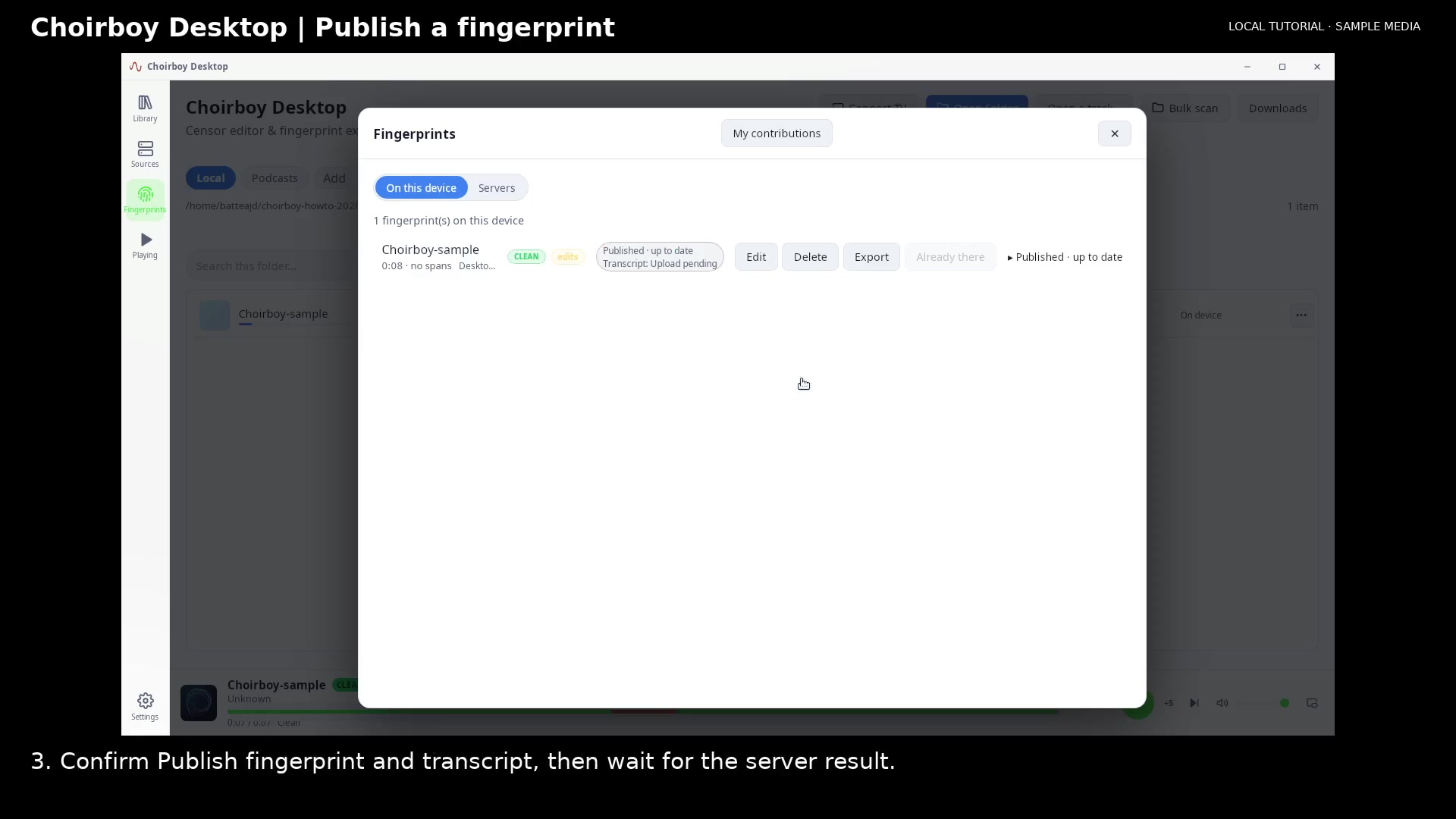
Check the publication status Open full size
- Published and up to date
Check the registry catalog
Open Servers and select the registry. Confirm that your fingerprint is listed.
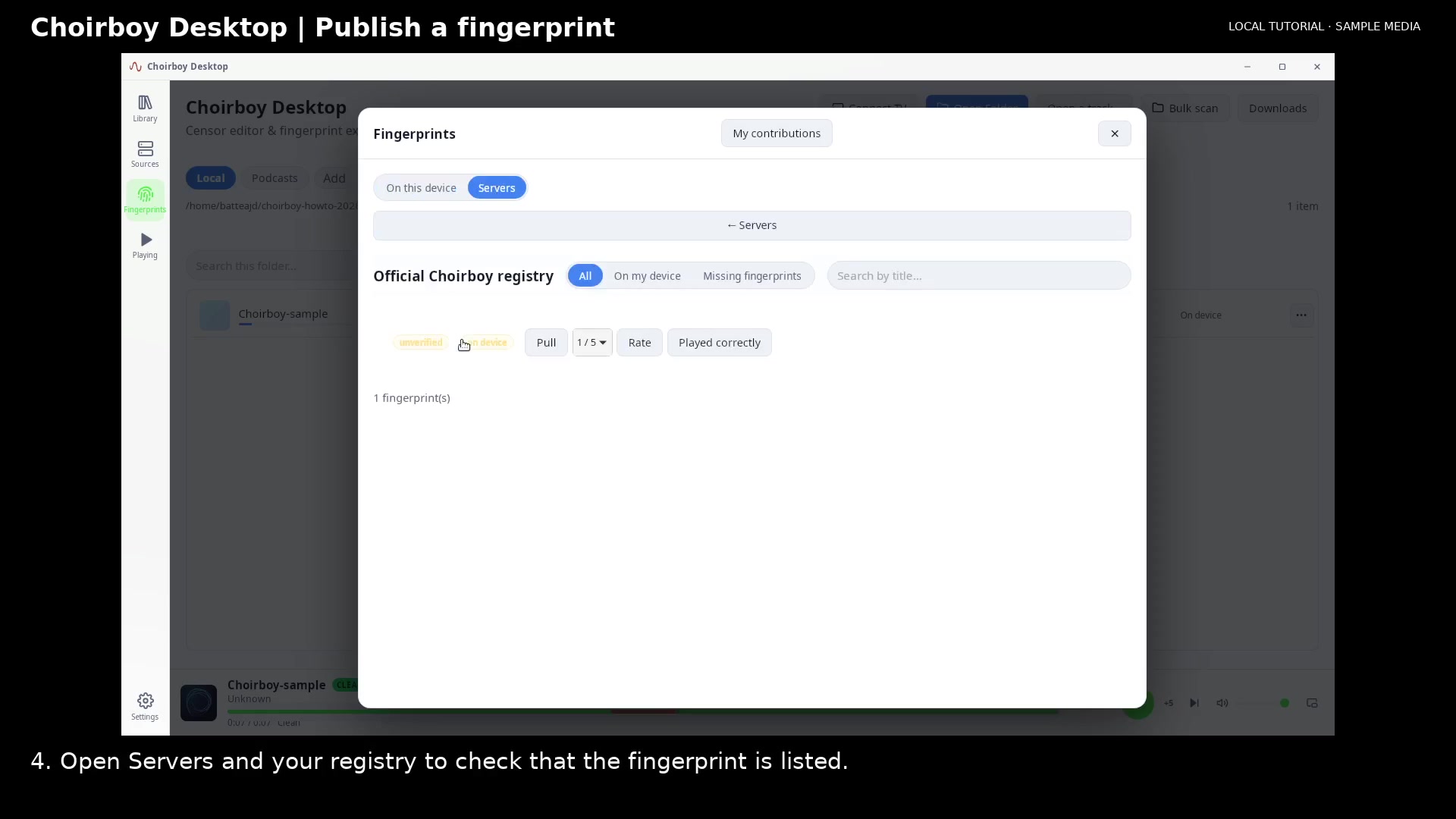
Verify the fingerprint in the registry catalog Open full size
- Server catalog
- Fingerprint listed
Read the video instructions
- Publish a saved fingerprint and its timed transcript. This example uses sample data.
- 1. Open Fingerprints and choose On this device. Find the recording you want to share.
- 2. Choose Publish and read what will be included.
- 3. Confirm Publish fingerprint and transcript, then wait for the server result.
- 4. Open Servers and your registry to check that the fingerprint is listed.
- Check the catalog result. An existing contribution may be up to date.