
Linux · 0:19 video

Use the desktop app

Browse the journal timeline, start an entry from Search or create, and see the entry as Markdown.

Before you start: Lifespeed Journal open on a Linux computer.

Download videoDownload captions

1Browse the timeline

Entries are listed by month, newest first.
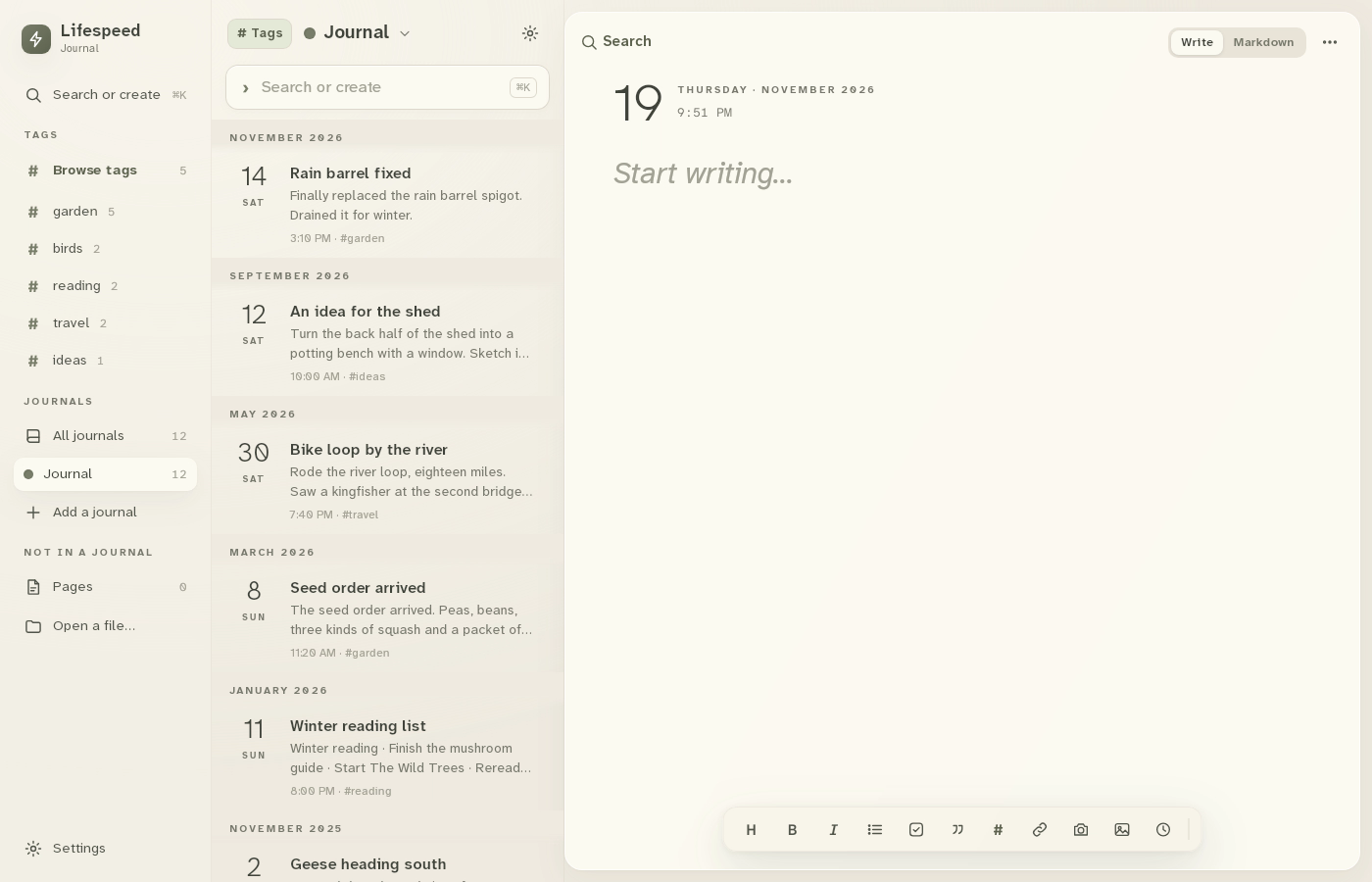
1 · Browse the timeline. Entries are listed by month, newest first.Use the desktop app — step 11
Journal timeline. Select the image to enlarge it.

2Start an entry

Click Search or create, type a title and press Enter.
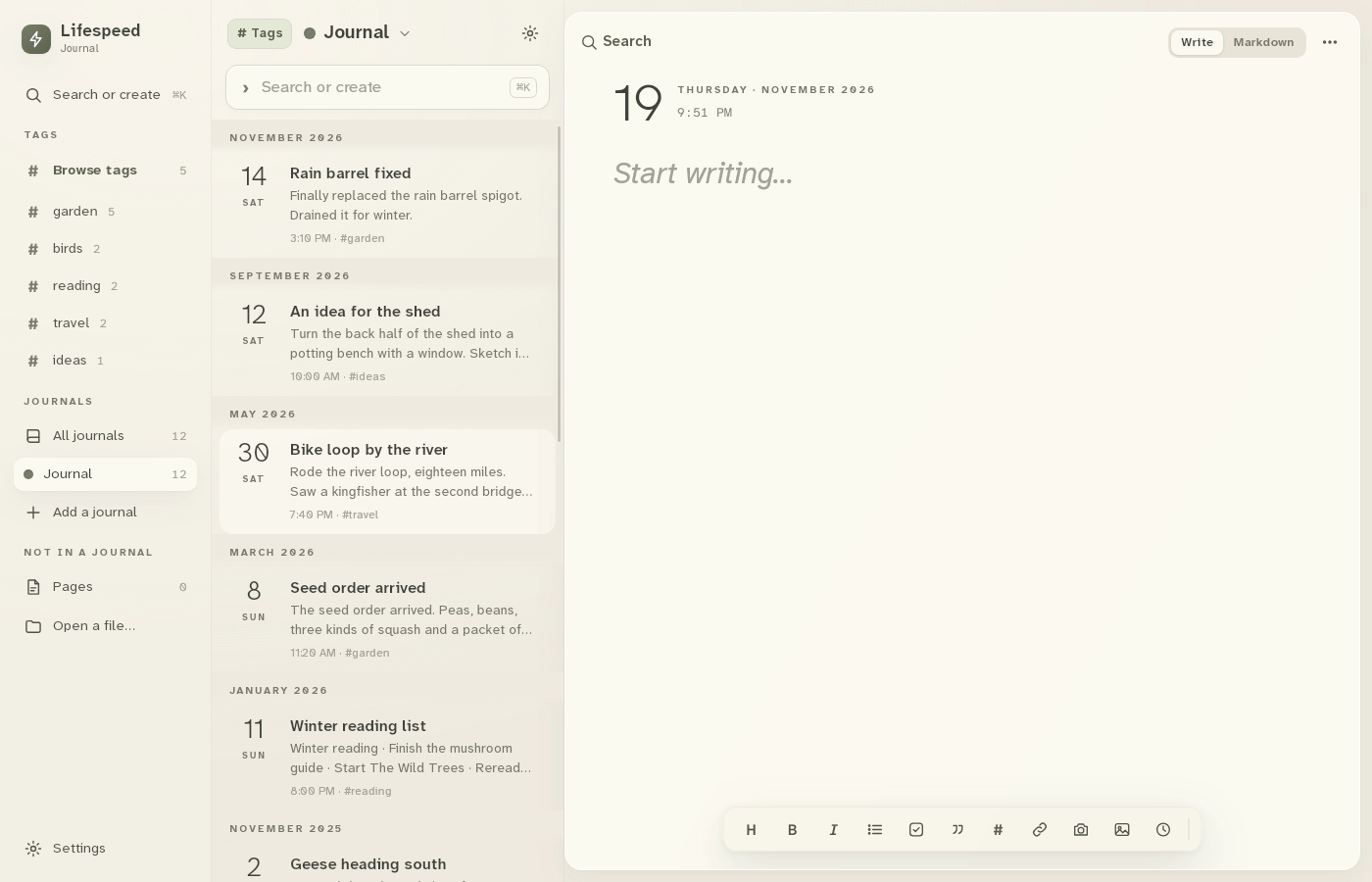
2 · Start an entry. Click Search or create, type a title and press Enter.Use the desktop app — step 22
Search or create. Select the image to enlarge it.

3Write

Type the entry. It saves as you write.
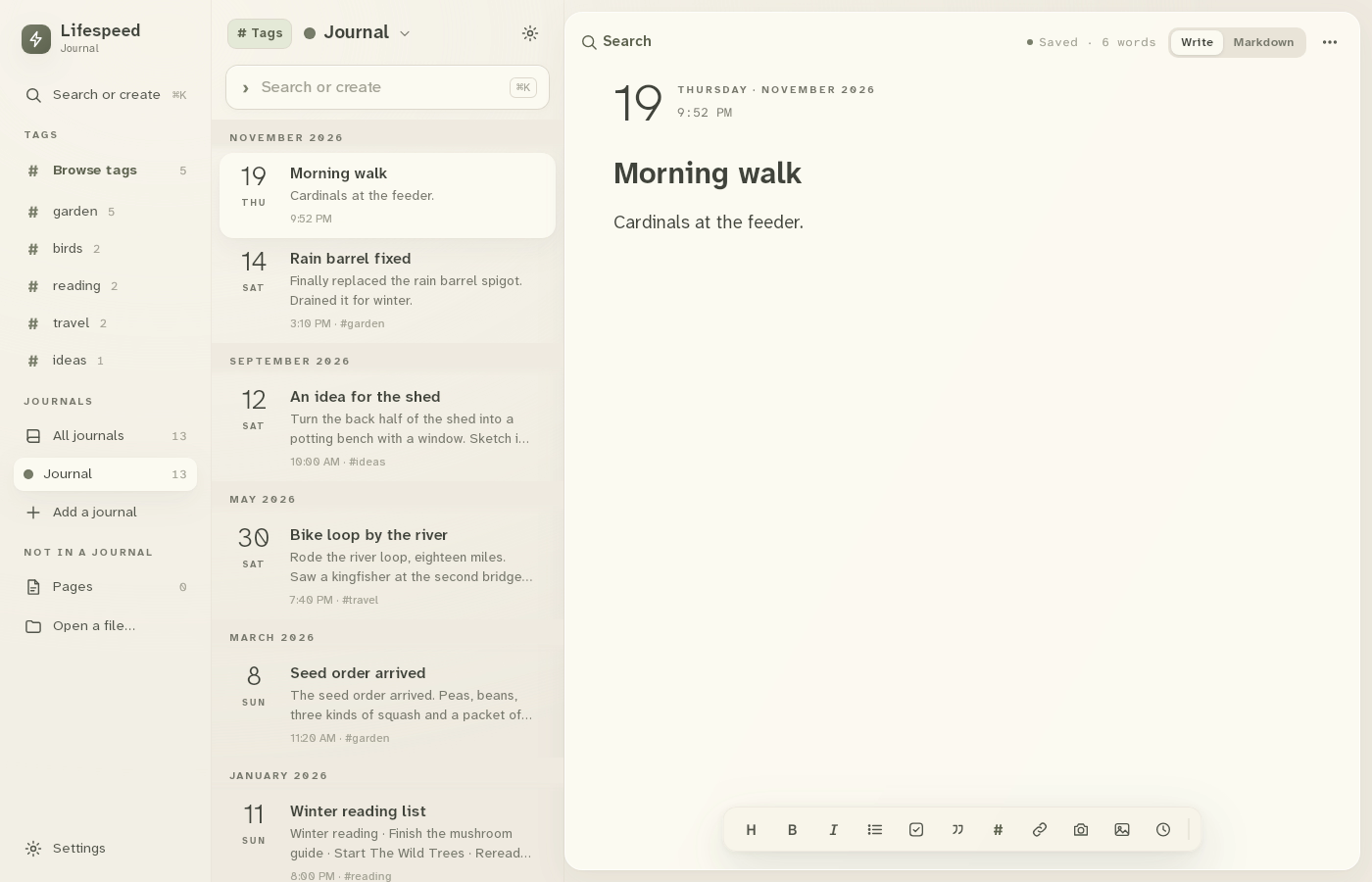
3 · Write. Type the entry. It saves as you write.Use the desktop app — step 33
Entry. Select the image to enlarge it.

4View the Markdown

Click Markdown to see the file with its title and date.
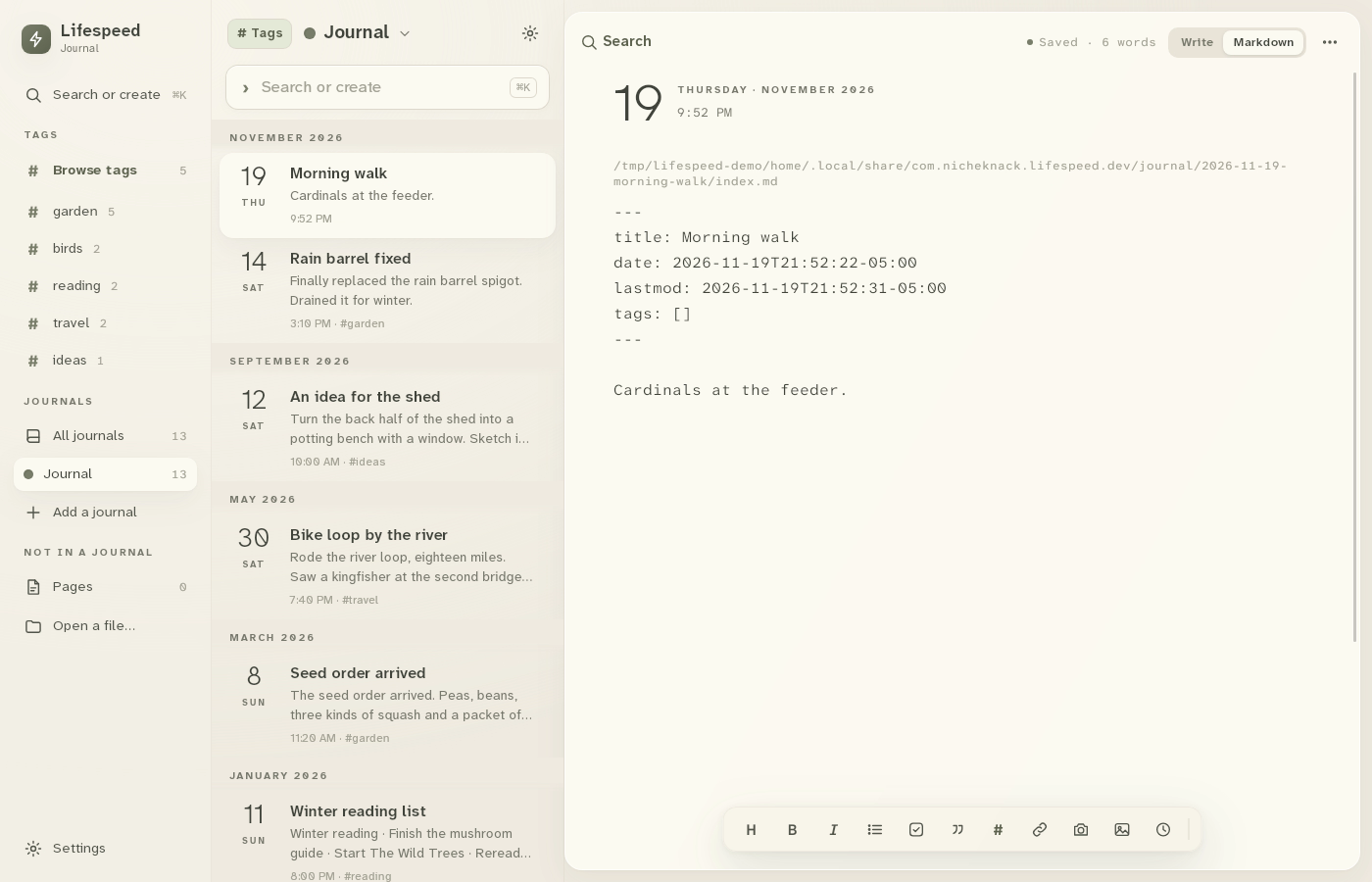
4 · View the Markdown. Click Markdown to see the file with its title and date.Use the desktop app — step 44
Markdown. Select the image to enlarge it.

Result: The new entry is saved as a Markdown file with its title and date.