
Desktop · 0:44 video
Find and add a podcast
Search the podcast directory, review a show's episodes, and save it to your library.
Before you start: Choirboy Desktop and an internet connection. Have a show name or an RSS feed URL ready.
Download videoDownload captions
Step by step
Open Sources
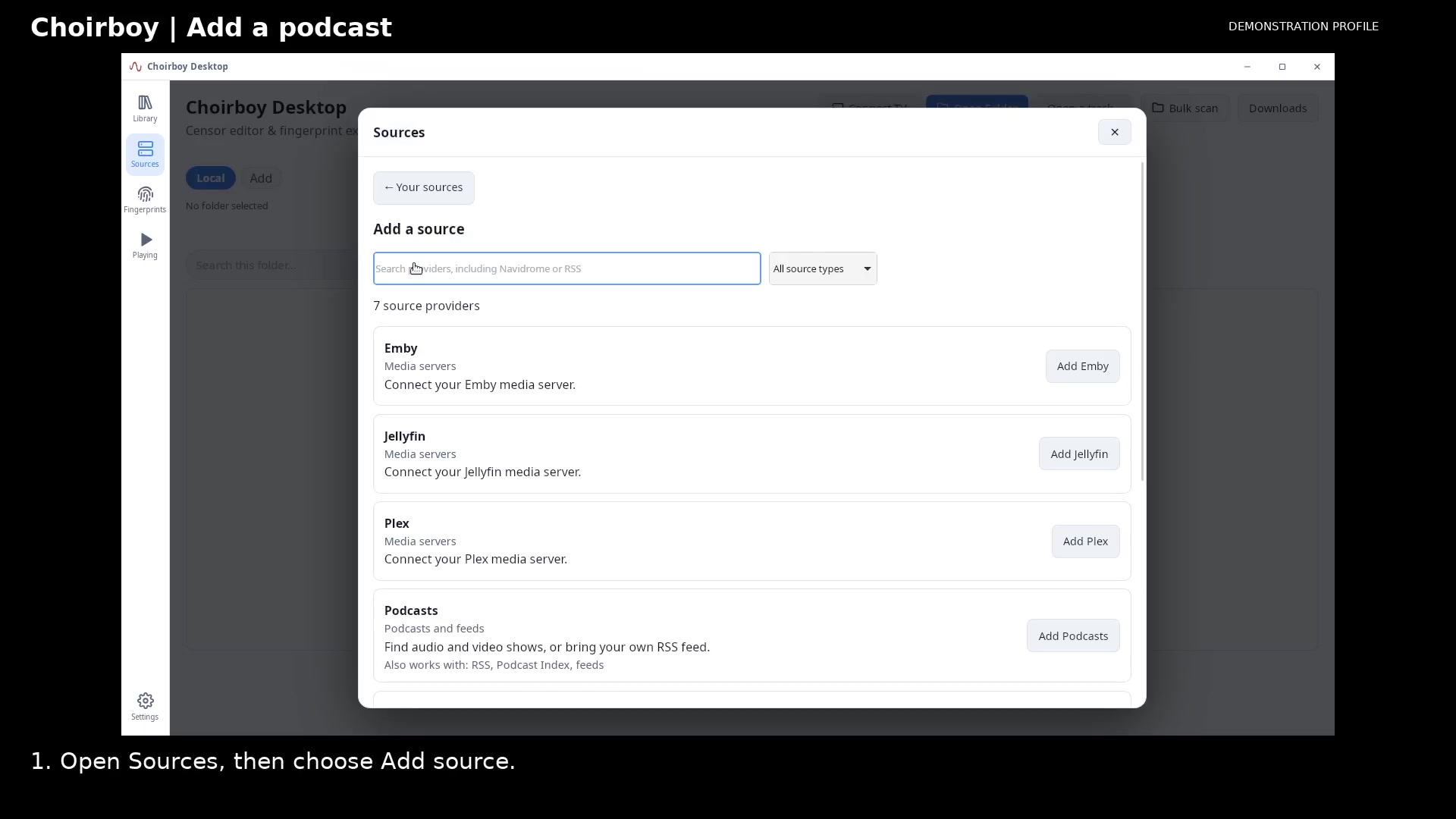
Select Sources in the left rail, then Add source. Choose Podcasts from the provider list.
Choose a source provider Open full size
- Choose Podcasts
Find your show
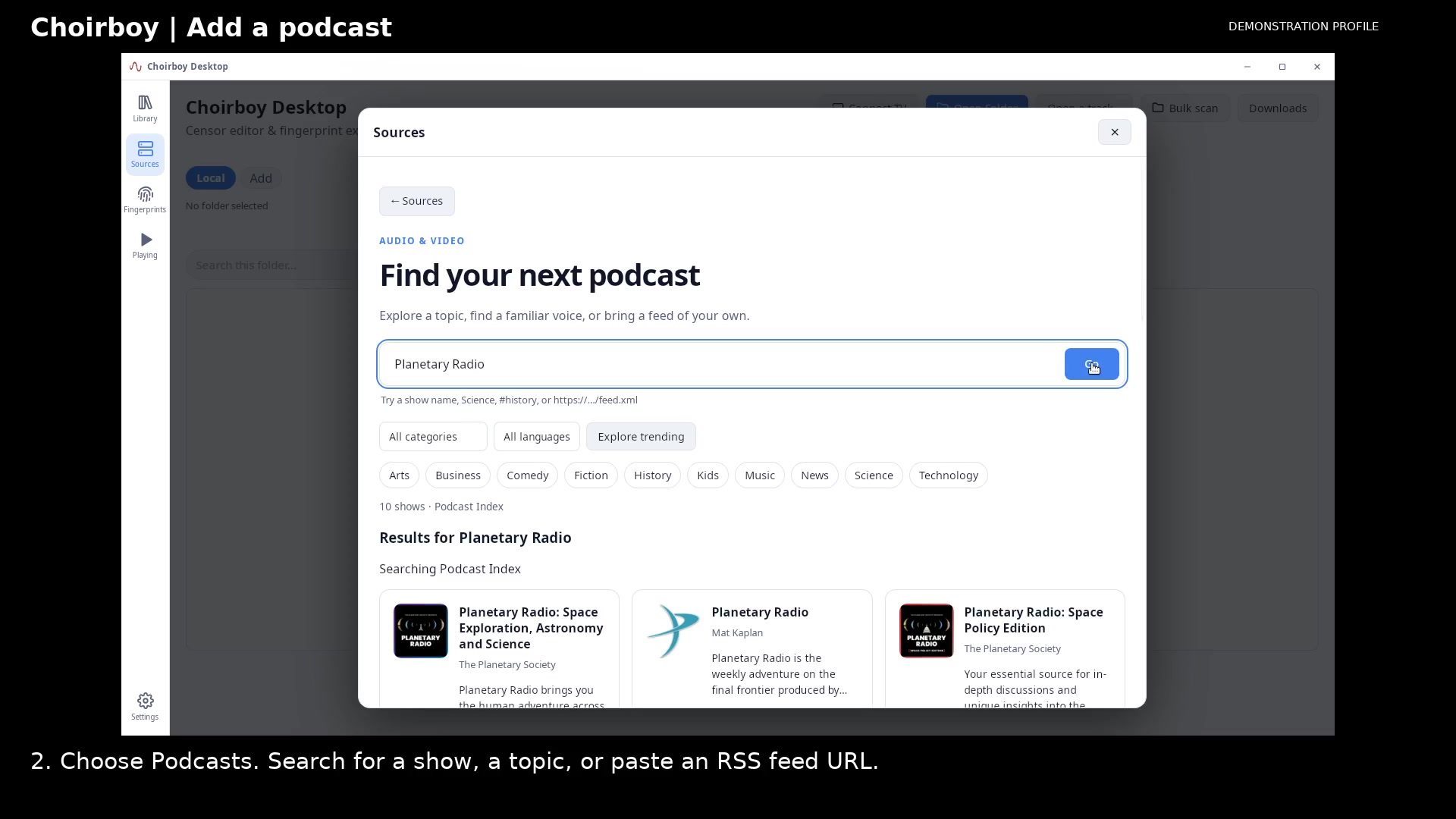
Enter a show name or topic in the search box and choose Go. You can also paste a podcast RSS feed URL.
Search for a show Open full size
- Search or paste RSS
Check the details
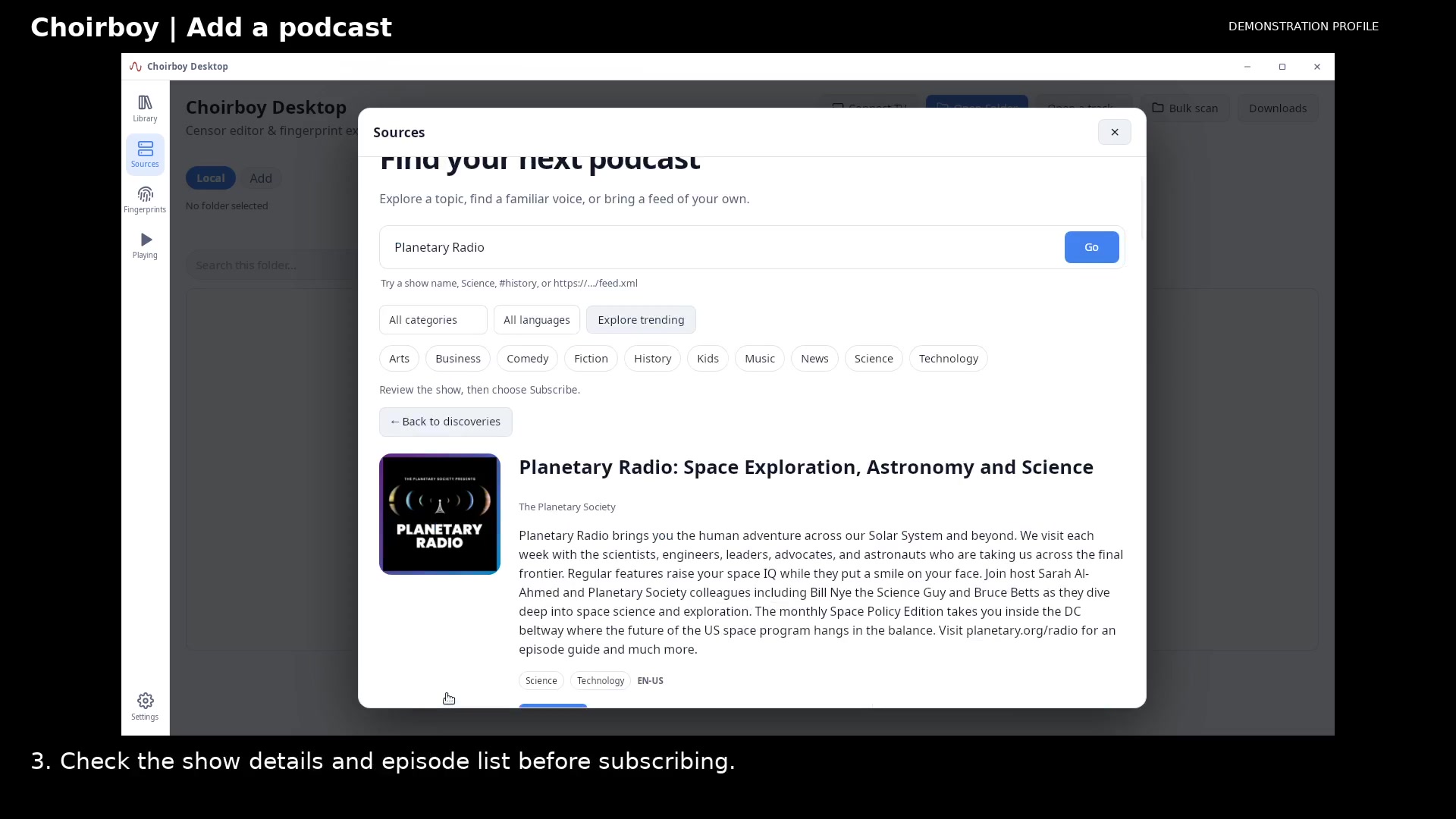
Choose Details & episodes for the result you want. Check the title, publisher, and episodes to make sure you have the right show.
Review the podcast and its episodes Open full size
- Check the show title
Subscribe
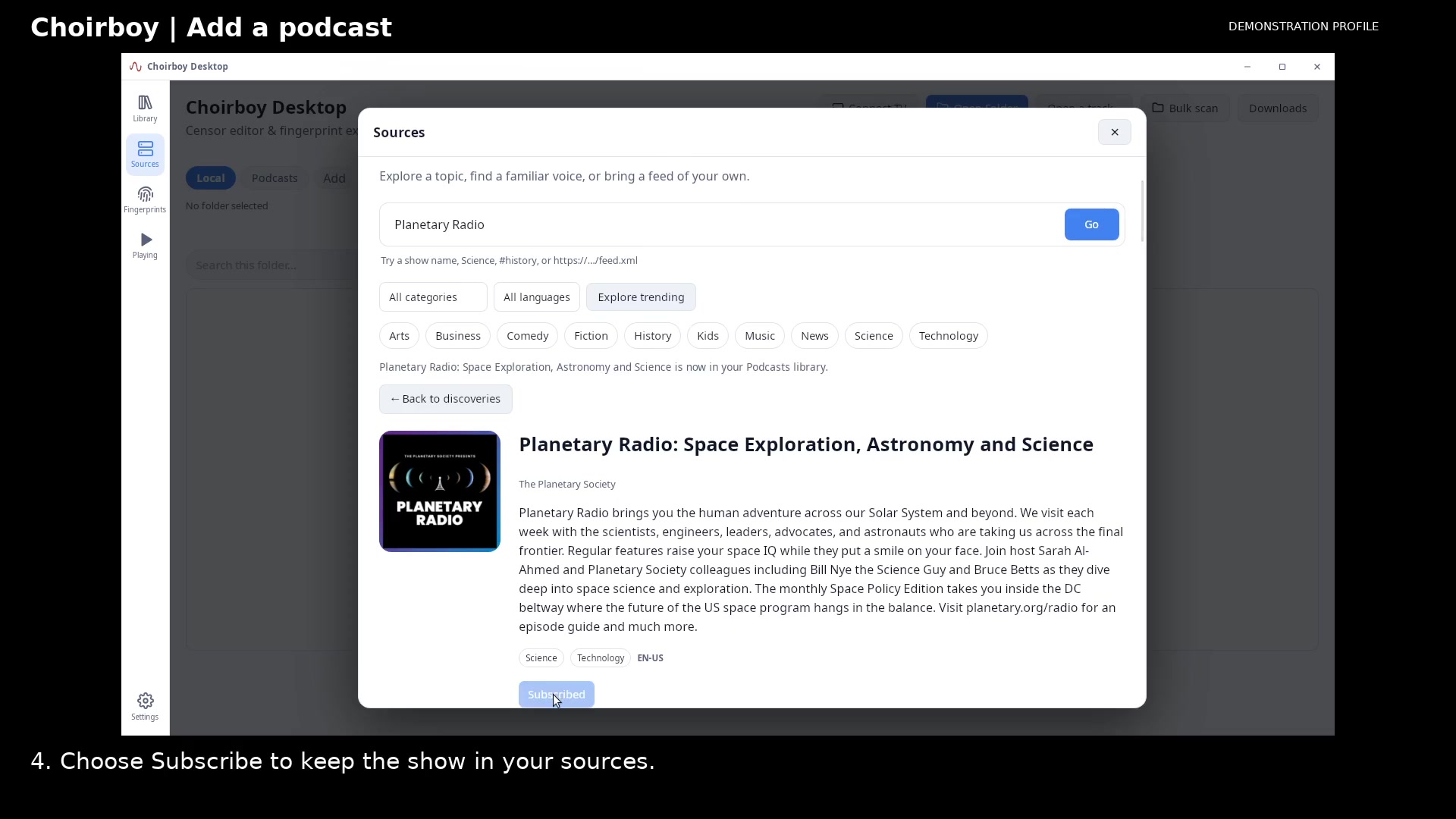
Choose Subscribe. This saves the show as a source on this device; it does not purchase a paid podcast subscription.
Subscribe to the show Open full size
- Subscription saved
Return to Library
Close Sources and select the Podcasts source in Library. Open the saved show to browse its episodes.
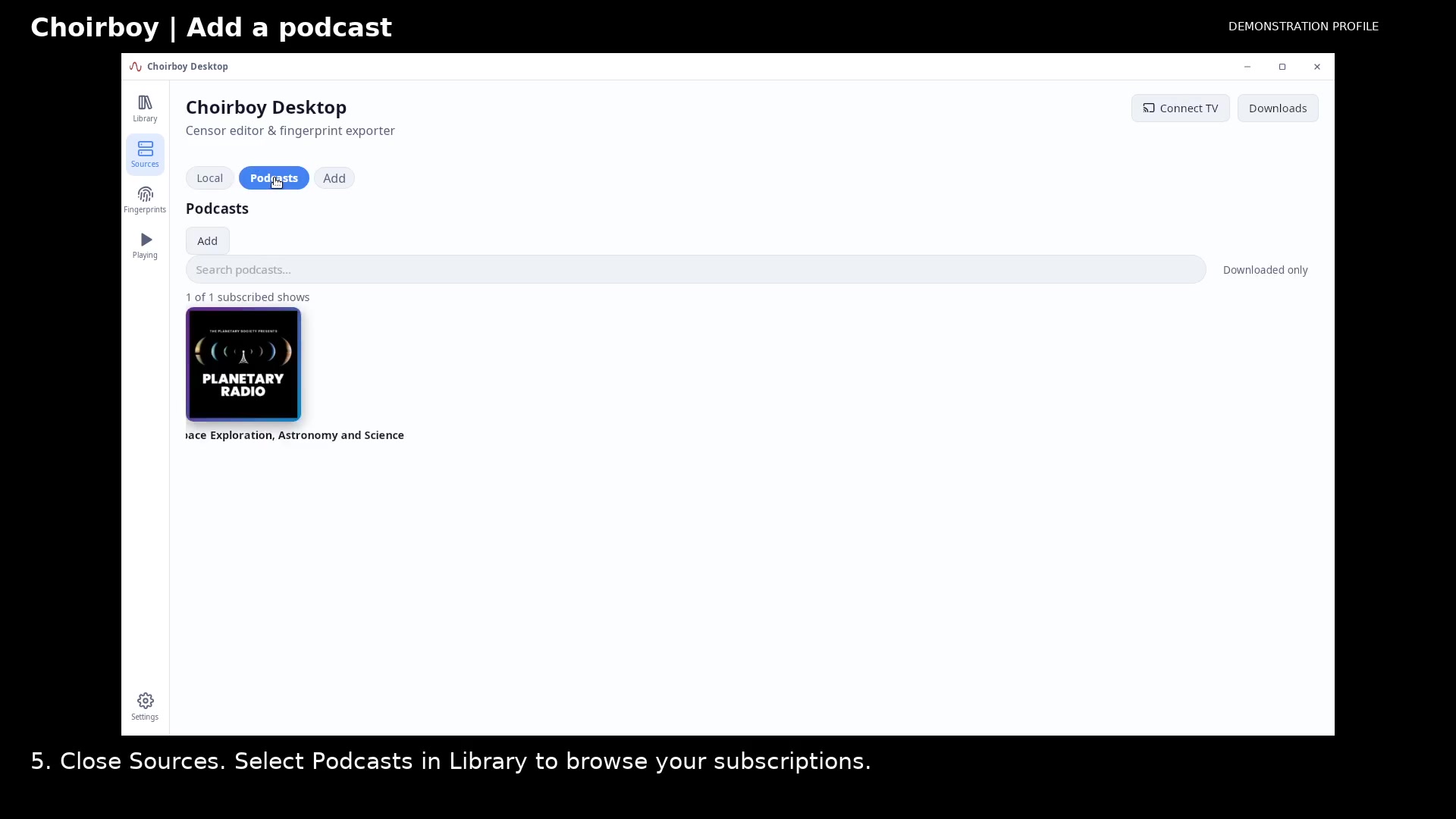
Find the podcast in Library Open full size
- Open Podcasts
Read the video instructions
- Find a show, subscribe, and bring its episodes into your library.
- 1. Open Sources, then choose Add source.
- 2. Choose Podcasts. Search for a show, a topic, or paste an RSS feed URL.
- 3. Check the show details and episode list before subscribing.
- 4. Choose Subscribe to keep the show in your sources.
- 5. Close Sources. Select Podcasts in Library to browse your subscriptions.
- Your subscription is saved on this device. Open a show to choose an episode.