
Desktop · 0:29 video
Open a local recording
Choose a media folder and open a recording in Now Playing.
Before you start: Choirboy Desktop and a supported audio or video file on your computer.
Download videoDownload captions
Step by step
Choose Local
Open Library and select Local. Choose Open Folder to browse a folder on this computer.
Select your media folder
Use your operating system's folder picker to select the folder that contains the recording. Choirboy lists the supported media files it finds.
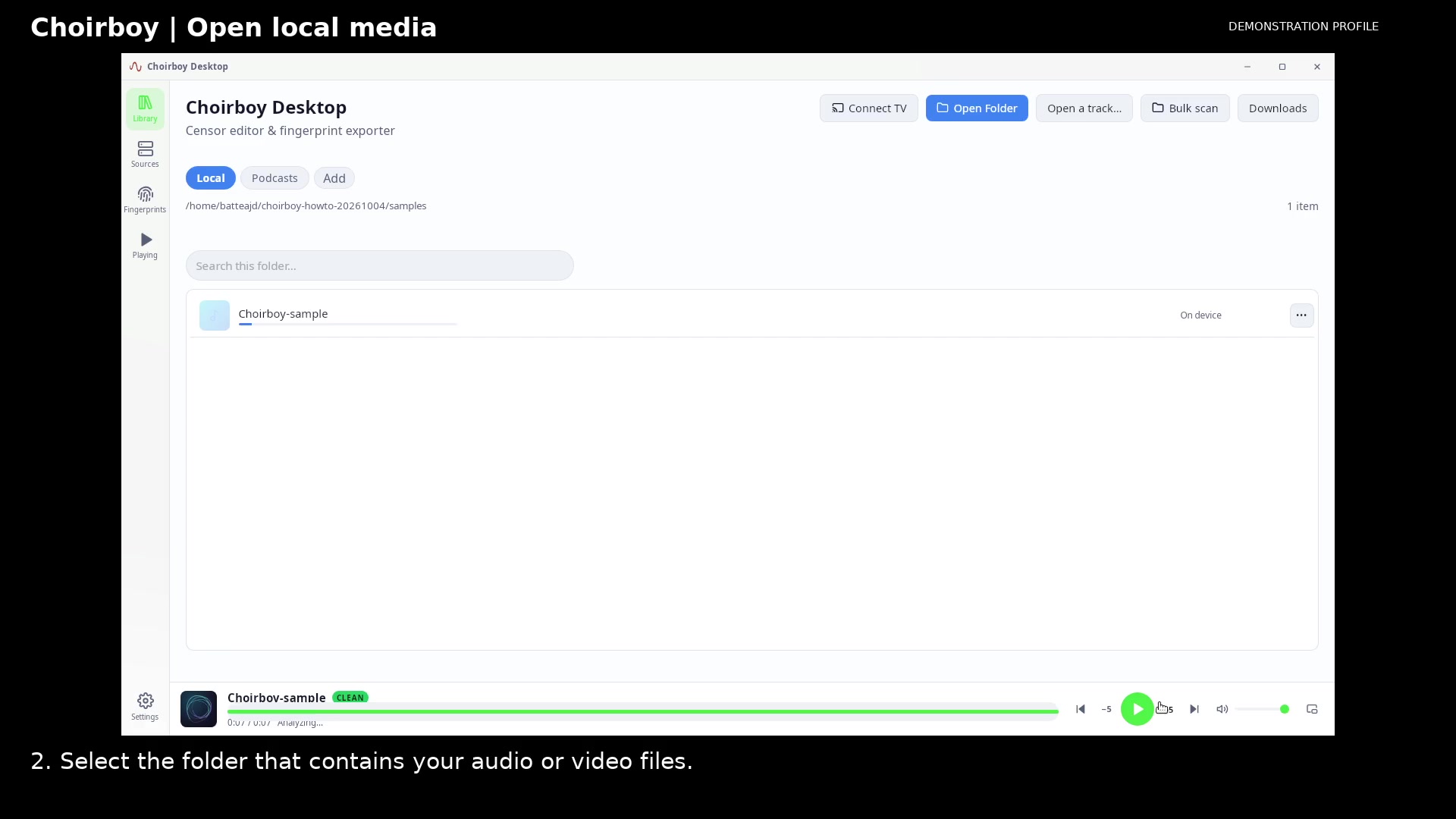
Your folder appears in Library Open full size
- Open your recording
Open the recording
Select its row to open Now Playing. Allow any preparation to finish; use the player's controls to listen or pause. The Playing button returns you to this screen.
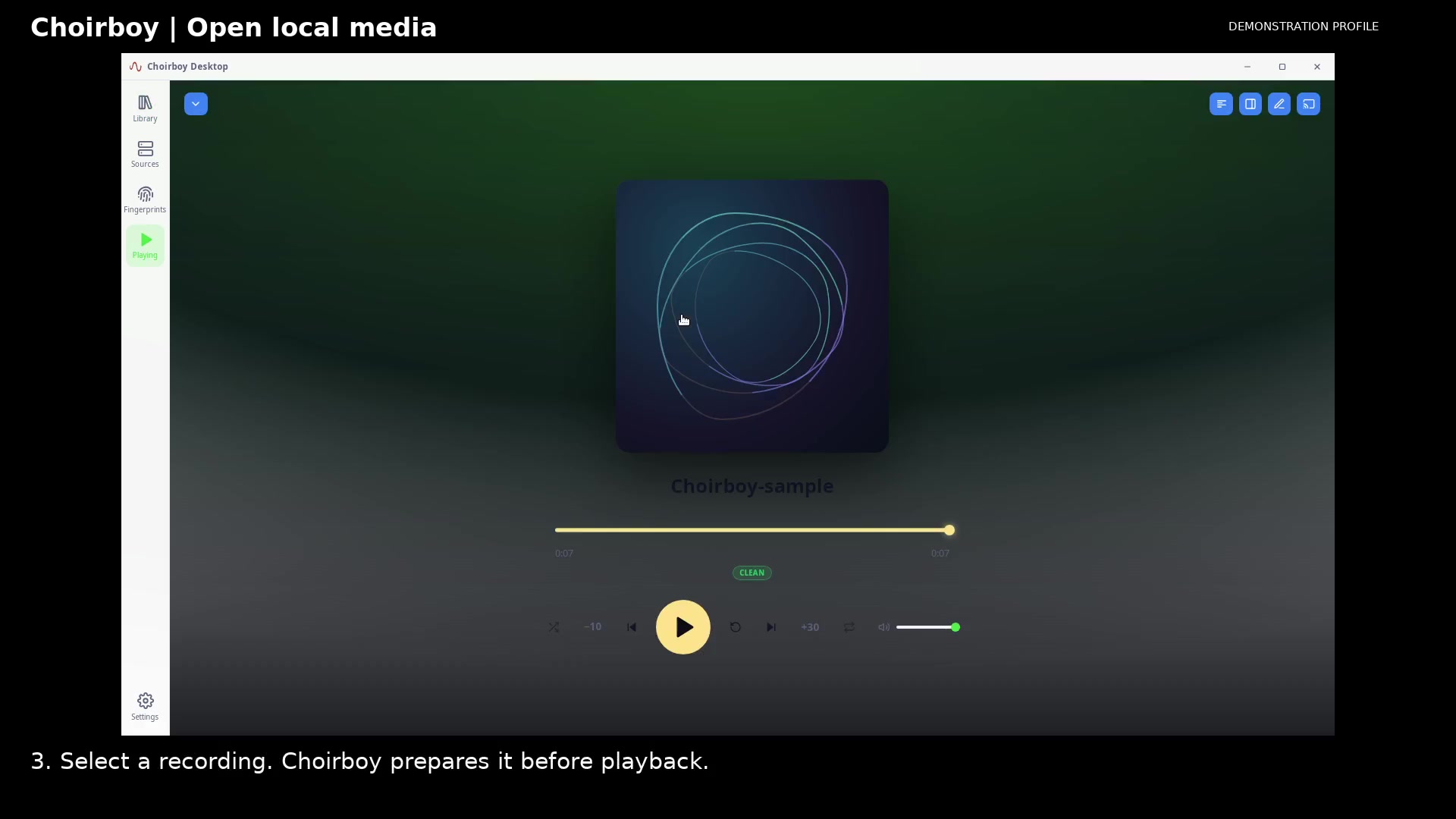
Open the recording in Now Playing Open full size
- Playback controls
Read the video instructions
- Choose a folder, open a recording, and find the playback controls.
- 1. In Library, choose Local, then Open Folder.
- 2. Select the folder that contains your audio or video files.
- 3. Select a recording. Choirboy prepares it before playback.
- Use Playing to return to the player. Your original media file stays in place.