
Desktop · 0:30 video
Focus on one track, then see all audio
Use track selection and bounded zoom to work precisely without losing the complete arrangement.
Before you start: Two recordings or clips in the editor.
Download videoDownload captions
Step by step
Choose a track
Click the track’s name. The zoomed view shows only that selected track and stays inside its audio boundaries.
Look closer
Press + to zoom further into the selected track. Use − to zoom out. The track’s boundaries still limit the view.
Return to the whole arrangement
Click empty track-list background to deselect. No selected track means all audio is visible. Waveform and toolbar controls preserve a selected track.
Compare tracks
Use Mute or Solo on a track to control what you hear. The overview continues to reflect the arranged timeline.
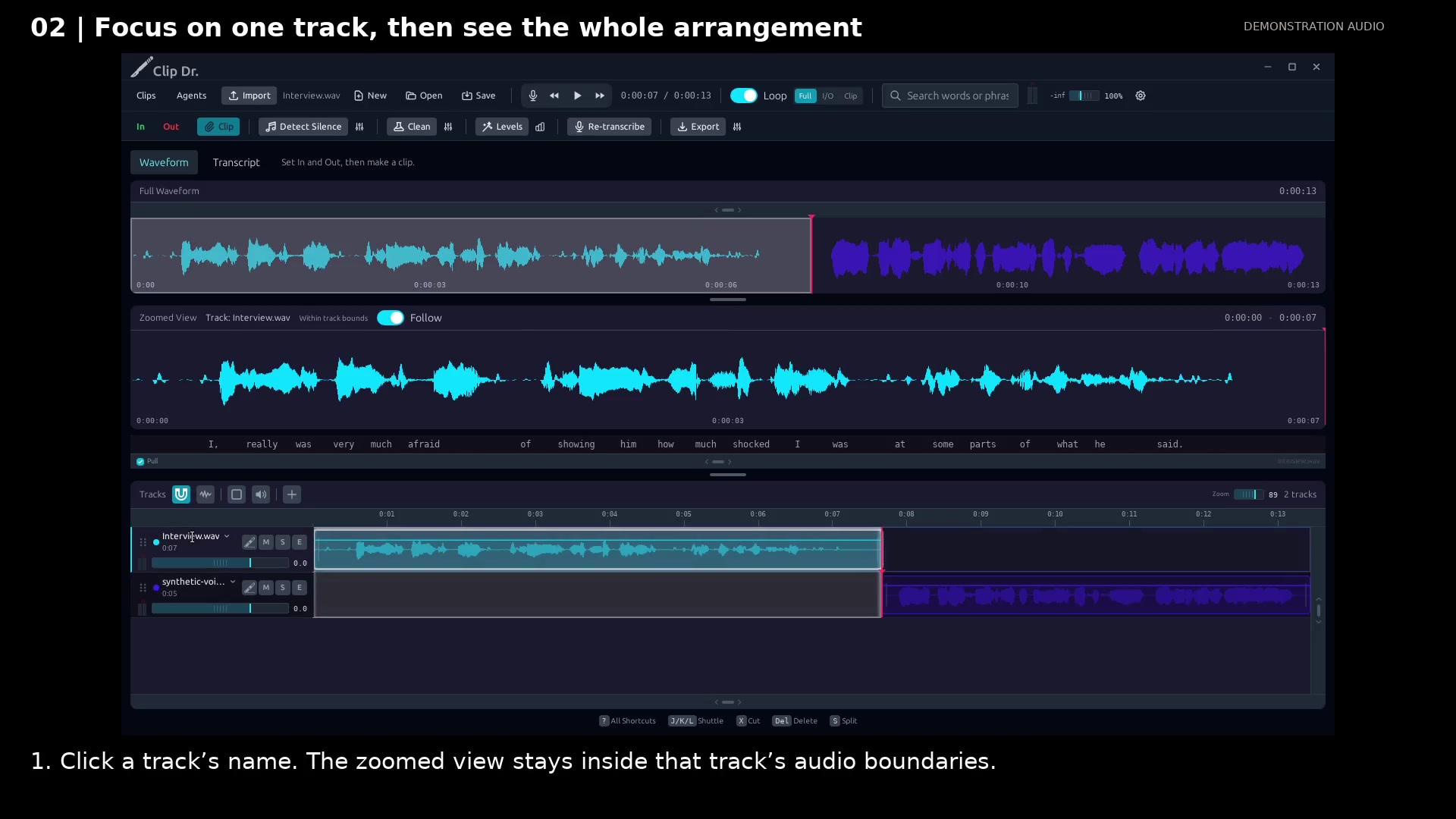
Focus the zoomed view on the selected track. Open full size
- The zoomed view identifies the selected track.
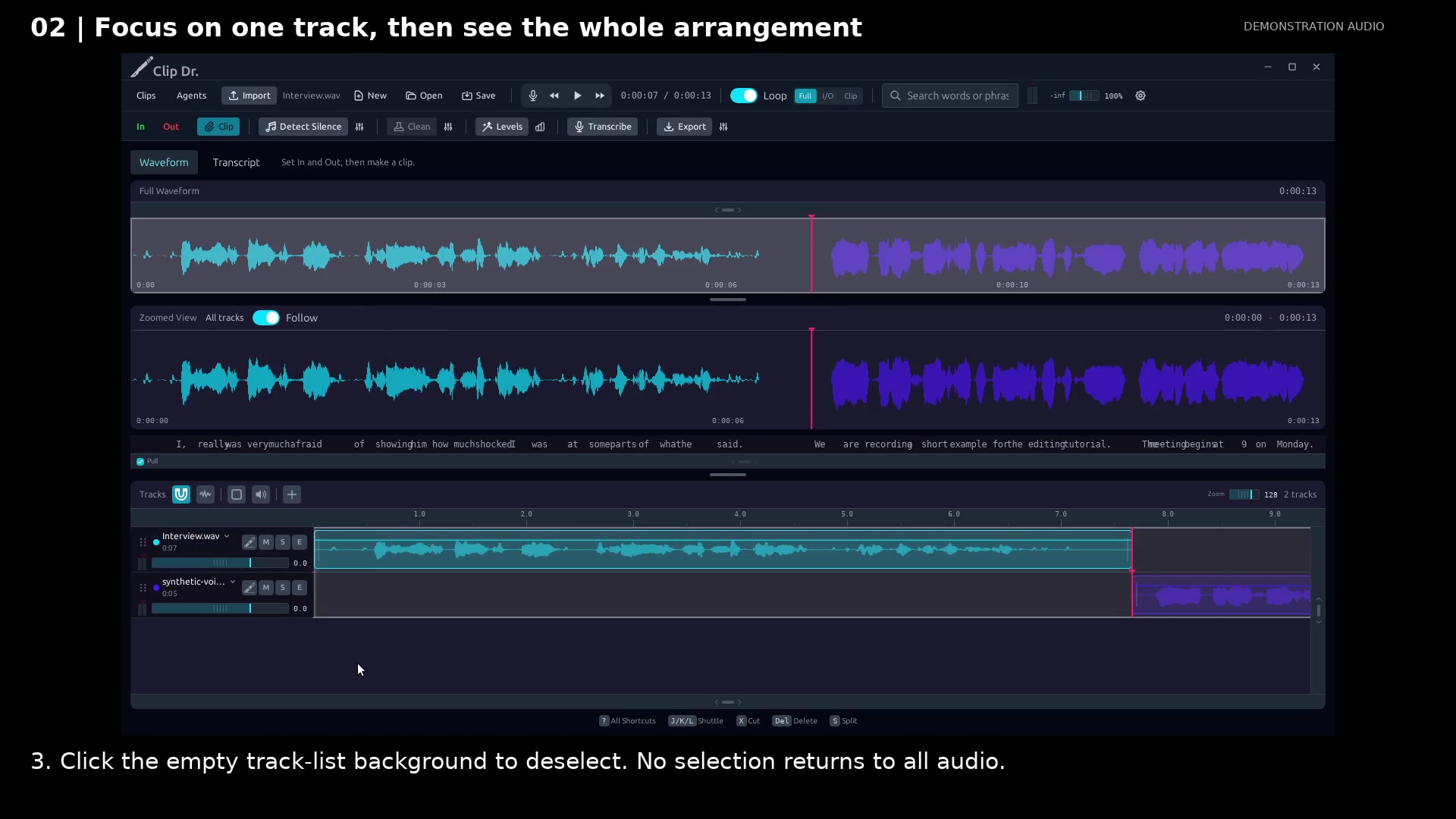
Return to the complete arrangement. Open full size
- No selected track returns to the complete arrangement.
Read the video instructions
- The overview follows the timeline. Selecting a track gives its audio a focused zoomed view.
- 1. Click a track’s name. The zoomed view stays inside that track’s audio boundaries.
- 2. Press + to zoom closer. The selection remains bounded by the track you chose.
- 3. Click the empty track-list background to deselect. No selection returns to all audio.
- 4. Mute and Solo let you compare tracks. Toolbar and waveform controls keep your selection.
- Use a track for precise work. Click the background when you want the whole timeline again.
Audio credits
LibriSpeech excerpts 1688-142285-0007 and 1272-128104-0000, collected by Vassil Panayotov, Guoguo Chen, Daniel Povey, and Sanjeev Khudanpur from LibriVox, are used under CC BY 4.0. Excerpts have been trimmed, resampled, padded, or processed. The voice-replacement example uses an original synthetic voice.