
Linux · 0:26 video
Edit or delete an entry
Correct the Demo Stationery amount from $5 to $6 in the account view, then delete that example.
Download fictional practice books · View the example statement
Download videoDownload captions
Use the single-account view for inline amount editing. Check the payee before confirming deletion.
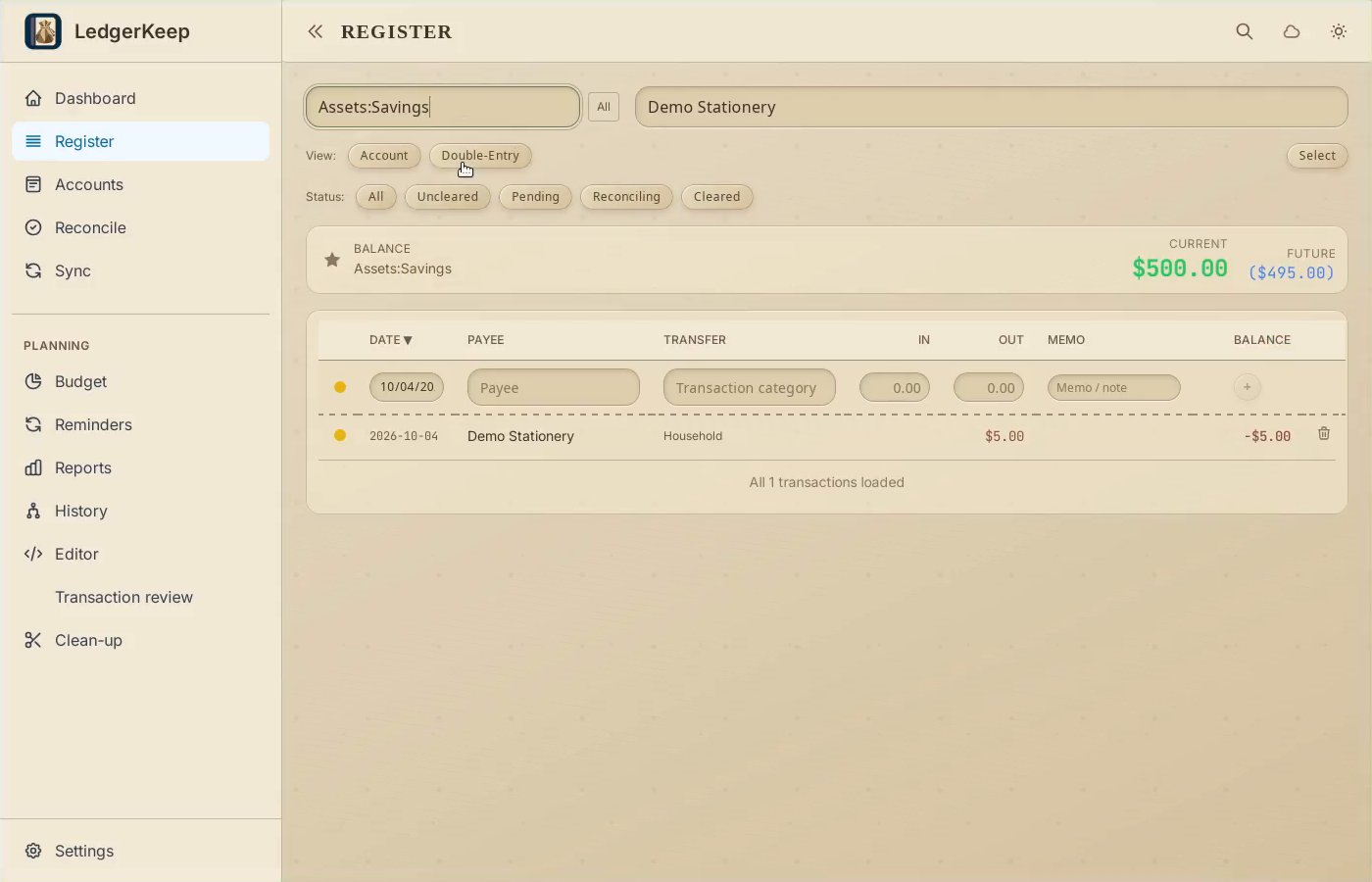
1Use the account view
Choose Assets:Savings in Register. The filtered entry stays visible.
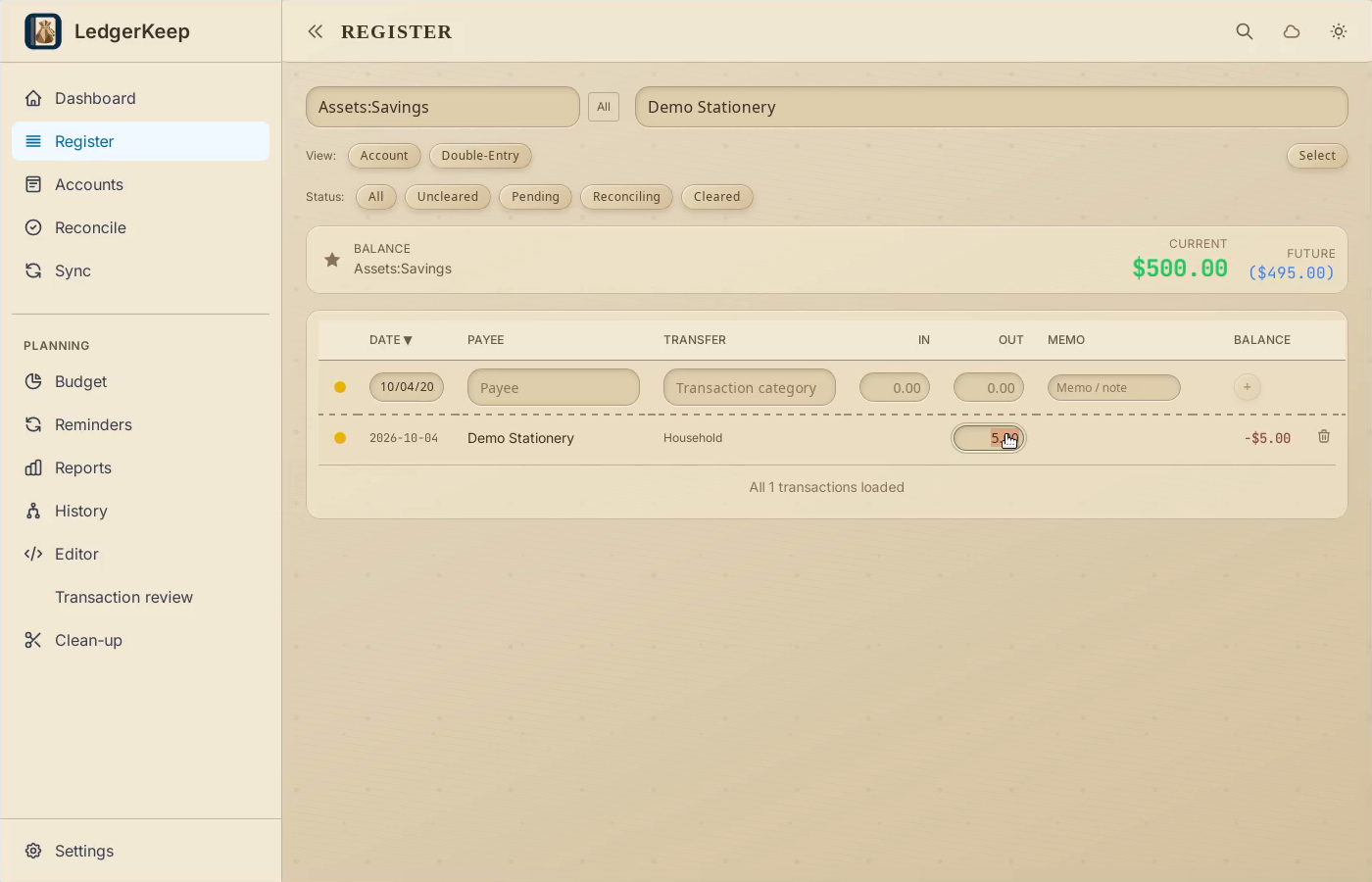
2Edit the amount
Click the $5.00 amount in the Out column.
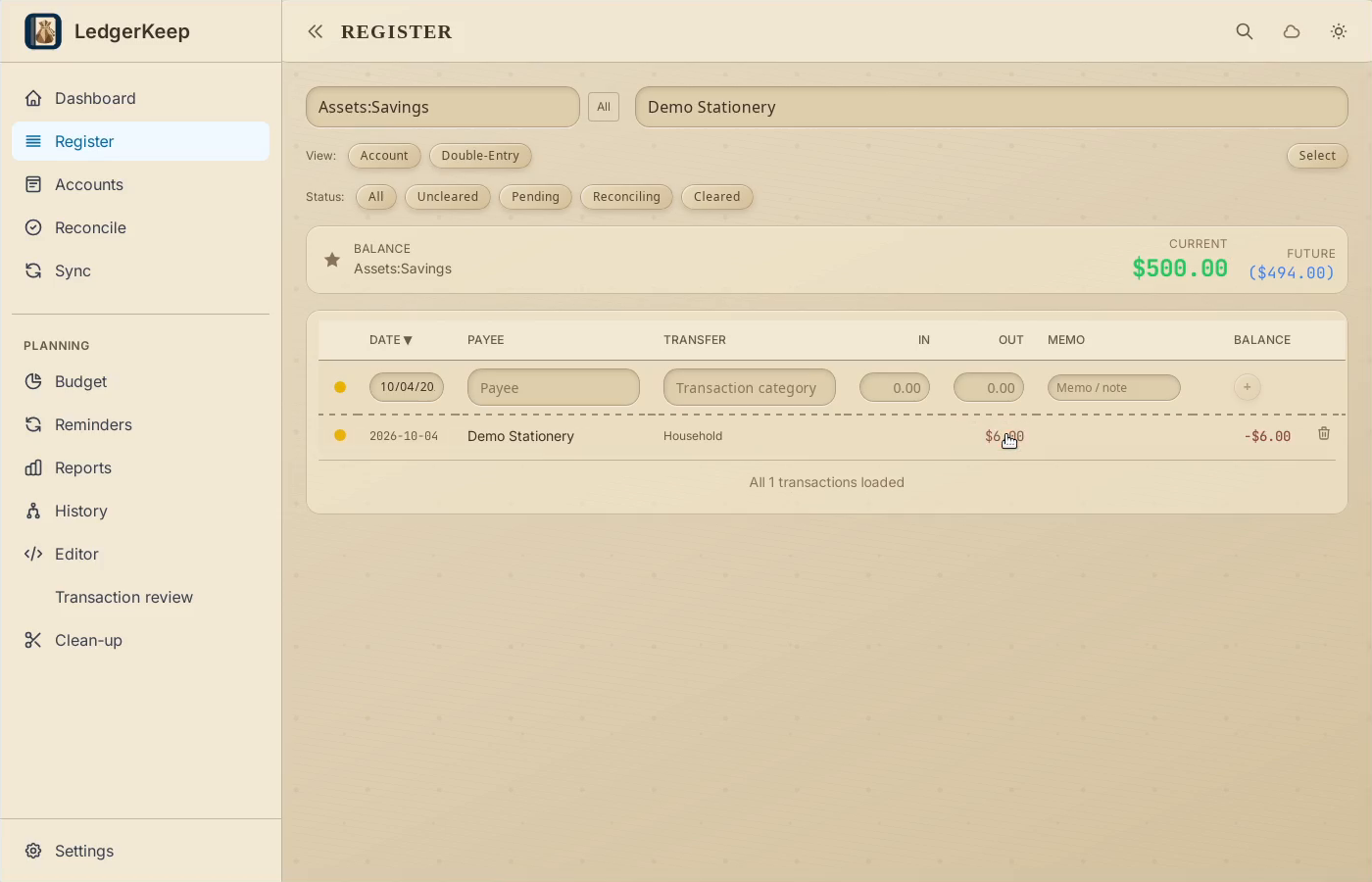
3Save the correction
Enter 6.00 and press Enter. Check the updated amount.
4Remove this example
Click the trash icon, then Delete? to confirm removal of the selected entry.
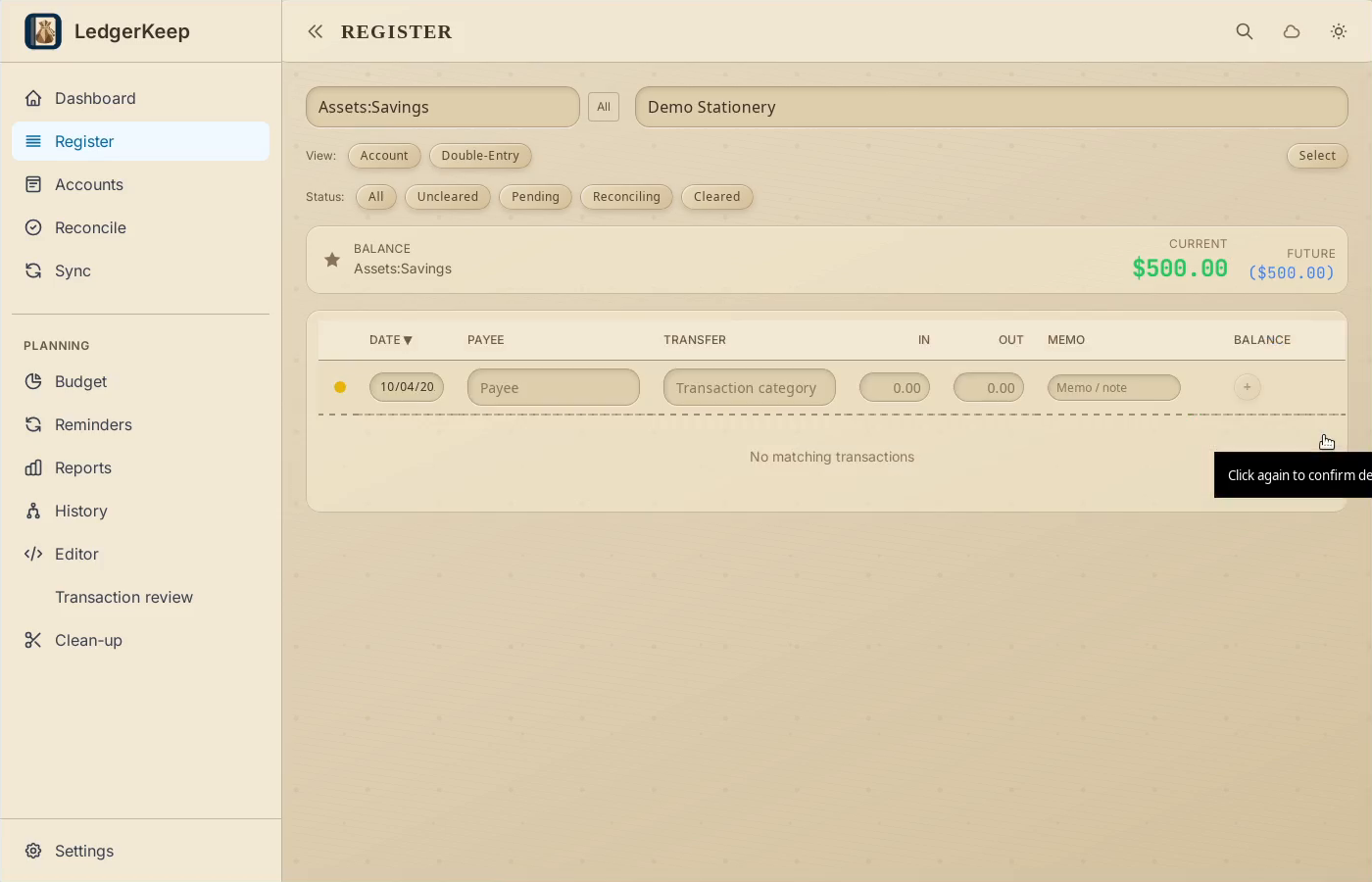
5Verify the result
No matching transactions remain for Demo Stationery. Other entries are untouched.
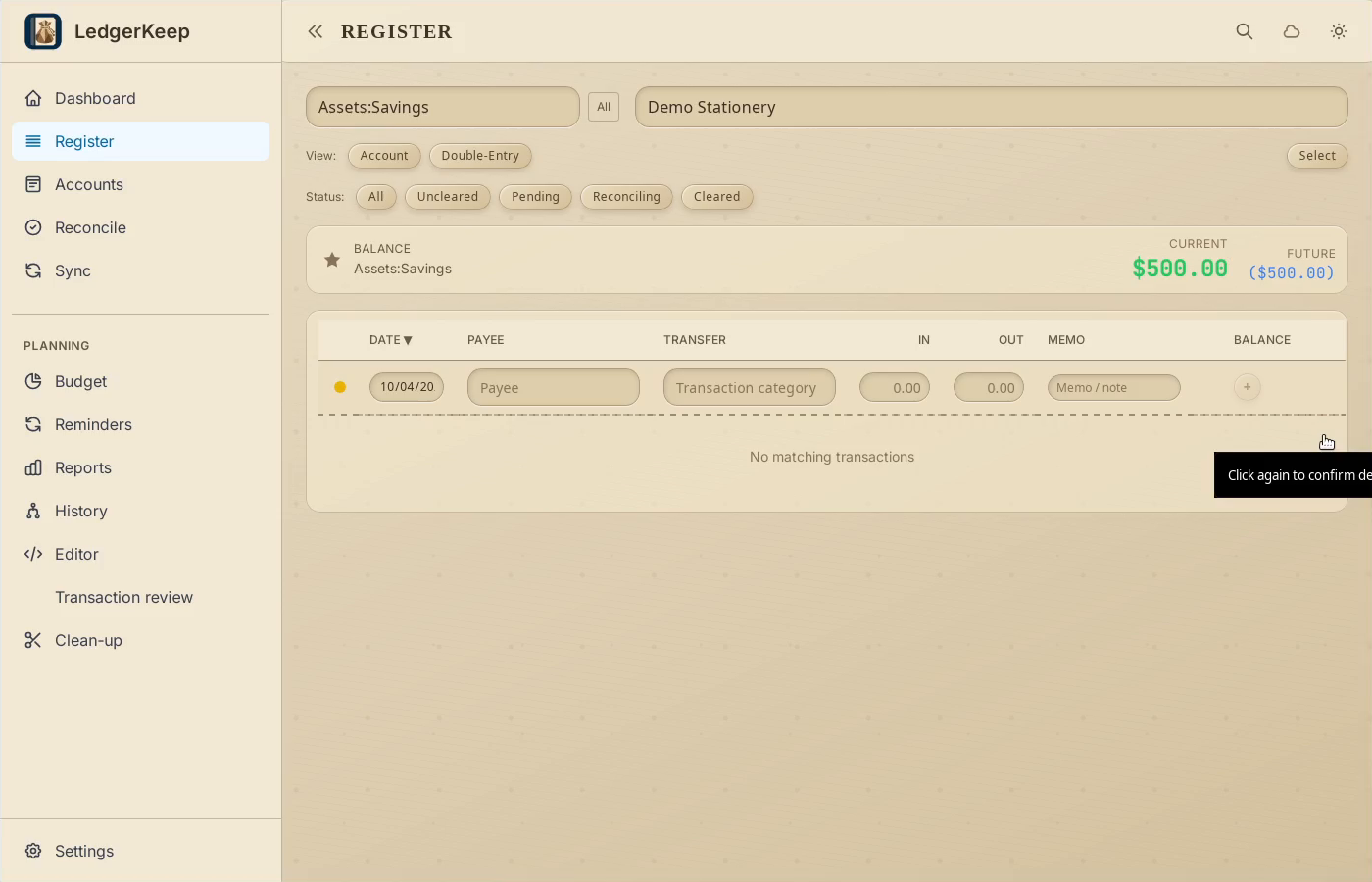
Result: The corrected amount is saved, and confirming deletion removes only the selected transaction.