
Windows · Beta installation · 0:36 video
Install the Rabbit Trail beta on Windows
Download your approved Rabbit Trail beta, install it on Windows and open it for the first time.
Before you start: An approved Rabbit Trail beta invitation and the download for your device. Open your private invitation on this device and save the installer. Use the filename in your invitation; build labels and versions may differ.
Windows example: LedgerKeep. Use the Rabbit Trail beta download from your own invitation.
Download videoDownload captions
Step by step
-
Open the downloaded setup file.
Open File Explorer → Downloads and double-click the Rabbit Trail beta installer from your invitation. Check its filename against the invitation.
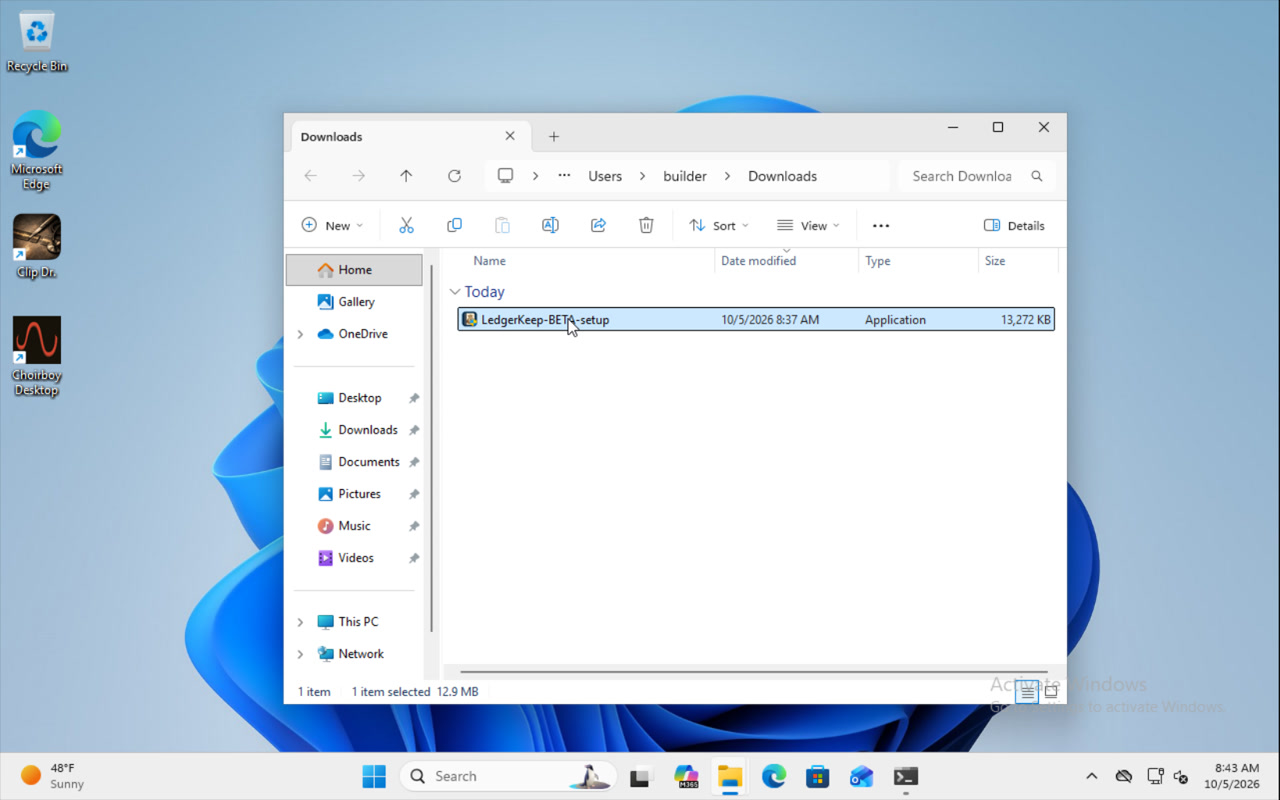
Open the beta setup file in Downloads. -
Check any Windows prompt.
If SmartScreen says Windows protected your PC, select More info and check the file against your private invitation. For that invited build, choose Run anyway if Windows offers it. Approve the installation permission prompt. If the details do not match or your device blocks continuing, ask support below.
-
Follow the setup wizard.
Choose the installation location if offered, then select Install. Keep the beta’s suggested location so it stays separate from the regular app. Wait until setup finishes.
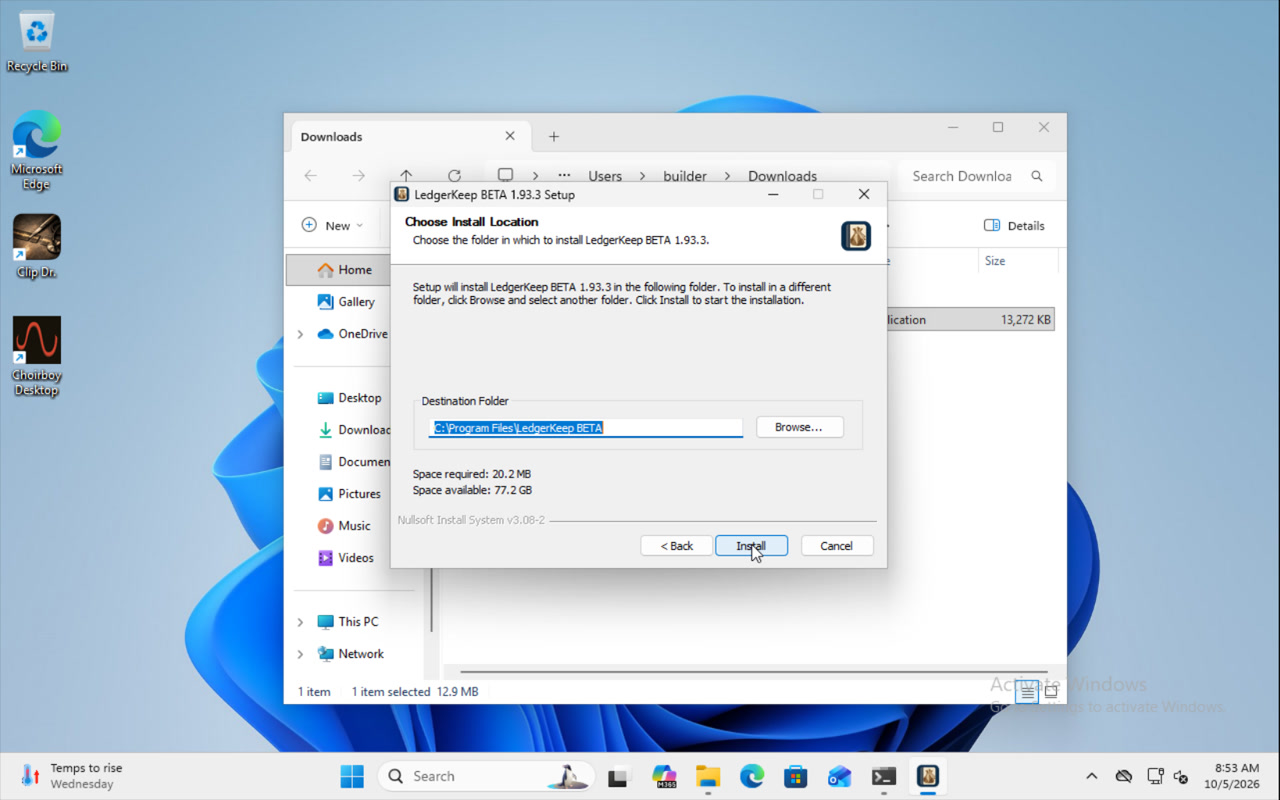
Keep the beta installation separate from the regular app. -
Finish and open the beta.
Select Finish. Open Rabbit Trail with the beta label from Start or its new shortcut. Read the diagnostic agreement, choose whether to agree and follow the private access instructions.
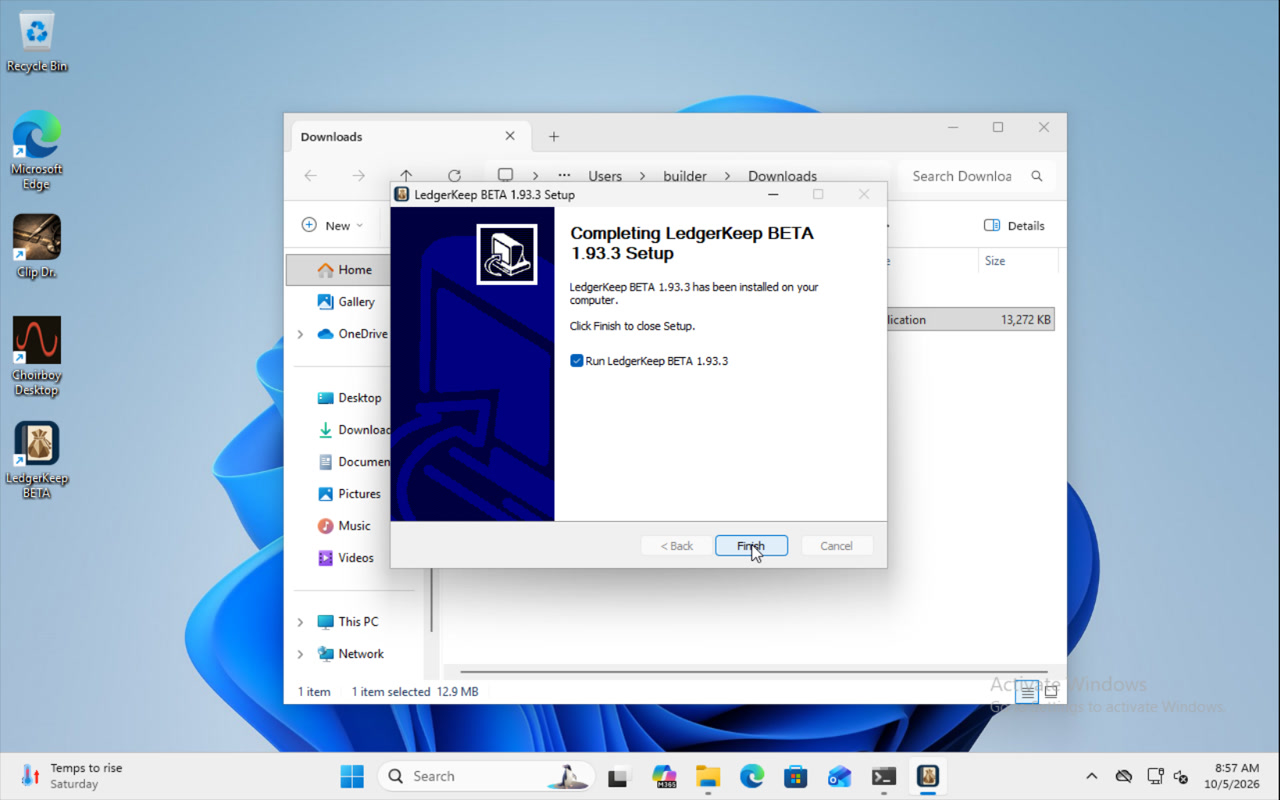
Finish after setup confirms the beta is installed.
Keep your invitation private. For a new device or a different operating system, contact support for the correct download.
Read the video instructions
- Open the beta setup file from your private invitation.
- Choose Next to continue through setup.
- Keep the separate beta folder and select Install.
- Select Finish when Windows setup is complete.