Clip Dr. · Android companion
Share a recording—or just the part you need.
Export an MP3 or WAV straight from your phone. Your original recording and editable clips stay in the project.
- Open Projects and choose a recording.
- Scroll to the bottom and tap Export audio, directly above Continue on desktop.
- Under Audio to export, choose the entire recording, selected passage, or a named clip.
- Choose MP3 for a smaller file, or WAV for the original recording quality.
- Tap Save MP3… or Save WAV…. Choose a folder and filename in Android’s save dialog, then tap Save.
- Keep Clip Dr. open until saving finishes. Open your phone’s Files app to find and share the result.
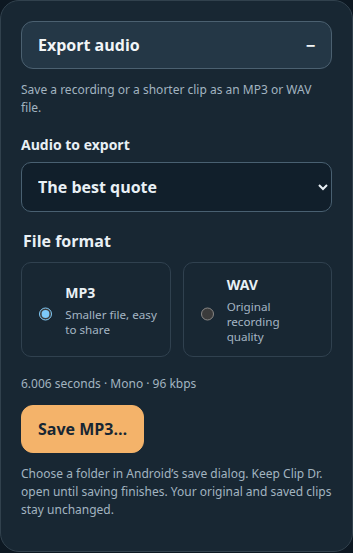
If you do not see Export audio, update Clip Dr. to the latest Android build.
Export a smaller passage
Drag across the waveform to select the passage. Hold either handle for a close-up, then use Loop range to check the boundaries. Export Selected passage directly, or Create subclip to name it and keep it for later. Each named clip has its own Export button.
Choose the format
MP3 is convenient for sharing. WAV keeps the original 48 kHz, 16-bit samples. Both retain mono or stereo channels. MP3 needs some free phone storage while saving. For very long recordings that exceed WAV’s 4 GB limit, choose MP3 or a shorter passage.
You can cancel an export in progress. Save any pending project details or mark edits before exporting. Exporting leaves your project versions intact and never starts transcription.
Continue editing on desktop
Choose Save desktop handoff… when you want the editable project, named clips, marks and saved words on your computer. MP3 and WAV are audio files for listening, sharing or importing into another editor.