
Desktop · 0:25 video
Export the finished audio
Choose a delivery format and keep a favorite for the next export.
Before you start: Audio open in the editor.
Download videoDownload captions
Step by step
Check the export target
Open the format options beside Export. Read the active tracks listed above the format tiles before exporting.
Choose the format
Select WAV or FLAC for lossless audio, or MP3 or OGG for a smaller delivery file. The star chooses the default for Quick Re-Export; the format tile starts an export.
Save the file
Choose its destination and filename in the save dialog. The example writes a WAV and checks that it contains the expected audio.
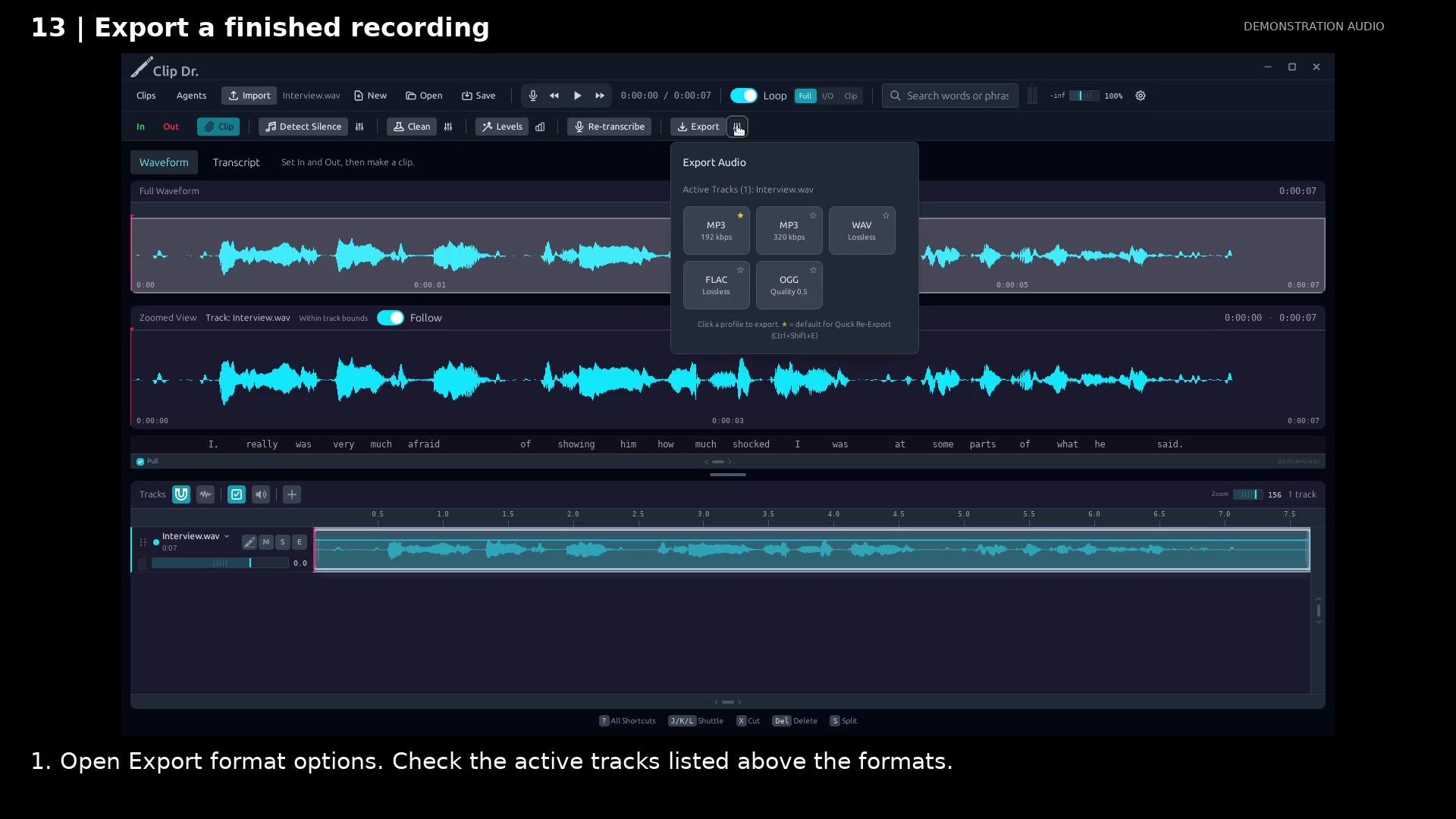
Check the active tracks and available formats. Open full size
- Check which tracks will be exported.
- Choose a format tile to export.
- The star sets the quick-export default.
Read the video instructions
- Choose the format you need, then keep a favorite for the next export.
- 1. Open Export format options. Check the active tracks listed above the formats.
- 2. The star chooses your Quick Re-Export default. The format tile performs an export.
- 3. Choose a destination and filename. This example exports a lossless WAV.
- WAV, MP3, FLAC, and OGG are available. Use the format that fits the destination.
Audio credits
LibriSpeech excerpts 1688-142285-0007 and 1272-128104-0000, collected by Vassil Panayotov, Guoguo Chen, Daniel Povey, and Sanjeev Khudanpur from LibriVox, are used under CC BY 4.0. Excerpts have been trimmed, resampled, padded, or processed. The voice-replacement example uses an original synthetic voice.