
Android · 1:06 video
Edit a censor span on Android
Add a manual mark, move its timing, choose a censor mode, and save it.
Before you start: Choirboy for Android with a recording open and prepared for editing.
Download videoDownload captions
Step by step
Open the editor
From Playing, tap the pencil labeled Edit censor marks. The editor shows the overview, detailed waveform, words, and hits.
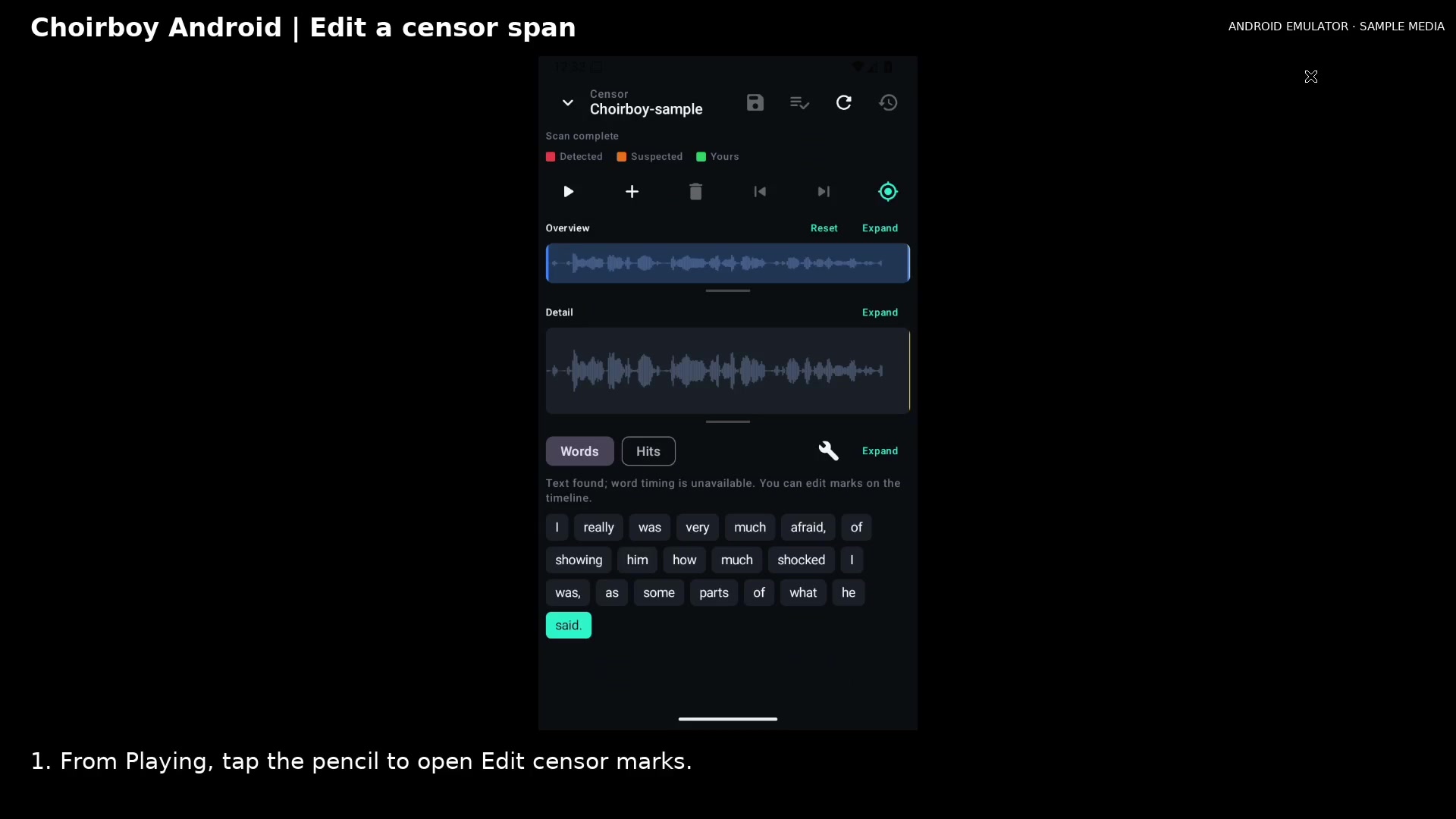
Open the censor editor Open full size
- Editor controls
Add your mark
Tap Add mark to create a manual span in the visible timeline. Manual marks appear in the Yours color.
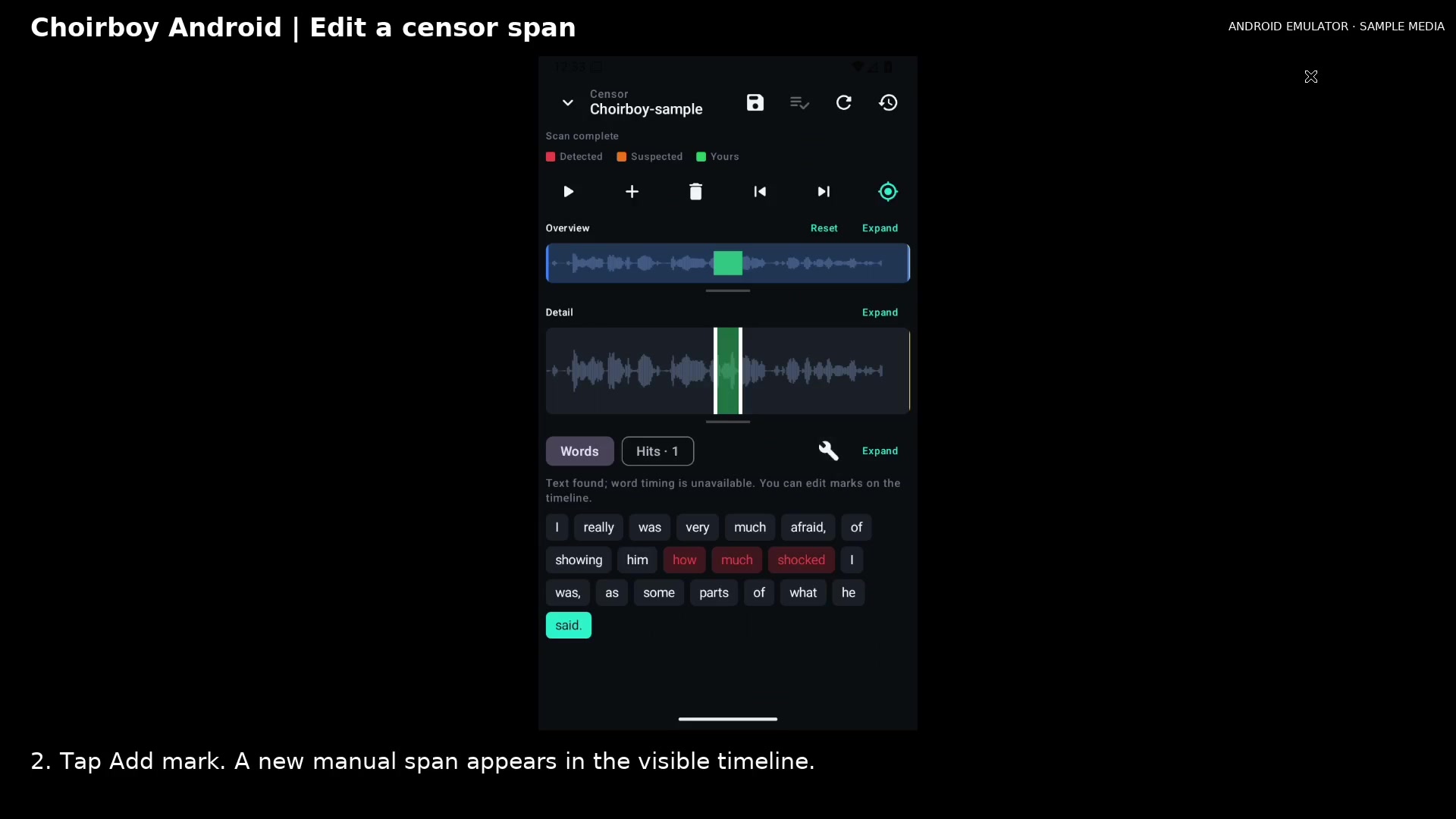
Add a manual span Open full size
- Add a manual mark
Move the mark
Drag the selected mark in Detail to move the interval it covers.
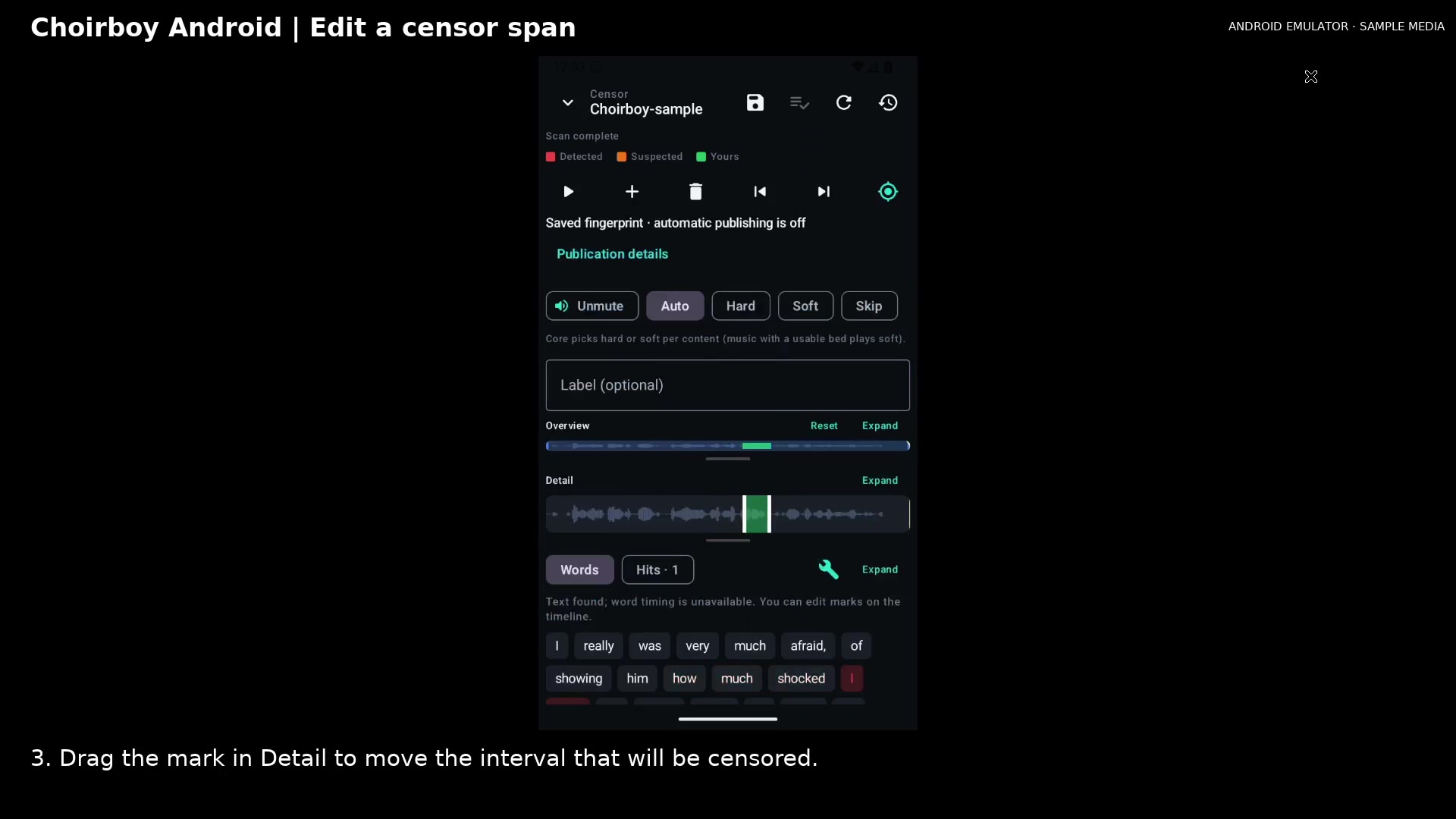
Move the manual span Open full size
- Moved manual interval
Choose mode and label
Open Tools for the selected span. Choose a mode and enter a label. Hard silences the marked interval.
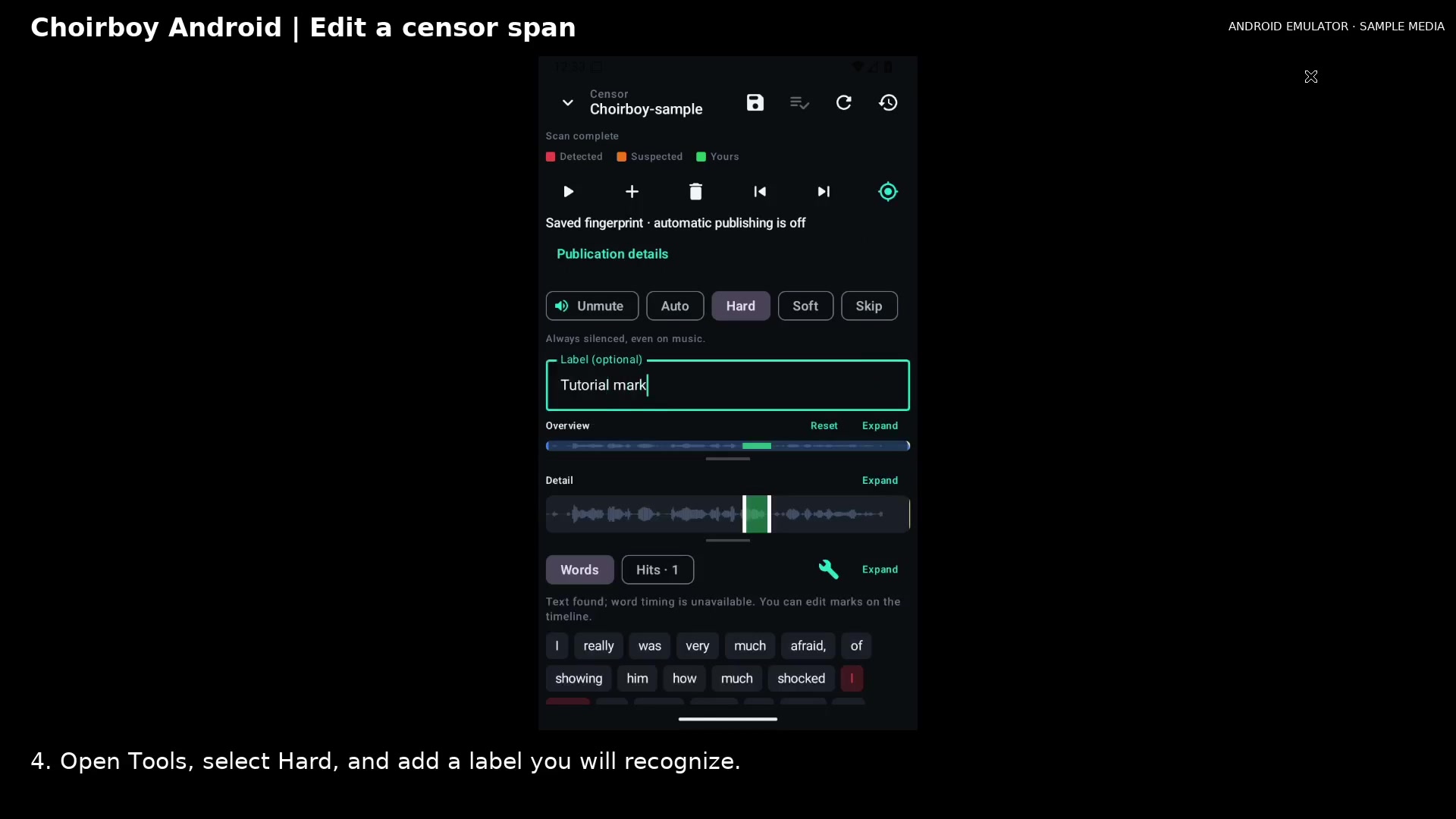
Choose a mode and label Open full size
- Hard mode
- Your label
Save the edit
Tap Save and wait for it to finish. The Save control becomes inactive once the edit is stored. Reopen the editor and check Hits to review the stored mark.
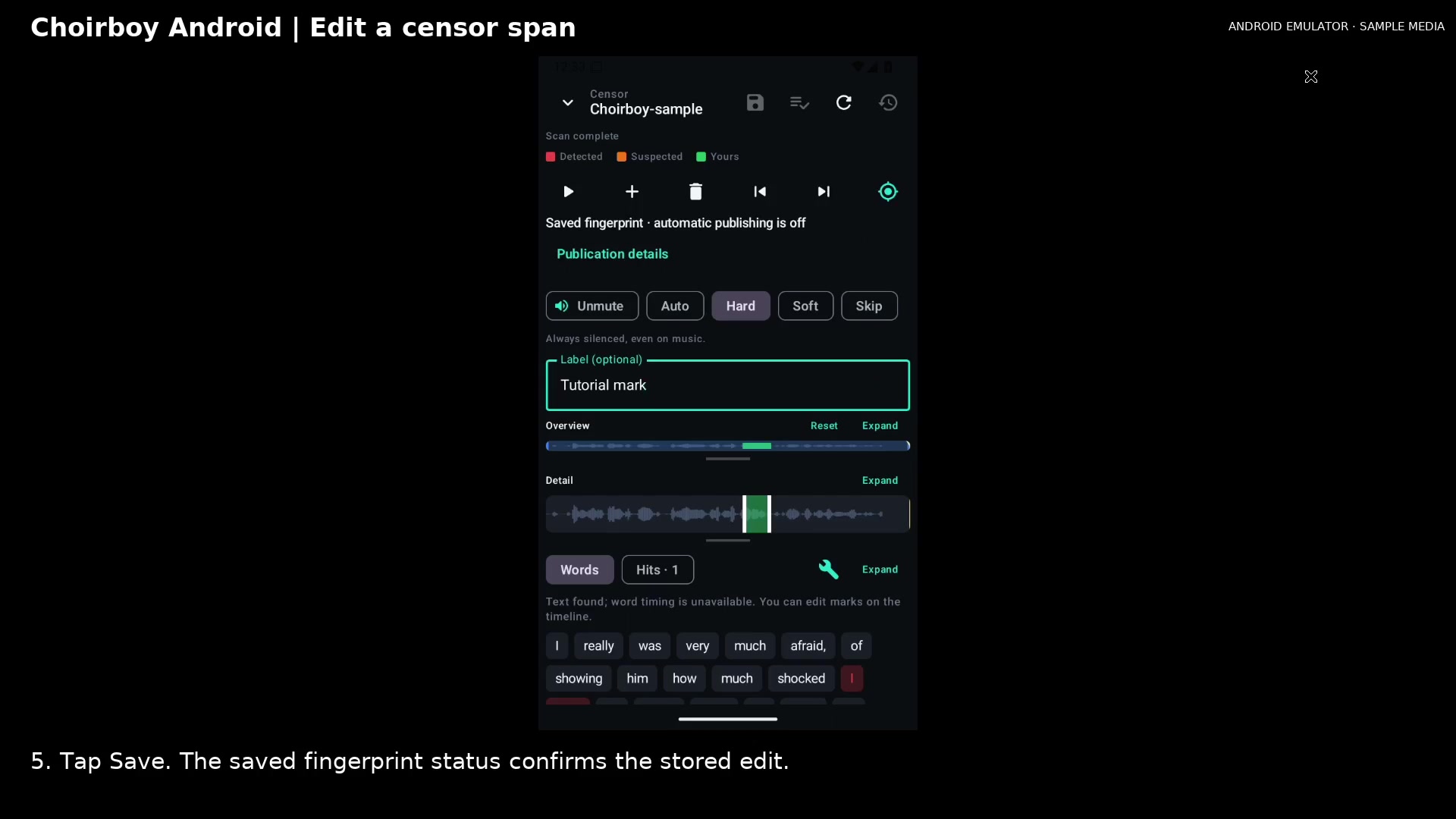
Save the edited fingerprint Open full size
- Save completed
Read the video instructions
- Add a manual mark, move it on the timeline, choose a mode, and save.
- 1. From Playing, tap the pencil to open Edit censor marks.
- 2. Tap Add mark. A new manual span appears in the visible timeline.
- 3. Drag the mark in Detail to move the interval that will be censored.
- 4. Open Tools, select Hard, and add a label you will recognize.
- 5. Tap Save. The saved fingerprint status confirms the stored edit.
- This sample has no word timing, so editing uses the timeline. Automatic publishing stays off.