
Desktop · 0:36 video
Arrange cards and draw a connection
Separate overlapping cards and label why two items belong together.
Before you start: A board with at least two cards.
Download videoDownload captions
Step by step
Move a card
Drag its title or body to a new position. The red pin and edge dots start connections.
Arrange the board
Choose auto-arrange to place related cards beside one another. Use Undo to restore their previous positions, or Redo to restore the arrangement.
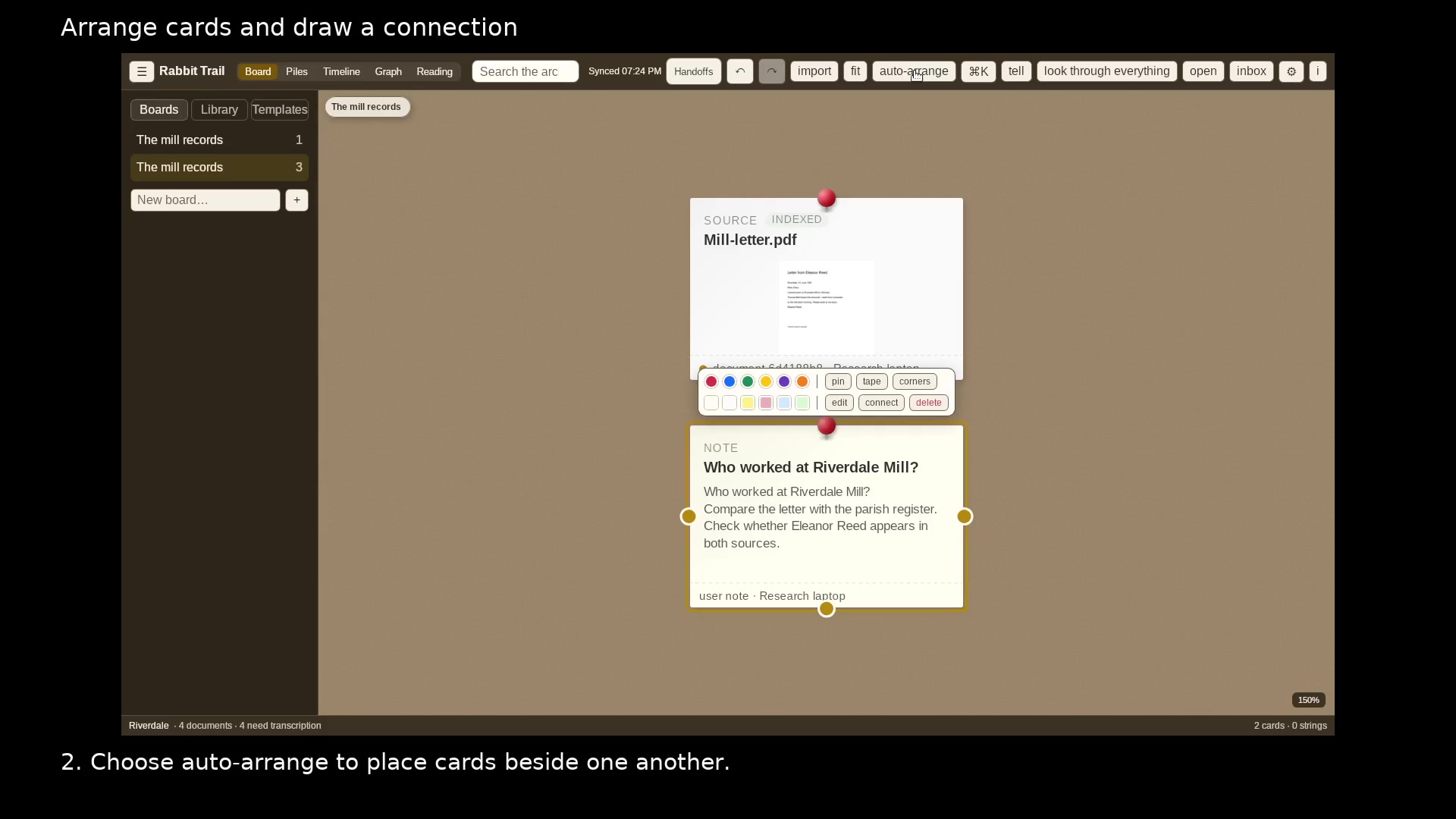
Arrange the board without overlapping cards. Open full size
- Move a card by dragging its title or body.
- Auto-arrange keeps neighboring cards separate.
Draw a connection
Drag a connection dot from the right, left, or bottom edge to another card. You can also start from the red pin.
Name the link
Enter a label that explains the relationship and choose Save. Click the saved connection to edit its label.
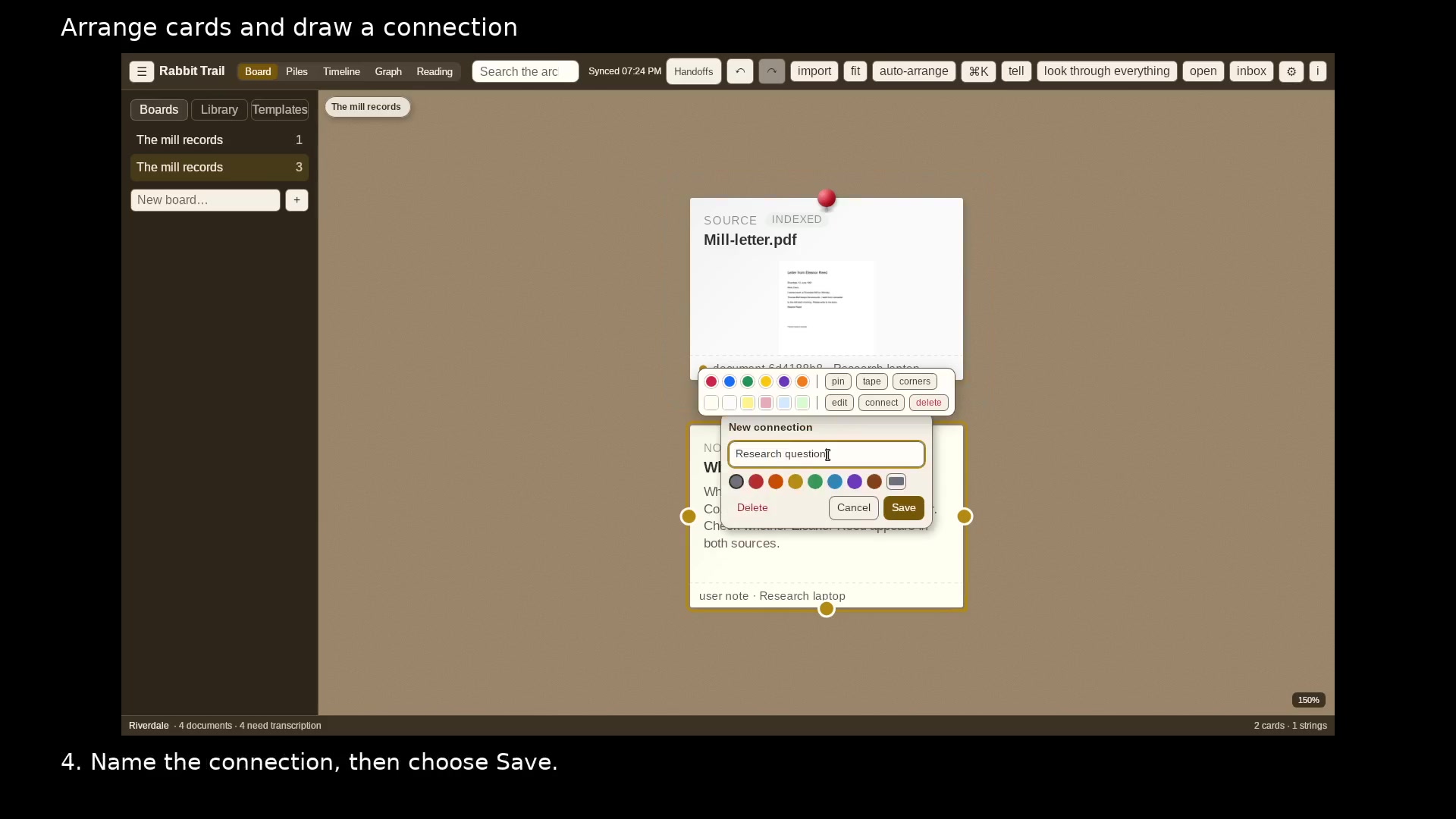
Say why these cards belong together. Open full size
- Use a label that explains your connection.
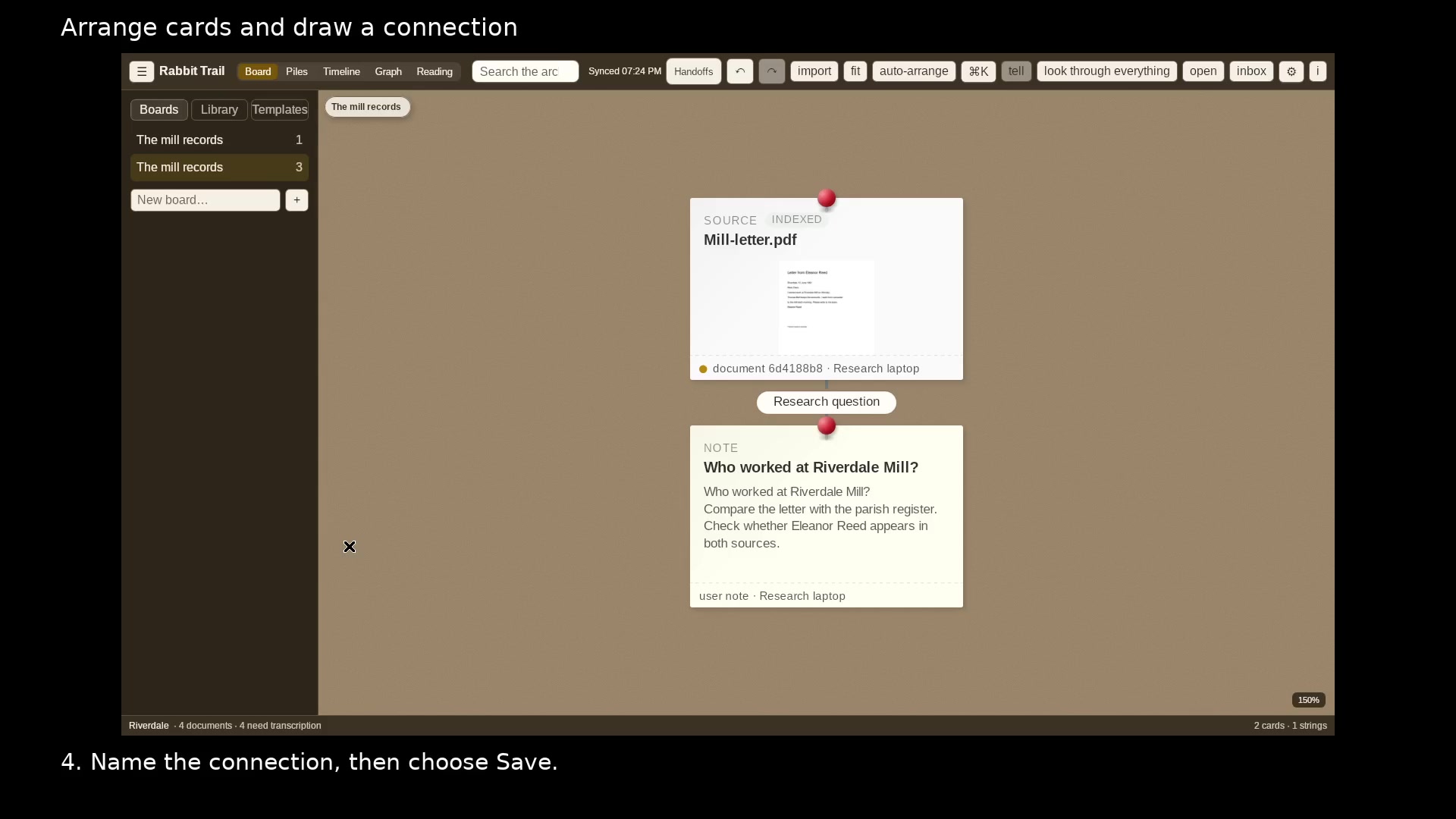
The saved label stays on the connection. Open full size
- Click the connection to edit its label.
Read the video instructions
- Move cards into a useful order and label the connection between them.
- 1. Drag the middle of a card to move it around the board.
- 2. Choose auto-arrange to place cards beside one another.
- Undo reverses the layout change. Redo restores it.
- 3. Drag a edge dot to another card to draw a connection.
- 4. Name the connection, then choose Save.
- You can also start a connection from the red pin or the left and bottom edge dots.