
Desktop · 0:26 video
Make a cleaned copy
Apply a cleanup preset while keeping the source available.
Before you start: A selected audio track.
Download videoDownload captions
Step by step
Review the treatment
Open Cleaning settings beside Clean. Review the preset and individual processing controls.
Match the recording
Choose a preset that fits the material, or enable only the processing you need. A stronger treatment is not always better.
Create a cleaned copy
Close the settings and choose Clean. When processing completes, compare the new track with the source.
Keep or undo
Keep a useful result, or use Ctrl + Z to remove the cleaned copy. The source recording remains unchanged.
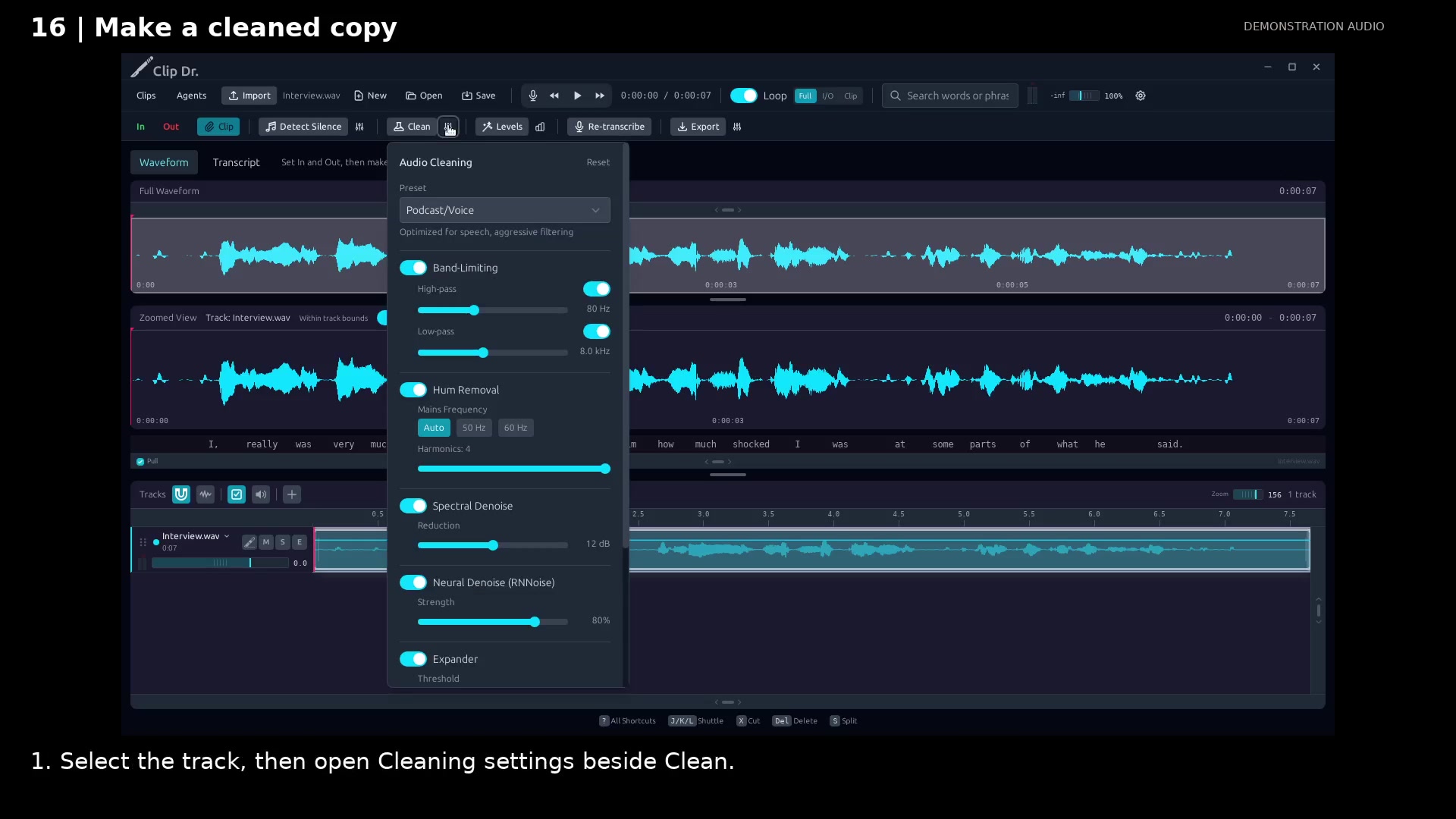
Review the cleanup preset and controls. Open full size
- Choose a preset for the type of recording.
- Enable only the treatment you need.
- Clean creates the processed copy.
Read the video instructions
- Review the cleanup settings, process the selected track, and keep the source available.
- 1. Select the track, then open Cleaning settings beside Clean.
- 2. Choose a preset that fits the recording, or adjust only the processing you need.
- Processing runs locally. Wait for the result before continuing.
- The result is ready to review.
- 3. Compare the result. Undo removes the cleaned copy when you do not need it.
- Use Clean for a cleanup preset. Open Surgery when one passage needs closer attention.
Audio credits
LibriSpeech excerpts 1688-142285-0007 and 1272-128104-0000, collected by Vassil Panayotov, Guoguo Chen, Daniel Povey, and Sanjeev Khudanpur from LibriVox, are used under CC BY 4.0. Excerpts have been trimmed, resampled, padded, or processed. The voice-replacement example uses an original synthetic voice.