
Desktop · 0:34 video
Make your first clip
Keep the useful passage from a recording in four steps: Import, In, Out, and Clip.
Before you start: An audio file. No speech model or account is needed.
Download videoDownload captions
Step by step
Import the recording
Choose Import and open your audio file. Its waveform appears in the overview, zoomed view, and track list.
Mark the passage while listening
Click the waveform to position the playhead. Press Space to play, I at the start of the excerpt, and O at its end. Press Space again to pause. The shaded area shows the selection.
Make a clip
Press C or choose Clip. A new excerpt appears after the existing audio; the source recording stays in the project.
Undo when needed
Ctrl + Z undoes the edit. Ctrl + Shift + Z restores it. These are the Linux shortcuts shown in this video.
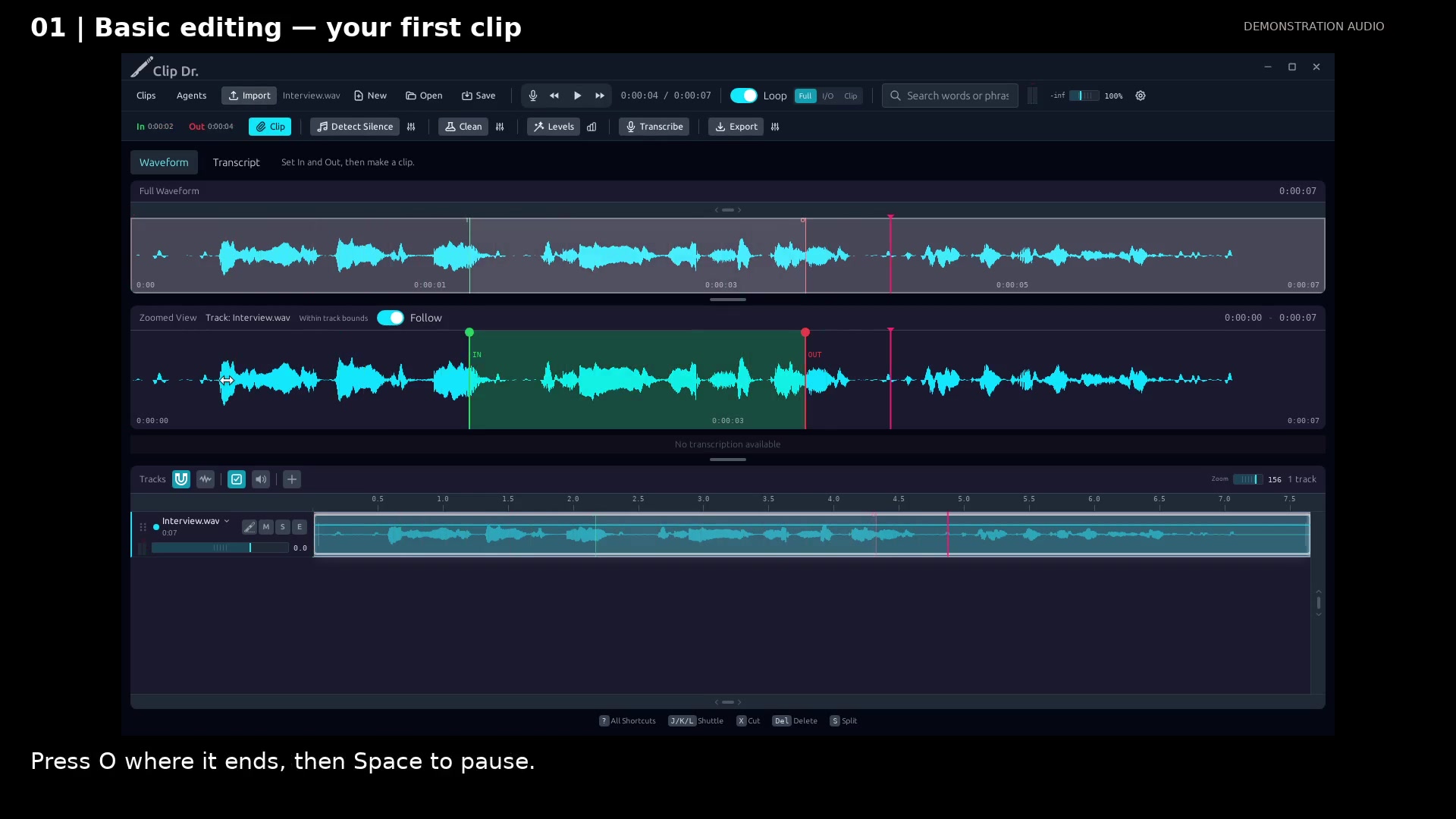
Set In and Out. Open full size
- In: the beginning of the excerpt.
- Out: the end of the excerpt.
- Clip creates the selected excerpt.
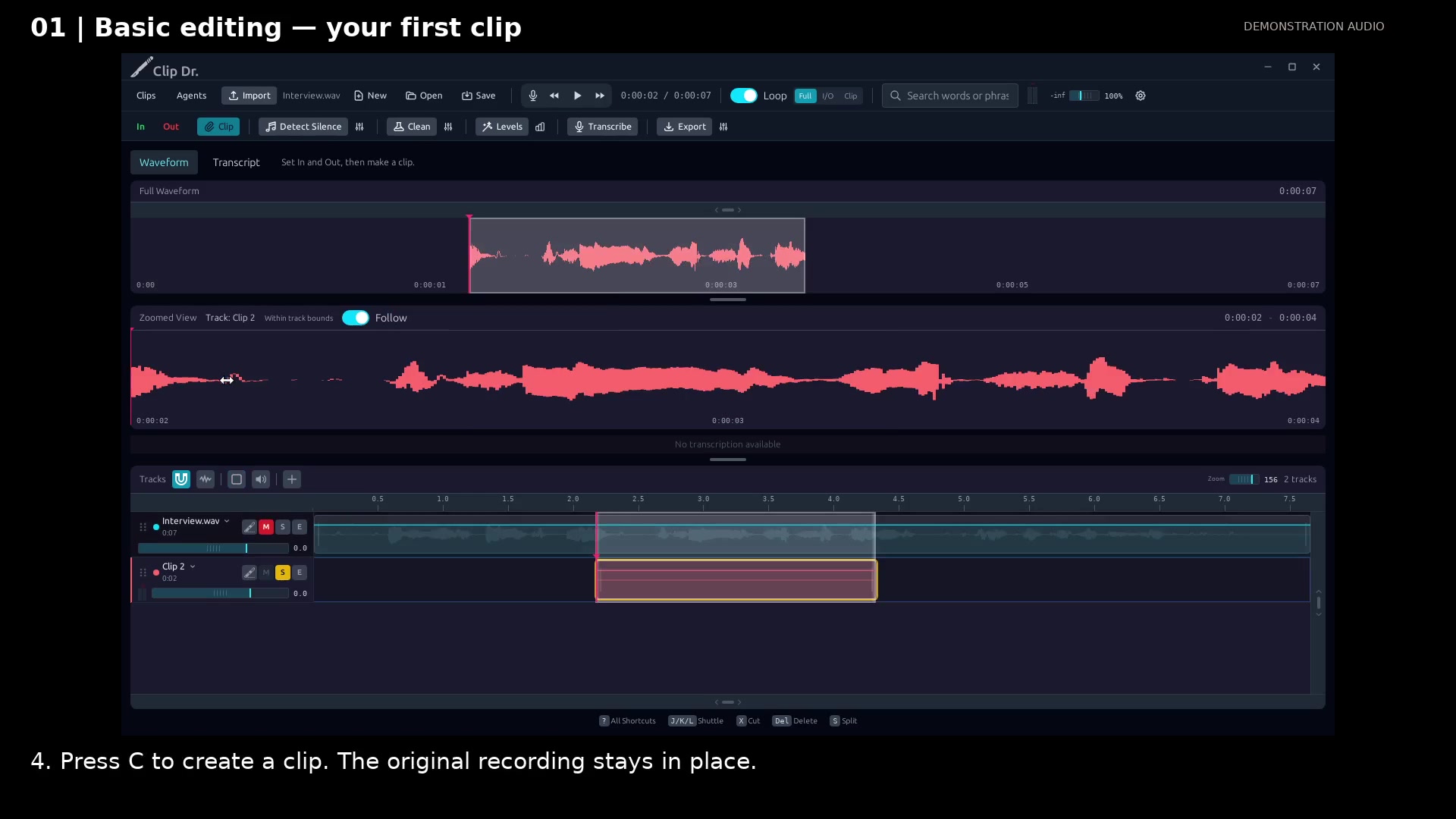
Create the clip. Open full size
- The original recording remains available.
- The excerpt is a separate track.
Read the video instructions
- Import a recording, choose the useful passage, and make a clip.
- 1. Choose Import, then open the recording you want to edit.
- 2. Click in the waveform to position the playhead. Space plays or pauses.
- 3. Press I where the excerpt starts. Keep listening.
- Press O where it ends, then Space to pause.
- 4. Press C to create a clip. The original recording stays in place.
- Made the wrong cut? Ctrl + Z undoes it. Ctrl + Shift + Z brings it back.
- The basic workflow: Import → In → Out → Clip. Use Undo whenever you need it.
Audio credits
LibriSpeech excerpts 1688-142285-0007 and 1272-128104-0000, collected by Vassil Panayotov, Guoguo Chen, Daniel Povey, and Sanjeev Khudanpur from LibriVox, are used under CC BY 4.0. Excerpts have been trimmed, resampled, padded, or processed. The voice-replacement example uses an original synthetic voice.