
Website · 0:27 video
Download and inspect your published fingerprint
Find an account contribution, download its fingerprint data, and open the editor with matching local media.
Before you start: A signed-in Choirboy account with a published fingerprint. Preview also requires your matching media file.
Download videoDownload captions
Step by step
Find your contribution
Open My fingerprints from your account. Find the recording you published while the app was connected to your account.
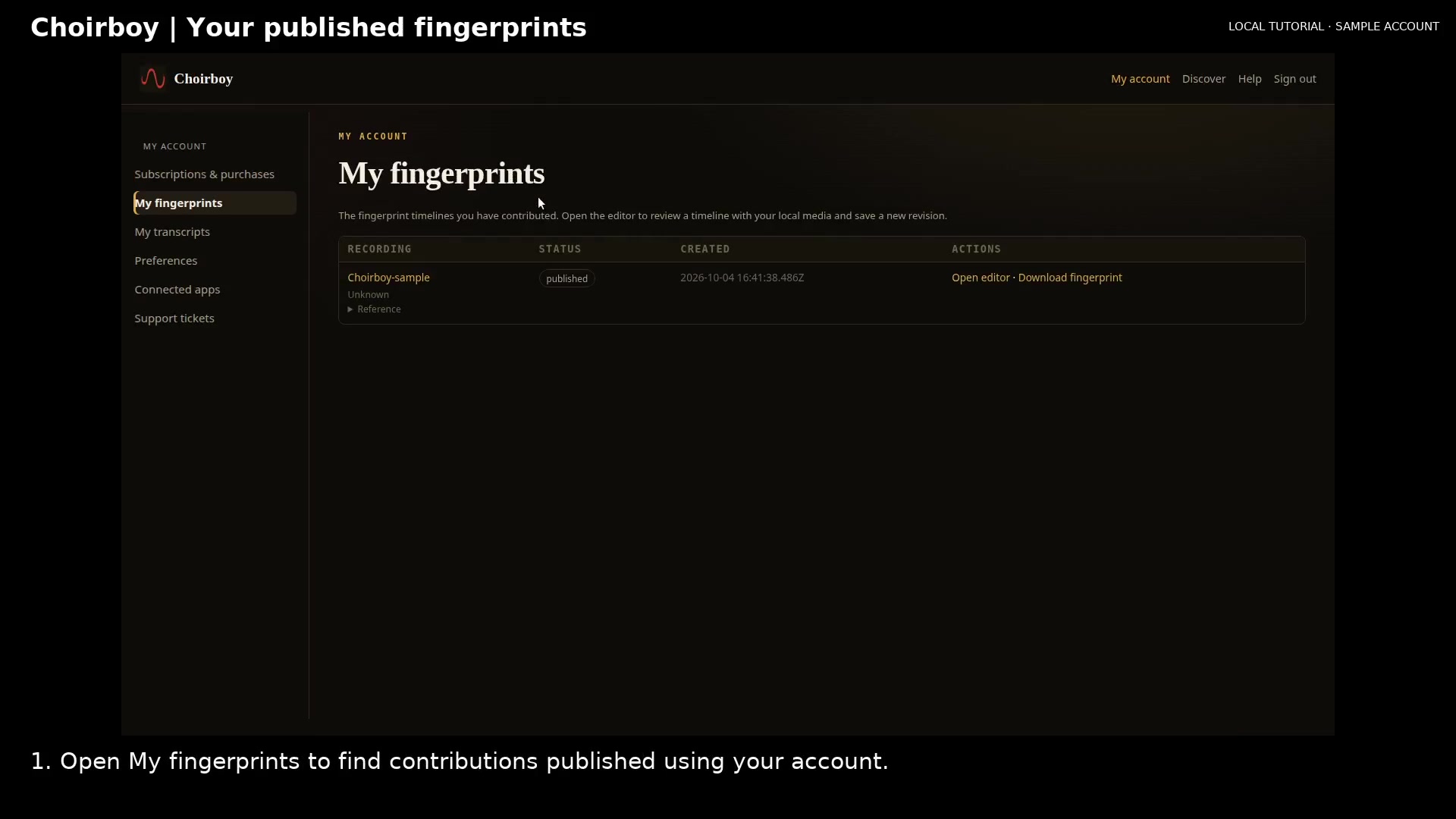
Find your published fingerprint Open full size
- Your published contribution
Download its fingerprint
Choose Download fingerprint. This saves fingerprint data; it does not download the movie, song, or podcast recording.
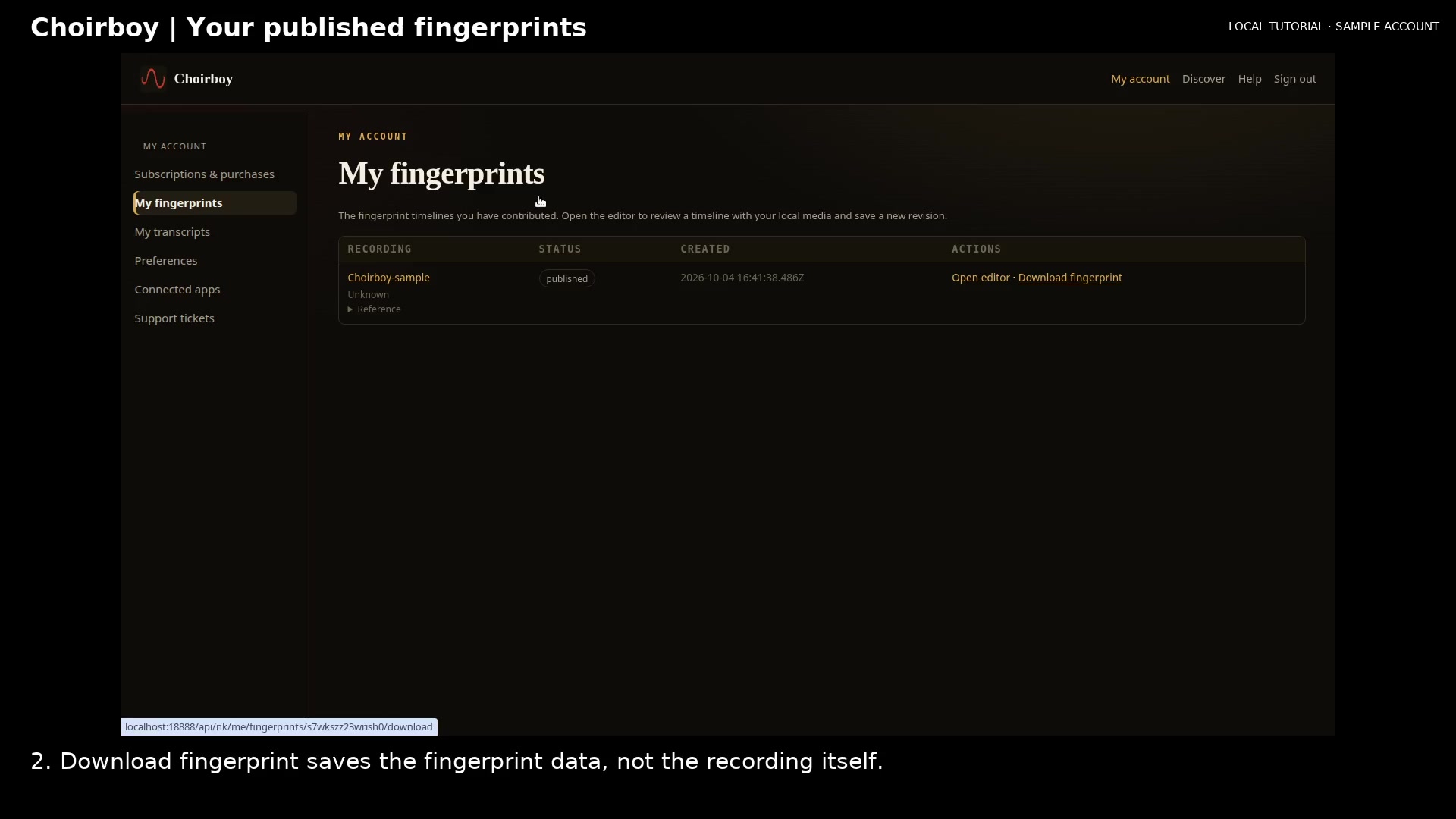
Download the fingerprint data Open full size
- Download fingerprint data
Open the editor
Choose Open editor for the contribution. Review the overview and detail timelines alongside the paired transcript.
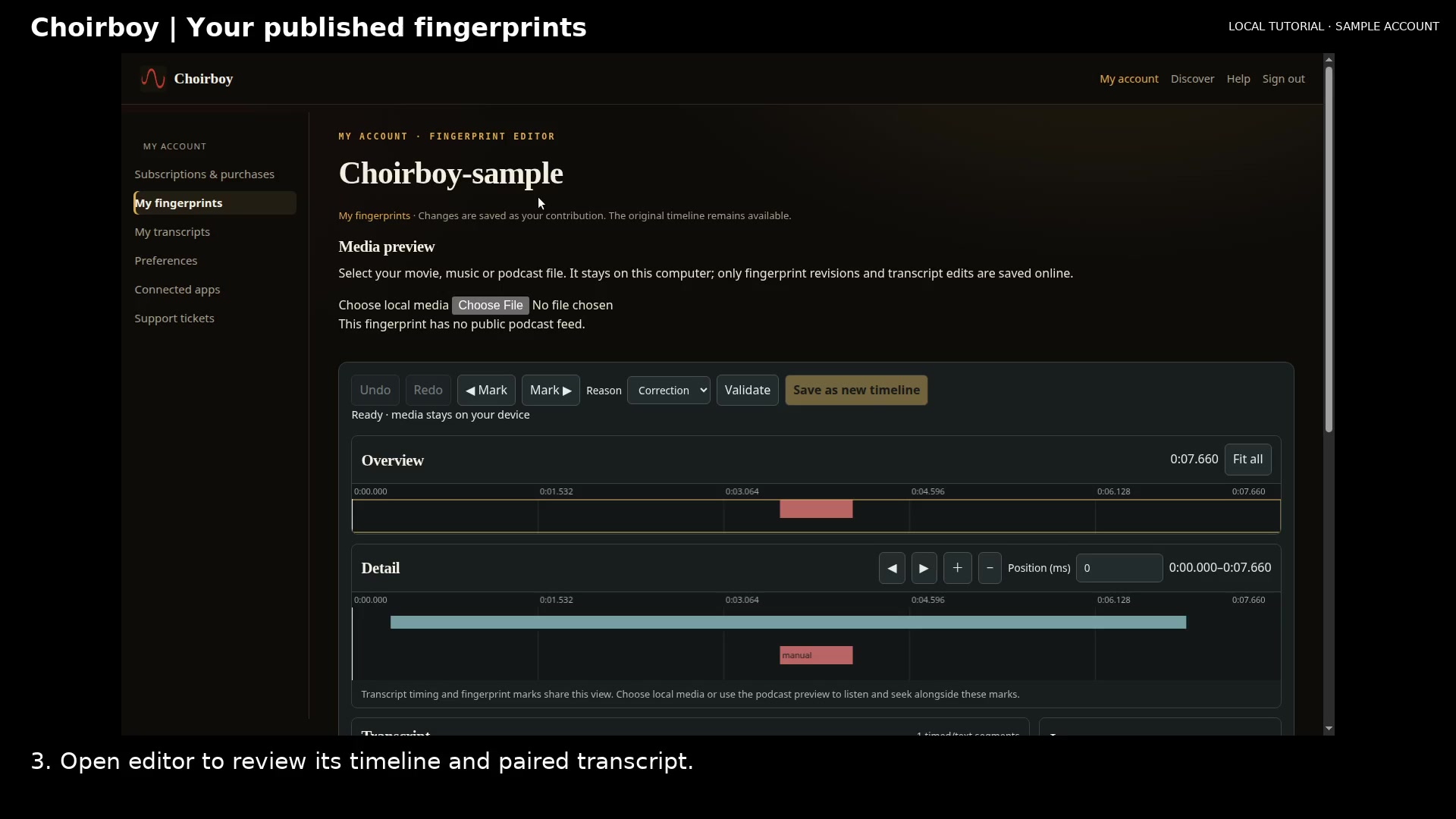
Open the owner fingerprint editor Open full size
- Review the stored timeline
Choose matching local media
Use Choose local media to select the matching recording. Wait for Exact recording verified before previewing. The media stays on your computer.
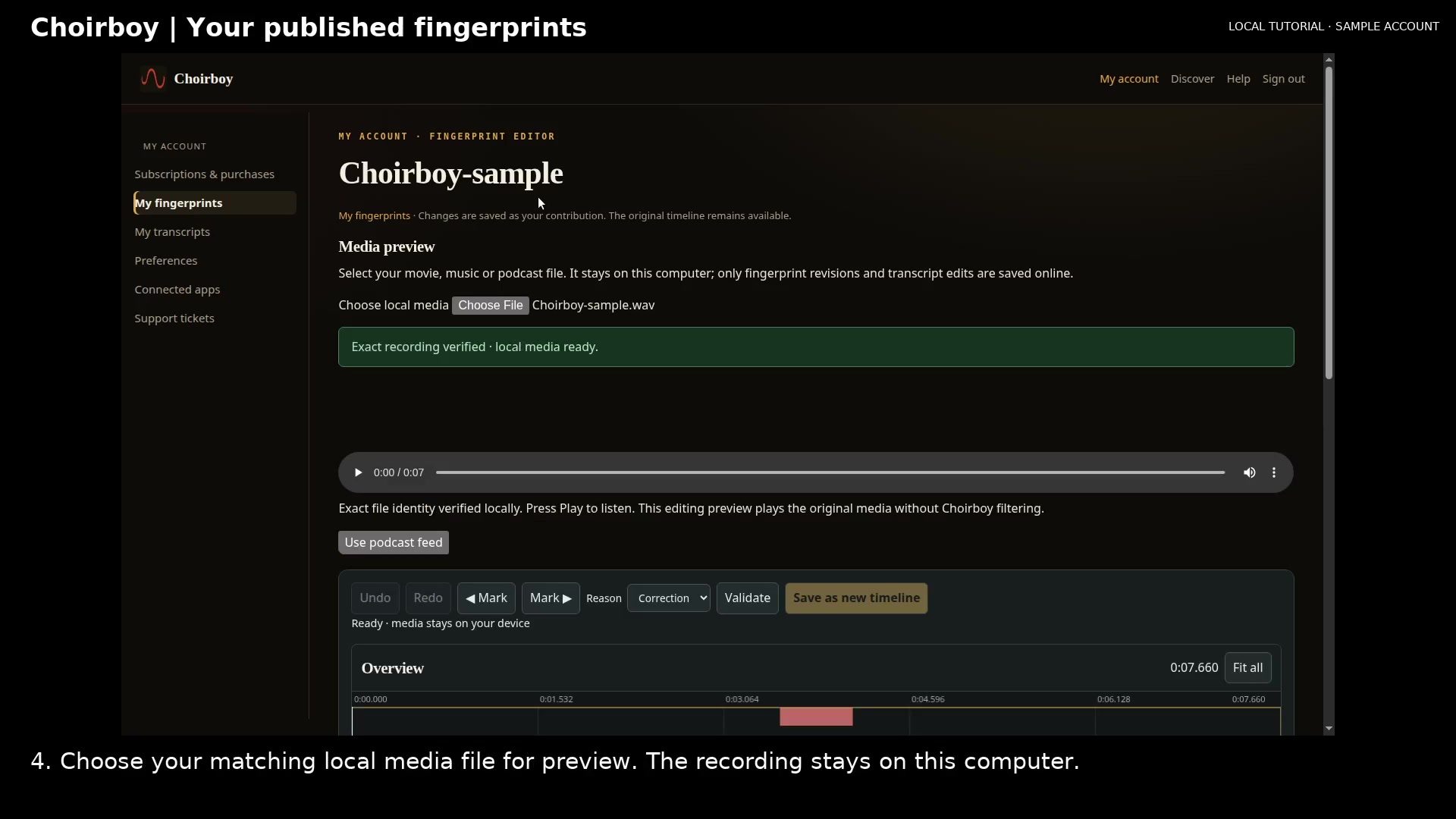
Load matching local media for preview Open full size
- Matching media verified
Read the video instructions
- This local sample account owns the fingerprint published from the desktop app in the earlier guide.
- 1. Open My fingerprints to find contributions published using your account.
- 2. Download fingerprint saves the fingerprint data, not the recording itself.
- 3. Open editor to review its timeline and paired transcript.
- 4. Choose your matching local media file for preview. The recording stays on this computer.
- Use the editor controls to inspect marks. This guide does not save a new fingerprint timeline.