
Current Android 0.27.8 · iPhone coming soon
Find a place to keep in prayer
Move from a local need to regions, churches, and people around the world.
The walkthroughs were recorded in Android 0.22. Original written steps retain their version notes, and current-version guidance appears first where controls have changed. Still images remain labeled with their actual Android 0.26.5 capture version.
Current Android 0.27.8 steps
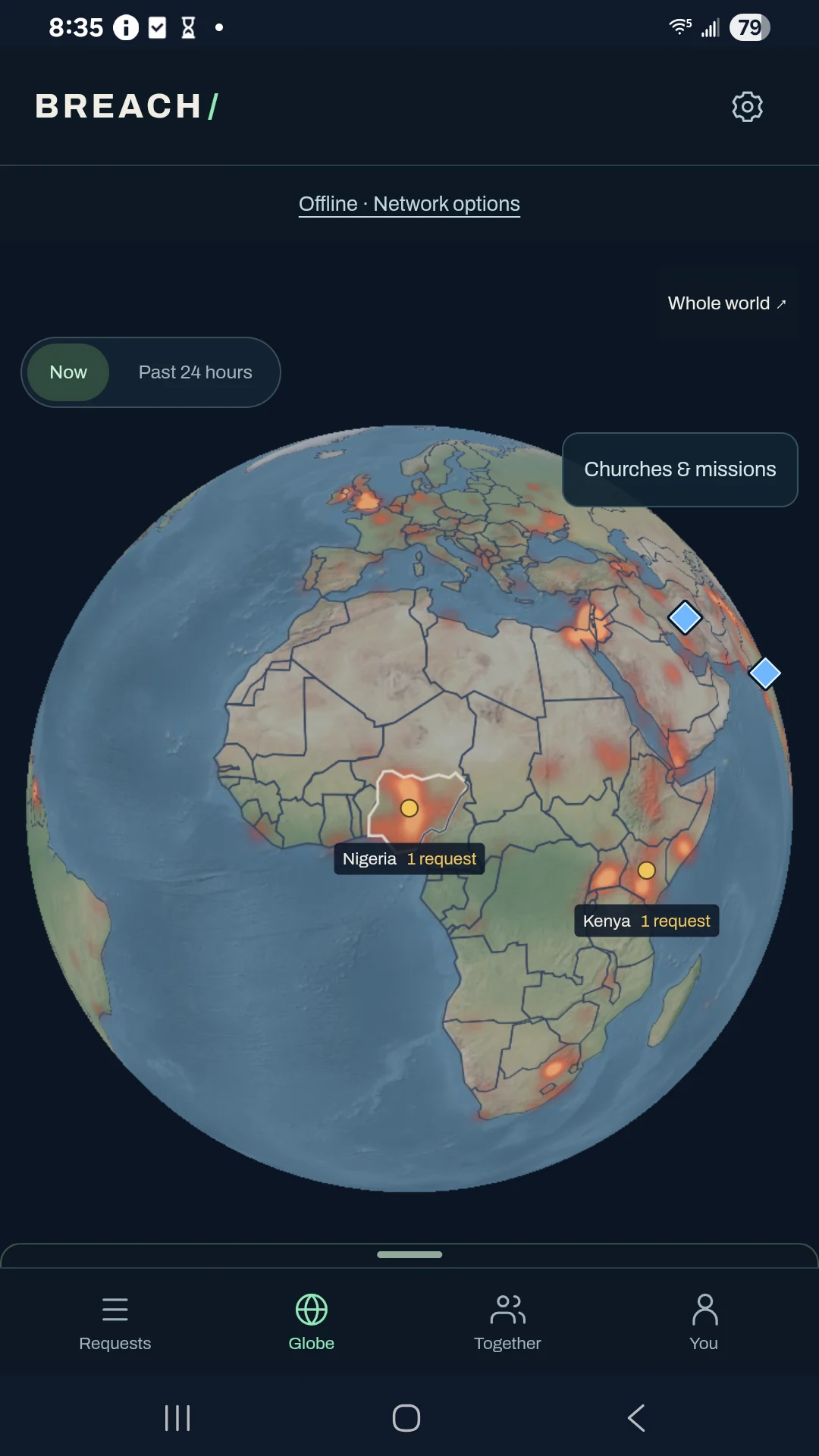
Open Globe → Now for recent activity.
The globe shows requests, headlines and their heat, victories, and prayer observations within a rolling 24-hour display window. Yellow marks requests, red marks report context, blue marks victories, and green marks prayer activity. The dates supplied with reports and posts determine which items appear.
Refresh public reports.
Open Settings → Sources → Globe data & sources → Refresh reports. Breach opens saved reports first and checks for fresh reports when you open the app with network access allowed. It checks again about every 15 minutes while the app is in the foreground and online, without requiring a visit to the globe. Retry or Refresh reports can request an earlier check. News as of identifies the saved news snapshot’s timestamp; it does not mean a refresh just succeeded. A failed refresh keeps the saved snapshot, but older reports can still leave the globe as its 24-hour window advances.
Read report dates carefully.
For GDELT reports, the globe uses the report’s recorded observation time because its event date may contain only a day. Other sources retain their event time. This does not establish the exact time or location of an event. News reports and shared prayer activity use separate connections.
Read the prayer observation time.
Green markers reflect prayer observations received by this phone, with the last refresh time shown on the map. A new prayer for an older request can appear without bringing the older yellow request marker back. These markers do not pinpoint a person’s physical location.
Replay the past day in 15-minute steps.
Choose Past 24 hours and use the timeline or play button. Replay places available news, requests, victories, and received prayer activity by their recorded times, including available phone-only prayer history. Reconnecting can fill available history. No data received marks a gap in this phone’s record, not that nobody prayed; green marks do not count everyone praying or establish how long someone else prayed.
Read the replay chart and colors.
The Prayer activity chart uses higher dots for more prayers received in that step. Move the slider to see that time on the globe: green marks prayers, yellow marks requests needing prayer, and blue marks victories. The chart reflects activity available to this phone, not everyone praying.
Clear derived playback data when needed.
Open About this history → Clear playback cache. This clears the derived playback cache and rebuilds available frames when you move the slider. It does not erase original prayers, journals, identity keys, or settings. Deleted, hidden, or no-longer-permitted posts stay excluded from playback.
Keep your saved history separate from the map.
The globe’s 24-hour cutoff does not delete saved Activity or journal entries. Their existing retention rules still apply. Find retained posts in Activity and your saved prayers under You → History.
The display window advances when you open the globe, return to the app, and about every 15 minutes while active, including offline. A connection is still needed to receive new shared observations and reports.
Refresh depends on network permission, connectivity, and the public news provider. It does not promise background updates or uninterrupted coverage. Cached reports may be too old for the current map.
The map is not a complete worldwide prayer record. Source dates can be approximate; a report date does not establish an exact event time or location.
Captured in Android 0.26.5
Actual Galaxy A14 screenshot with fictional examples, captured offline. The current download is Android 0.27.8; the walkthrough below was recorded in 0.22.0.
0:44 · Recorded in the Android app
Follow along at your own pace.
Recorded on a Galaxy A14 in Breach 0.22.0. The example people, groups, and prayers are fictional. This silent walkthrough includes English instructions.
Download video (0.6 MB) · Download captions
Read the video instructions
- The globe brings prayer requests and places together.
- Find a country without sharing your location.
- Choose Nigeria to frame the region and open its feed.
- Lower the shelf to give the globe room.
- Yellow marks requests. Green marks observed prayer. Blue marks victories.
- Past 24 hours uses observations saved on this phone.
- A gap means no observation was saved. It is not a worldwide absence of prayer.
- Return to recent saved activity, then to the present.
Earlier guide steps and version notes
Open Globe.
Select a place or a visible headline to turn and frame its region. Use the bottom shelf to browse requests, headlines, or victories. Pull the shelf down to its small handle for more room.
Understand the colors.
Red heat reflects report context near approximate locations. Yellow dots show prayer requests at region centers. Green shows saved observations of prayer activity. Blue shows victories. No dot pinpoints a person.
Choose what you read.
Church-related headlines appear by default. In Settings, add comma-separated Keywords for other interests. Enabling all headlines first shows a reminder to read news with discernment.
Look back honestly.
The 24-hour scrubber shows observations available on this phone. Gaps mean the phone has no observation for that time; the view is not a complete worldwide prayer record.
Explore resources.
Under You, open Churches, peoples & Scripture resources. Filter US church listings privately by denomination or individual church. People-group and Scripture references open their attributed sources where detailed data is available.