
Current Android 0.27.8 · iPhone coming soon
Choose who sees your prayer
Understand connection risks and choose what to share.
The walkthroughs were recorded in Android 0.22. Original written steps retain their version notes, and current-version guidance appears first where controls have changed. Still images remain labeled with their actual Android 0.26.5 capture version.
Current Android 0.27.8 steps
Open You → History.
You has separate Reminders, Lists, Requests, and History views, with Profile in the header. History includes saved local entries and your own shared prayers that are not already represented by a saved entry. Each card keeps its type label, date, visibility, words, and actions together. A prayer for a request is still labeled Prayer.
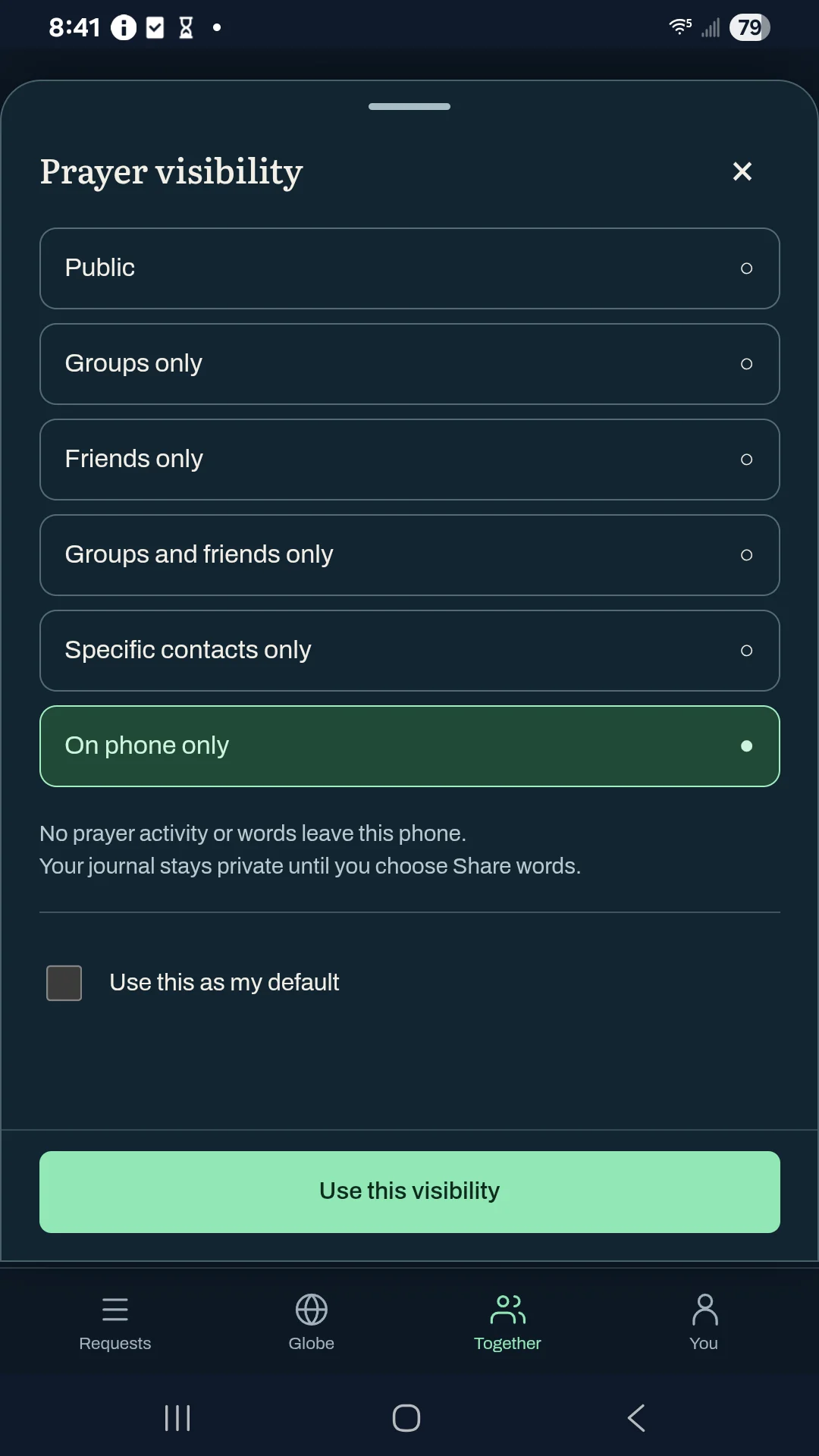
Review Visibility.
Choose Public, Groups only, Friends only, Groups and friends only, Specific contacts only, or On phone only. A saved audience for a particular prayer takes precedence over your general default. Without either saved choice, a new prayer starts On phone only. Each list item keeps its own audience. Sharing journal words requires an explicit sharing action.
Edit a saved prayer.
In You → History, use More → Edit prayer beside an entry, change the title or words, and review Visibility. Save changes keeps a phone-only edit; Save and share sends the displayed title and words to the selected audience. A successful save closes the editor. If saving fails, read the error and keep the draft open.
Keep a local copy when withdrawing words.
Choosing On phone only preserves your journal before requesting removal of a previously shared copy. If a network update fails, the local edit and draft remain available. Earlier recipients may still have their own copies.
Save a prayer for an invited person.
Breach can retain activity and words you explicitly authorize for a selected invitee. After that person accepts and verifies the invited address, eligible saved prayers can be delivered encrypted to the connected identity. A matching address or tag alone does not release them. Unshared journal words are not included.
Read the delivery state.
Saved for …; not delivered means the prayer is waiting. Received by … means the receiving app acknowledged it, not that the person read it. Delivery can wait for connections or available storage. Edits, audience changes, blocks, withdrawals, and deletion limit what remains eligible to send.
Consider who may receive retained history.
New friends can receive retained prayers you explicitly shared with friends. Members of selected private groups can receive retained history shared with that group. Specific contacts never expands to all friends, and selecting no groups does not automatically include groups you join later.
If history is full, saving a new private copy can be refused instead of discarding an older journal. Read any error before assuming a visibility change completed.
Ordinary friend/group feed history remains bounded by the original 30-day signed-post lifetime. The separate archive of explicitly authorized prayers waiting for invited recipients is not limited by that transport lifetime or the relay’s one-day cache. Private journals are not a source for either delivery path.
Phone-only words do not switch off other app traffic. Audience changes and author deletion cannot guarantee removal of previously delivered copies.
Captured in Android 0.26.5
Actual Galaxy A14 screenshot with fictional examples, captured offline. The current download is Android 0.27.8; the walkthrough below was recorded in 0.22.0.
0:34 · Recorded in the Android app
Follow along at your own pace.
Recorded on a Galaxy A14 in Breach 0.22.0. The example people, groups, and prayers are fictional. This silent walkthrough includes English instructions.
Download video (0.4 MB) · Download captions
Read the video instructions
- Begin a personal prayer. No prayer words are posted automatically.
- Write as you pray. Your journal starts private.
- Prayer activity and prayer words have separate privacy choices.
- Friends means the specific partners you choose.
- Review the exact words before sharing. Recipients may retain their copies.
- Keep editing, or return to Private. Reviewing does not send anything.
- Your prayers → History holds the journal on this phone.
Earlier guide steps and version notes
Consider your safety before sharing.
Breach is not an anonymity tool. Shared prayers travel over the internet and independent relays. If using Breach could put you at risk, do not assume your activity is unmonitored. Networks, relay operators, or people with access to your device may observe app use or connection information.
Choose your presence.
For a shared request or place, choose phone-only prayer, a named signal, or anonymous presence. Phone-only sends no prayer signal; anonymous presence uses a fresh identity for that prayer.
Keep journaling private.
Journal and speech text are saved on this phone with your prayer. Typing, editing, or transcribing never publishes words by itself. Keeping words private does not turn off the app’s network traffic.
Share words deliberately.
Who can read these words? defaults to Private. Public lets anyone read them. Friends lets you select contacts; Group lets you select a private group. Words sent to selected friends or a private group are encrypted. Review sharing shows the actual words before Share these words.
Read your own history.
Your prayers → History shows local prayer records and editable journal text. Deleting a history entry affects this phone; deleting a shared post is a separate action.
Back up your identity.
Under You, use the password-encrypted Nostr identity export/import controls to move the same identity between phones. Keep the password and encrypted file safe; the identity file is not a backup of every journal or local setting.