
Current Android 0.27.8 · iPhone coming soon
Share a request or a victory
Name a need for prayer, or give thanks for what God has done.
The walkthroughs were recorded in Android 0.22. Original written steps retain their version notes, and current-version guidance appears first where controls have changed. Still images remain labeled with their actual Android 0.26.5 capture version.
Current Android 0.27.8 steps
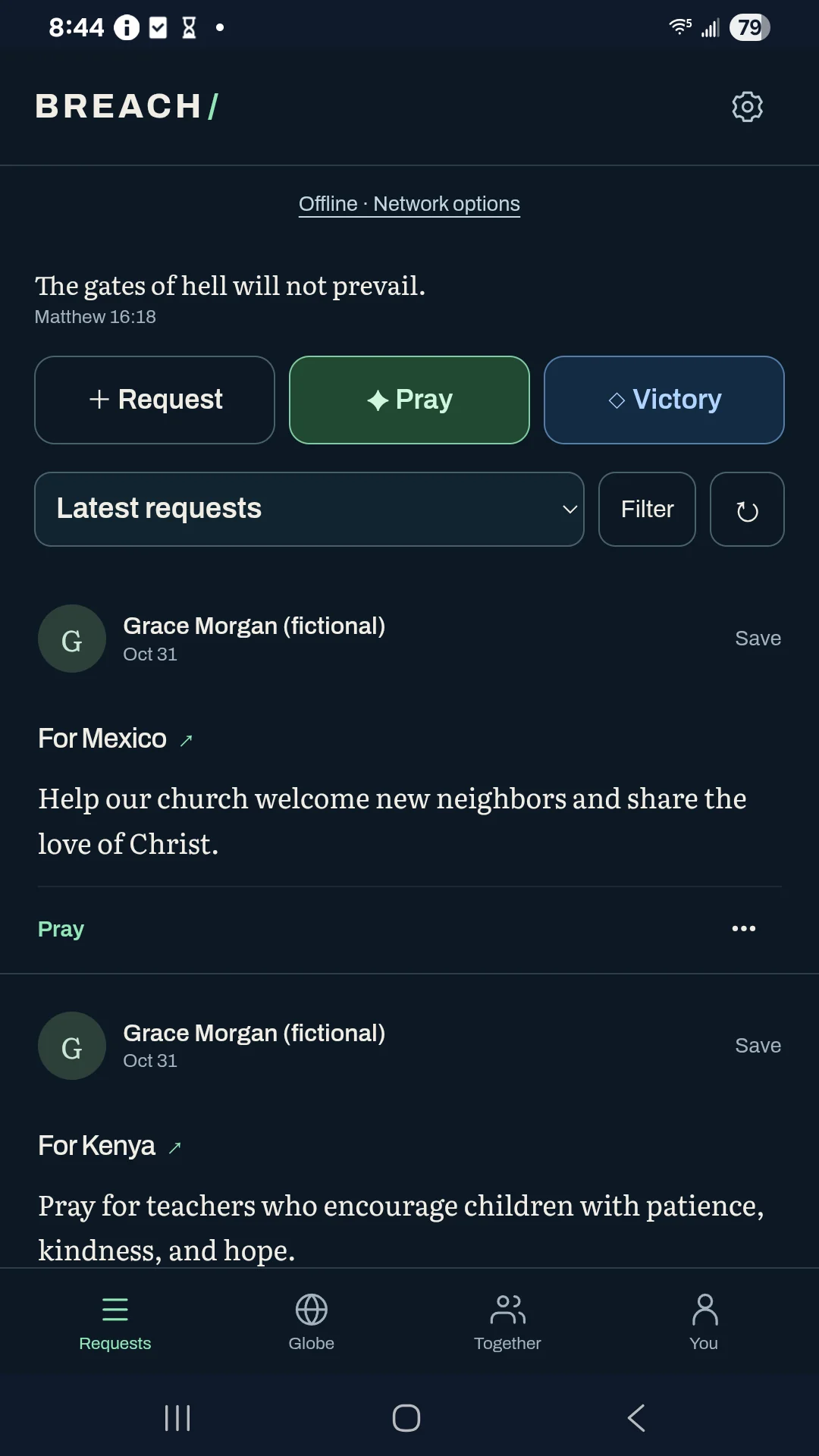
Open Activity for the shared feed.
The main Requests destination is now Activity. It keeps the existing shared requests, prayers, permitted prayer activity, and filters. Open the prayers beneath a visible request to read the shared prayer words or activity you are allowed to see.
Recognize your own saved prayer in Activity.
Your own prayer-activity entry can show its saved prayer title when that history is available on this phone. That label comes from your local history; this change does not add titles to prayer-activity messages sent to other people. Sharing words and their title remains a separate choice.
Find your own requests under You → Requests.
Your public, restricted, and phone-only requests appear here. A shared request and its saved local copy appear once without deleting either underlying copy. Yellow Request labels distinguish request cards from green Prayer cards in your personal views.
Edit a post you wrote.
Use More → Edit request or Edit prayer on your own post. Review its words and Visibility. Request editing also includes place, prayer focus, and status. Choose Save changes when ready.
Review the audience before saving.
Changing the audience creates a copy for the selected audience before asking for the old shared copy to be removed. Delivery depends on connections and recipients. On phone only keeps a local copy. Copies already delivered can remain elsewhere.
Hidden or unavailable requests do not reveal extra prayer words or details through their replies. A prayer-activity entry without shared words shows only the permitted author and time.
Editing a prayer does not erase separate activity already shared. Delete and Remove from this phone remain separate actions.
Captured in Android 0.26.5
Actual Galaxy A14 screenshot with fictional examples, captured offline. The current download is Android 0.27.8; the walkthrough below was recorded in 0.22.0.
0:38 · Recorded in the Android app
Follow along at your own pace.
Recorded on a Galaxy A14 in Breach 0.22.0. The example people, groups, and prayers are fictional. This silent walkthrough includes English instructions.
Download video (0.6 MB) · Download captions
Read the video instructions
- Start a prayer request with a struggle, a decision, or a simple need.
- Say how others can pray. This is a fictional example.
- Review before sharing. A place is optional.
- Share sends this public request to your chosen relays.
- A victory is a separate story of thanksgiving.
- Name what you are thankful for.
- Review the story and audience before posting.
- Share victory gives thanks without marking another request answered.
Earlier guide steps and version notes
Choose Request or Victory.
Use the three actions at the top of Requests. Each opens its own shelf. Pull its handle down to collapse it without losing the draft.
Write simply.
A request can be any spiritual struggle or need. A victory has a name and an optional story. Avoid private names, exact addresses, or details another person has not agreed to share.
Review the audience and place.
Continue or Review victory shows what will be shared. Public requests and victories can include a place or public group. For a private group, use its own encrypted sharing controls instead.
Share when ready.
Choose Share prayer request or Share victory. Offline work is saved and sent when relays become reachable. A saved post may still be waiting for a connection; saving is not a delivery receipt.
Manage your own posts.
Use the post menu to delete your own request or victory. Request status can be updated without creating a victory. A shared victory does not automatically mark another request answered.