
Current Android 0.27.8 · iPhone coming soon
Schedule gentle prayer reminders
Choose a single time, a weekly rhythm, or reminders throughout the day.
The walkthroughs were recorded in Android 0.22. Original written steps retain their version notes, and current-version guidance appears first where controls have changed. Still images remain labeled with their actual Android 0.26.5 capture version.
Current Android 0.27.8 steps
Open You → Reminders.
Reminders has its own view beside Lists, Requests, and History. A saved prayer list also has Add reminder and Edit reminder controls. Open an existing reminder to review its schedule, or add a reminder from the prayer or place you want to return to. Weekly reminder rows show their time.
Update a linked reminder’s title.
Editing a prayer’s title also updates its linked saved reminder, including when an audience change replaces a shared prayer. Your reminder time and days stay the same. Read any error before assuming the title saved.
Finish or review the save.
A successful save or removal closes the reminder form and returns you to the originating view. If saving fails, the form stays open with the draft and error. Read that result before assuming a schedule changed.
Find social notifications under Together → Updates.
Together’s former Activity destination is now Updates. These notifications are separate from the main Activity feed and your locally scheduled reminders.
The new organization does not change reminder permissions, sharing audiences, or saved history. Phone notification settings can still delay or prevent a reminder.
Captured in Android 0.26.5
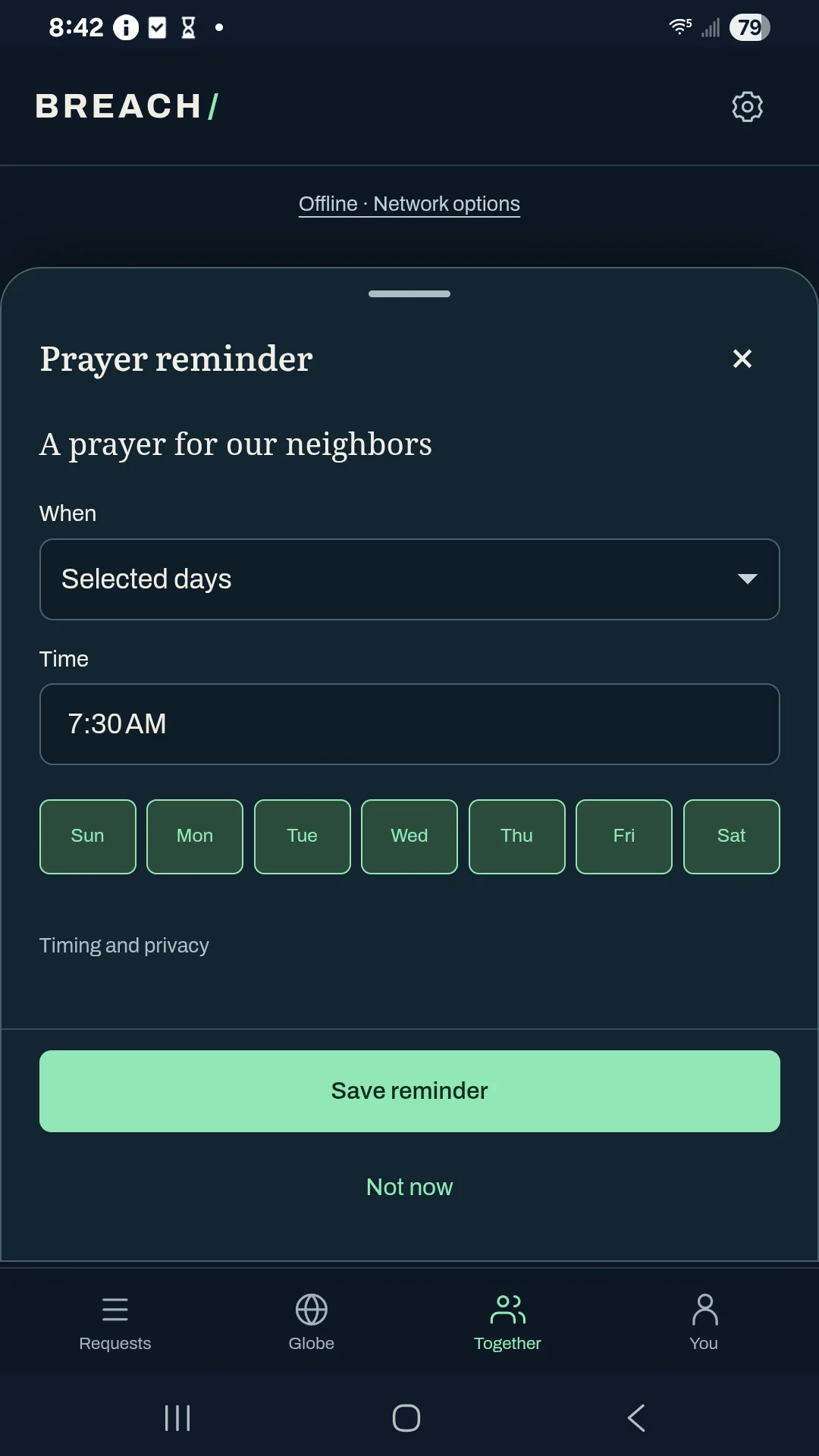
Actual Galaxy A14 screenshot with fictional examples, captured offline. The current download is Android 0.27.8; the walkthrough below was recorded in 0.22.0.
0:43 · Recorded in the Android app
Follow along at your own pace.
Recorded on a Galaxy A14 in Breach 0.22.0. The example people, groups, and prayers are fictional. This silent walkthrough includes English instructions.
Download video (0.4 MB) · Download captions
Read the video instructions
- Your prayers keeps schedules and personal history together.
- Choose a saved prayer to give it a gentle reminder.
- Choose a weekly rhythm, a single time, or throughout the day.
- Choose your first and last times, then how far apart to remind you.
- Save the schedule. Your phone may ask for notification permission.
- Edit a reminder whenever your rhythm changes.
- Remove reminder cancels its notification times.
- History remembers your prayers privately on this phone.
- Your journal remains editable and private.
Earlier guide steps and version notes
Open a saved prayer.
Choose Your prayers in the top bar, then Scheduled. Use Add a reminder beside a personal prayer or watched place. Set the next reminder to pray also leads here from an active prayer.
Choose a rhythm.
On selected days repeats weekly at the local time. Just once uses a date and time. Throughout the day uses selected weekdays, a first time, a last time, and spacing of two, three, four, or six hours.
Save and allow notifications.
Choose Save reminder. The phone may ask for notification permission. Read the result: a saved schedule is distinct from confirmed phone notifications.
Respond to a reminder.
A generic lock-screen message keeps names and prayer details private. Open it to see the scheduled prayer, then choose Pray now.
Adjust or remove it.
Use Edit beside a schedule. Remove reminder cancels its notification times. Check or retry notifications helps after changing notification permission in phone settings.