
Current Android 0.27.8 · iPhone coming soon
Invite and pray for a partner
Bring someone you know into your prayer circle. Android is available now; iPhone is coming soon and is not available to install yet.
The walkthroughs were recorded in Android 0.22. Original written steps retain their version notes, and current-version guidance appears first where controls have changed. Still images remain labeled with their actual Android 0.26.5 capture version.
Current Android 0.27.8 steps
Choose an invited person.
Under Visibility → Specific contacts only, saved email invitees appear as Invited — not connected. Select the people who may receive the prayer. Naming someone as the person you are praying for does not grant access. Your journal stays private unless you choose Share words.
Reconnect an older invitation.
In Together → Partners, open the invited person and choose Send verification invitation when offered. Review and send it yourself. Updating Breach does not resend old invitations or treat an email address as a verified connection.
Choose how to verify an email.
Open and review an email invitation in Breach, or go to You → Profile → Emails → Add email. Enter Your email. Under How to verify, Email me a code is selected by default; nk.tools sends the code. Choose Request code, then enter or Paste the code and choose Verify email. Read the result in Breach; mail acceptance alone does not mean verification succeeded. Email is optional.
Use another Breach phone, if you prefer.
Choose Another Breach phone and select a connected prayer partner, or open that person’s email invitation. Both phones need a version supporting this method. Your partner opens the request under Emails → Verification requests and chooses Send code to open their configured email app. Their Breach phone creates and checks the code; nk.tools is neither the verifier nor the mail courier for this method. Opening the email app does not send or prove delivery by itself.
Read code and synchronization status.
Codes expire after three calendar months; the app shows the deadline. Request a new code invalidates the old code when the selected verifier processes the replacement. An offline request cannot do that immediately. Check status refreshes an automatic association, including one already verified. A completed association does not expire automatically.
Remove an email deliberately.
Choose Remove email and confirm. Existing prayer partners, received prayers, and journals remain. Other devices need synchronization or Check status to learn about removal. In-flight and delivered email cannot be recalled, and copies of earlier evidence may remain in backups or on other phones.
Open Together → Partners → Invitations.
Your email receipts and shared invitation links stay here after you close the invitation form or restart Breach. Refresh checks your saved delivery status; it does not send another invitation.
Read what the status actually confirms.
Queued and Retrying mean delivery is still pending. Accepted by mail provider means the mail service accepted the message; it does not confirm inbox placement or reading. If a refresh fails, the last saved receipts remain visible.
Cancel or edit a pending invitation.
Use Cancel email or Edit invitation when offered for a pending job. Read the returned result: a job already accepted or handed off for sending may be too late to cancel. Editing prepares a replacement draft; sending still requires your explicit action.
Recall a link independently.
Use Recall link beside an active invitation and confirm. The link stops connecting new partners. This does not erase a delivered email or remove an existing prayer partner. If an older receipt cannot be matched to one link, use the matching link listed separately.
An email already accepted by the provider cannot be edited or recalled. Link recall and email delivery are separate states.
Invitations remain subject to their expiration. Do not resend merely because a receipt refresh failed or the recipient has not replied.
Common questions
Do I need email or nk.tools to use Breach?
No. Email is optional, and ordinary prayer does not depend on the automatic verifier. Another Breach phone remains an independent verification method, using that person’s configured email app. It still needs upgraded peers, email delivery, and connections between the participating apps.
Does verifying my address add a friend or share my prayers?
No. Verification associates an email with your Breach identity. Connecting to an inviter requires acceptance of that exact signed invitation and matching evidence. Verification alone grants no new audience access and does not share private journals.
What does nk.tools receive and retain?
For automatic verification, the app sends the selected email address, public identity key, and code to nk.tools. The service retains private signed evidence containing the email address, not just a hash. It receives no prayers, journals, or address book, and does not provide a public email directory. Mail records and verification evidence have different retention rules; see the email-verification section of the privacy policy.
Does verification expire when the code expires?
No. A code expires after three calendar months. An accepted association does not expire automatically. Mailbox verification does not establish legal identity or transfer someone else’s saved prayers to a new identity.
What happens to an older invitation or an unused method?
Older invitations keep their original verifier. New invitations can offer both methods; the first accepted method stays selected. Canceling an unused method does not replace that accepted proof. An inviter’s Recall link cancels the invitation as a whole. Updating Breach does not silently switch an older invitation to nk.tools.
Does removing an email erase every copy?
No. When nk.tools processes removal, it clears the active challenge, verification assertion, and code hash. It retains signed removal, identity, mailbox-hash, and operation records. Backups and other phones may retain earlier evidence. Existing partners, received prayers, and journals remain.
Captured in Android 0.26.5
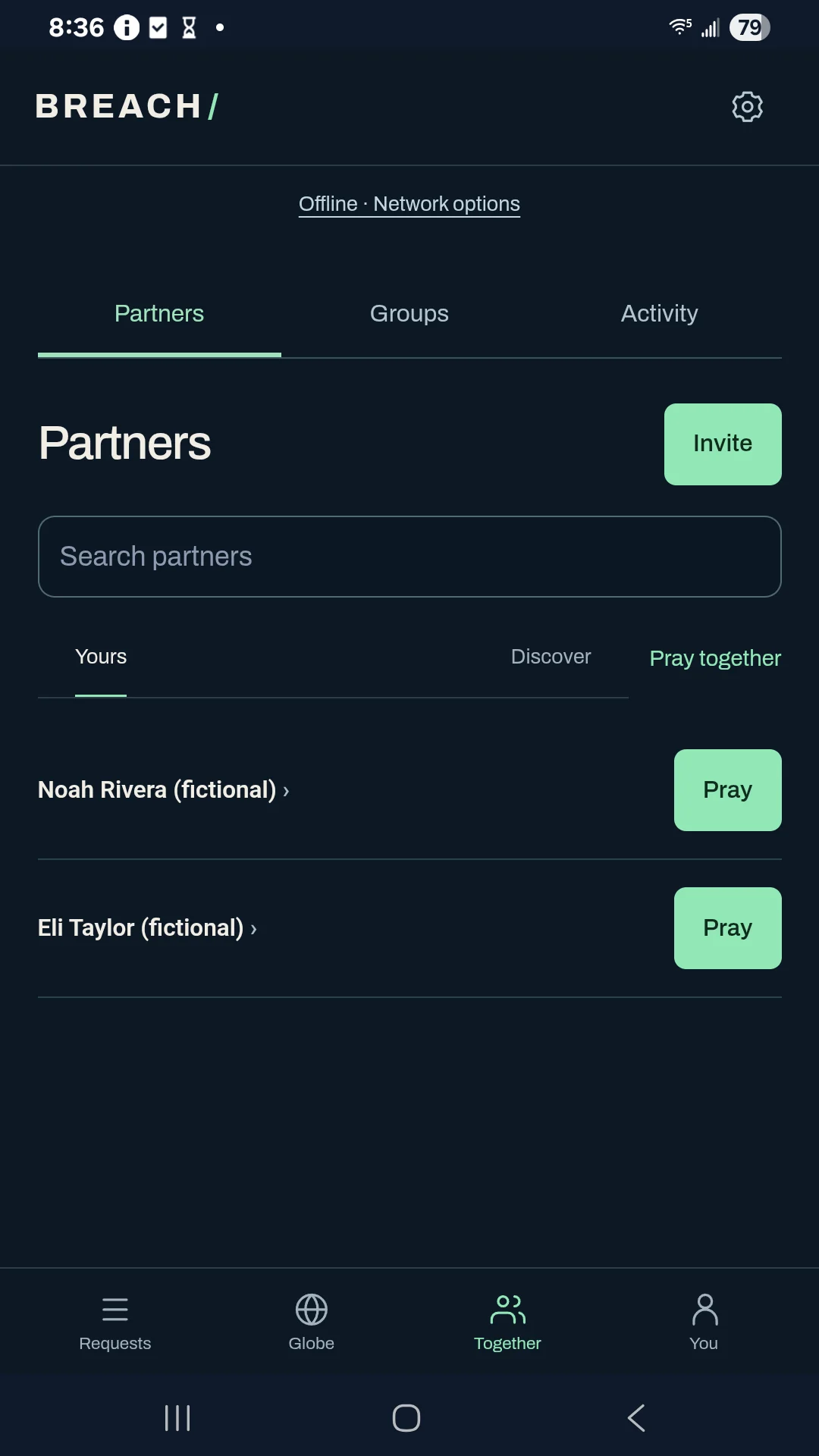
Actual Galaxy A14 screenshot with fictional examples, captured offline. The current download is Android 0.27.8; the walkthrough below was recorded in 0.22.0.
0:38 · Recorded in the Android app
Follow along at your own pace.
Recorded on a Galaxy A14 in Breach 0.22.0. The example people, groups, and prayers are fictional. This silent walkthrough includes English instructions.
Download video (0.4 MB) · Download captions
Read the video instructions
- Together keeps your prayer partners and groups in one place.
- These example partners are fictional. Choose someone to pray for.
- The prayer begins immediately. Silent, written, and spoken prayer share one timer.
- Let your partner know you prayed. Words stay private unless shared separately.
- Add or invite connects a new person through a link or QR.
- Create an invitation to share with someone you know.
- Phone contacts are optional. Breach does not upload your address book.
- A link or QR brings your partner to a review step.
Earlier guide steps and version notes
Open Together → Partners.
Your partners are people saved on this phone. Add or invite offers a link, a contact QR, an invitation link, or a public Nostr identity.
Create an invitation.
Choose Invite with a link or email, enter your name, and create the invitation. Share the link or QR. Your phone’s sharing app lets you decide whether to send it.
Send an email in versions that offer Email.
Breach 0.23 adds Together → Invite → Email. Enter or select one recipient, check your display name, add a message if you want, and choose Send invitation. Niche-Knack sends that invitation for you. You do not need to sign in to an email account or configure a mail server. Earlier versions can still share a link through your phone’s sharing app.
Read the delivery status.
Queued means the request is saved for sending. Accepted means the mail server accepted it; it does not prove inbox placement or that the person read it. If the result is uncertain, check its status before sending again. Retry keeps the same invitation request so a lost response does not create another email. A failed request keeps your draft available.
Use contacts only if you want to.
Choose from phone contacts explains what Breach reads. Choose contacts with email asks the operating system for permission. A known saved identity opens that partner; other email contacts can receive an invitation. Breach does not upload the address book or discover installed apps from email.
Confirm one another.
The recipient opens the link, reviews the signed identity, and requests partnership. The inviter opens Together → For you and confirms Add as prayer partner after checking the person.
Pray for them.
Choose Pray for them to start the same quiet, journal, or speech prayer. Let [name] know I prayed sends a prayer-activity notice. Words remain private unless shared separately.
Manage the relationship.
Open a partner’s profile to edit their local name or email, remove them, block them, or report the identity. Blocked or muted people remain manageable from Partners.